Table of Contents
Appearance
Use these settings to customize the way Liberty looks.
To change the Appearance Options:
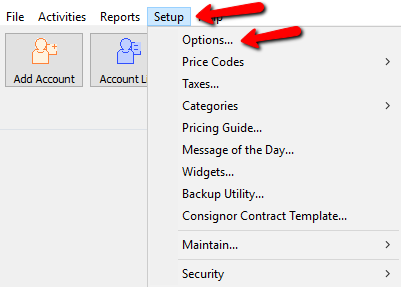
- From within the Inventory Module, select Setup > Options.
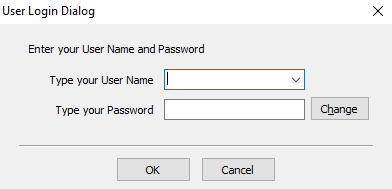
- Login if prompted.
- Select Appearance.
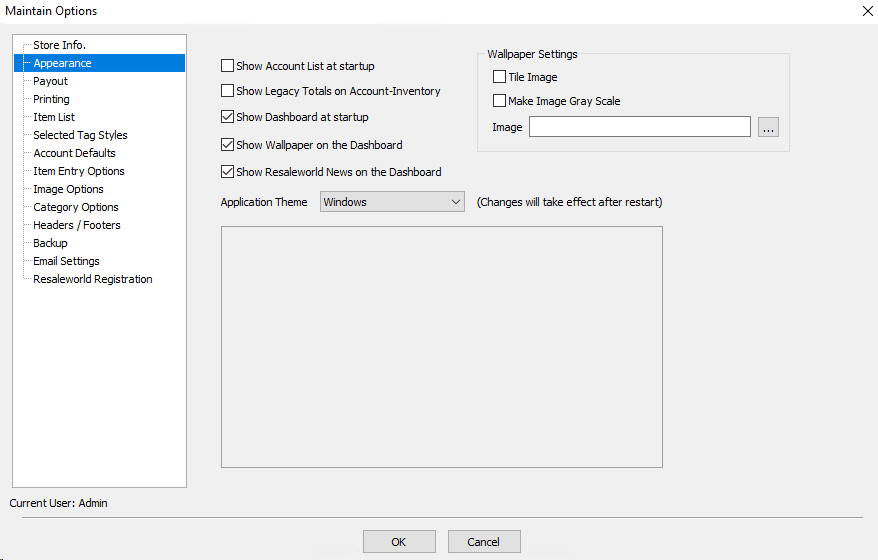
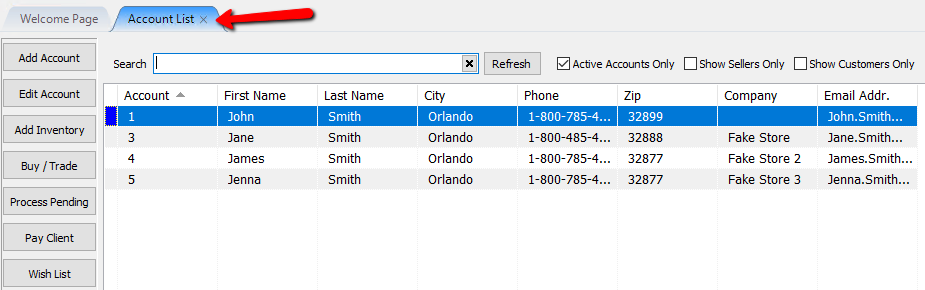
- Show Account List at Startup : Will display the account list when the software opens.
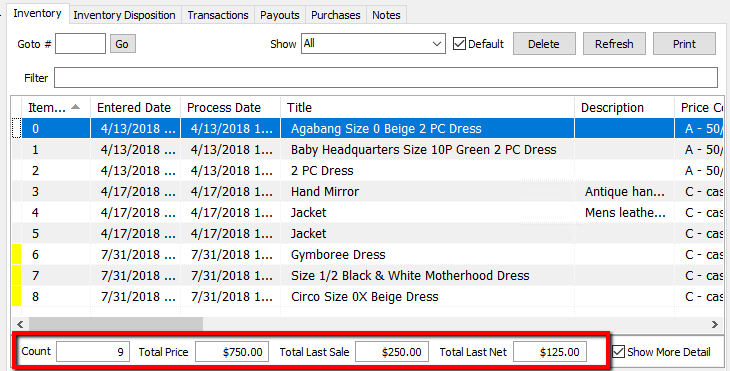
- Show Legacy Totals On Account-Inventory : Shows the totals of the items in the Inventory list.
- Count : Total count of individual line items. Does not include quantities.
- Total Price : Total Price of all the individual line items. Does not include quantities.
- Total Last Sale : Shows the last total of sales of items from this account.
- Total Last Net : Shows the last total net from sales of items from this account.
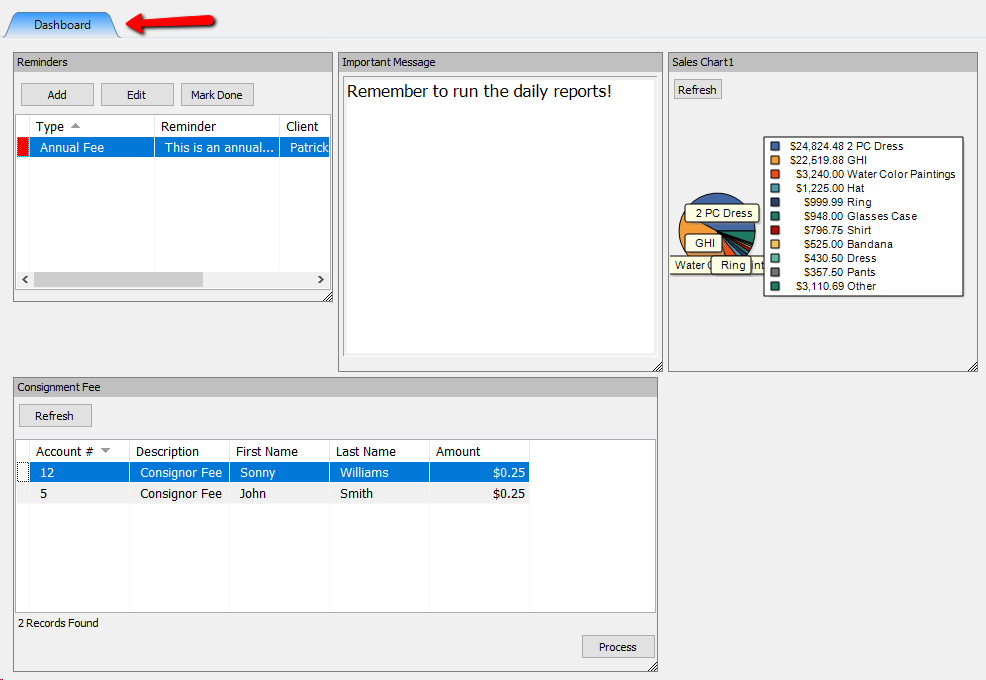
- Show Dashboard At Startup : Will display the welcome screen which displays your Widgets when the Inventory Software Opens. See Widgets Overview for more details.
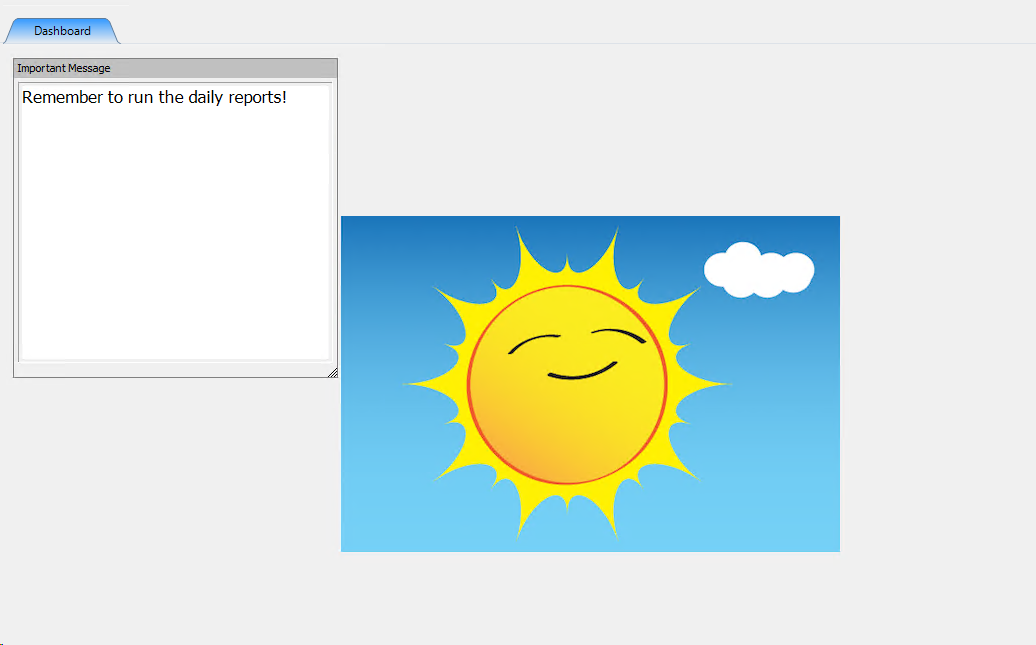
- Show Wallpaper on the Dashboard : Selecting this will show a wall paper on the Dashboard behind the widgets
- Wallpaper Settings :
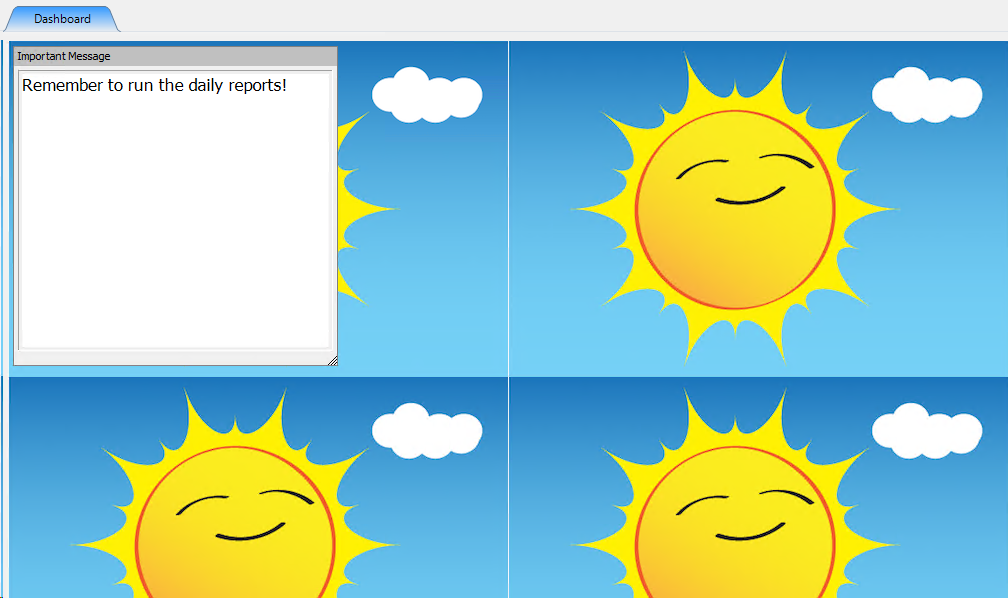
- Tile Image : Will tile the image across the Dashboard.
- Make Image gray Scale : This option changes the Wallpaper to gray coloring.
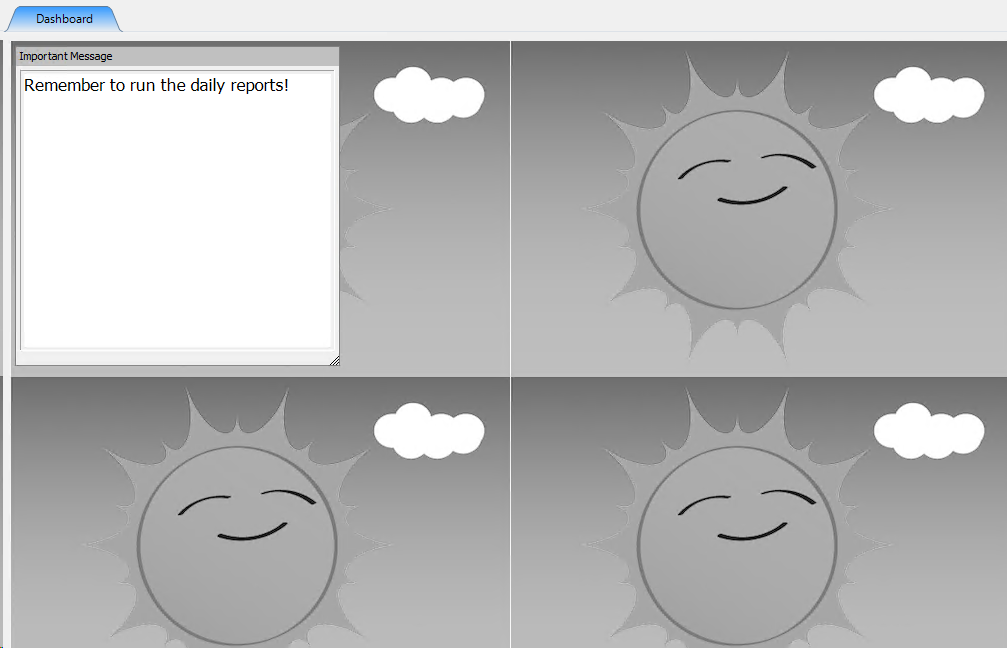
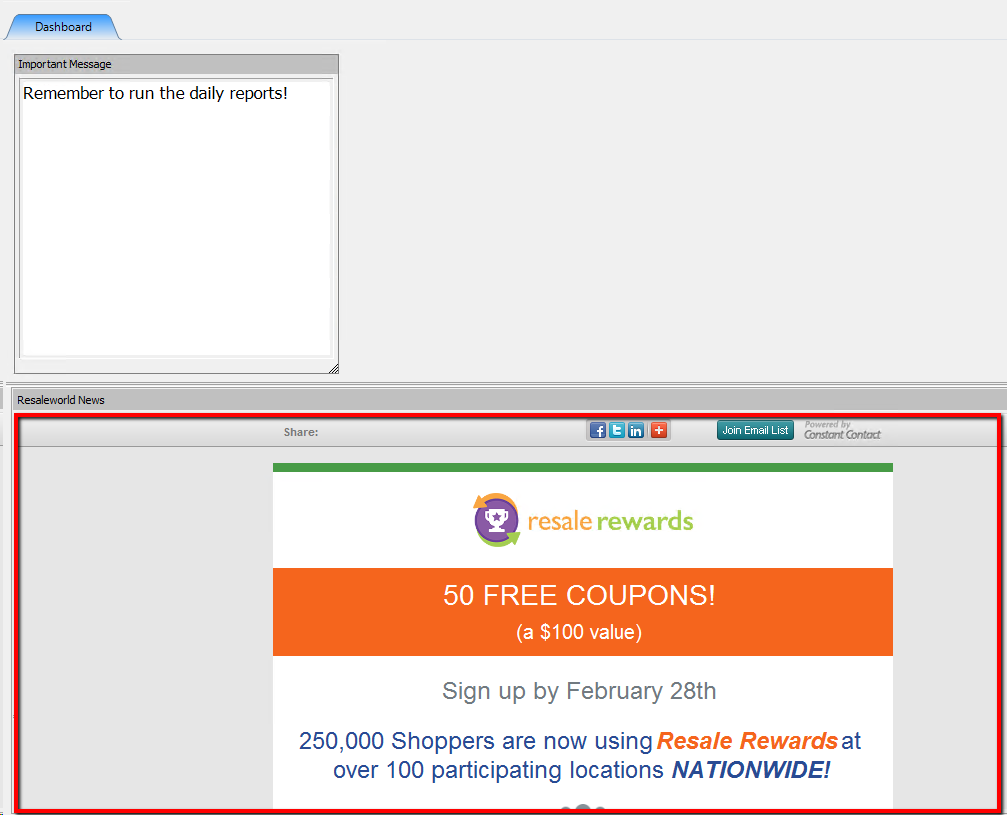
- Show Resaleworld News on the Dashboard : Selecting this option will display the Resaleworld news on the Dashboard.
- Application Theme : Select the drop down and choose and application theme. This will change the overall appearance of Liberty.
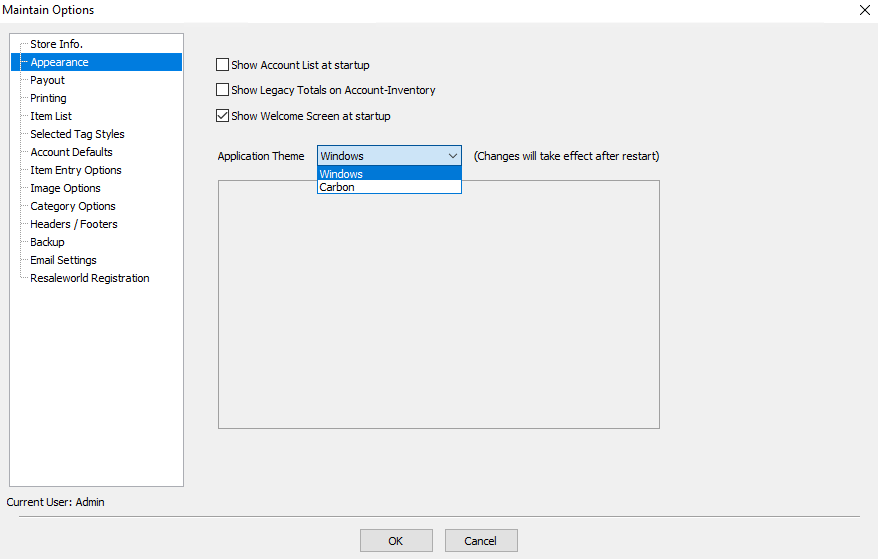
Select a theme, and a preview of the theme will be displayed in the box.
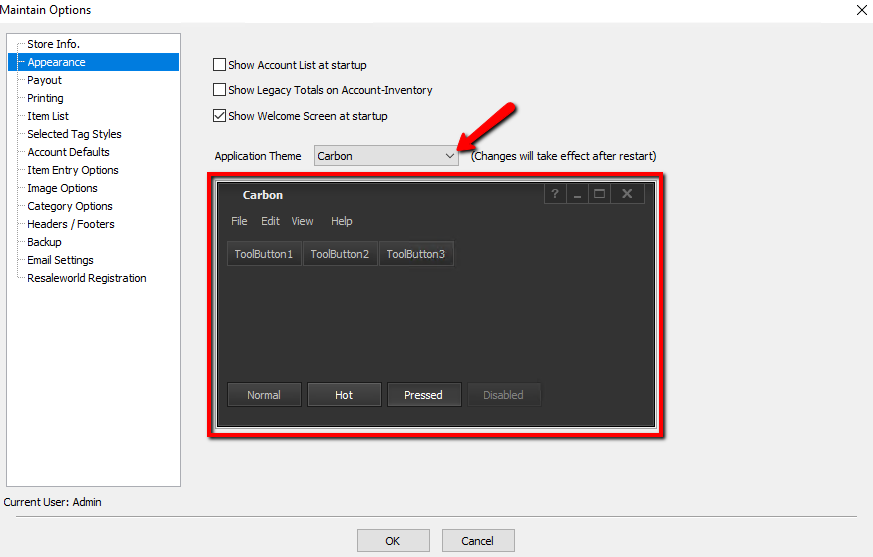
Note: By default Liberty uses the Windows Theme and there is no preview for this. All other themes have a preview option.
- Press the OK button when done.
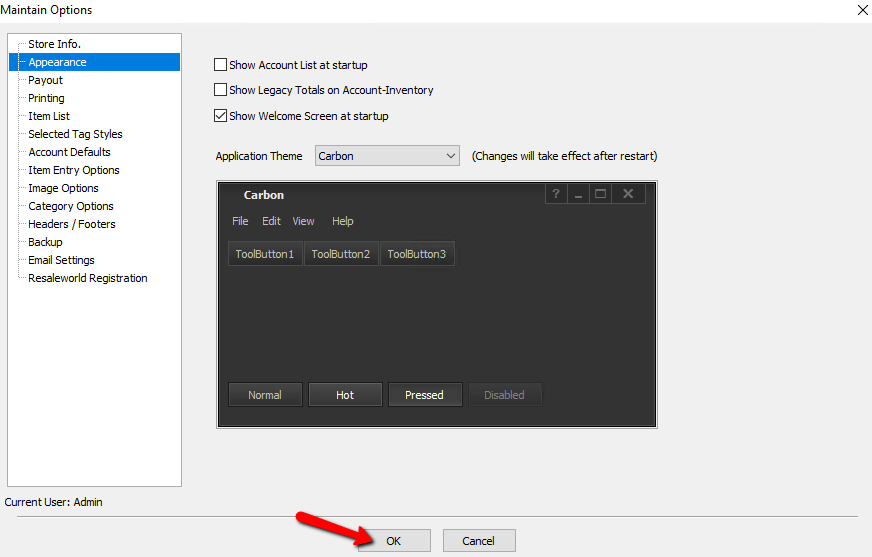


Note: For Theme changes to take affect, Liberty must be closed and restarted.

Next Article In Section
Click the following link to move to the next article in this section:
Payout