Table of Contents
Add a Logo to Your Receipt
Liberty POS allows you to select a bitmap file of your company logo to display on all printed receipts.
Note: All logos must be in bitmap (.bmp) format. No other image formats are supported.
- From the POS Hub select the More button.
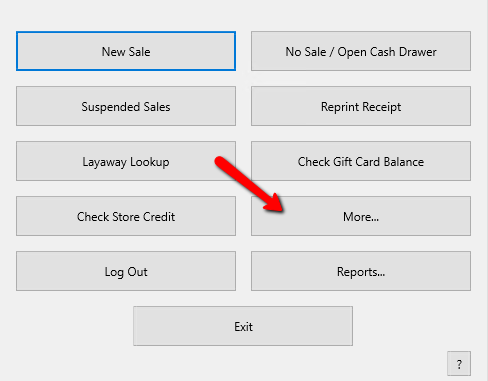
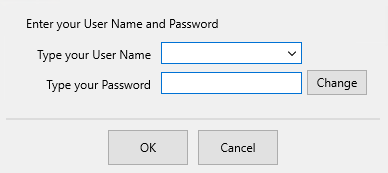
- Login if required.
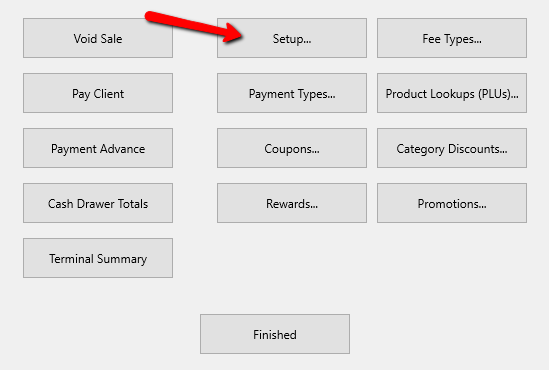
- Select the Setup button.
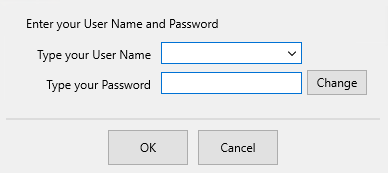
- Login if required.
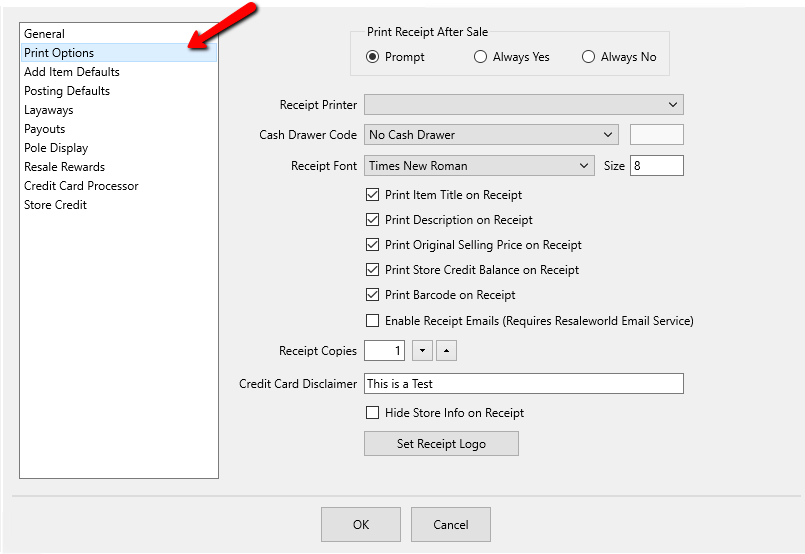
- From the Setup Dialogue box, select Print Options.
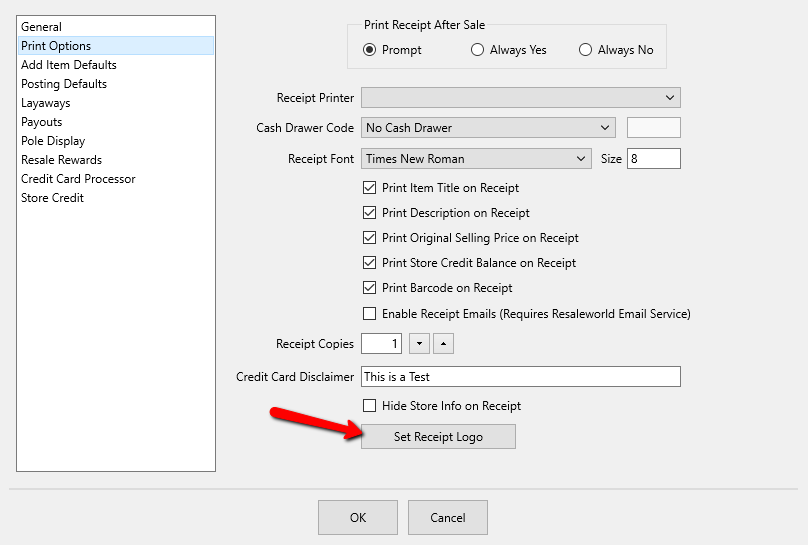
- From the Print Options screen, select the Set Receipt Logo button.
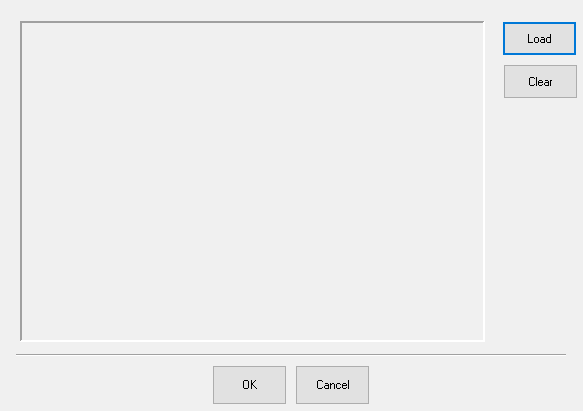
The Image Dialogue box will open.
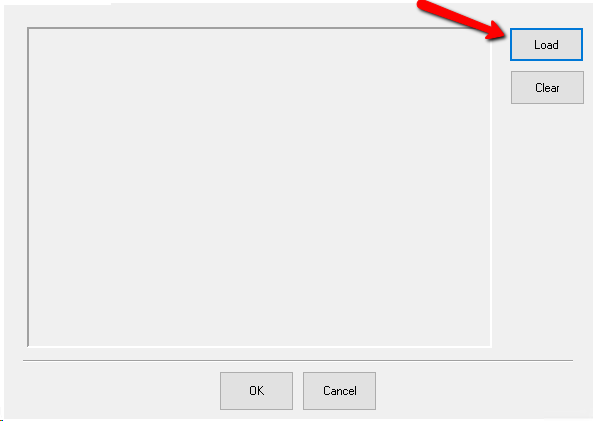
- From the Image Dialog box, select the Load button.
A Browse Dialog box will open.
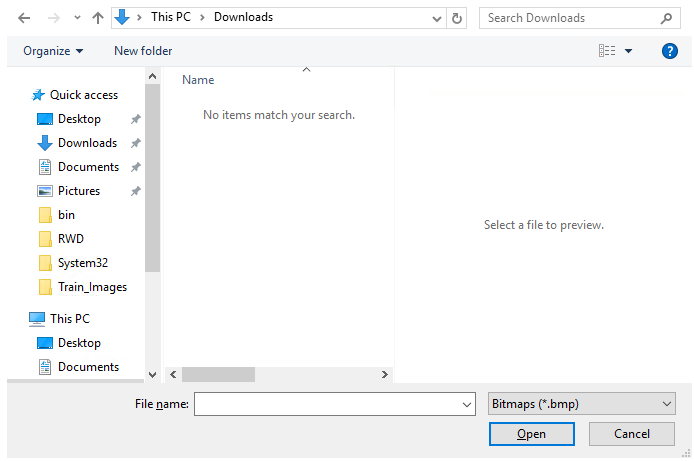
- Navigate to the folder where your image is stored.
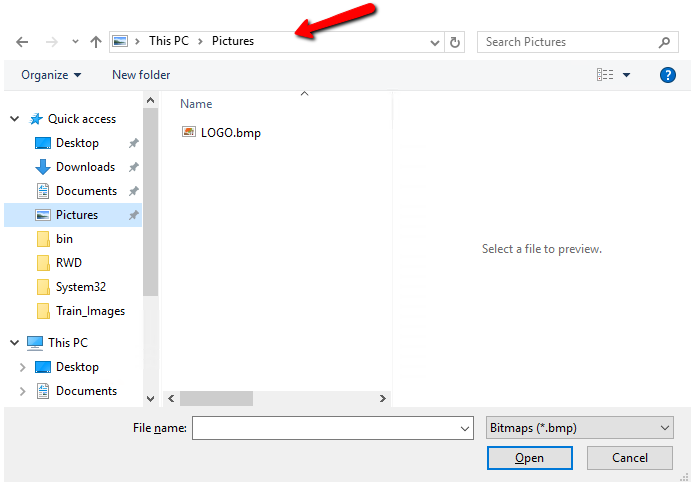
- Select the Image you want to use and select the Open button.
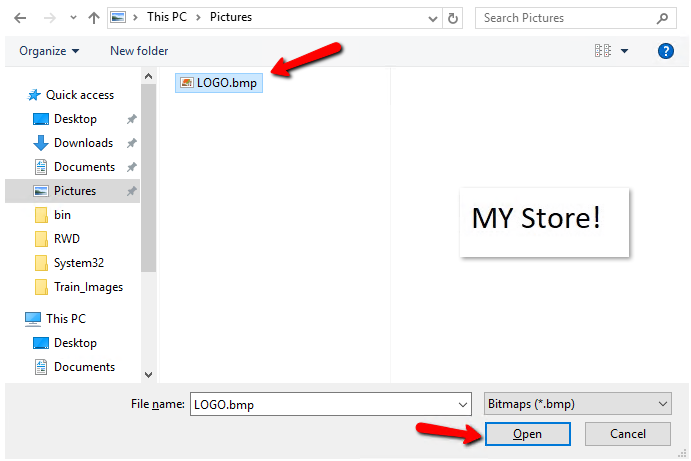


The Logo will appear in the Image Dialogue box.

If you need to redo the image or want to clear it out completely select the Clear button.

When done select the OK button at the bottom of the screen.

Next Section Navigation Link
Click the following link to see a list of articles for the next section:
Email
Related Topics
Add a Logo to Your Receipt Sell an Item for Regular Price Reprinting a Receipt Setup Item Descriptions Setting up email settings in Liberty Setting Up A Default Weight For New Items Within A Category Define Custom Field Names Define Filter Codes Setup Fee Frequencies Setting Up Account Field Layout Setting Up Expire Groups