Table of Contents
Changing the Password for a User
Reset Password
- From the Main Menu, select Setup > Security > User Maintenance.
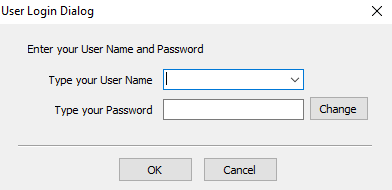
- Login as an Admin
The User Maintenance dialog will display.
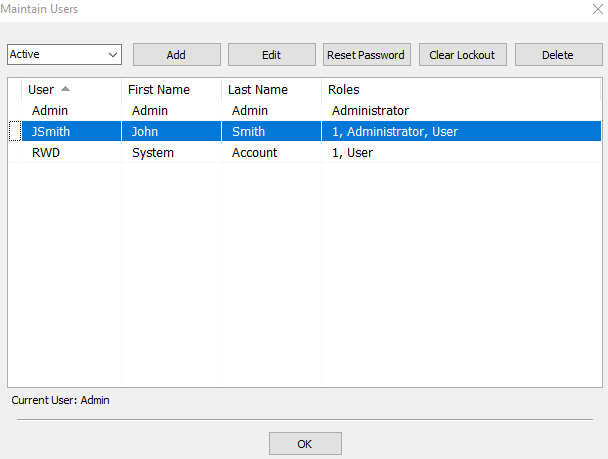
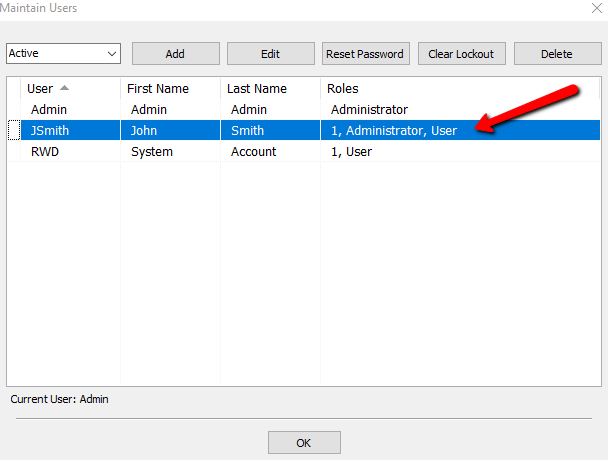
- Select the user whose password you are resetting.
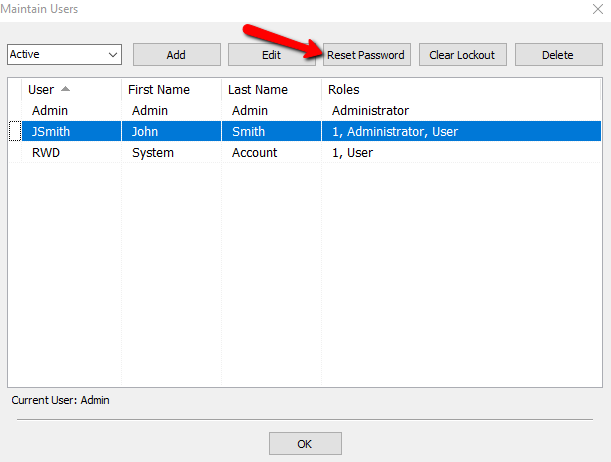
- Click the Reset Password button.
The Change Password dialog displays.
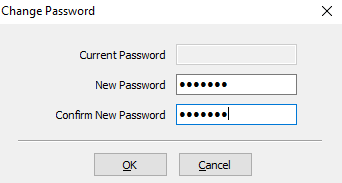
Note: The Current Password field is grayed out. - Enter the New Password that will be used for this user.
- Confirm the new password in the field below.
- Click OK to reset this password or click Cancel to exit without changing the existing password.
- Make sure the User can login using the new password.


Next Section Navigation Link
Click the following link to see a list of articles for the next section:
Consignor Login
Related Topics
Changing the Password for a User Maintain Security Actions Maintain Security Options Maintain Security Roles Setting Up Employee Access Security Actions Searchable Index Security Overview Setting up the Consignor Login App For Shopify Setting up email settings in Liberty Setting Up A Default Weight For New Items Within A Category