Table of Contents
Define Custom Field Names
On the left panel of an account there are 15 user-defined fields available. Use these fields to keep additional information about accounts. For example, you could create fields to store the account holder’s birthday, spouse’s name, etc.
In addition to providing useful information on screen, reports can be generated based on information contained in these fields.
Note: That changes made to this screen display for all accounts.
To Change the Name Of A Custom Field
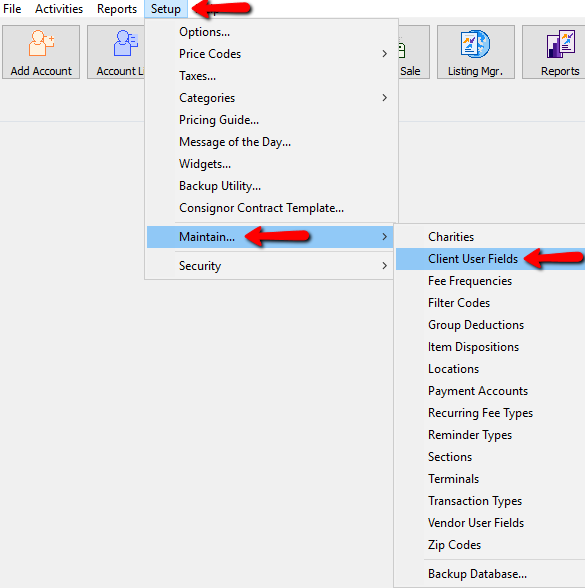
- In Liberty select Setup > Maintain > Client User Fields.
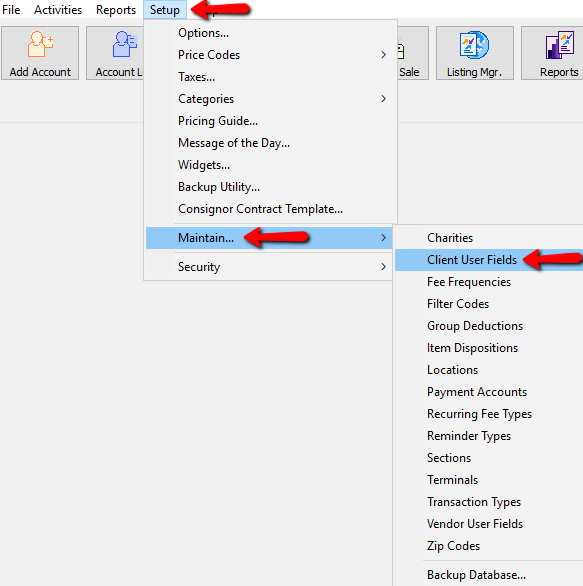
The Edit User Fields dialog box will open.
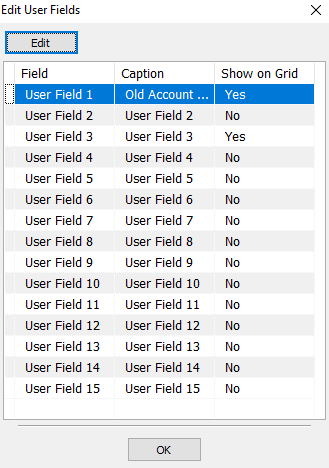
- In the Edit User Fields window select the User Field you want to edit and select the Edit button.
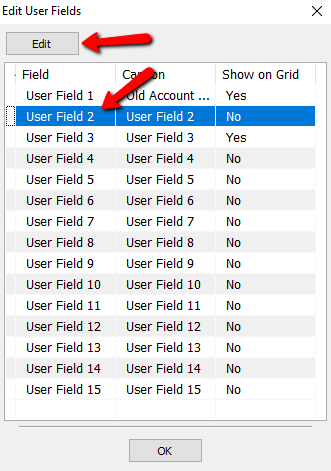
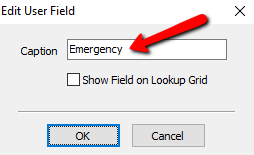
The details of the User Field will open.
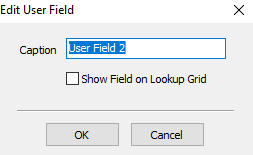
- Enter a new name for the User Field.
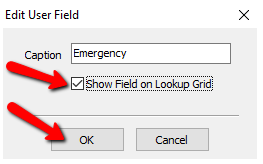
- Check the box for Show Field on Lookup Grid and select the OK button when done.


To Inactivate A User Field
- In Liberty select Setup > Maintain > Client User Fields.
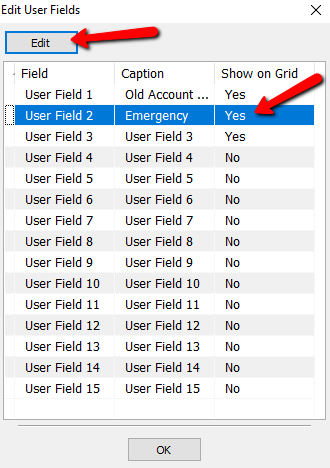
The Edit User Fields dialog box will open.
- In the Edit User Fields window select the User Field you want to edit and select the Edit button.
The details of the User Field will open.
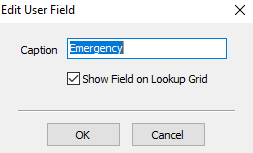
- Uncheck the Show Field On Lookup Grid check box.
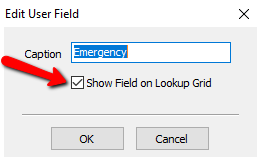
- Select the OK button when done.
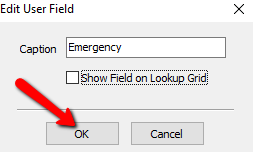
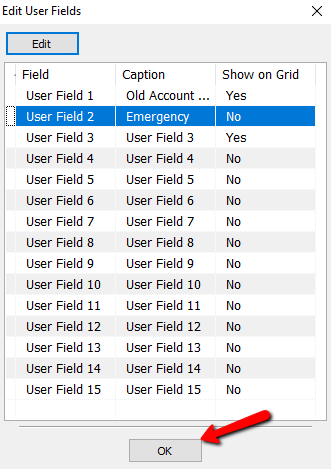
You will see the field inactivated in the Edit user Fields dialog box.
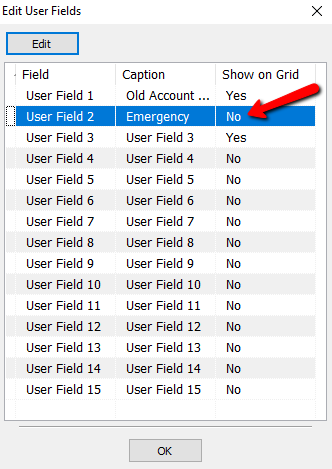
- Select the OK button when done.


To Change The Order In Which Fields Appear On Screen
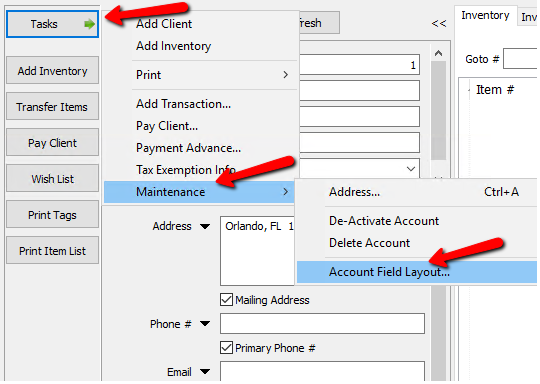
- Open an account and select Task > Maintenance > Account Field Layout.
- An additional way to open the Account Field Layout would be to right click in the Account Information panel and select Edit Layout.
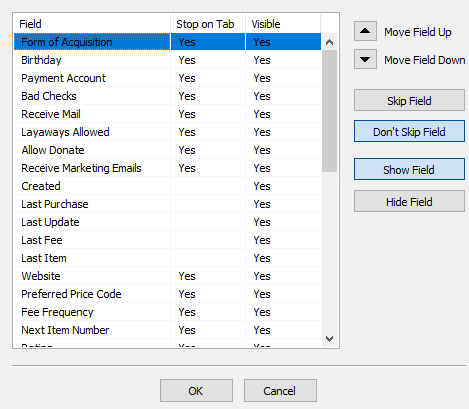
- In the Edit Layout window highlight the field to be moved, then use the up or down arrow located to the right of column to move the field up or down in the list. When done select OK.


How to include Account User Fields on the Add Account screen
- In Liberty select Setup > Maintain > Client User Fields.
- Click on the desired User Field then click on Edit.
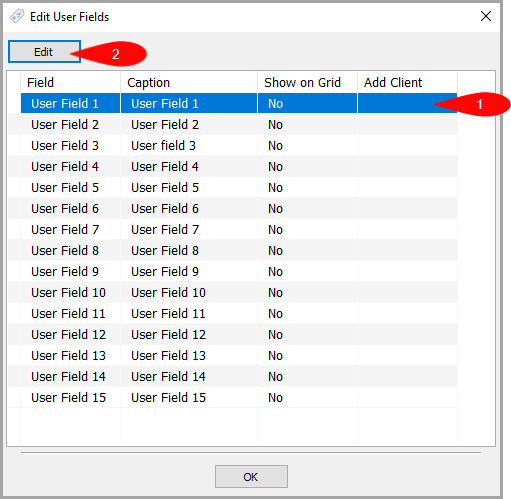
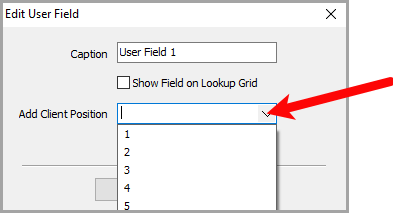
- Click on the Add Client Position drop down menu and then click on the number corresponding to the position you would like the user field to show in within the add account section.
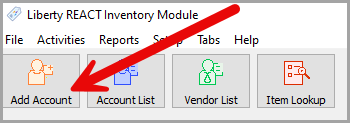
- To access the add account quick menu, click the Add Account Button within the top of Liberty REACT Inventory Module.
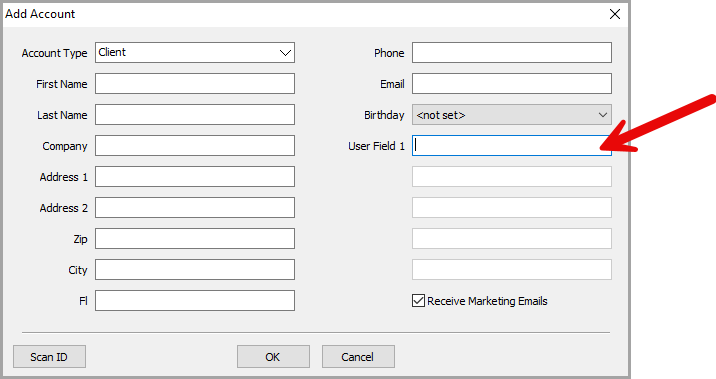
- The included user fields will show on the right side of the add account menu in the order selected.


To Configure Tab Stops in the Account Information Panel:
In the Account Information panel, starting after email address, tab stops can be configured for quicker navigation through the Account Fields.
- Open an account and select Task > Maintenance > Account Field Layout.
- An additional way to open the Account Field Layout would be to right click in the Account Information panel and select Edit Layout.
- Highlight the field you want to configure a tab stop for. Then to the right select either Skip Filed or Don’t Skip Field.
- Once done configuring the tab stops select OK to exit the Edit Layout window.
To Make Fields Visible or Hidden:
In the Account Information panel, starting after email address, fields can set to either Show or Hide.
- Open an account and select Task>Maintenance>Account Field Layout.
- An additional way to open the Account Field Layout would be to right click in the Account Information panel and select Edit Layout.
- Highlight the field you want to either Show or Hide.
- In the Visible column if the field if the field will be shown it will be indicated with a Yes and if the field is set to be hidden the column will be blank.
Next Article In Section
Click the following link to move to the next article in this section:
Define Filter Codes
Related Topics
Define Custom Field Names Customize the Account Detail Window Liberty Reports Overview Setting Up A Default Weight For New Items Within A Category Define Filter Codes Setup Fee Frequencies Setting Up Account Field Layout Setting Up Expire Groups Setting Up Group Deductions Setting Up Locations Setting Up Store Sections to Track Inventory Locations