Table of Contents
Printing the Size Attribute on Price tags
It is usually necessary to show the size of an item prominently on the price tag. Shown below is an example of a price tag with Size printed in large print. (Note: This price tag is just for illustration purposes only. Price tags printed by Liberty come in a variety of sizes and layouts.)

How To Make The Size Appear In Large, Bold Print After The Word SIZE On Price Tags
- Select Setup > Categories > Category Editor
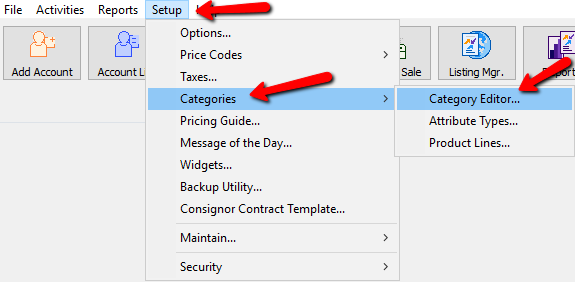
- If necessary, assign or create the Size Attribute to the necessary Category or Categories. See Assign Attributes Types to Categories for more information.
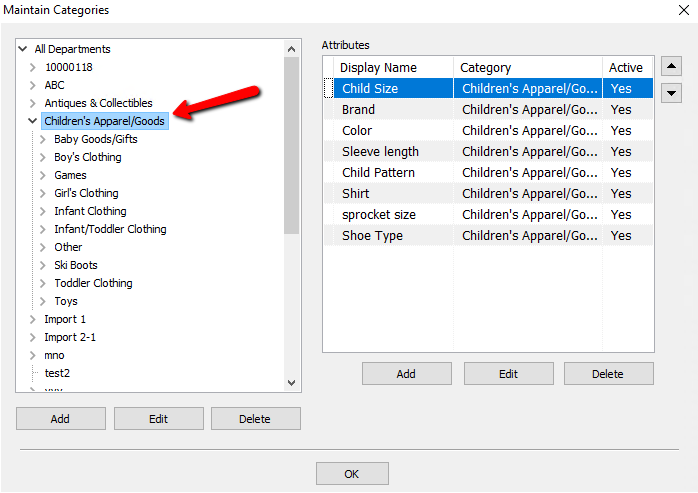
- Highlight the Category to which the Size Attribute is to be assigned.
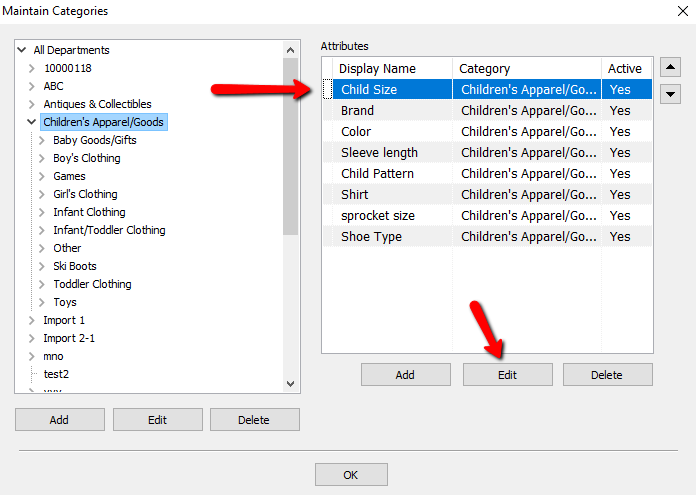
- Highlight the Size Attribute that will print on the Tag then press the Edit button.
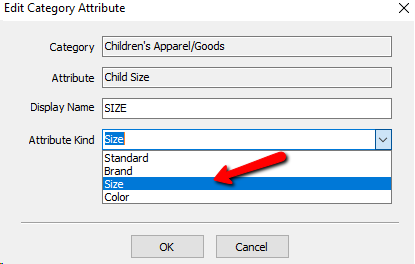
- Make sure the Display Name field says the word SIZE exactly. It must not say anything else or the Size will not print on the tag.
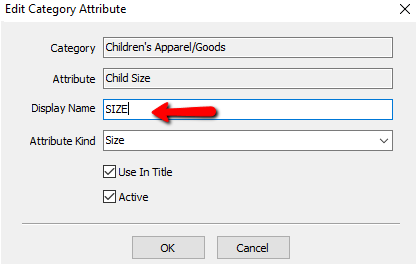
- Click on Attribute Kind and select Size.
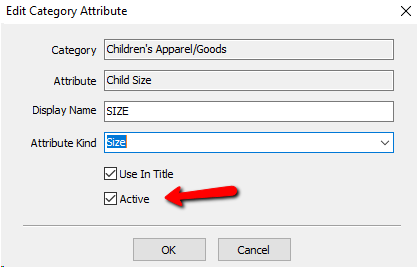
- Make sure the Active check box contains a check. Press the OK button when done.


Next Article In Section
Click the following link to move to the next article in this section:
Change Order of Attributes on Item Entry Screen
Related Topics
Printing the Size Attribute on Price tags Overview of Attributes Category Editor Assign Attributes Types to Categories Add, Change and Delete Attribute Types Add, Edit and Delete Attribute Values Make an Attribute Inactive Change Order of Attributes on Item Entry Screen Remove an Attribute from a Category Show Attributes in Item Titles Account Defaults