Table of Contents
Change Order of Attributes on Item Entry Screen
You may control the order in which Attributes appear in the Item Entry screen.
To Change the Order in which Attributes Display in the Attribute Panel of the Item Entry Screen
- From the Main menu, click on Setup > Categories > Category Editor.
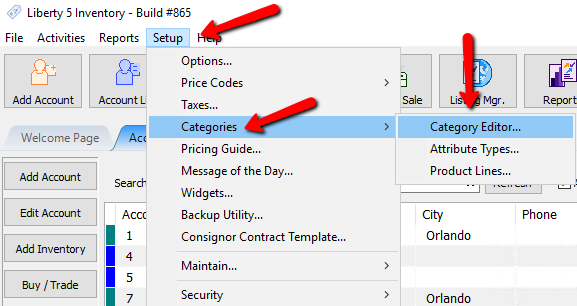
The Maintain Category dialog box will open.
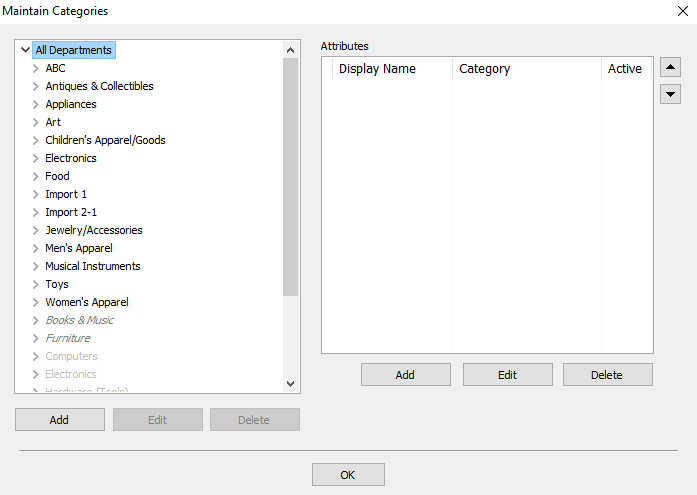
- Select the Category for which you wish to change the order of Attributes.
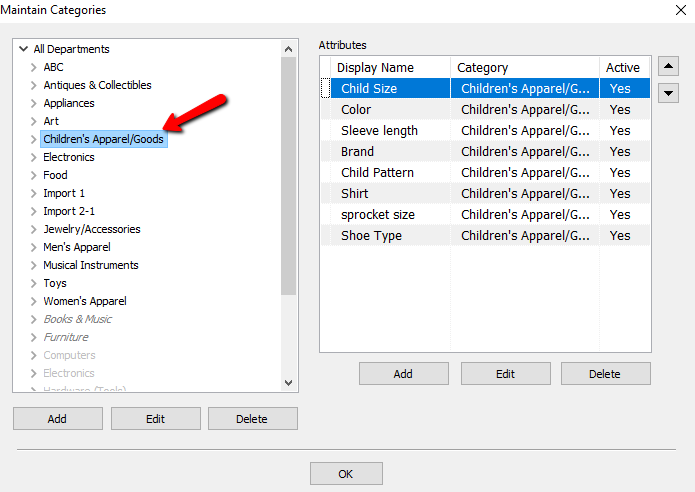
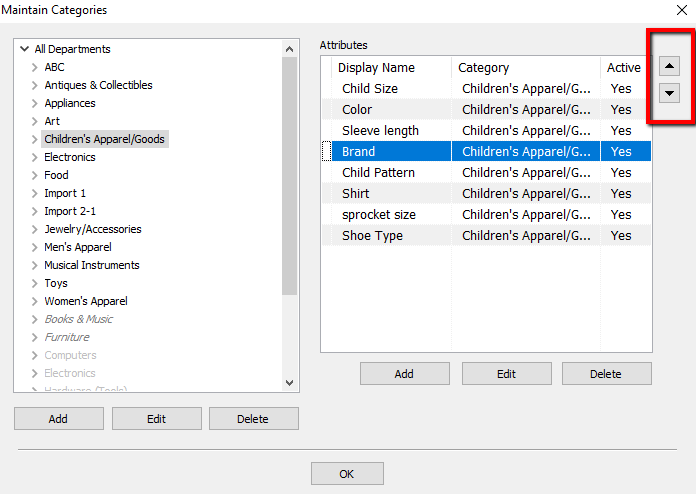
- On the right side of the Attributes window, highlight the attribute you want to move.
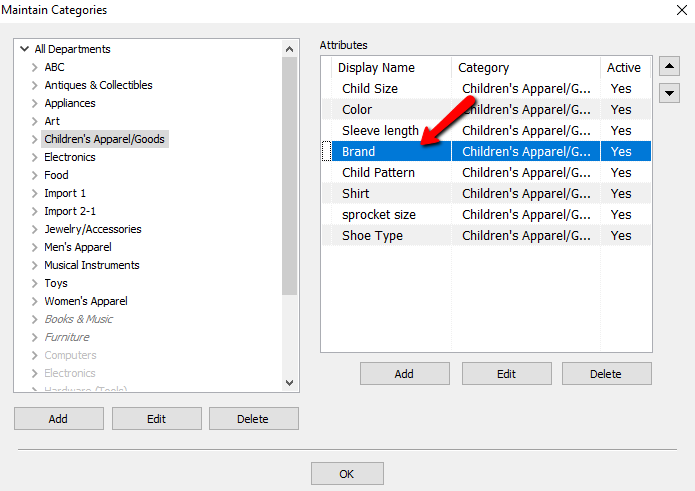
- Use the Priority List buttons (buttons with Up and Down Arrows) to reorder the Attributes.
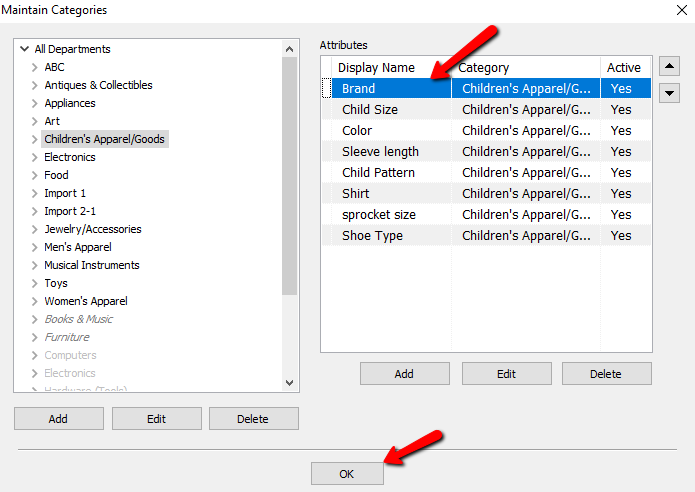
- Once the Attributes are in the desired order, select the OK button when finished.


Next Article In Section
Click the following link to move to the next article in this section:
Add, Change and Delete Attribute Types
Related Topics
Change Order of Attributes on Item Entry Screen Overview of Attributes Add, Change and Delete Attribute Types Assign Attributes Types to Categories Add, Edit and Delete Attribute Values Make an Attribute Inactive Printing the Size Attribute on Price tags Remove an Attribute from a Category Show Attributes in Item Titles Account Defaults Category Tag Types