Table of Contents
Add, Edit and Delete Attribute Values
Liberty comes with 1-3 Attributes already set up for most Categories. In addition there are several dozen Attribute Types already set up, and anywhere from 10-100 Attribute Values for each Attribute Type.
Attribute Values define the Attribute Type. For instance, an Attribute Type might be Color, which has the Attribute values of red, green, blue, brown, beige, etc.
Another Example: Attribute Values for the Attribute Type of Gemstone are diamond, ruby and emerald. You may add, change and delete Attributes as needed.
To Add or Edit an Attribute Value:
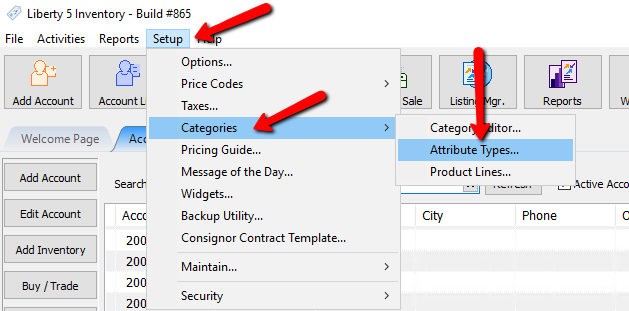
- From the Main menu, click on Setup > Categories > Attribute Types.
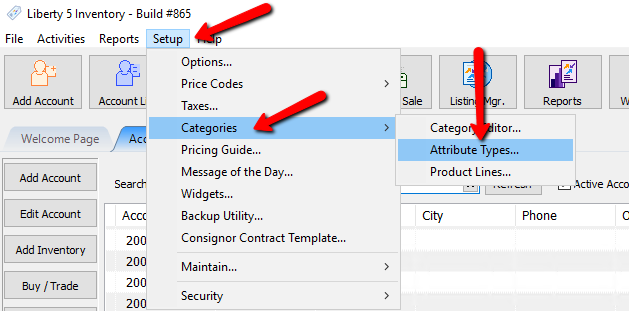
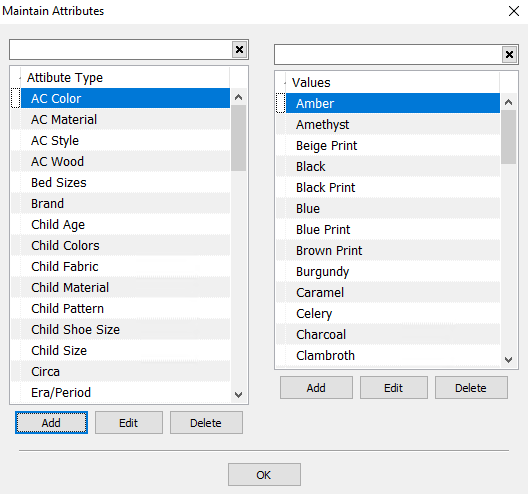
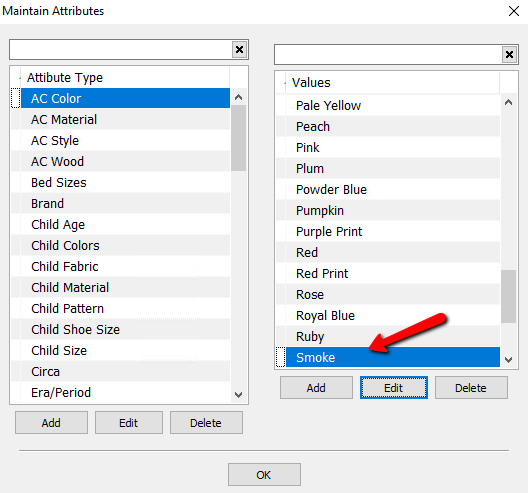
The Maintain Attributes dialog box will open.
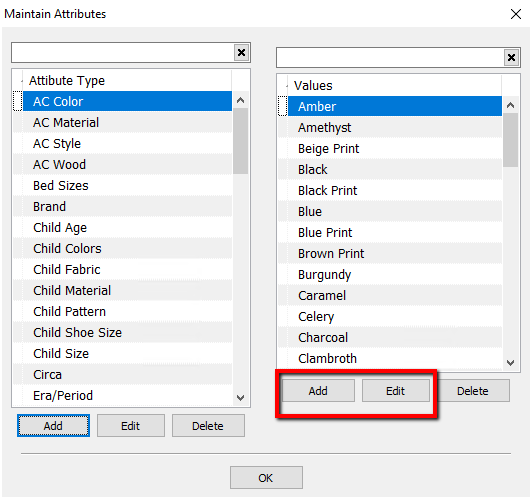
- Under the Values section of the dialog, select the Add or Edit button.
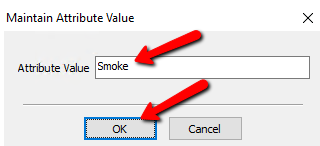
The Maintain Attribute Value dialog box will open.
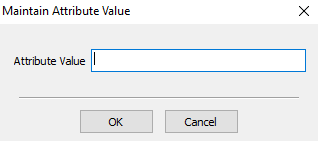
- Enter or change the name of the Attribute Value in the Maintain Attribute Value dialog, then select the OK button. The maximum length of an Attribute Value is 30 characters.
You will see your new value in the Values Column.
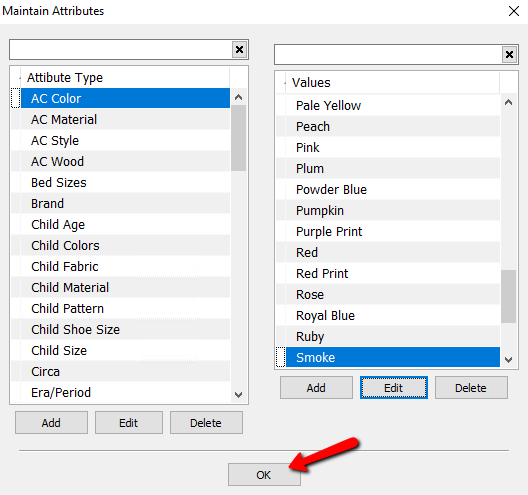
- Select the OK button to close out of the Maintain Attributes dialog box.


To Add A New Attribute Value While In The Item Entry Screen:
- In the Item Entry screen, place the cursor in the Attribute Field you need to add a value for.
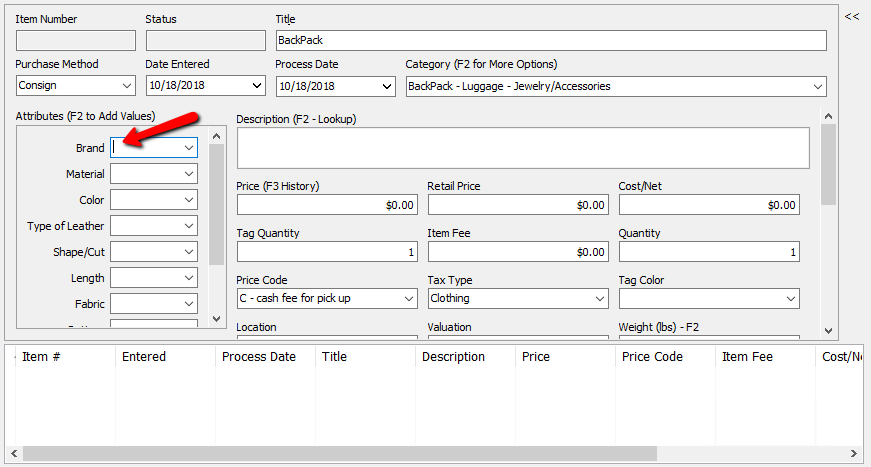
- Press the <F2> key on the keyboard. The Maintain Attribute Value dialog box will open.
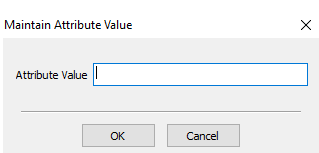
- Enter the new Attribute Value in the dialog and select the OK button.
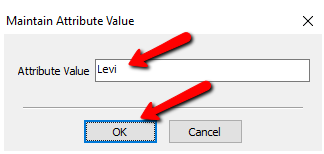


You will see your new value in the attribute field.

To Delete an Attribute Value:
Note: Once an Attribute Value has been used to describe an item it can not be deleted.
- From the Main menu, click on Setup > Categories > Attribute Types.
The Maintain Attributes dialog box will open.
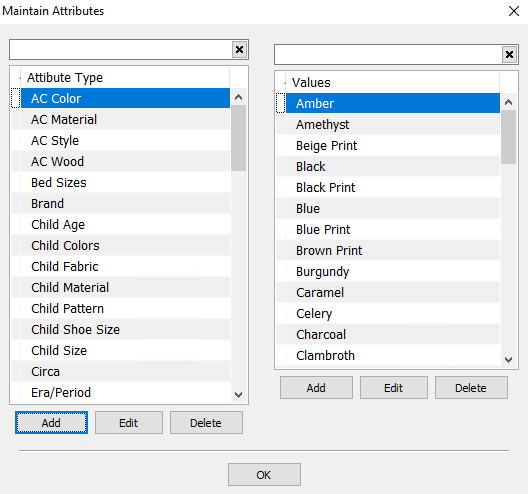
- Select the Attribute Type which contains the Attribute Value to be deleted.
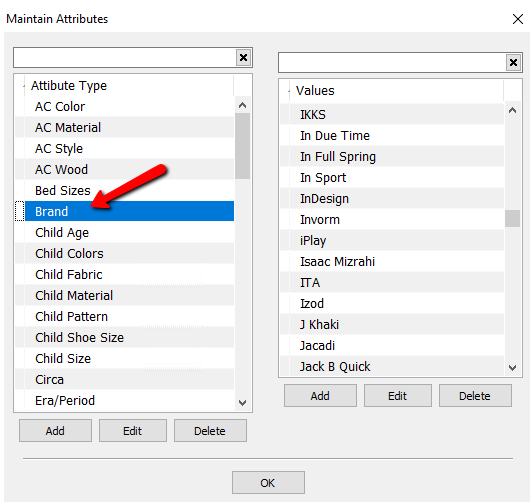
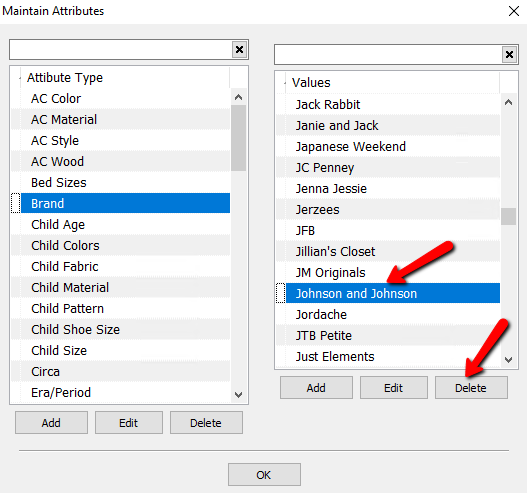
- Click on the Attribute Value to be deleted then select the Delete button.
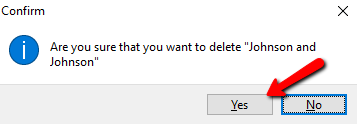
- When the Confirm window appears select Yes.
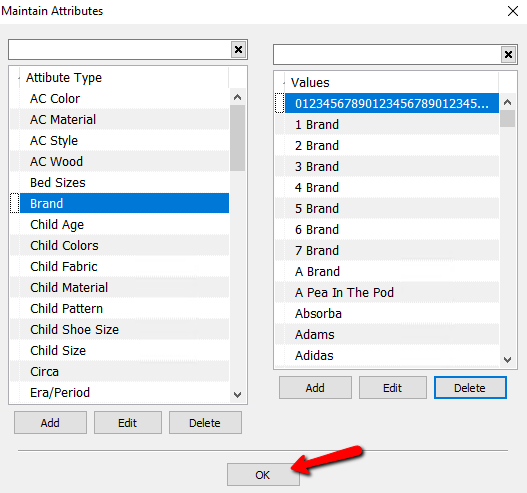
- Select the OK button when done.


Next Article In Section
Click the following link to move to the next article in this section:
Show Attributes in Item Titles
Related Topics
Add, Edit and Delete Attribute Values Overview of Attributes Category Editor Add, Change and Delete Attribute Types Assign Attributes Types to Categories Make an Attribute Inactive Change Order of Attributes on Item Entry Screen Printing the Size Attribute on Price tags Remove an Attribute from a Category Show Attributes in Item Titles Account Defaults