Table of Contents
Zip Codes
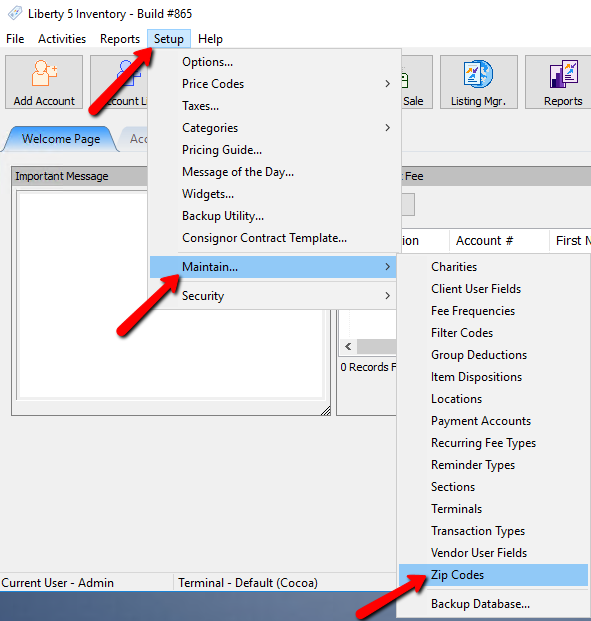
- Within Liberty select Setup > Maintain > Zip Codes.
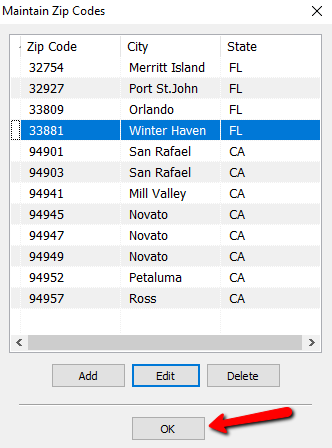
The Maintain Zip Codes Screen will open.
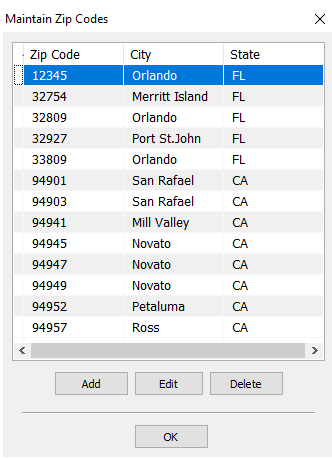
- Select the Add button to add a new Zip Code. Select the Edit button to edit a current Zip Code. Select the Delete button to delete a current Zip Code.
The details of the Zip Code will open.
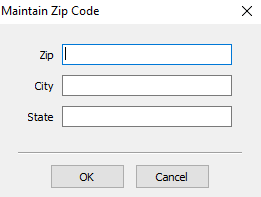
- Zip : This is the Zip Code.
- City : this is the City associated with the Zip Code.
- State : This is the State Associated with the Zip Code.
- Select the OK button when done entering the details of the Zip Code.
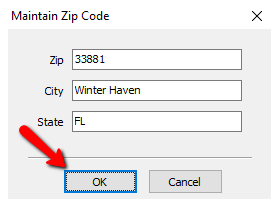
- Select the OK button again from the main Zip Code Maintenance screen.


Next Section Navigation Link
Click the following link to see a list of articles for the next section:
Tutorial