Table of Contents
Item User Fields
The Item User Fields dialog allows you to change the labels on the User Fields to the Item Details menu to better fit your store’s needs.
Finding the Item User Fields dialog
To access the Input User Fields Dialog:

- On the top menu bar of Liberty, click Settings.
- Then navigate to Maintain.
- Then click Item User Fields.
Editing the User Field labels
To edit an Item User Field:
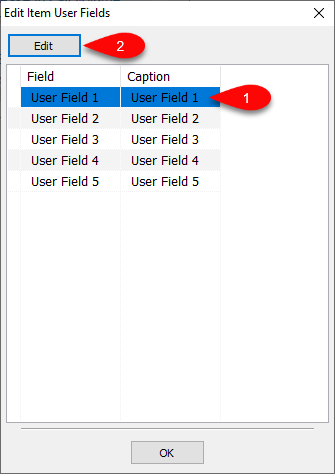
- Select the Item User Field you wish to change the label for.
- Then click Edit to open the Edit User Field dialog.
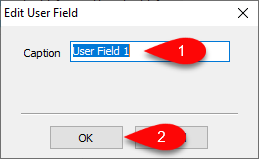
- Type the new Item User Field text you want in the Caption field.
- Then click OK when finished.


Next Article In Section
Click the following link to move to the next article in this section:
Locations