Table of Contents
Item Dispositions
To manage the Item Dispositions:
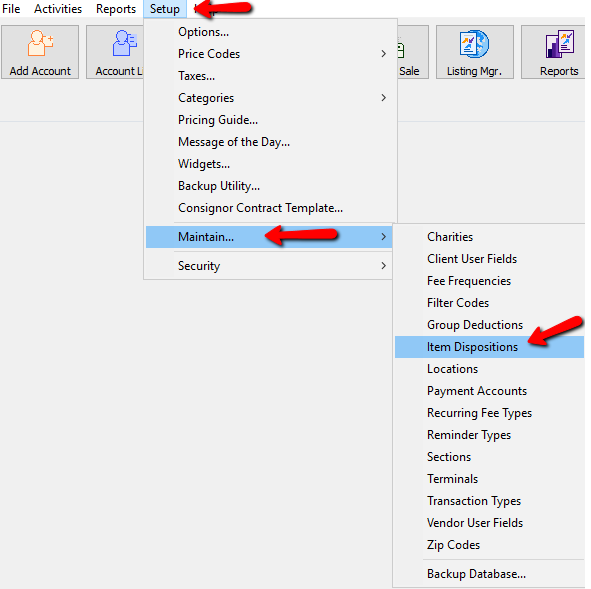
- Within Liberty select Setup > Maintain > Item Dispositions.
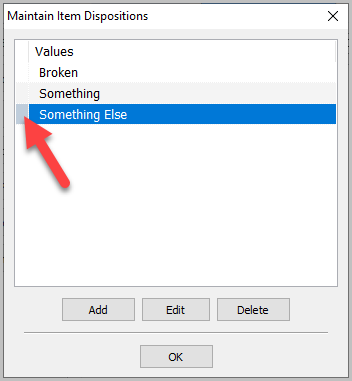
The Maintain Item Dispositions dialog box will open.
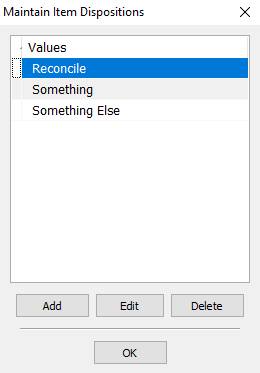
- Select the Add button to create a new Item Disposition, highlight and select the Edit button to modify an existing Item Disposition, or the Delete button to remove a Item Disposition.
Note: For audit control purposes, Transaction Types can only be deleted if they have never been used in a Transaction.
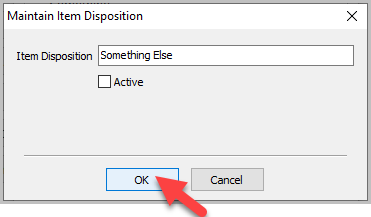
Selecting the Add or Delete button will bring up the details of the Item Disposition.
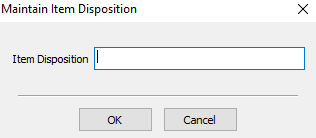
- Add the name of the Item Disposition. and press the OK button when done.
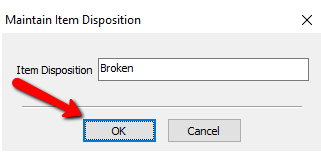
You will see your new disposition in the Maintain Item Dispositions dialog box.
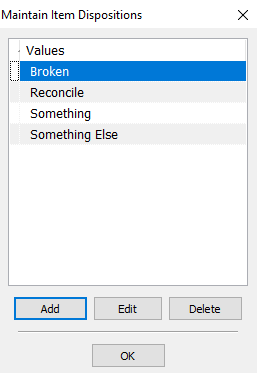
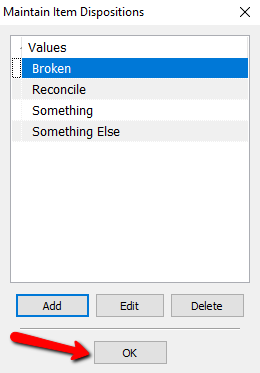
- Press the OK button when done.


Deactivating Item Dispositions:
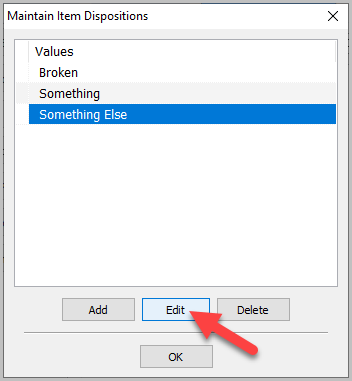
- Click ‘Edit’
- Uncheck ‘Active’ checkbox
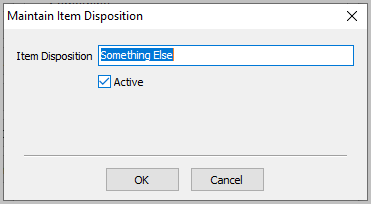
- Click ‘OK’
- It will now show a grey box next to the inactive disposition


Next Article In Section
Click the following link to move to the next article in this section:
Item User Fields