Table of Contents
Charities / Charity Accounts
It is possible to associate an account with a charity. When consigned items sell, a percentage of the amount credited to the consignor can automatically be deducted from the consignor's account and credited to a different account.
To set this up, the charity must first have a Client Account. See Add An Account.
Note: It is important to add the company name to the company field of the account.
Once the account is created then a Charity Donation Schedule must be created.
Creating A Charity Donation Schedule
- Select Setup > Maintain > Charities.
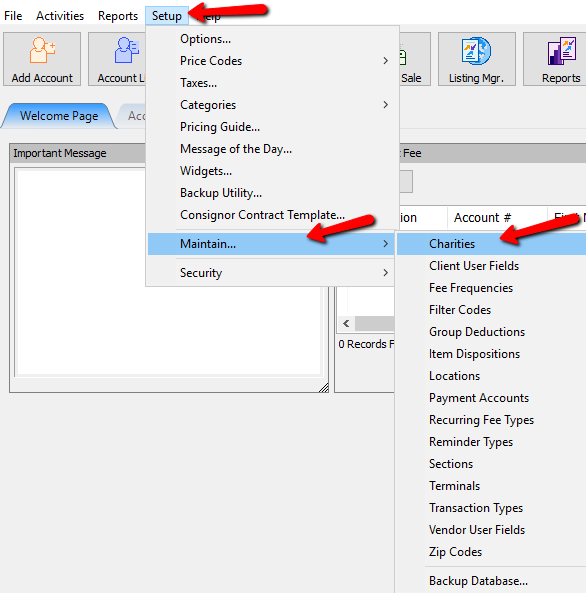
The Maintain Charities dialog Box will open.
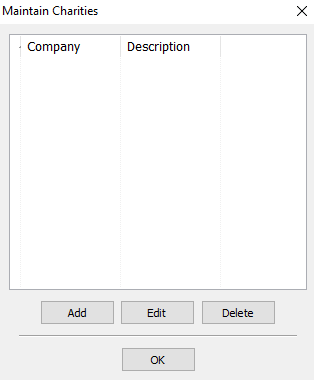
- Select the Add button or the Delete button to open the details of a Charity. Select the Delete button to Delete a Charity.
The Charities Detail Box will open.
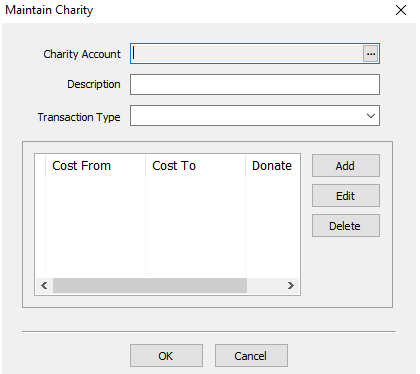
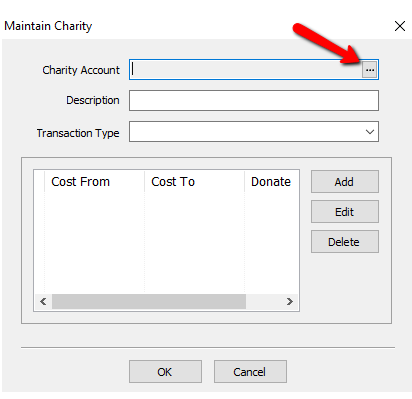
- Charity Account : This is the account that is associated with the Charity. Select the Search button to open the Select Account dialog box.
Select Account dialog box.
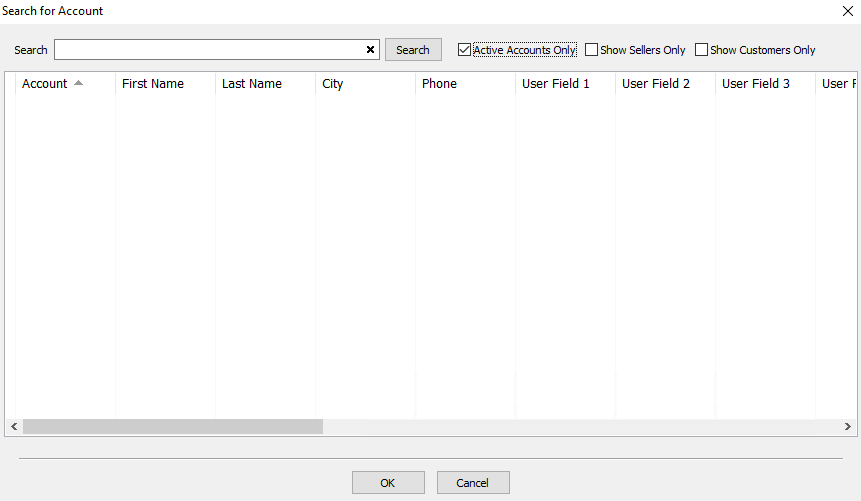
Type in information about the account and press the Search button. A list of account matching that search criteria will appear.
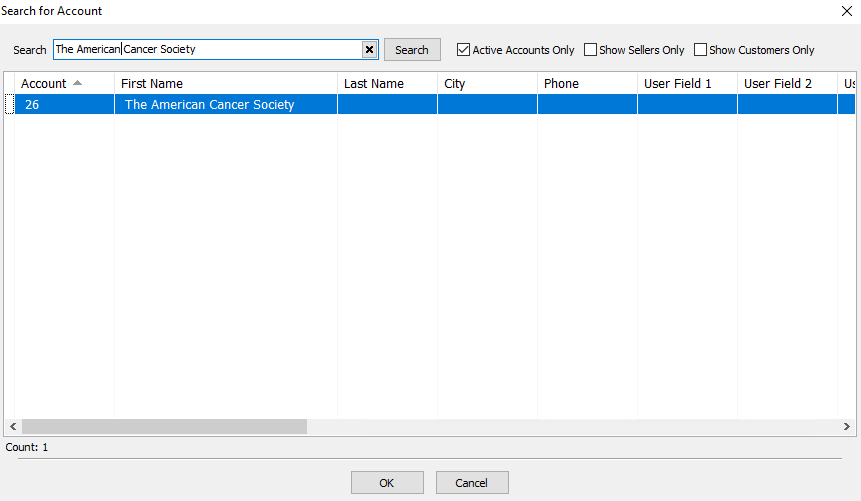
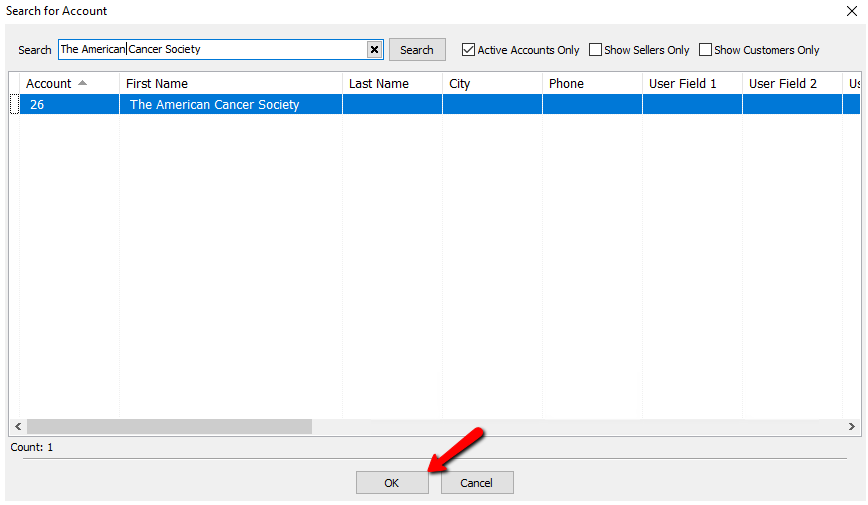
Highlight the account you want and select the OK button.
Note: The Maintain Charity dialog Box will display the Account number and whatever information is put into the Company Field of the account.
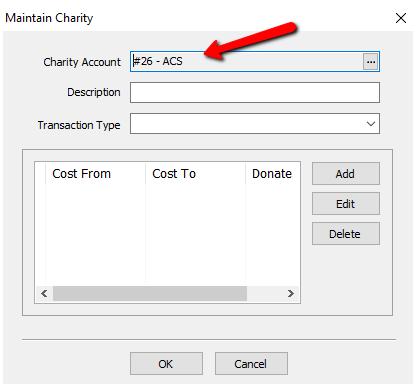
- Description : Add the description of the charity in the Description field.
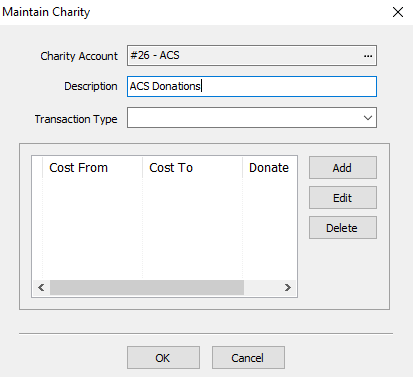
- Transaction Type : Select the transaction type to be associated with this Charity.
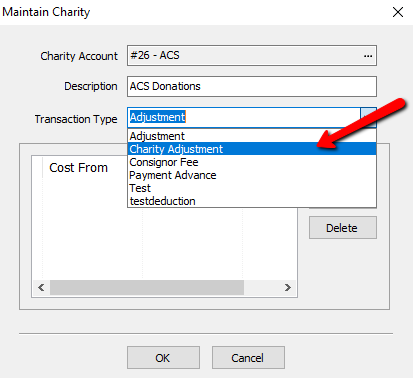
Note: It is recommended to create a uniquely named Transaction Type for Charities. For more information see Transaction Types.
Next we will define the terms of the donation amount.
- Click the Add button to create a new term. Click the Edit button to edit a current existing one.
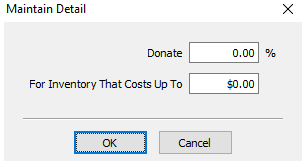


Enter in the amount you want to donate in the Donate Field.

Enter the Max Dollar threshold if you plan to make tiered donations. Otherwise enter in a bunch of 9’s. Six of them should suffice. This says anything that cost from $0.00 to $999,999.00 will donate X amount to this charity.
Press the OK button when done.

You should see your donation details listed below. Press the OK button when done.

Note: The third split amount is always taken out of the consignor's portion and never the store's portion.
Setting Up An Account To Do Donations
- Once the account is open, go to the Account Details and find the Charity Donation field.
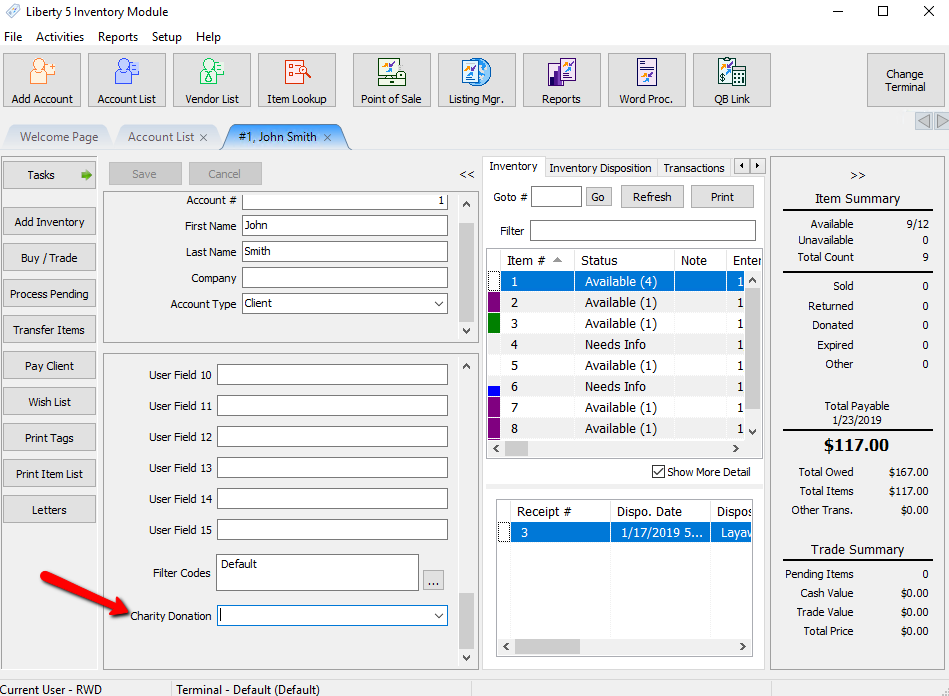


Click the Charity Donation dropdown and select the charity you wish to have this account donate to.

Select the Save button when done.

Here is an item that was sold for $100.00 with a 50/50 split. That means the consignor would of gotten $50.00. However because they are signed up with a Charity Donation of 3.00%, $1.50 was donated to the Charity Account.

Here we see the Charity being debited to the Charity Account.

Next Article In Section
Click the following link to move to the next article in this section:
Client User Fields