Table of Contents
How To Run Multiple Payouts
As of Liberty 6.2b and above, we have integrated a feature that allows for more than
one payout batch to be open at the same time. This guide shows you how to run
multiple payout batches at the same time.
Before You Begin
New to payouts? Start with our Payout Overview Guide.
To run multiple batches at the same time you must use different Payment Accounts
for each batch. For the below example, I will be using an ACH Payment Account and
Check Payment Account.
Running The First Payout Batch
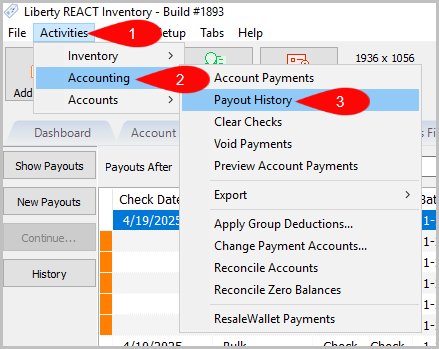
- Go to Activities > Accounting > Payout History
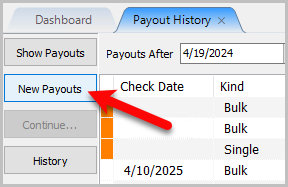
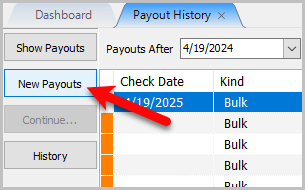
- Click on New Payouts
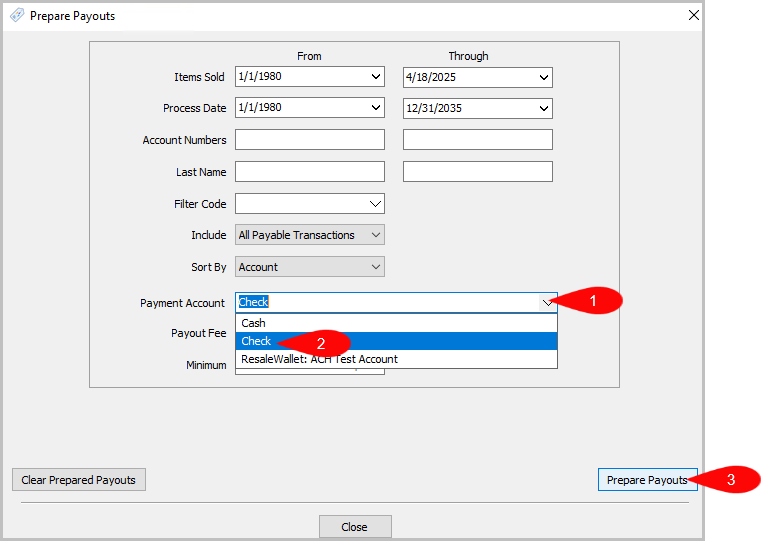
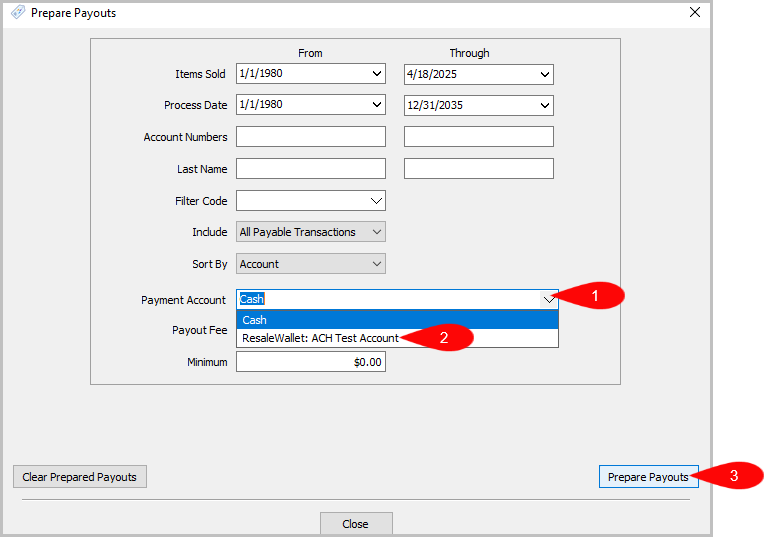
- Click on the drop down for Payment Account Type. Choose the correct account.
For this example I chose: Check.
Click on Prepare Payouts once you have all the criteria needed.
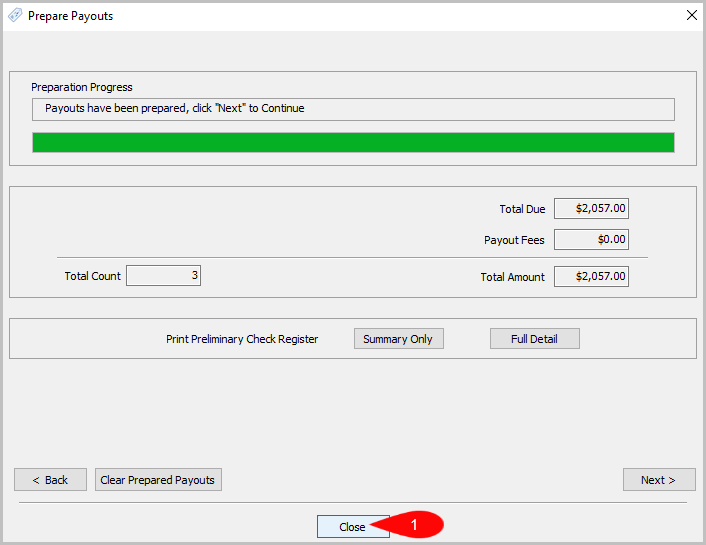
- Click Close.


Running The Second Payout Batch
- You should still be in Payout History once closed. Click New Payouts again.
- Fill out the criteria and choose the correct Payment Account. I am choosing the
ACH account. It must be a different Payment Account than the one still
processing.
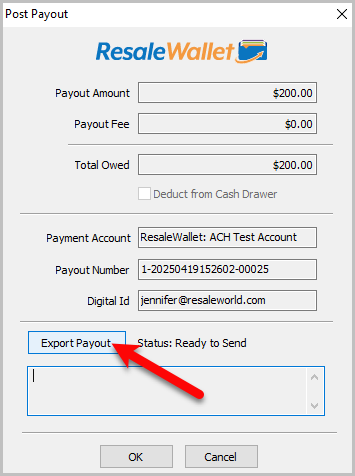
- For ACH, click on Export Payout.


Info: You can run a Payout batch for all Payment Accounts at the same time but only one batch per payment account.
Next Article In Section
Click the following link to move to the next article in this section:
Reversing A ResaleWallet ACH Payout In Liberty