Table of Contents
Consignor ACH Deposit Guide Overview
Consignor First Time Deposit Process
As a consignor, you will receive your first ACH payout in your email. You will need to setup which Bank Account you wish to receive your payment.
To see the training video on this process, please visit the following link: First Time ACH Deposit Process With ResaleWallet
Please follow the steps below in order to set this up.
Setting Up Deposit By Using Plaid Automatic Bank Account Detection
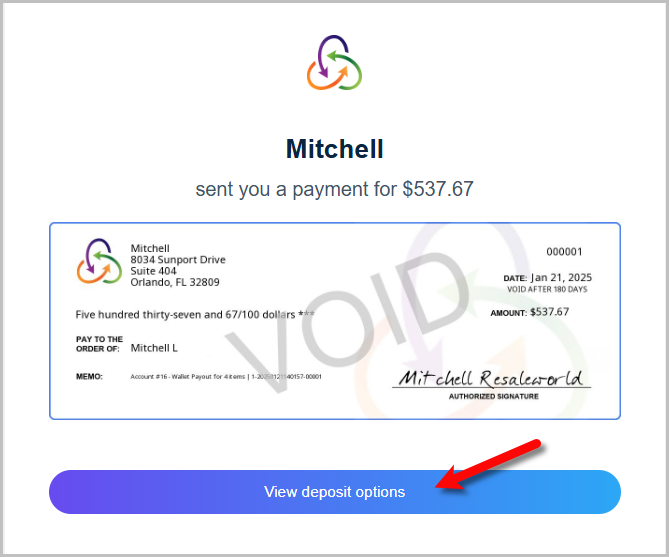
- Open the email you received in your email account and click the View Deposit Options button.
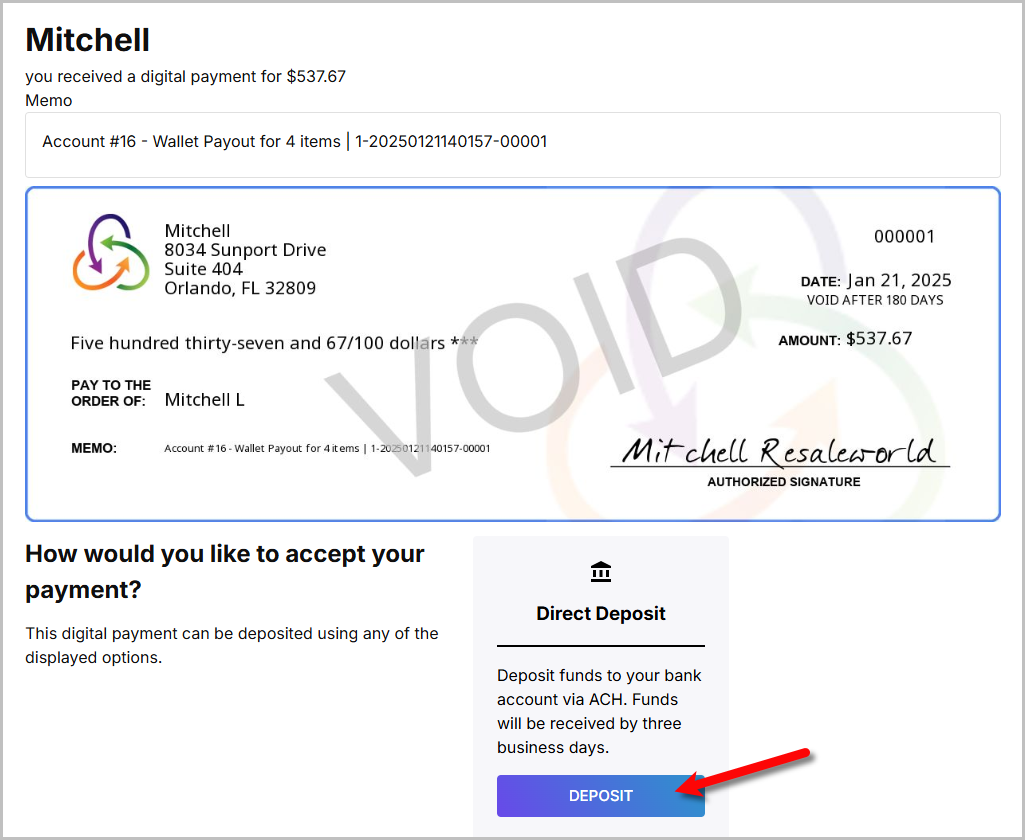
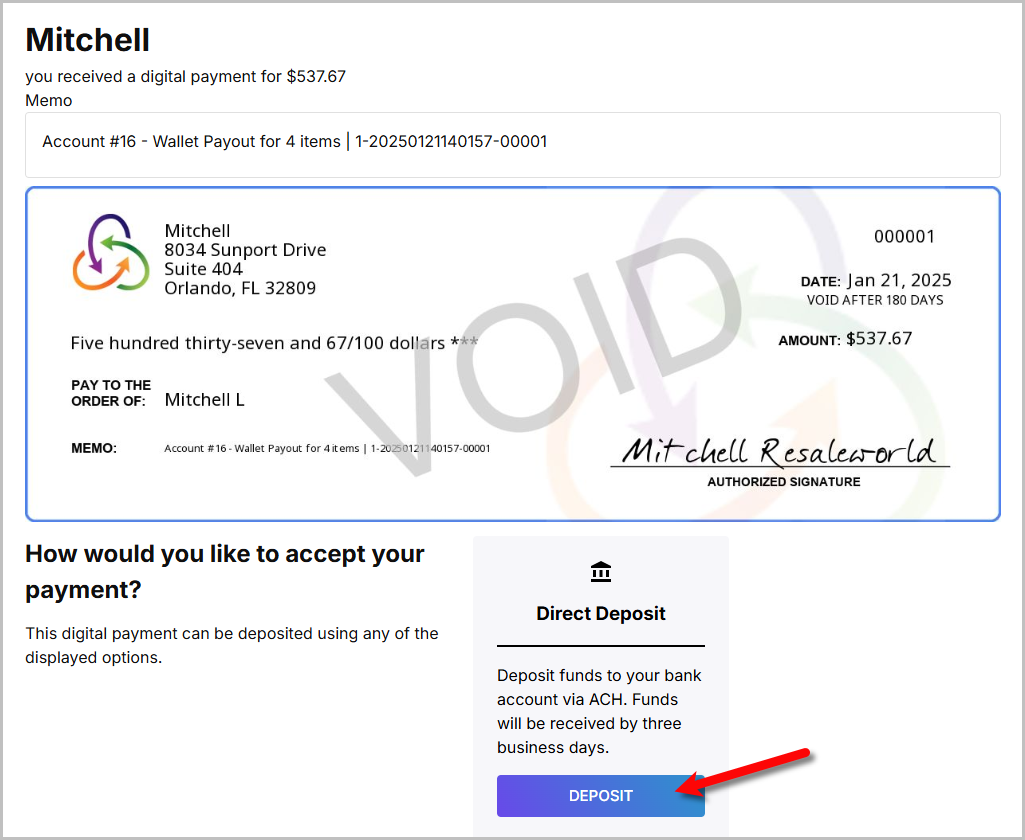
- Click the Deposit button.
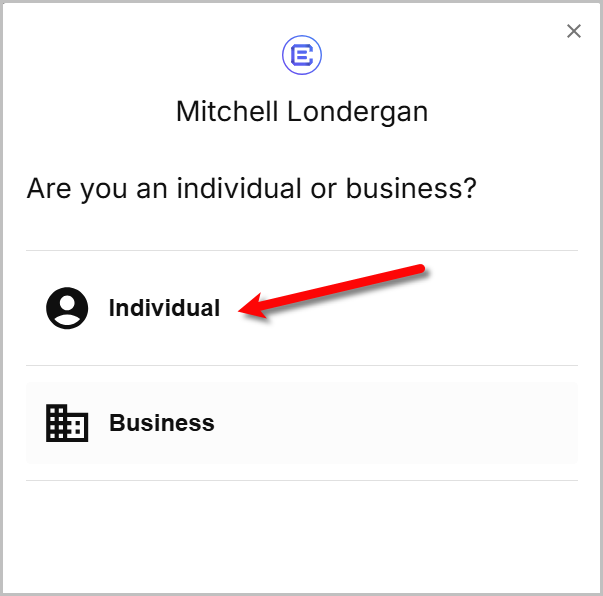
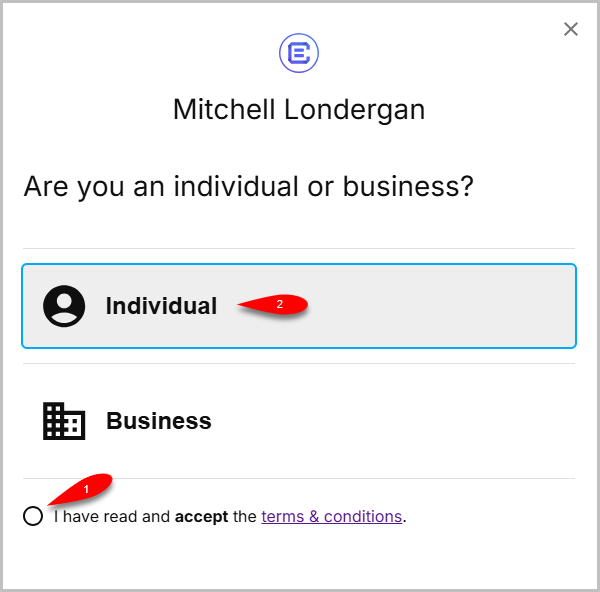
- Click on the option the best represents your situation, this will be selected to indicate whether you are a Individual or Business.
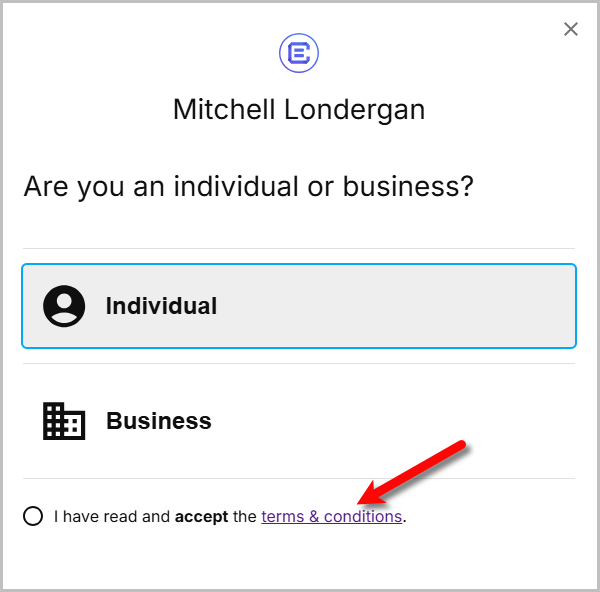
- After you select an option, you will have the option to either click the radio button I have read and accept the terms & conditions or you can view the terms and conditions.
- If you choose to view the Terms and Conditions you can close out of it when you are done reading it.
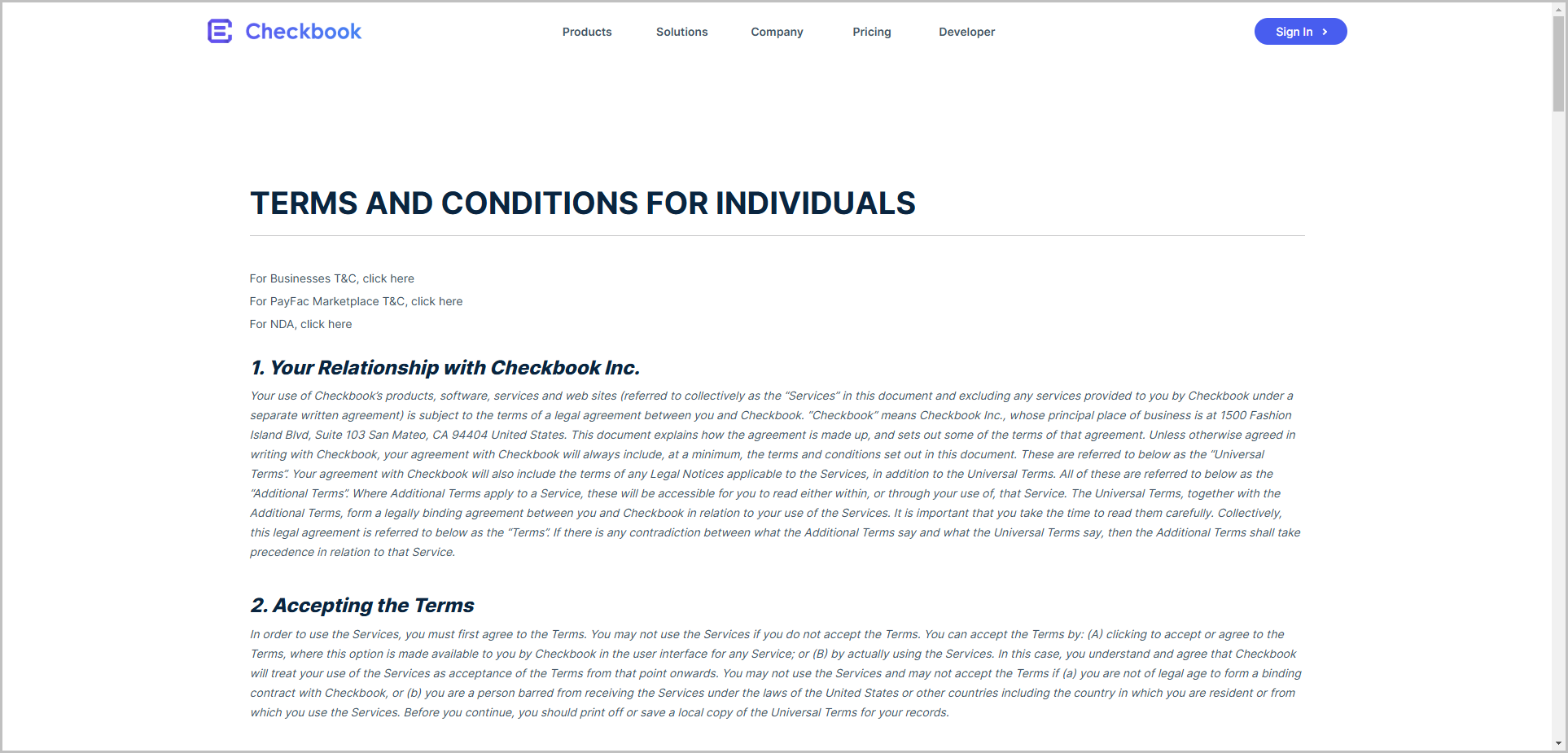
- If you choose to read the Terms & Conditions, you can click on I have read and accept the terms & conditions and then select either Individual or Business.
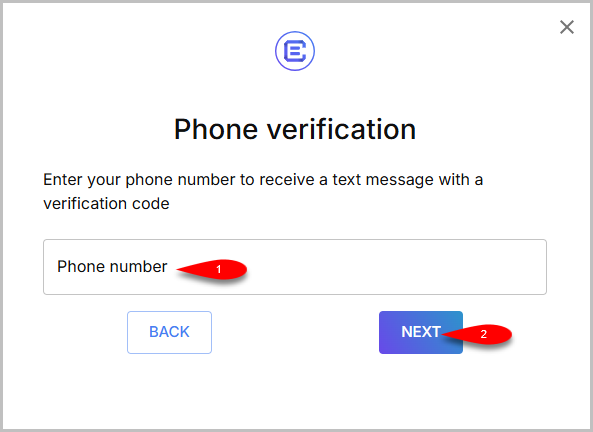
- Type in your Phone Number and click the Next button.
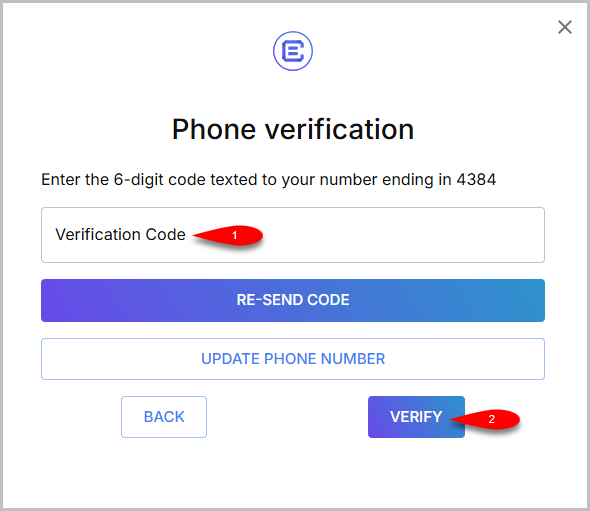
- Enter the Verification Code and then click the Verify button.
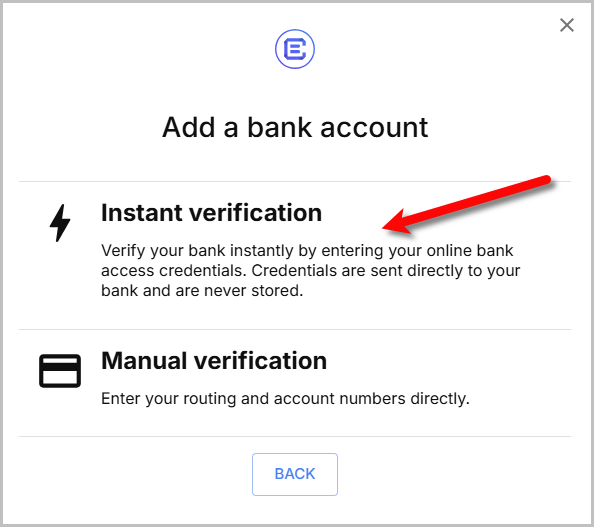
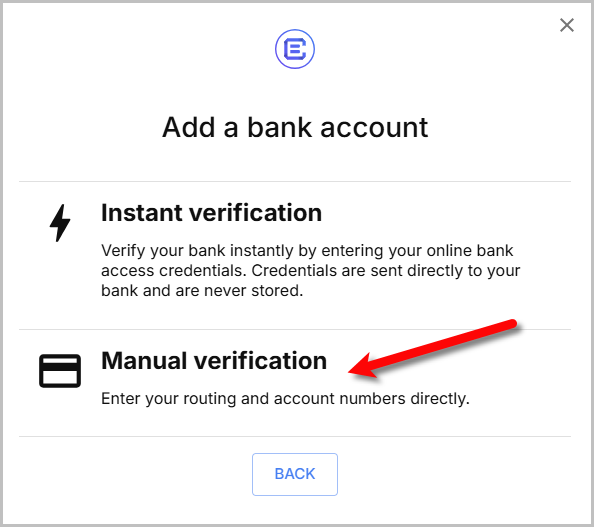
- Here you can select either Instant Verification or Manual verification.
Instant verification uses a service called Plaid to help automatically find your associated bank accounts.
Manual Verification you type out your Account Number and Routing Number from your bank account.
For these instructions, we are going to select Instant verification.
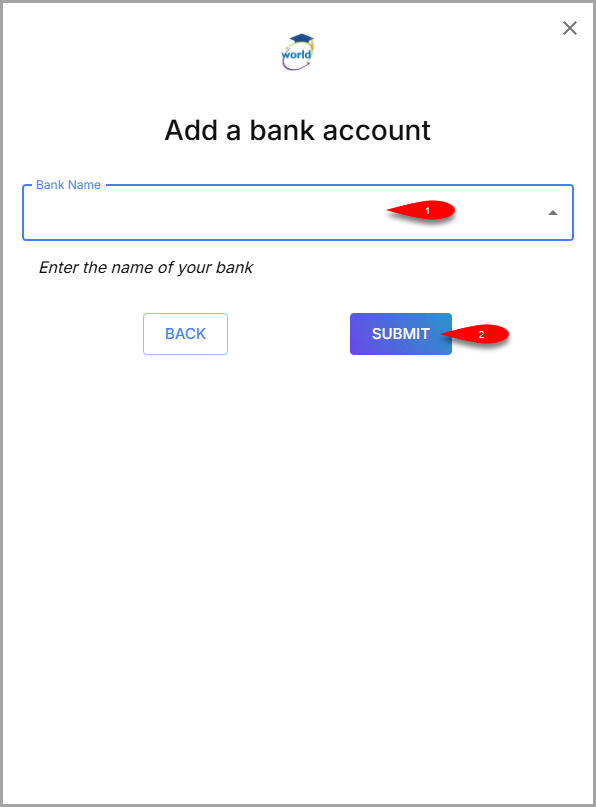
- Enter the name of your Bank and then select the bank from the searched options in the drop down field, then click the Submit button.
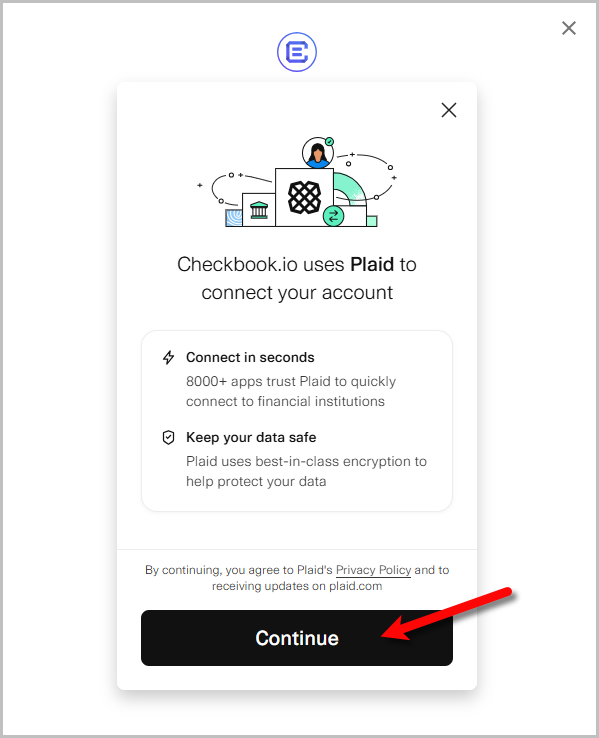
- Click the Continue button.
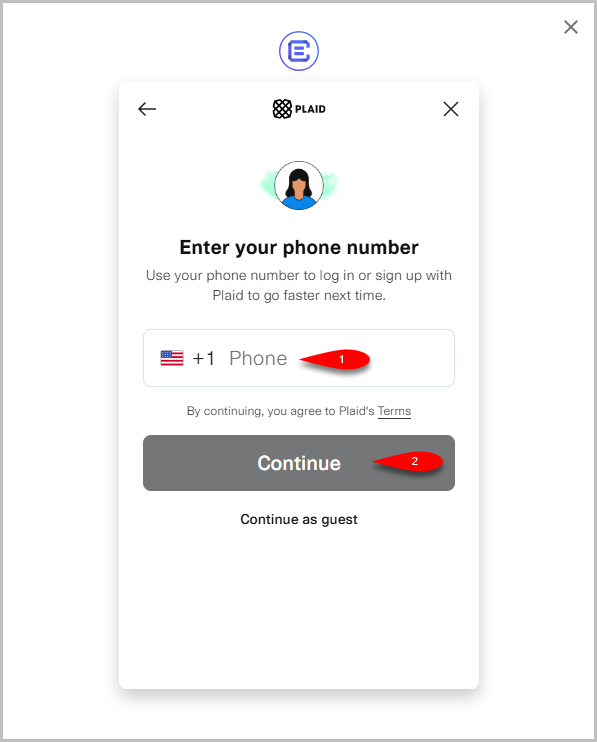
- Type your Phone Number then click the Continue button.
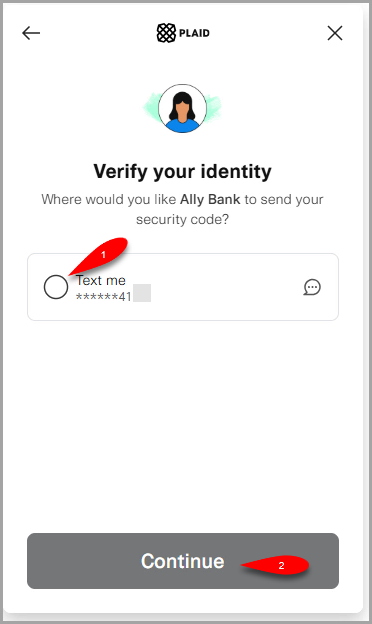
- Click the Text me option and then click the Continue button.
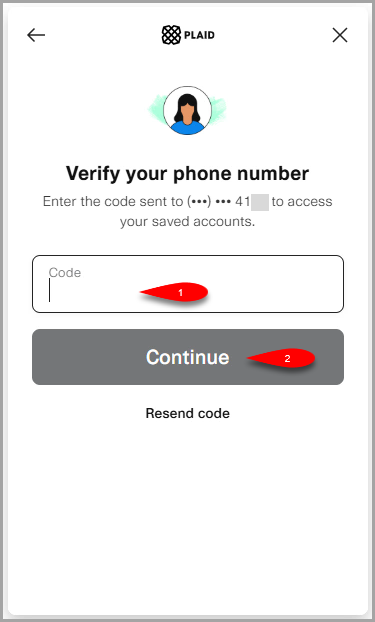
- Type in your Verification code you received via Text and then click the Continue button.
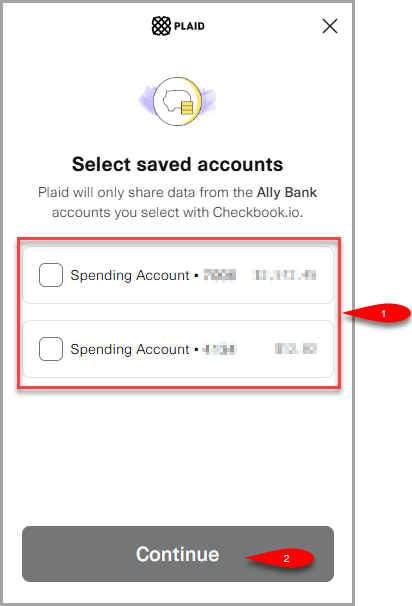
- You may be asked to sign into your bank account using your bank’s online login system.
Go ahead and do so and then select the Bank Account you wish to receive your ACH Deposit with.
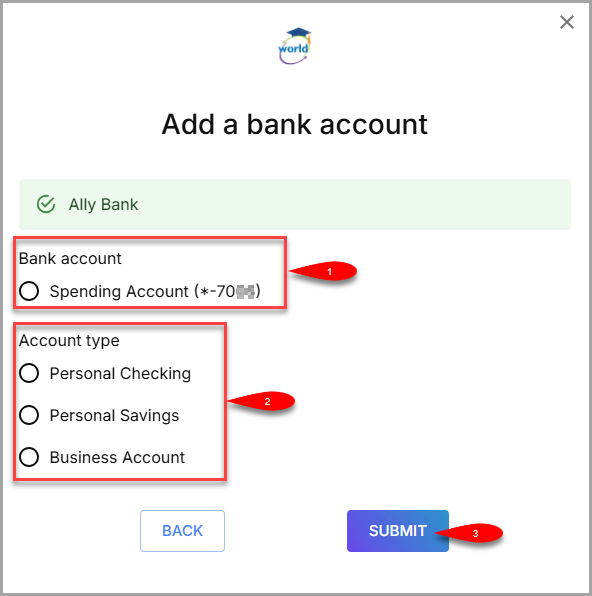
- Select the radio button for your Bank Account once more and then select what Account Type this account is.
Finally, Click the Submit button.
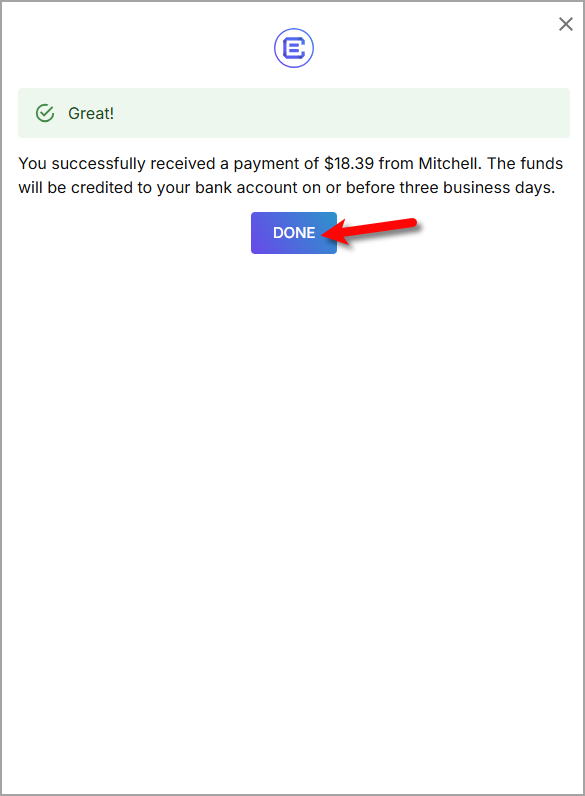
- You will get a notification with the dollar amount that will be submitted to your Bank Account within Three Business Days.


Click the Done button when you are done.

Setting Up Deposit By Using Manual Bank Account Entry
- When you get to this point, select Manual Verification instead of Instant Verification if you want to enter your bank account information manually.
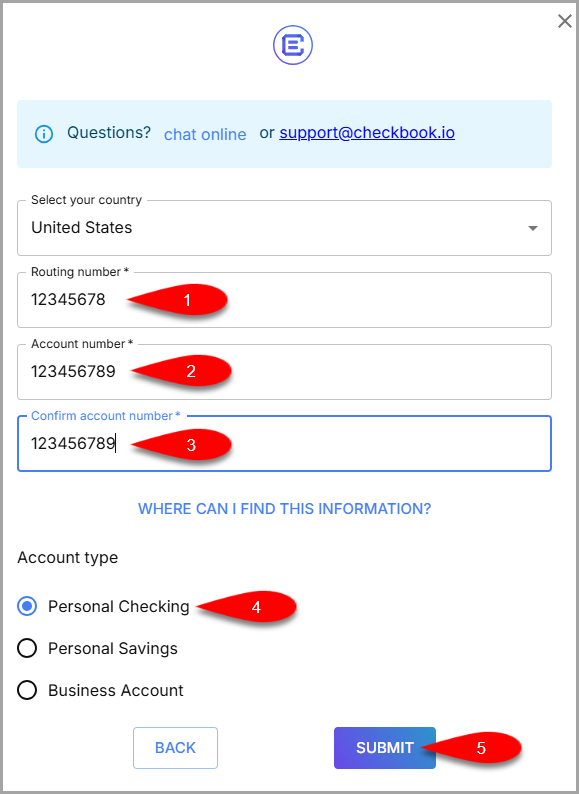
- Type in your bank account’s Routing Number and Account Number, then type in your Account Number once more.
Click the Submit button when finished.
- You can now select your manually entered Bank Account to receive your ACH payout.


Accepting A Payout After First Time Customer Setup
After setup is completed the first time to receive ACH deposit to a bank account, the next time an ACH payout is received, it will allow you to select the bank account again.
- Click the Deposit button on your ACH Payout email.
- You will now be given the option to reuse the bank account you used before or add another bank account.
Once this is finished, you can click the Done button.
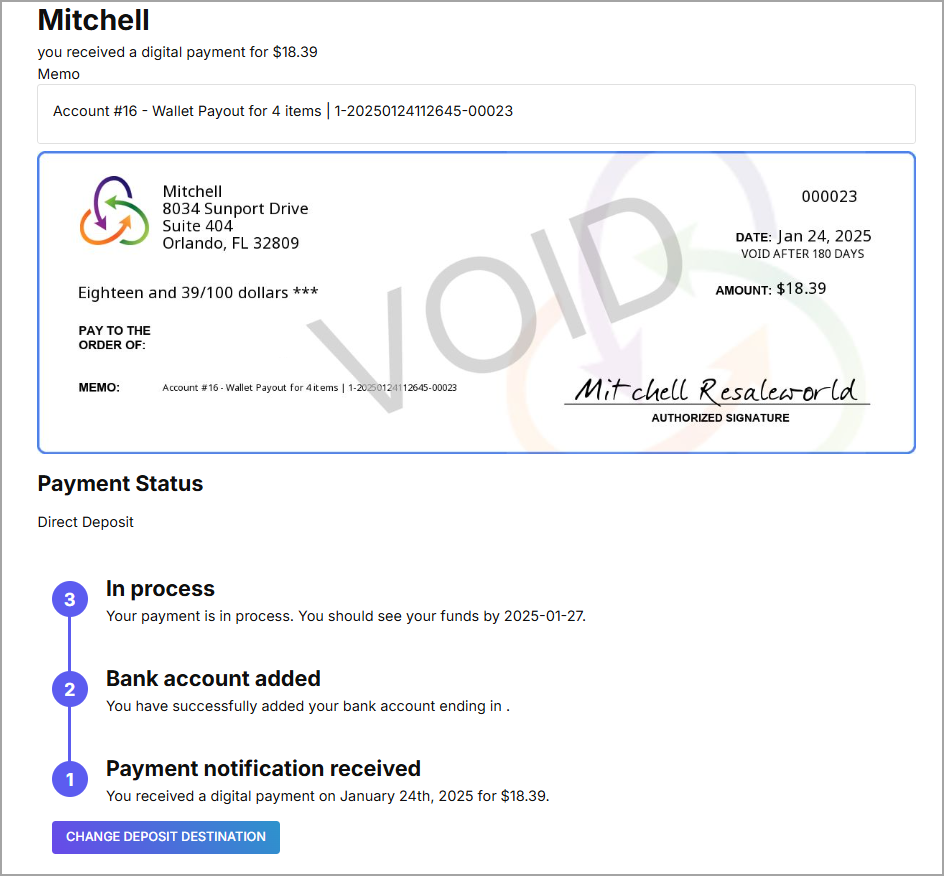
- You can check the progress of your ACH Payout from the email or you can Change Deposit Destination if the ACH Payout has not been processed yet.


Next Article In Section
Click the following link to move to the next article in this section:
Consignor First Time Deposit Process
Related Topics
Consignor ACH Deposit Guide Overview ResaleWallet ACH Payouts Overview Setting Up ResaleWallet Editing Your ResaleWallet Profile Information Setting Up Your Bank Account Setting Up A Liberty Account For ACH Payouts How To Do A Signature Capture For ACH Payouts Creating A Single ACH Payout Mass Account ACH Payouts Reversing A ResaleWallet ACH Payout In Liberty Viewing ResaleWallet Payout Status In Liberty