Table of Contents
Using The Clover Flex-3
By default, the Clover Flex-3 will be in Merchant mode, which allows you to access the admin panel and the Android device settings.
- The Admin Panel has some options for the Cardpointe app.
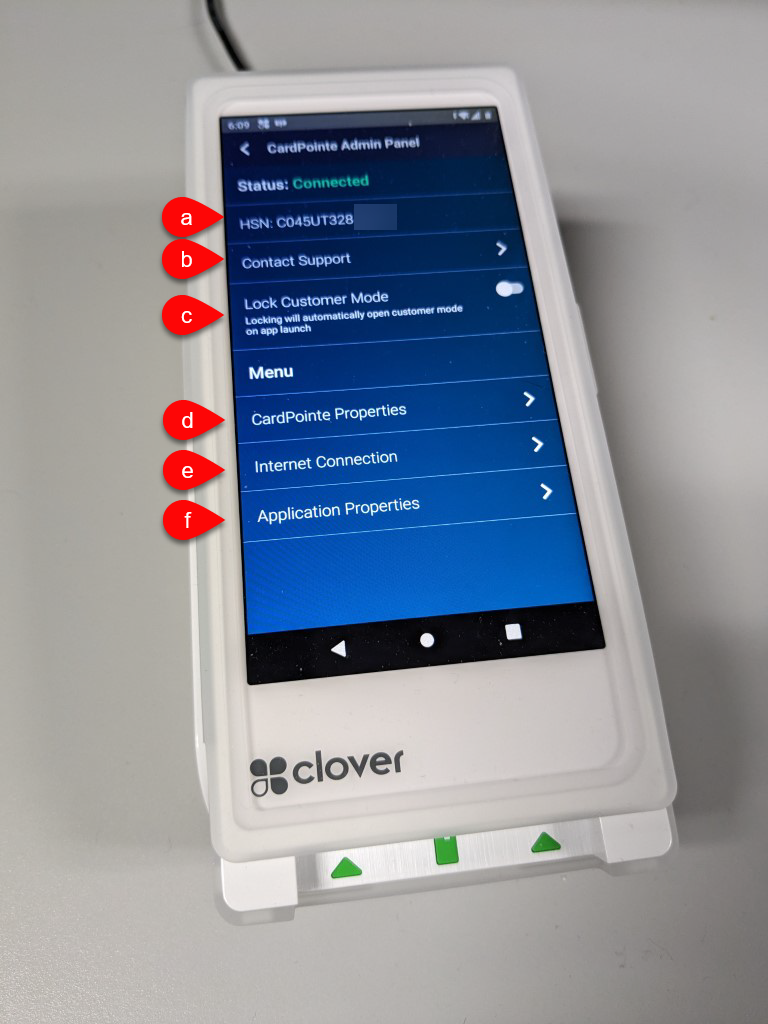
- The HSN (hardware serial number) is listed here for ease of use. This uniquely identifies the terminal and is needed for the setup in Liberty.
- Contact Support brings up the Cardpoint Support center website.
- Lock Customer Mode makes the device launch into Customer Mode automatically when the app is launched. Once the device is fully configured you won’t need to use Merchant Mode often, so locking it into Customer Mode can be helpful.
- Cardpointe Properties shows information about the hardware and software.
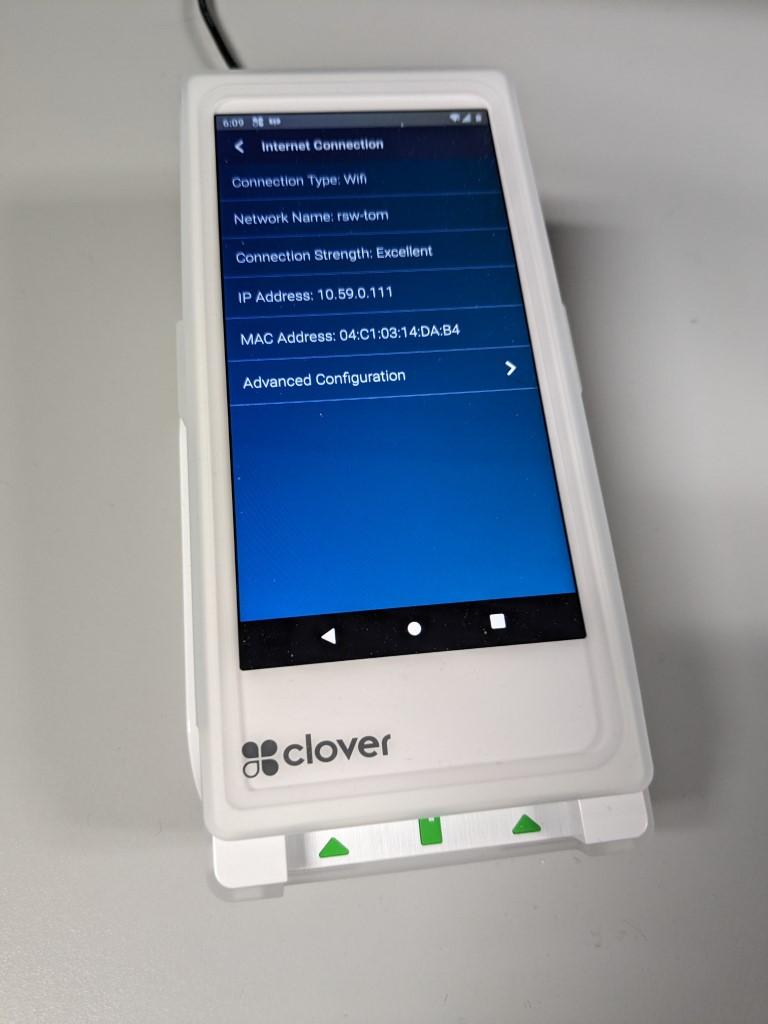
- Internet Connection shows information about the internet connection. You can click Advanced Configuration to reach the WiFi settings if you need to connect to a network.
- Application Properties gives you the app version.
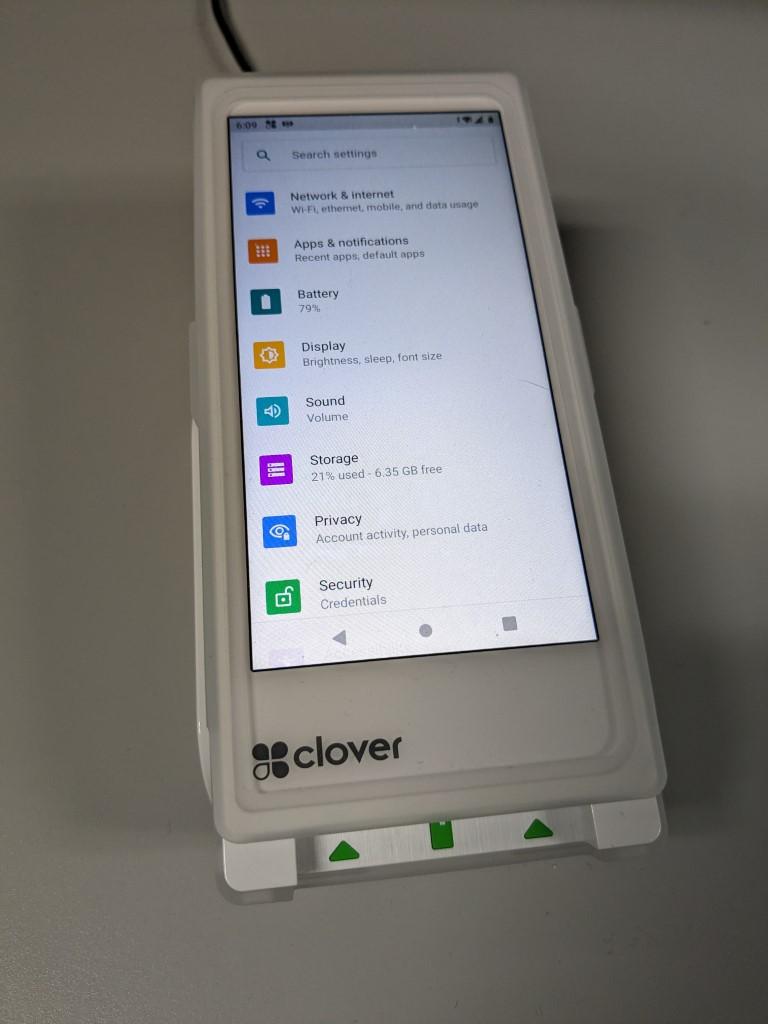
- Settings can be reached from the home screen or the Advanced Configuration option in Internet Connection. Tap on Network & Internet to connect to a WiFi network.
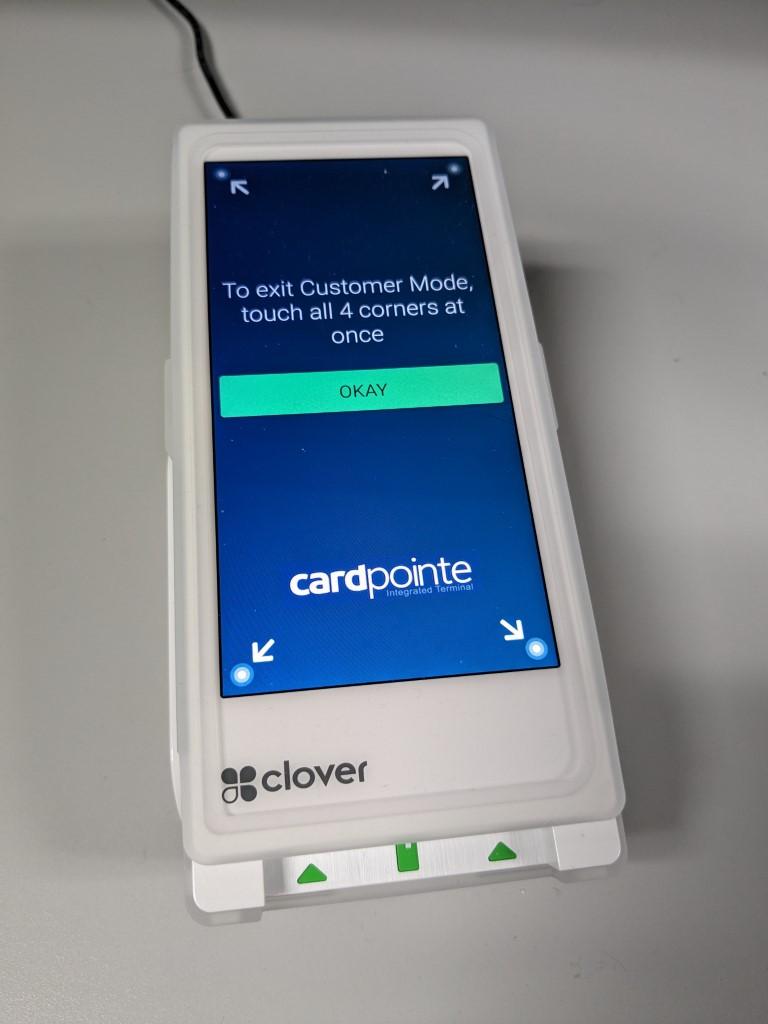
Once all of the settings are set, put the device in Customer Mode. Customer Mode allows sales to go through to the terminal once they are rung up in the POS.
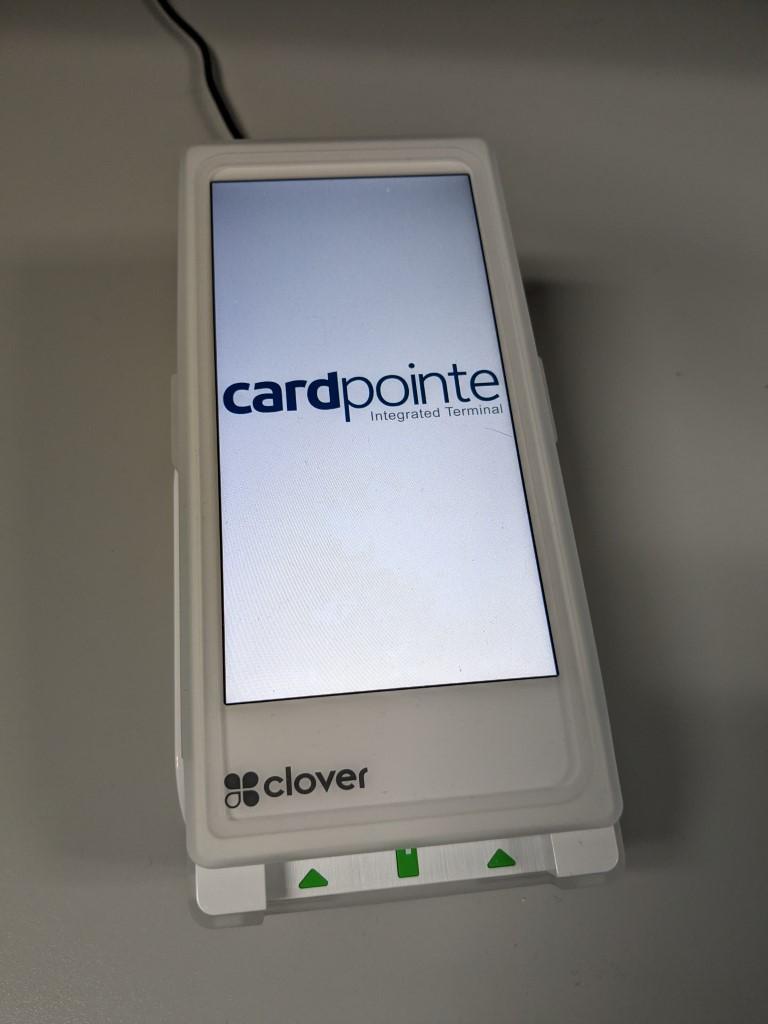
To exit Customer Mode, touch all 4 corners of the screen at once.


Next Article In Section
Click the following link to move to the next article in this section:
How To Enable Terminal Beeps On ResalePay Terminals