Table of Contents
Using Reports to Send Client Emails
Email is the traditional and most efficient method of communicating with consignors and online customers. Accordingly Liberty provides a variety of tools to automate the process of sending Emails. These include:
- Notification Email : This report will generate an email to each consignor items on the account.
- Closed Auction Email :This report will generate an email to each consignor items on the account with descriptions of the items.
- Item List Email w/Sales Email : This report will generate an e-mail to each consignor items on the account with sales records.
- Open Orders Email : Use this e-mail when you need to remind customers that they have not paid for items that have sold on their account. Be sure to filter this report so that you do not send every customer an e-mail.
- Payout Detail Email : Emails payout and payout detail to each consignor. Information in the e-mail is grouped by payout numbers.
- Wish List Cross Ref Email : This e-mail alerts customers of potential items they are wanting based on wish list configured to their account.
Note: Before Bulk emails can be sent, e-mail settings must be configured. See Email Settings for more details.
To Send A Batch Of Emails To Customers And/Or Consignors
- Start the Reports Module. There are two ways to do this.
- Reports button : Across the top of the Inventory Module are buttons to other modules. Reports Module is one of them.

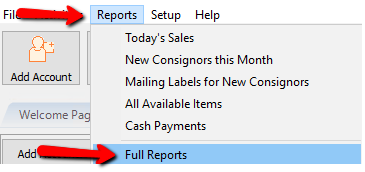
- Through The Reports Menu : At the top of the Inventory Module are menu selections. Selecting Reports > Full Reports will open the reports module.
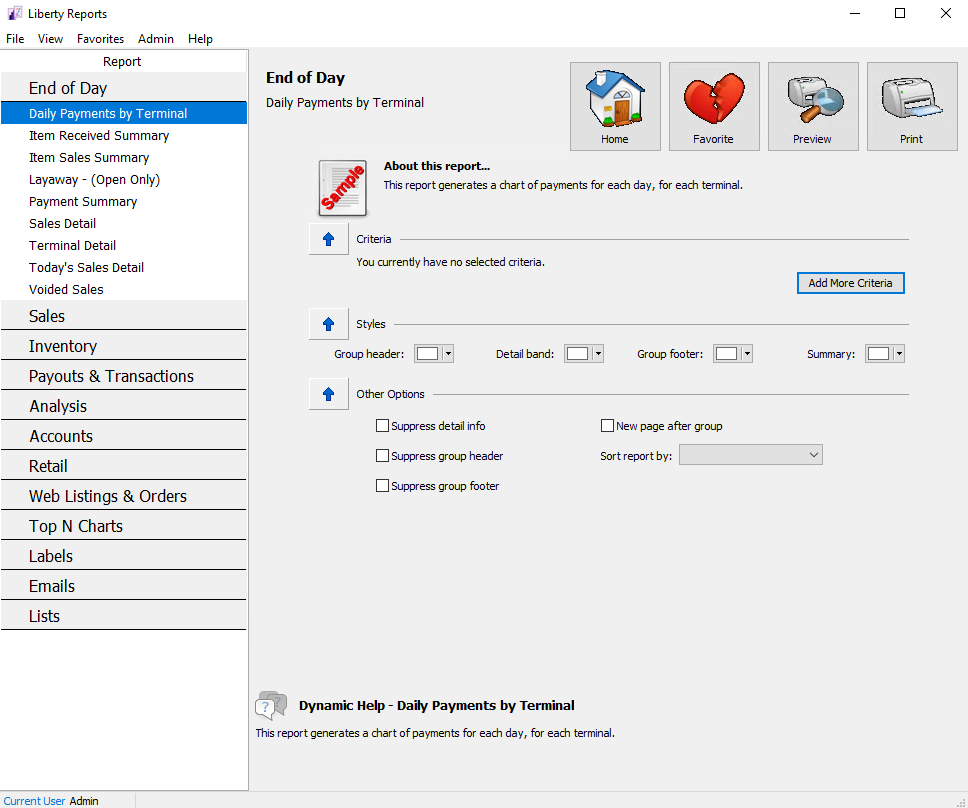
The Reports Module will open.
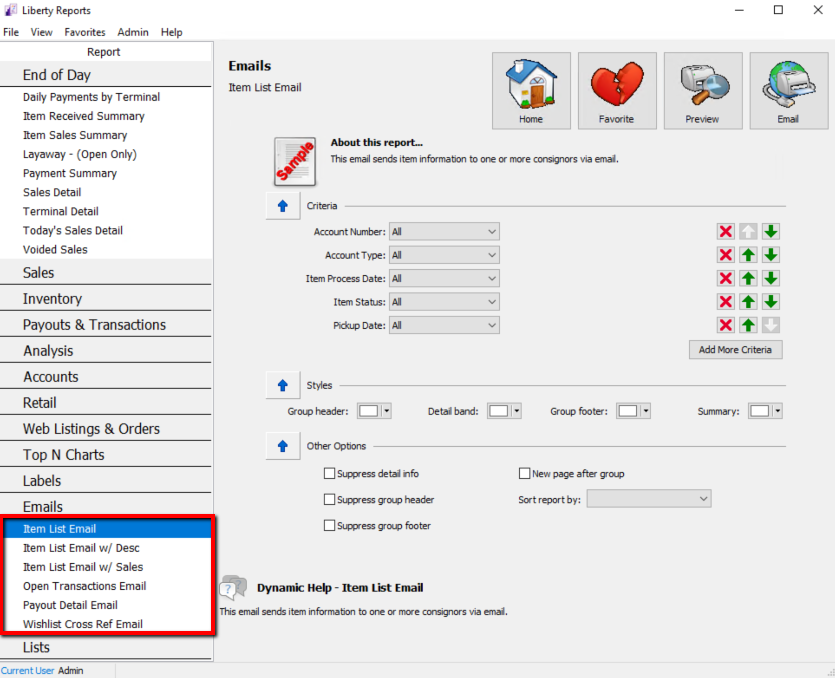
- Choose the report you would like to send. The list of reports that can be emailed are under Emails.
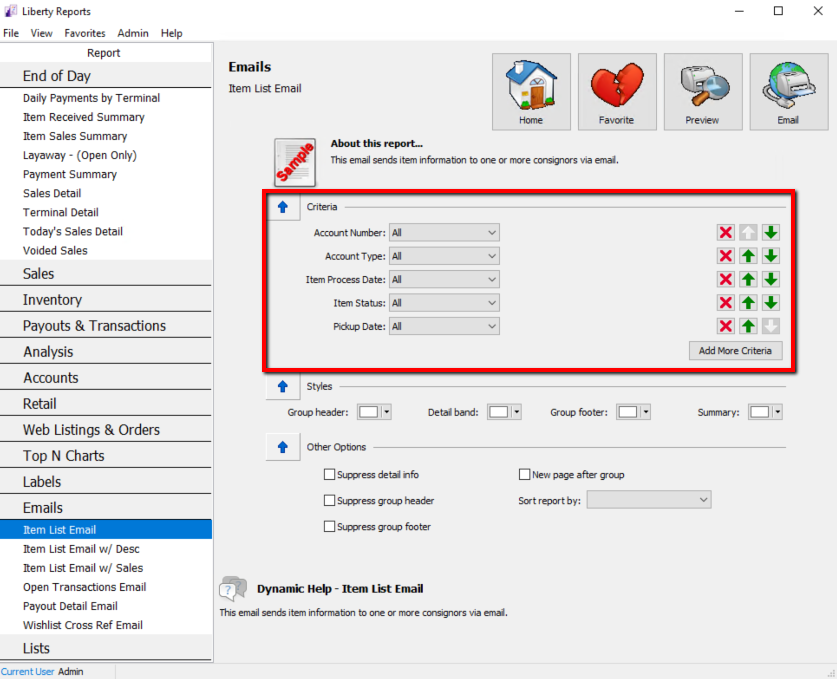
- Under Criteria, choose the information you would like to use to provide the details you want within the report.
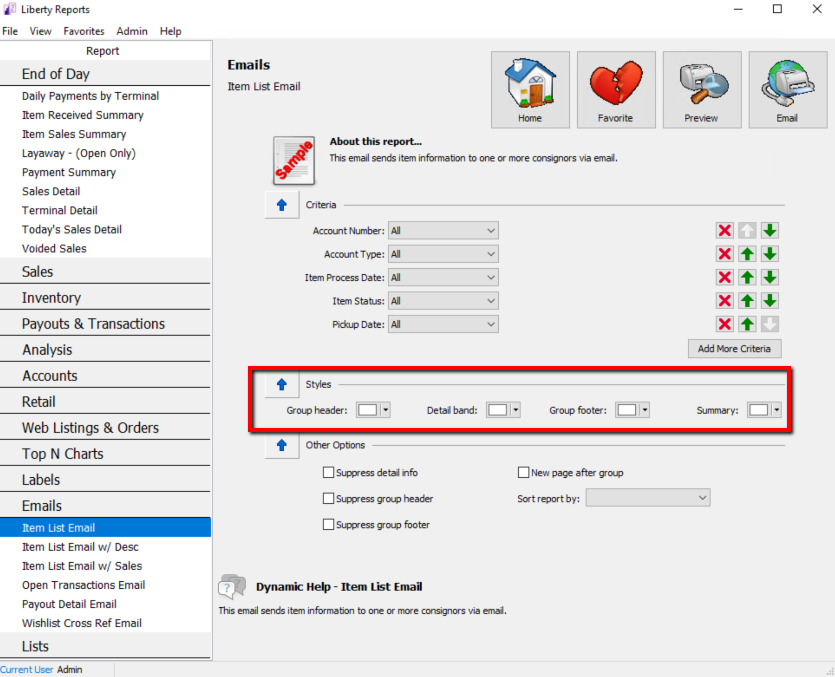
- Under Styles, you can make changes to the look of the report. This area is initially set to give the best results.
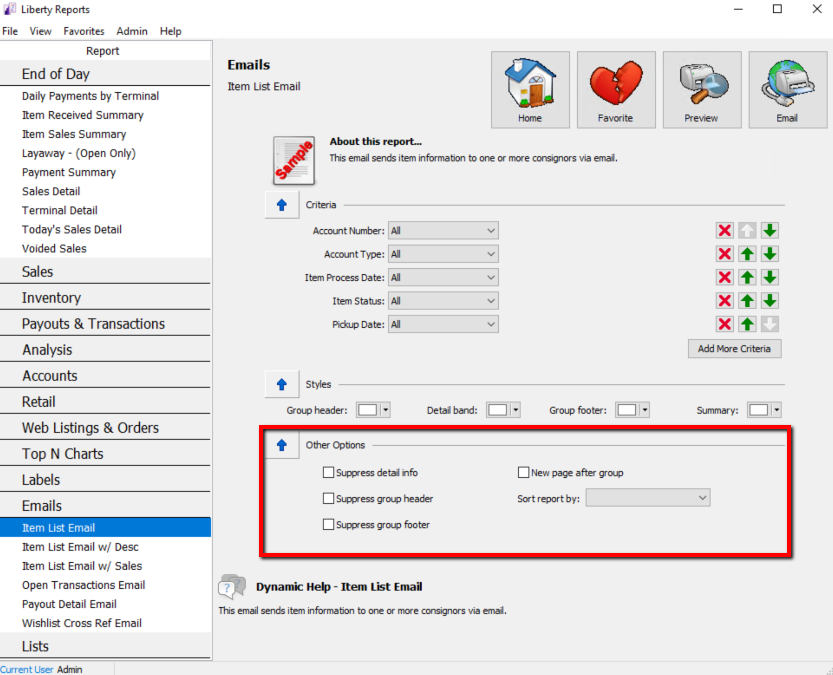
- Under Other Options, you can suppress information by putting a checkmark in the box. By suppressing information, this will suppress available information. You can also choose to check New page after group, and Sort the report by available options.
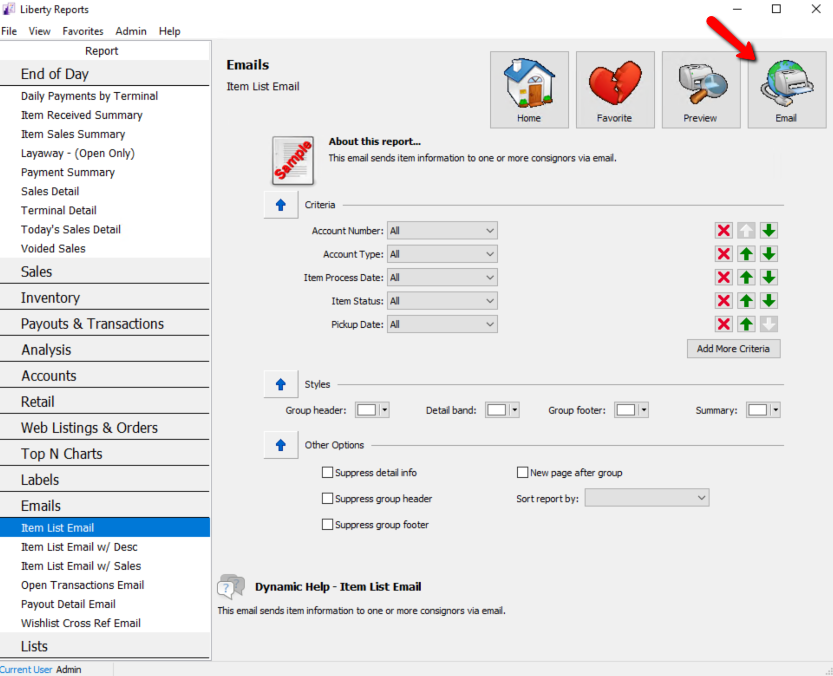
- Select the Email button to send the Email(s).


Next Article In Section
Click the following link to move to the next article in this section:
Exporting Reports