Table of Contents
Favorite Reports
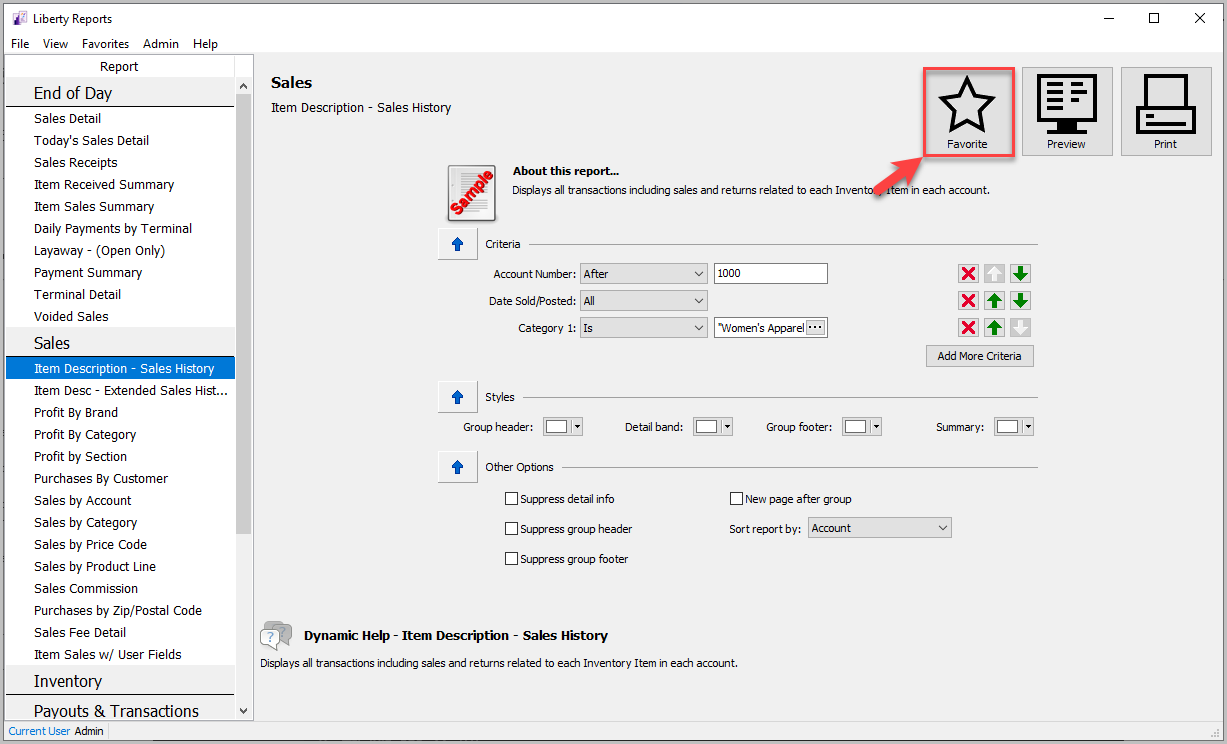
To Favorite A Report
- Open the Reports Module. There are 3 ways to access the Reports Module:
- Reports button : Across the top of the Inventory Module are buttons to other modules. Reports Module is one of them.

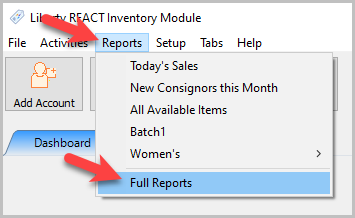
- Through the Reports menu : At the top of the Inventory Module are menu selections. Selecting Reports > Full Reports will open the reports module.
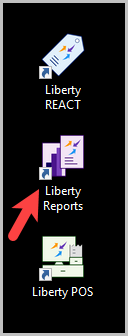
- Desktop shortcut : On the desktop there should be a shortcut directly to the Reports module.
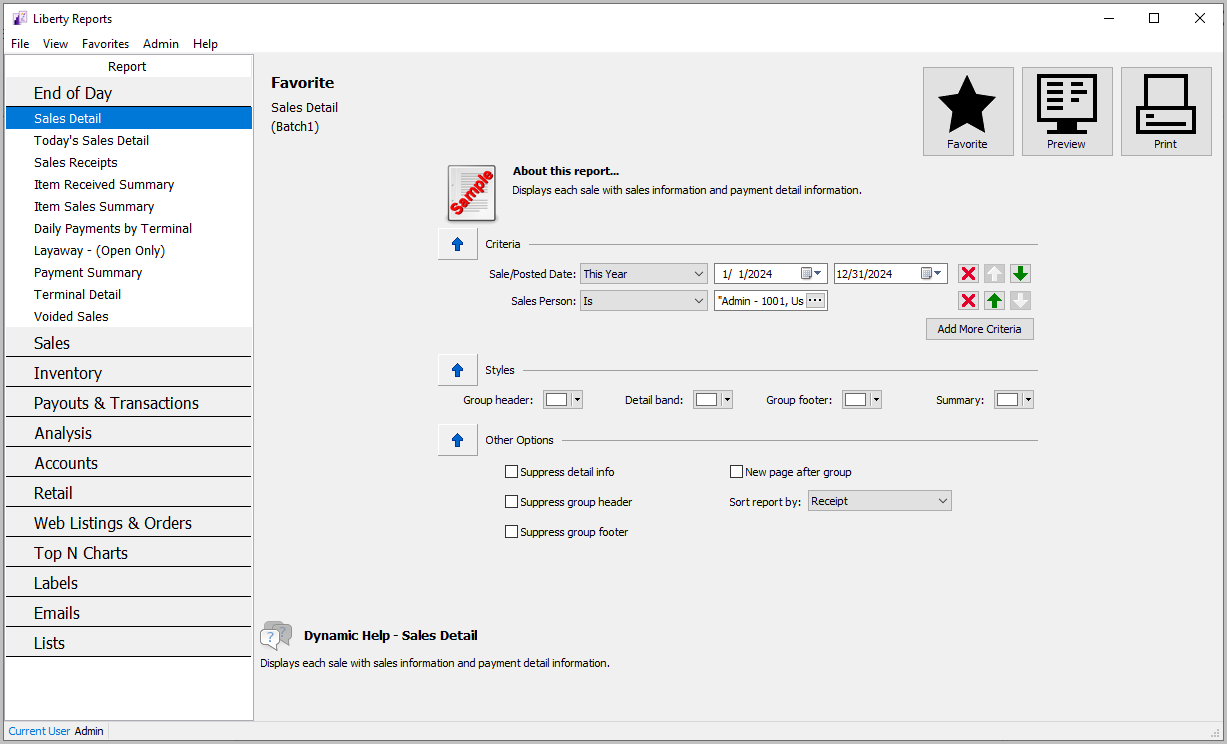
The Reports Module will open.
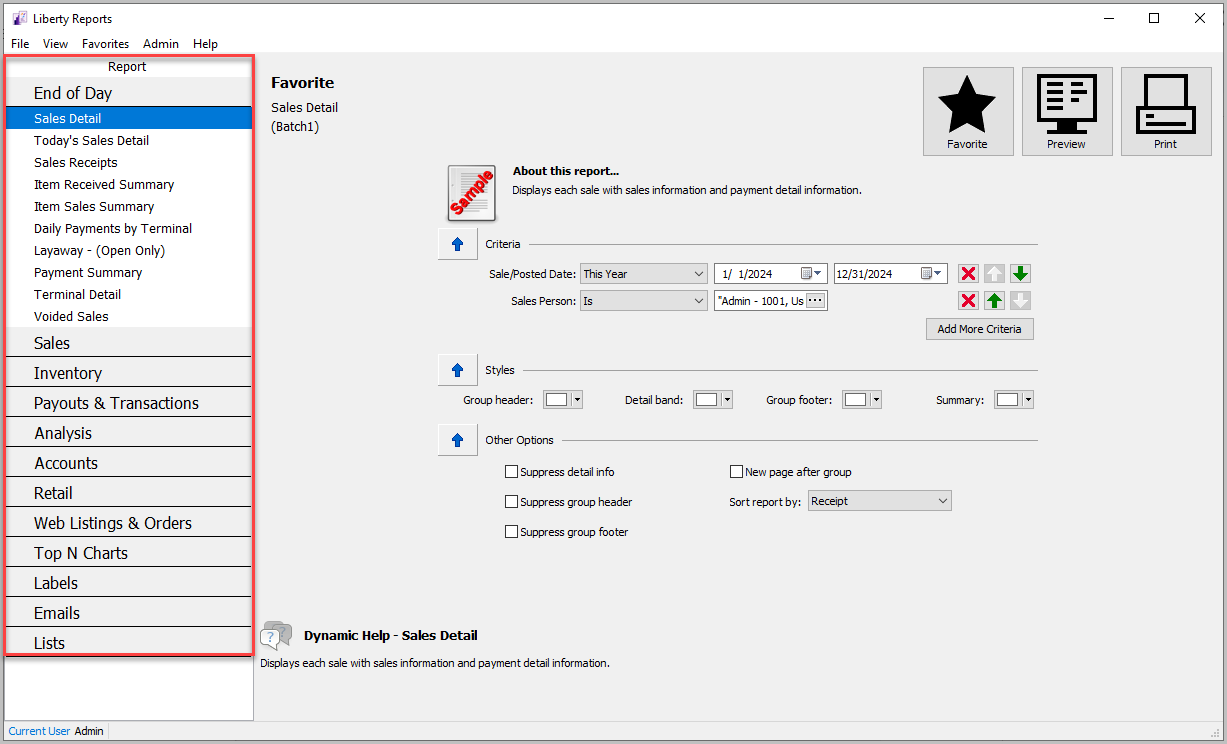
- In the left column select the report you want to favorite. For more information on selecting reports, see Selecting The Right Report.
- Click Favorite at the upper right. A report that is not currently favorited will have an empty star.
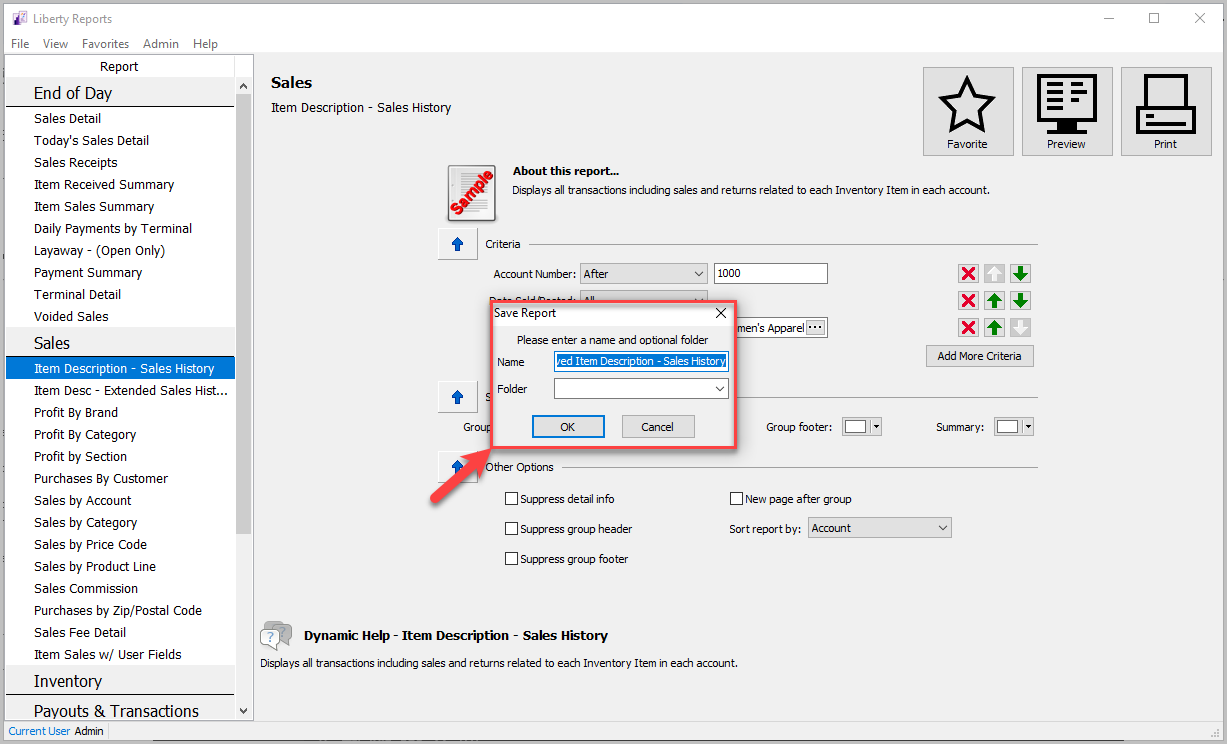
- Save the report. The name should be descriptive enough that it’s easy to recognize from the favorites menu. A folder is not required but if you have many reports that need to be organized it can help to add one. You can either select an existing folder from the dropdown menu or type in a new folder name.
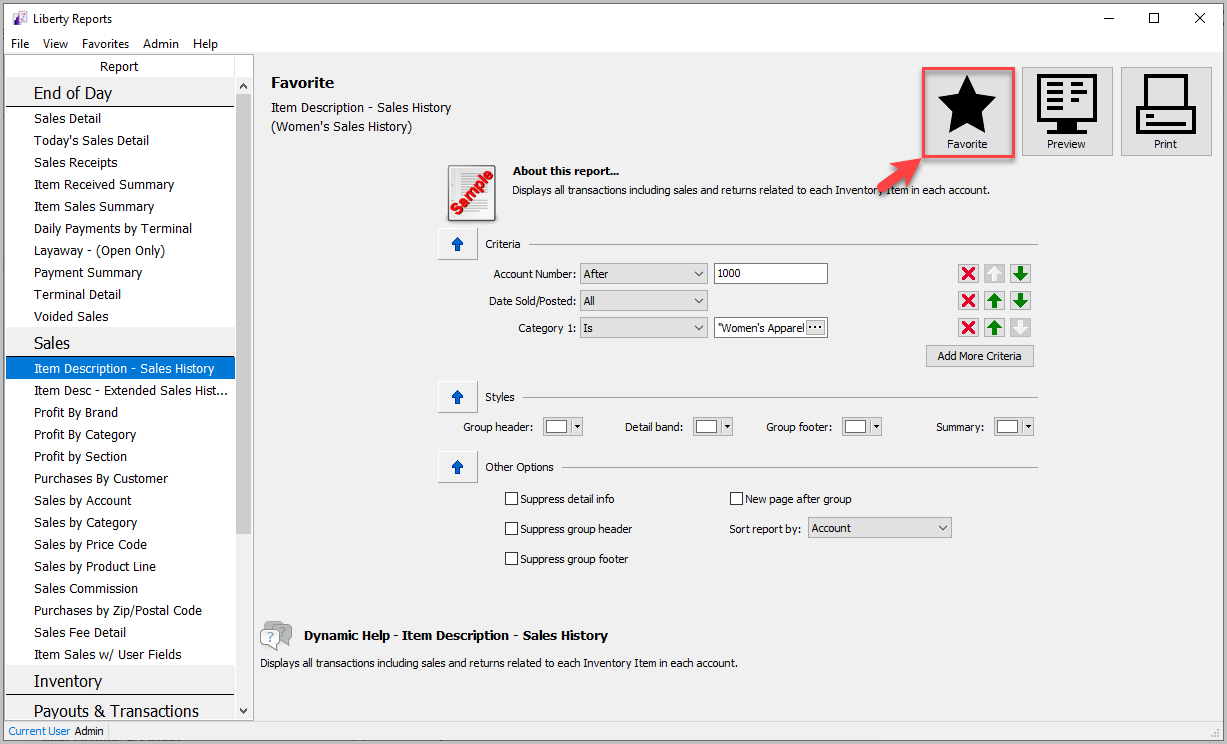
- Once a report is favorited, it will have a full star.


To Open A Favorite Report
There are two ways to open a favorite report.
- In Reports Module : Click Favorites, then either click on the report directly or open the folder the report is in and click it there.
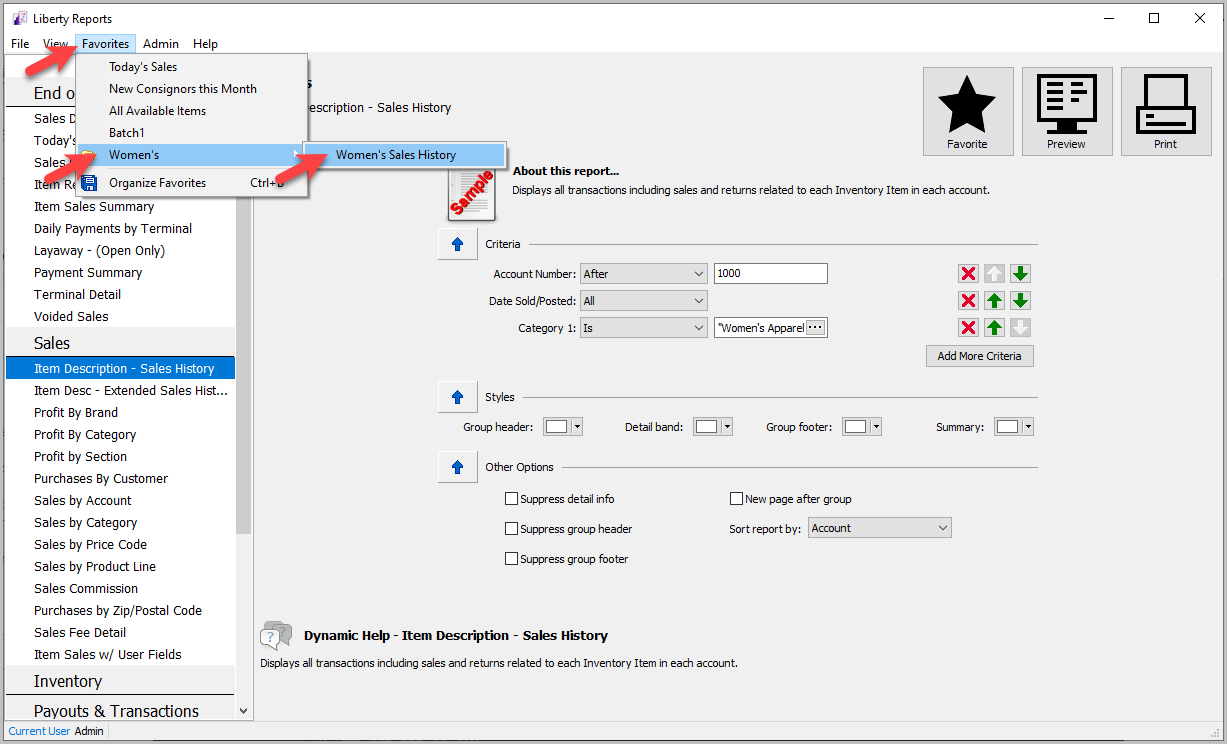
- In Inventory Module : Click Reports, then either click on the report directly or open the folder the report is in and click it there.
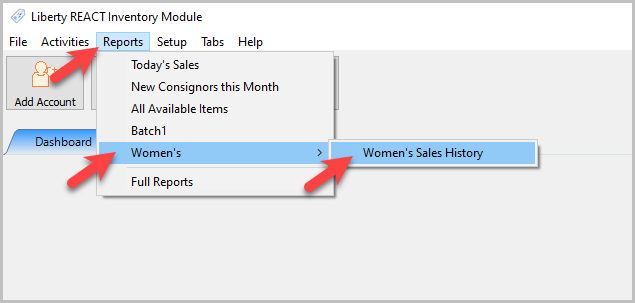


Organizing Favorites
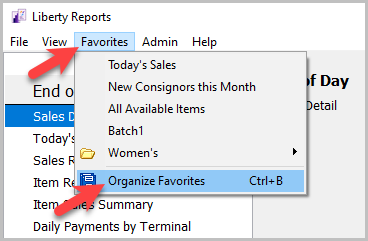
- Open the Reports Module. Then click Favorites > Organize Favorites.
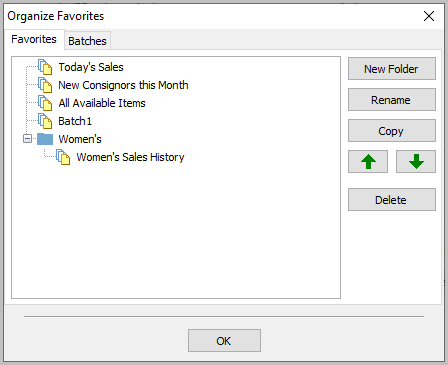
- That will open the Organize Favorites window, which has a few functions.
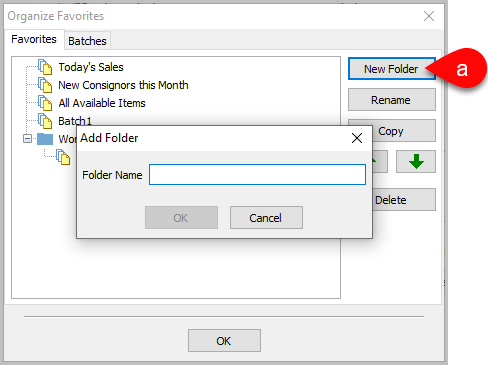
- New Folder : This lets you create a new folder to store favorite reports in.
- Rename : Select a favorite and click Rename to change its name.
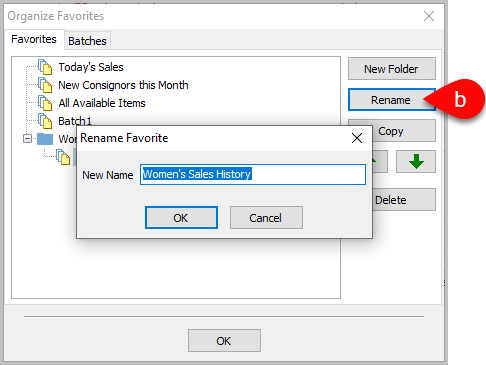
- Copy : Creates a copy of the selected favorite, which you can choose a new name for.
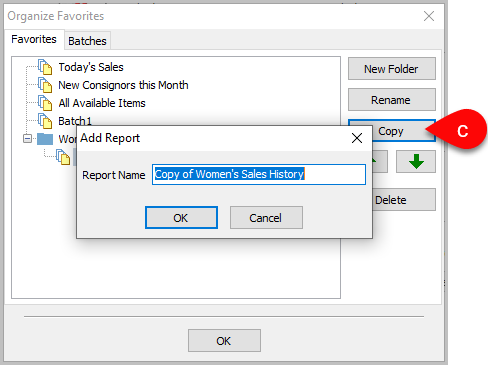
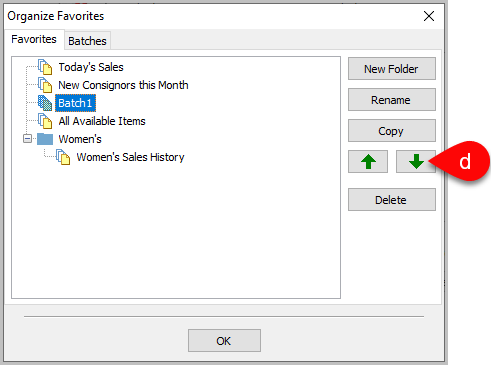
- Move : The move arrows move a selected favorite up or down the list.
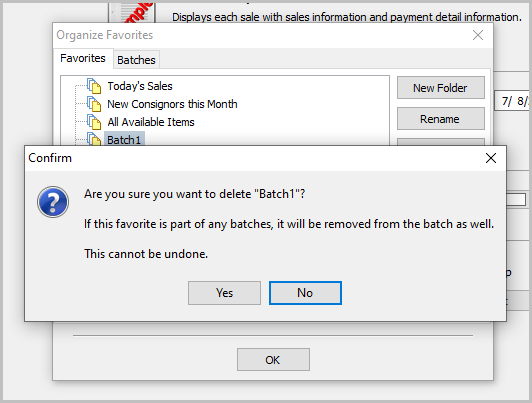
- Delete : Deletes the selected report. Another dialog box will pop up asking for confirmation.


Starting Liberty Reports Select The Right Report Setting Report Parameters Printing Reports
Next Article In Section
Click the following link to move to the next article in this section:
Batch Reports