Table of Contents
Exporting Reports
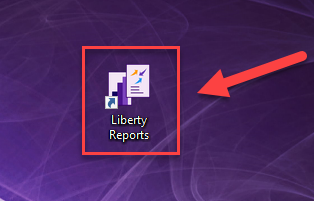
- Open Liberty Reports Module
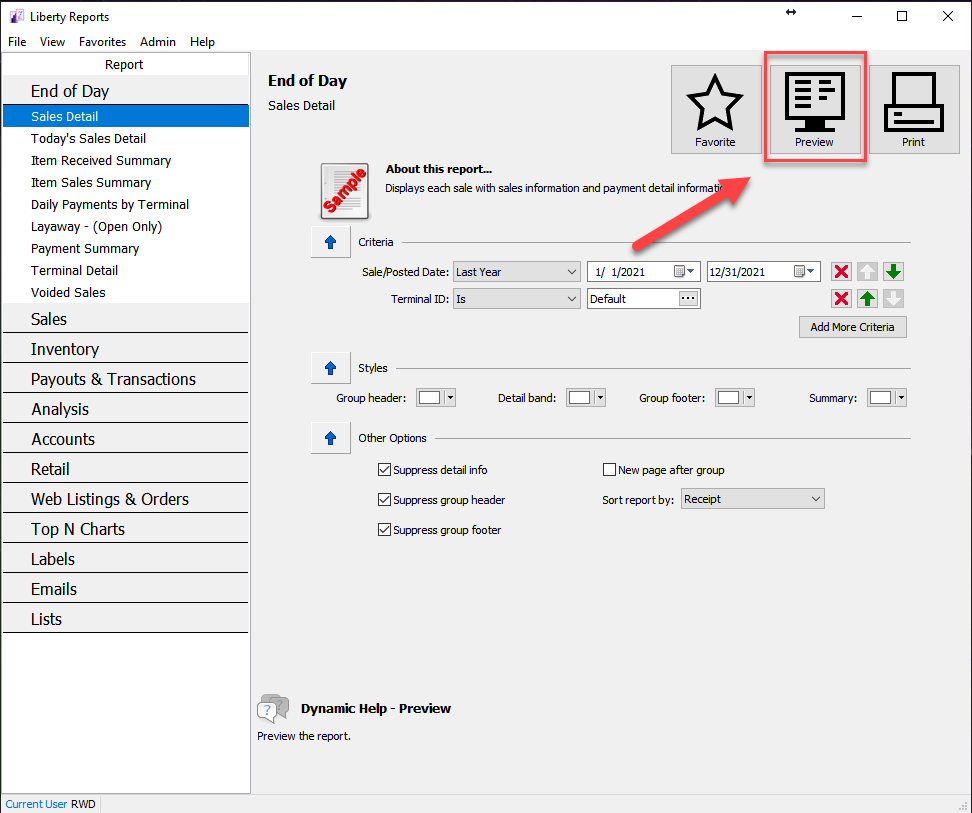
- Set preferred criteria for report and click 'Preview' button
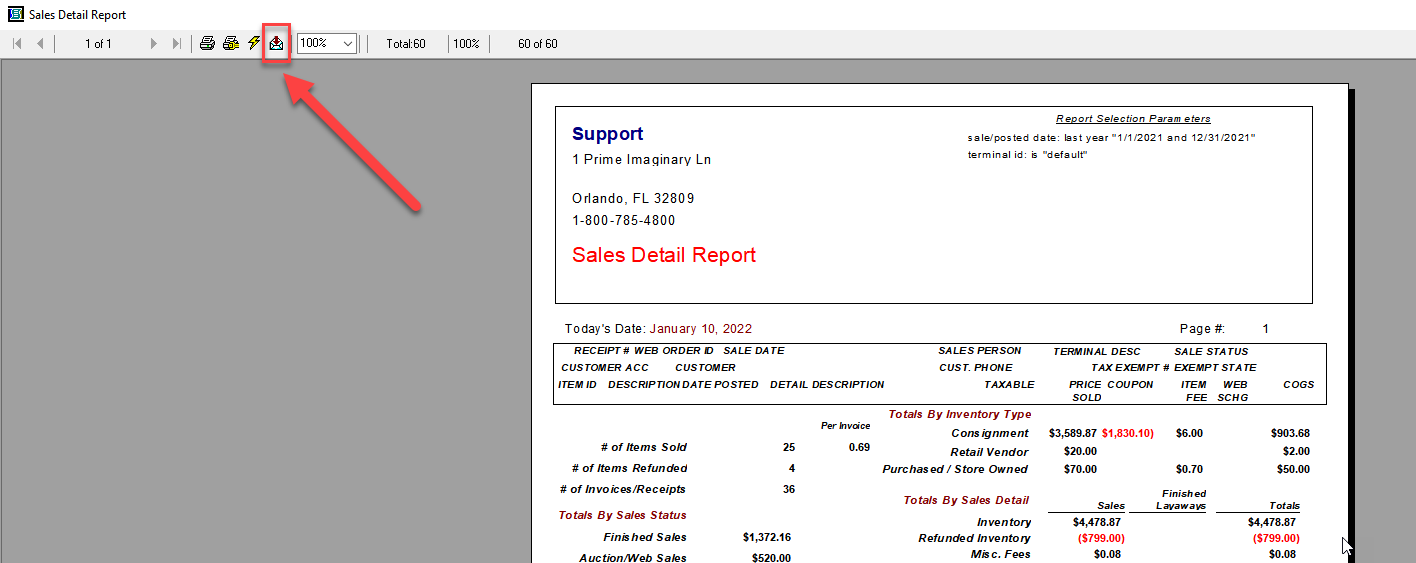
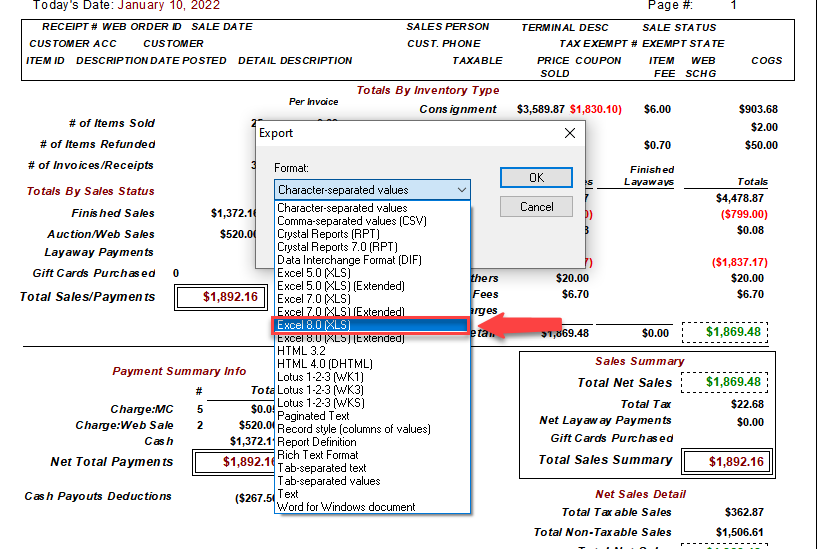
- Click 'Export' button at top of screen
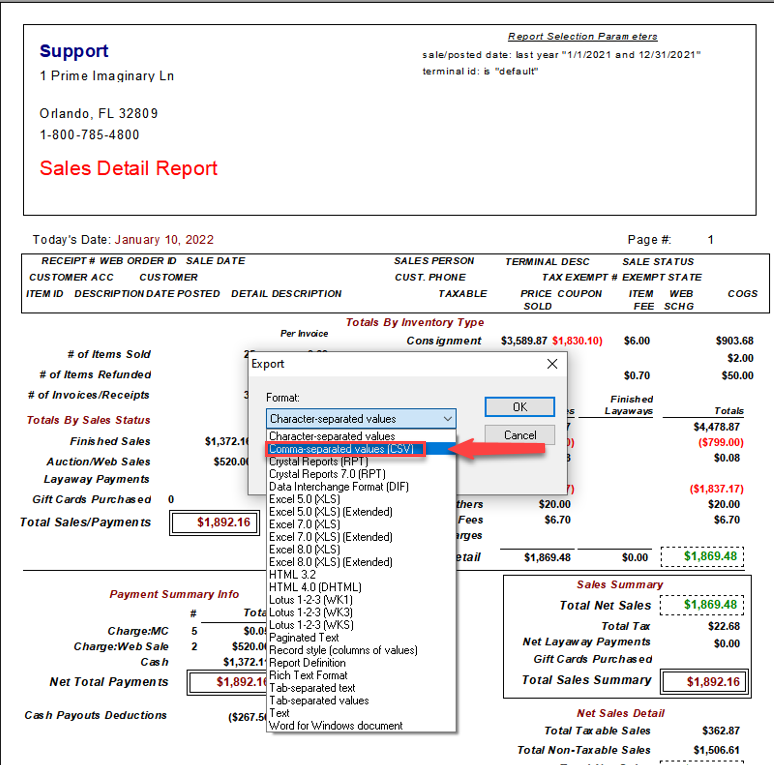
- Click dropdown menu on 'Format' field and select Comma-separated values (CSV) for .csv files
Note: Use CSV if you want every datapoint to be in its own column. You will need to delete any extra columns with header text that you do not need, in order to leave just the data. You can then sort the data in excel so that it is in any order that you need.
- For .xls files, select Excel 8.0 XLS from the dropdown menu
Note: Use Excel 8.0 XLS if you want the data to look nice out of the box. Keep in mind some data massaging may need to be done as some of the columns of data may run into one another.
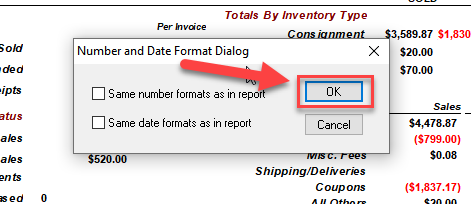
- Once preferred format is selected, click 'OK' and 'Number and Date Format Dialog' will appear. Select preferred options and click 'OK'
- Give new .csv file a name and direct it to preferred location on computer. Click 'Save'
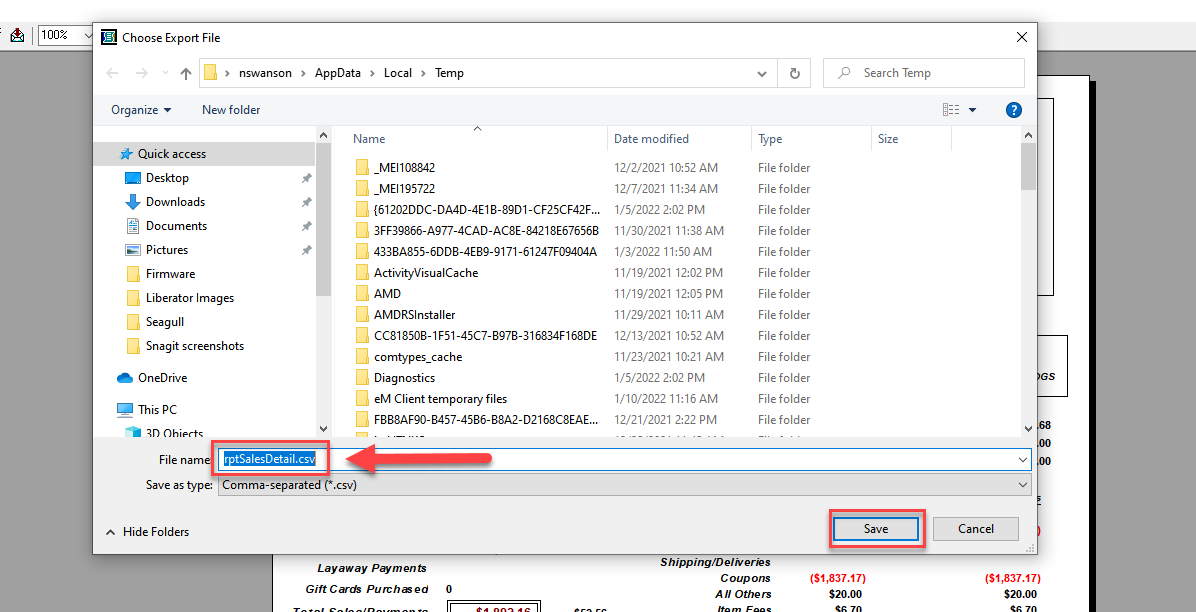
- File is now saved as .csv or .xls


Next Article In Section
Click the following link to move to the next article in this section:
Favorite Reports