Table of Contents
How To Initiate Subsequent Syncs To Quickbooks Desktop Software
- Open the Liberty REACT Inventory Module and then click on the QB Link icon.

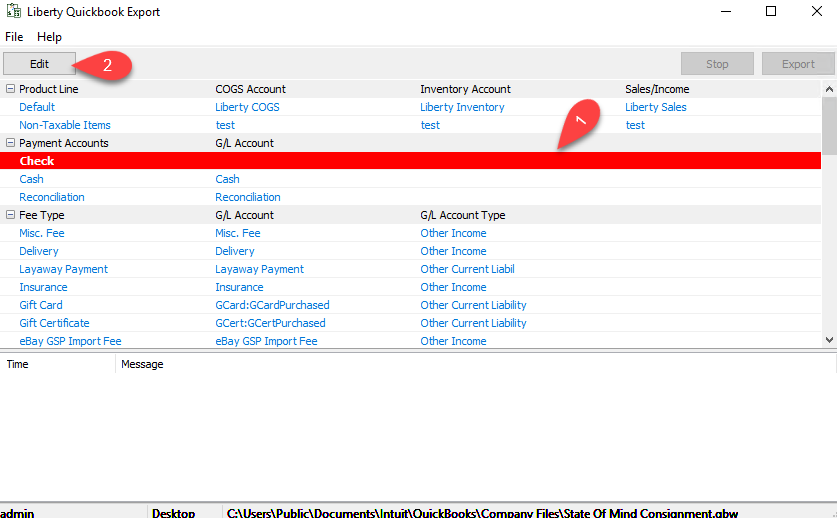
- If you see any Red entries, they will need to be corrected first.
Click once on the Red entry and then click the Edit button.
- Type in the G/L Account name you would like Liberty to create or sync into if Quickbooks has the account already created.
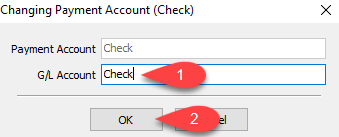
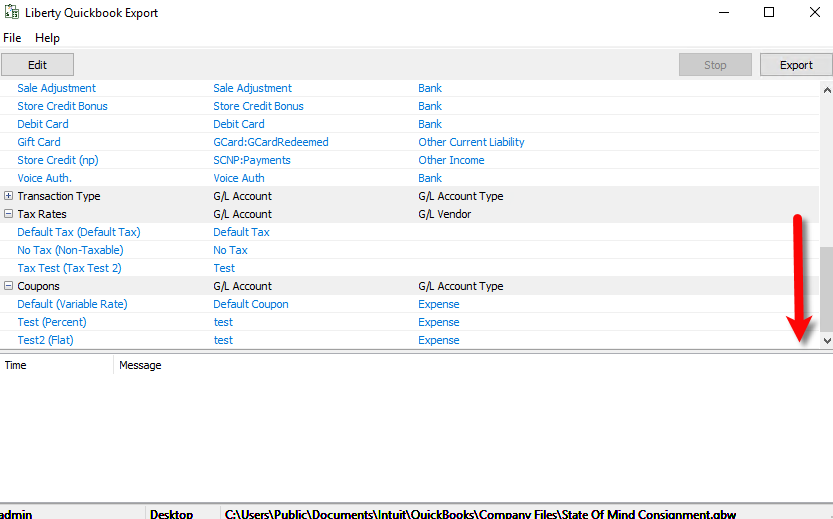
Note: To export into sub-accounts, simply use the colon (:) symbol between two accounts Example Bank of America:Check - Scroll down until you get to the bottom and make sure there are no more Red entries missing required information.
- Click the Export button.
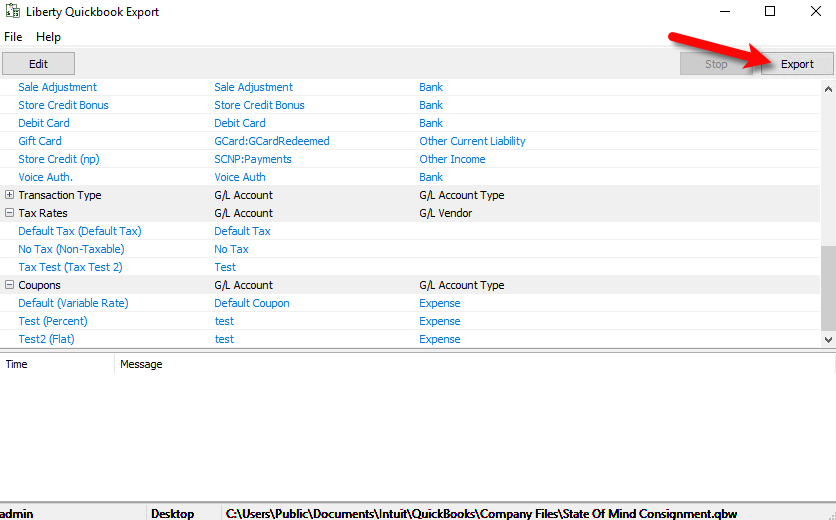
- The Liberty Quickbooks Link will now sync to your company file from the last time you synced.
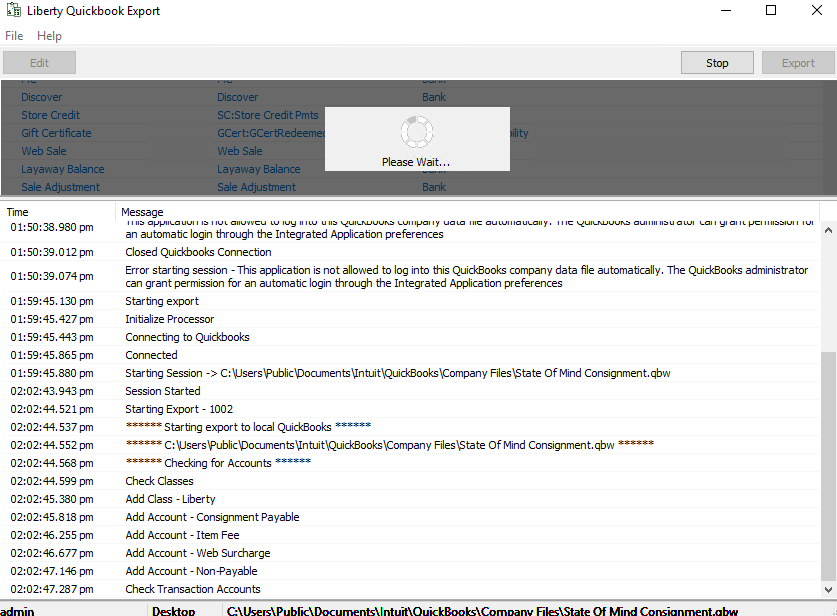
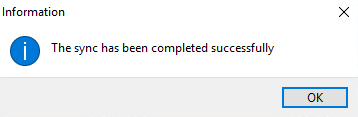
- When you see The sync has been completed successfully, this means that the export is finished.


Note: If you see a message stating that there was an error during the export, please visit our Troubleshooting Quickbooks article.
Next Section Navigation Link
Click the following link to see a list of articles for the next section:
Exporting to Quickbooks Online
Related Topics
How To Initiate Subsequent Syncs To Quickbooks Desktop Software Exporting to Quickbooks Desktop Software Using The Quickbooks Link Overview Company File Selection and GL Account Settings Setting Up Your Quickbooks Company File Exporting To Quickbooks Desktop Software For The First Time How To Use The Quickbooks Link To Export To Quickbooks Desktop How To Use The Quickbooks Link To Export To Quickbooks Online How Transactions Flow From Quickbooks Link to Quickbooks How To Export To Subaccounts Using The Quickbooks Link Exporting To Quickbooks Online For The First Time Exporting to Quickbooks Online Using The Quickbooks Link Overview