Table of Contents
Exporting to Quickbooks Desktop Software Using The Quickbooks Link Overview
Here is the video that covers this content:
How To Use The Quickbooks Link To Export To Quickbooks Desktop
For more information on how transactions are brought over into Quickbooks, please view the following video:
Opening The Quickbooks Link
To begin your first Quickbooks export, open up the Quickbooks link and enter in your serial number if you have not already done so.
- Open the Liberty REACT Inventory Module and then click the QB Link icon.

- If this is the first time you have ever opened the QB Link, you will be prompted to enter in your serial number. If you do not have the serial number, please contact Resaleworld at 1-800-785-4800

Company File Selection and GL Account Settings
You will need to select which Quickbooks solution (Quickbooks Desktop Software or Quickbooks Online) you will want to use. It is best to consult with a certified public accountant (CPA), if you are unsure which option is right for you.
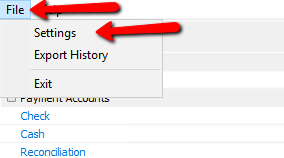
- With the Quickbooks Link open, click the File menu at the top left corner and select Settings.
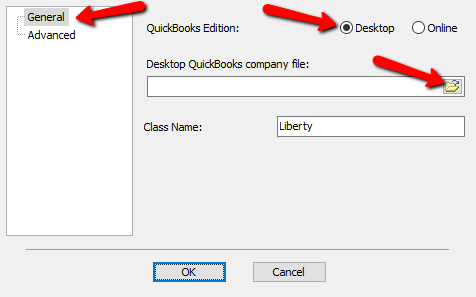
- Select the General tab on the left, then select the radio button next to either Desktop if it is not already selected.
Next click the Browse Folder button.
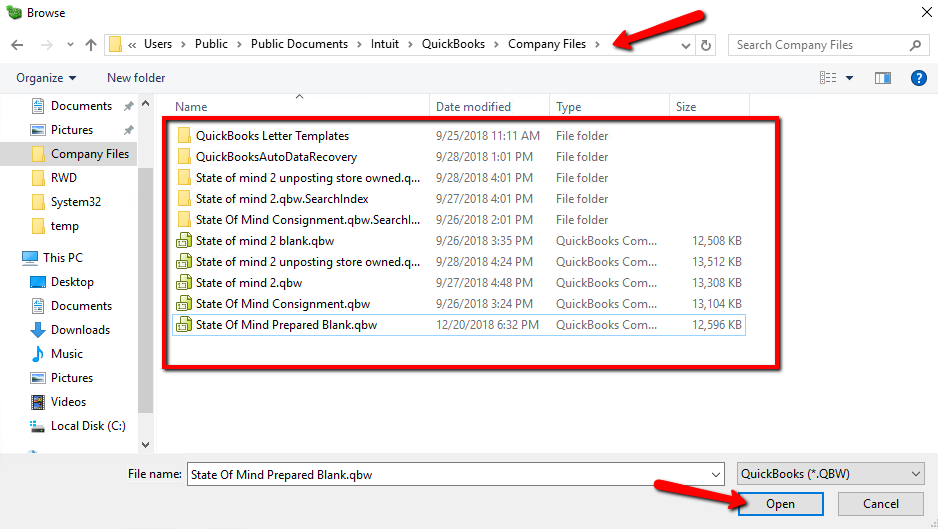
- Search for the company file you wish to work with and click Open.
Note: In most cases the company file will be located at: C:\Users\Public\Documents\Intuit\QuickBooks\Company Files\
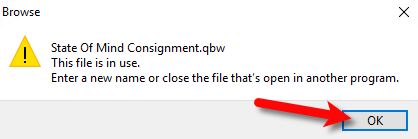
- If you receive the following message, click the OK button and close your Intuit Quickbooks program, then click Open again.
- Click on the Advanced Tab.
From here you can edit the Liberty specific GL account names that get inputted automatically when Liberty syncs.
You can also select whether you want to separate consignors as vendors in Quickbooks.
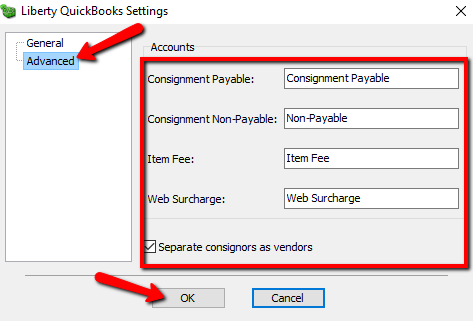
- Consignment Payable:
This is an Accounts Payable General Ledger account that maintains all of the consignor obligation owed to consignors. When a check is written, the total consignor obligation owed will decrease from this account. - Consignment Non-Payable:
This is a sub-account of the consignment payable general ledger account. This account maintains all of the non-payable obligation owed to all of your consignors. When a consignor’s store credit is used towards a purchase, the value maintained within this sub-account will decrease. - Item Fee:
This account maintains the total item fee dollar value you have received when items sell with an item fee. - Web Surcharge:


This account tracks any fees you have collected
Setting Up Your Quickbooks Company File
- Open the Quickbooks application and select your Company File if Quickbooks does not automatically open it.
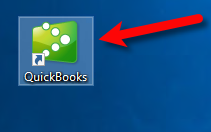
- Click the Edit menu option and then click Preferences…
- Click on the Accounting option to the left, then click on Company Preferences.


Make sure that Use account numbers, Require accounts and Use class tracking are all checkmarked.
Then Click the OK button.

Exporting For the First Time To Quickbooks Desktop
- Open Intuit Quickbooks and make sure that the Company File you are syncing to is open.
- You can verify the Company File that is open by looking at the top left corner of the Intuit Quickbooks application.
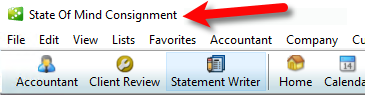
- Open the Liberty REACT Inventory Module and then click on the QB Link icon.

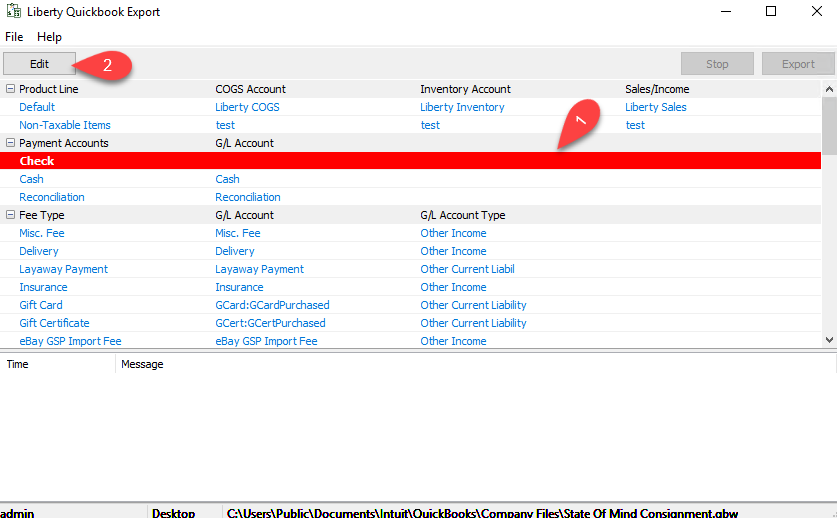
- If you see any Red entries, they will need to be corrected first.
Click once on the Red entry and then click the Edit button.
- Type in the G/L Account name you would like Liberty to create or sync into if Quickbooks has the account already created.
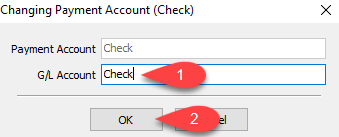
Note: To export into sub-accounts, simply use the colon (:) symbol between two accounts Example Bank of America:Check - Scroll down until you get to the bottom and make sure there are no more Red entries missing required information.
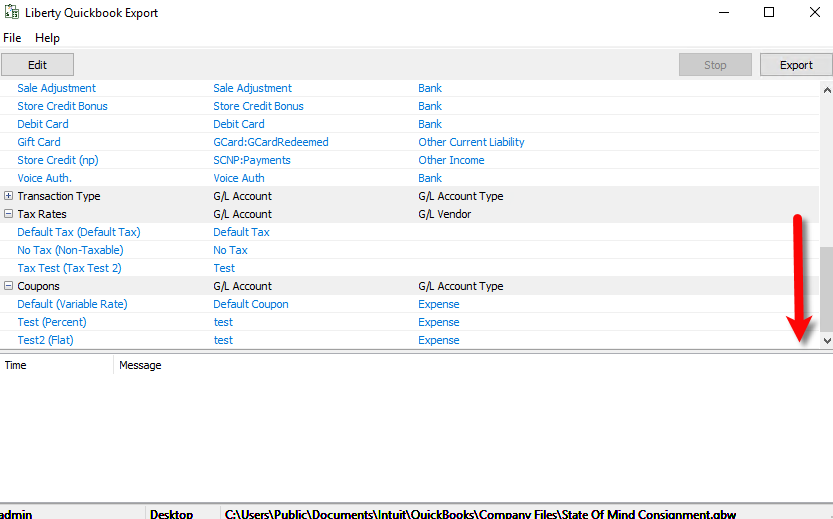
- Click the Export button.
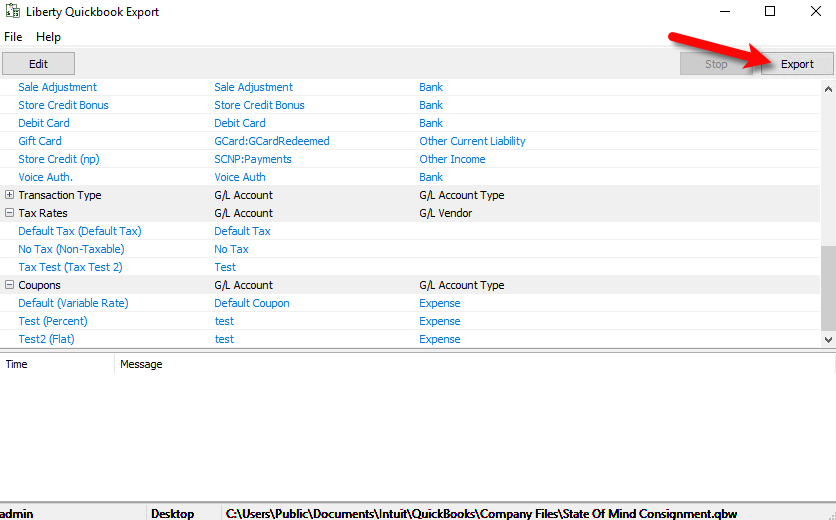
- You will now be prompted for the start date you wish Liberty to export from.
Click the Month Year option at the top to quickly flip through the past years.
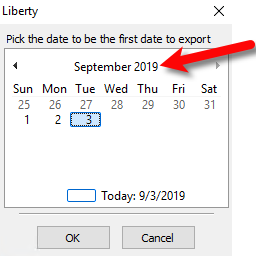
- You can use the left or right arrows to move backwards or forwards between the different years.
Once you have found the year you wish to export from, select the Month you want to start the export sync from.
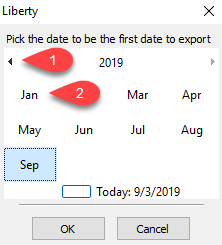
- Select the date of the Day you wish to export from and then click the OK button.
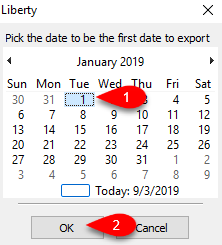
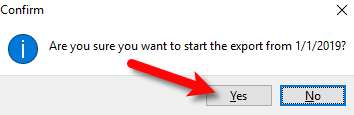
- Confirm that the date is correct on the following prompt and then click the Yes button.
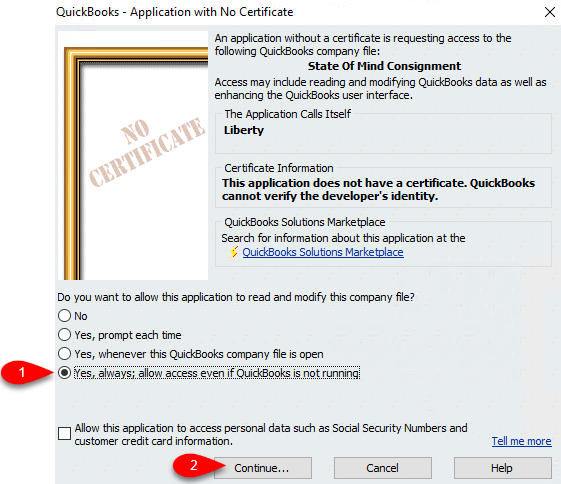
- We now must give Liberty REACT permission to export to Intuit Quickbooks without having the Quickbooks program open in the future. You can use any of the other options if you wish, just keep in mind you will have to have Intuit Quickbooks open if you do.
Click Yes; allow access even if Quickbooks is not running, then click the Continue button.
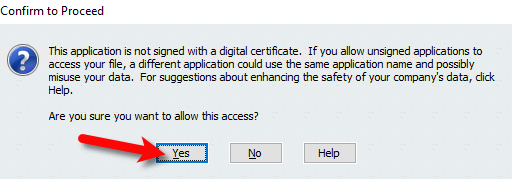
- When prompted Are you sure you want to allow access?, click the Yes button.
- Click the Done button.
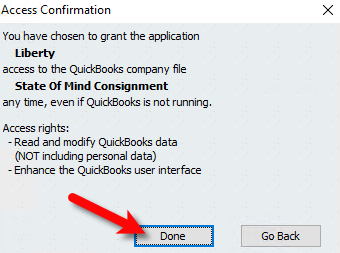
- The Liberty Quickbooks Link will now sync to your company file from the date you selected prior.
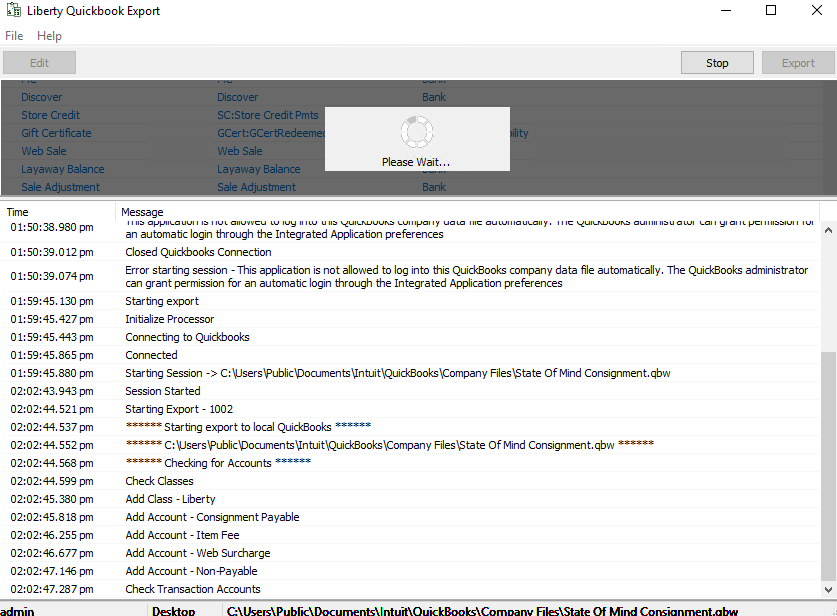
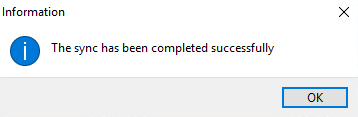
- When you see The sync has been completed successfully, this means that the export is finished.


Note: If you see a message stating that there was an error during the export, please visit our Troubleshooting Quickbooks article.
Next Article In Section
Click the following link to move to the next article in this section:
Company File Selection and GL Account Settings
Related Topics
Exporting to Quickbooks Desktop Software Using The Quickbooks Link Overview Company File Selection and GL Account Settings Setting Up Your Quickbooks Company File Exporting To Quickbooks Desktop Software For The First Time How To Initiate Subsequent Syncs To Quickbooks Desktop Software How To Use The Quickbooks Link To Export To Quickbooks Desktop How Transactions Flow From Quickbooks Link to Quickbooks How To Use The Quickbooks Link To Export To Quickbooks Online How To Export To Subaccounts Using The Quickbooks Link Exporting To Quickbooks Online For The First Time Exporting to Quickbooks Online Using The Quickbooks Link Overview