Table of Contents
How To Use The Quickbooks Link To Export To Quickbooks Online

If the YouTube Video looks fuzzy/blurry, try doing the following steps.
- Click the Fullscreen button on the video located at the bottom right corner of the video frame.

- Click on the Settings Cog.

- Select the right arrow head next to Quality.
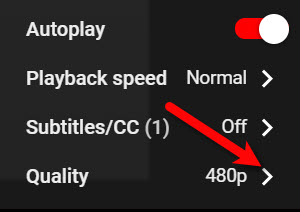
- Select the highest quality level that you have access to, our recommendation is 1080p if you can manage it.


If 720p is all that you can manage, then select that.
This will allow your video to display in fullscreen mode and in the highest definition available, the video should no longer be blurry/fuzzy after this point.

Next Article In Section
Click the following link to move to the next article in this section:
How To Export To Subaccounts Using The Quickbooks Link
Related Topics
How To Use The Quickbooks Link To Export To Quickbooks Online How To Use The Quickbooks Link To Export To Quickbooks Desktop How Transactions Flow From Quickbooks Link to Quickbooks How To Export To Subaccounts Using The Quickbooks Link Company File Selection and GL Account Settings Setting Up Your Quickbooks Company File Exporting to Quickbooks Desktop Software Using The Quickbooks Link Overview Exporting To Quickbooks Desktop Software For The First Time How To Initiate Subsequent Syncs To Quickbooks Desktop Software Exporting To Quickbooks Online For The First Time Exporting to Quickbooks Online Using The Quickbooks Link Overview