Table of Contents
Setting A Custom Date Type
The Custom Date Type feature gives you the ability to customize the format of your item’s process dates that are shown on printed price tags.
Editing the Tag Date
Enable the Custom Date Type and edit your tag date format:

- In the Liberty Inventory Module, click Setup at the top of the window.
- Then in the drop-down menu, click Options…, then enter your Liberty login when prompted.
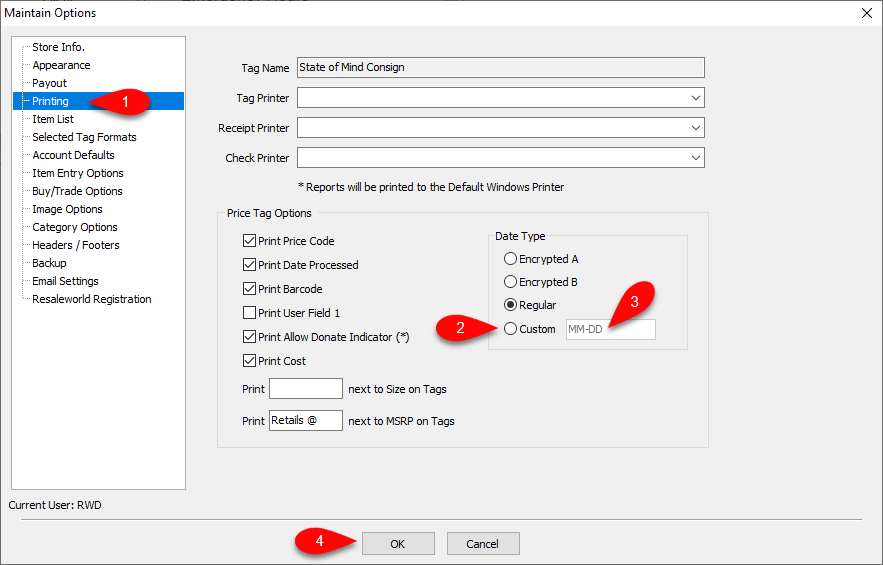
- Then, in the Maintain Options dialog, click Printing in the left-hand menu.
- To use the Custom Date Type, unsure the radio button for Custom in the Data Type section.
- From there, you are then able to edit the way the date will be presented on your price tags. This is done in the following format:
- YYYY - Four digit year
- YY - Two digit year
- MM - Two digit month
- DD - Two digit day
For example, if the date was October 9th 2020, the custom format of YYYY-DD-MM would read out as 2020-09-10
- Then click OK to apply your changes.

Tag Example (with format of YYYY-DD-MM)

After that, when printing tags, you will see the date reflected in the format you specified in the Custom Date Type, as shown in the above example (tag style of the example is ‘Vertical Tag’)
Next Article In Section
Click the following link to move to the next article in this section:
Tag Formats