Table of Contents
Starting Point of Sale
- There are many ways to start the programs available within the Liberty software suite.
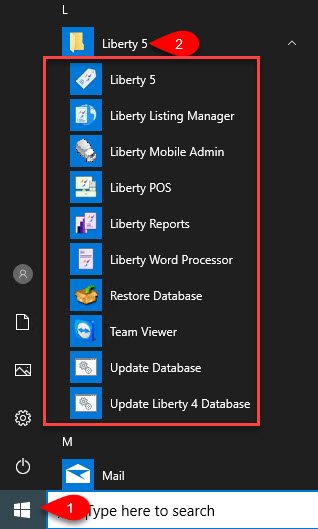
- Click the start menu, then within the programs area scroll down until you find the Liberty program folder.
From here, you can open any program within the Liberty software suite.
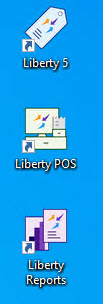
- You can also go to your desktop and double-click on any of the Liberty REACT shortcuts that are created when you install the software.
- The User Login dialog box will open. Enter your login credentials to get into the software. By default for a new customer, the user name and password are both rwd for the user name, and rwd for the password.


Note: The password is always case sensitive

Note: If you are using the demo version of Liberty, Click on “Continue without Serial Number”. This will limit you to a maximum of 20 client accounts. For information on entering Serial Numbers, please see the section entitled Serial Numbers.
Starting other Liberty programs from within the Liberty REACT Inventory Module
- Open the Liberty REACT Inventory Module and then log in.

- Click on any of the available Liberty programs from the above application bar.

This will open the program you selected.

Next Article In Section
Click the following link to move to the next article in this section:
Setting Up POS Defaults
Related Topics
Starting Point of Sale Training Mode Password and User Name for logging on the First Time Setting Up Employee Access Maintain Security Actions Assigning Terminal IDs (Network Only) Balance Cash Drawer End of Day Procedure How to Enter Sales Faster Handling Item Fees in the POS Point of Sale Computer Equipment