Table of Contents
Rewards Plan Setup
The following steps can be used to set up an In-Store Rewards Plan in Liberty.
Note: Be sure to use Reward as the payment type when setting up your Rewards Plan.
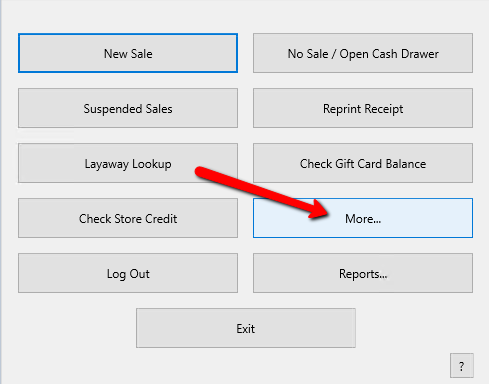
- On the POS Hub select the More button.
- In the More menu, select Reward.
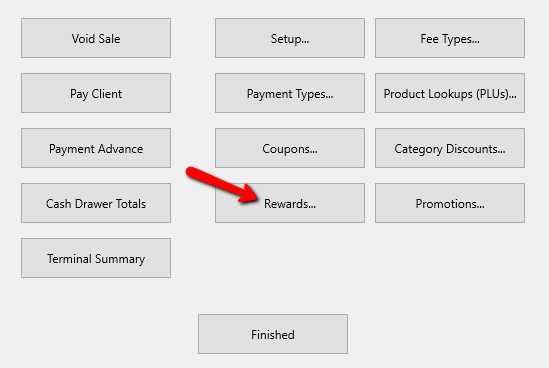


The Maintain Reward Plans dialog displays.

Note: If you click on the Maintain Rewards and see the following screen, you are set up for the Resale Rewards Program. You will need to go to Setup > Resale Rewards, and Uncheck Resale rewards to be able to use the In-Store Rewards Plan. See Setting up POS Defaults and Resale Rewards Setup for more details.
Functions Of The Maintain Rewards Plans
- Add : Click the Add button to create a new Rewards Plan.
- Edit : Highlight a rewards plan and select the Edit button to change the details of that Rewards Plan.
- Delete : Use the Delete button to delete a Rewards Plan.
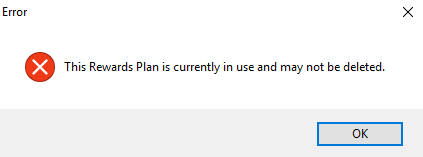
Note: You can not delete a Rewards Plan that has been used. You will get the following error of you attempt to.
- Earn Points On Redeemed Rewards (Check Box) : Checking this off will allow customers to accumulate points when they cash in points.
Example. By default, if a customer is redeeming points, they earn points on the full amount of the sale, including the redemption. So if a customer is making a $50 purchase, but $20 is being paid for by redeeming points then they earn points on a $50 purchase. Unchecking this option, you only earn points for a $30 purchase. - OK button : Closes out of the Maintain Rewards Plans maintenance box.

Rewards Plan Details
Clicking the Add or Edit button will open the details of the rewards plan.

- Description : Enter in the description of the rewards plan.
- Point Accumulation : There are 2 ways you can set up the POS to accumulate the points.
- Earn X Points For Every Sale : The customer will get X points for every sale they participate in.
Example if the POS is set to give a point for every sale, after three sales, the customer will have earned 3 points. - Earn X Points For Every (dollar) Spent : The customer will get X points for every time they reach the dollar incremental amounts in a sale.
Example: If the POS is set up to give a point for every $10.00 spent, and the customer spends $30, that customer would get 3 points.
Note: If you are using Earn X Points For Every (dollar) Spent, customers will only get a point for whole amounts of that dollar threshold. Partial amounts will not be carried over to the next sale. It is not “Cumulative” sales.
Example: If your POS is set up to give a point for every $10.00 spent, and a customer spends $25.00, then they will only get 2 points. If they come in again in a week and spend another $25.00, they will get another 2 points. The $5.00 from the previous sale left over and the $5.00 Extra from this sale will not add to $10.00 to get another point. - Deduct For Returns (Check Box) : Checking this box will Deduct points when an item is returned.
Example: Customer earns 3 points for purchasing an item. a few days later that customer returns the item. Then customer would also lose the 3 points. - Point Redemption : Receive (x.xx) for each X Point(s) Redeemed. The customer will get a dollar amount for every point they redeem at the POS.
Example: If the POS is set to redeem $1.00 for every 1 point redeemed, and the customer redeems 10 points, then the customer will get $10.00 to use towards their purchase. - Must Have X Point(s) To Redeem : This will require the customer to have a minimum of X points before they can redeem them.
Example: Customer can redeem 1 point for $1.00. The requirement is to have 10 points. If the customer has 8 points, they will not be able to redeem points until they have at least 10. - Payment Type : Once the points are converted to a dollar amount, the Payment Type will be used to track those redeemed rewards. This will allow you to run reports on redeemed points in the future. Click on the Drop Down menu and select the payment type you wish to use.

If you do not see one, select the Add button to the right to create a payment type.
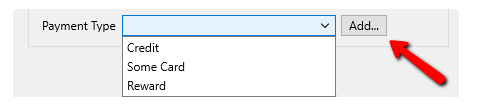
Fill in the details of the Payment Type and click the Save button at the bottom.
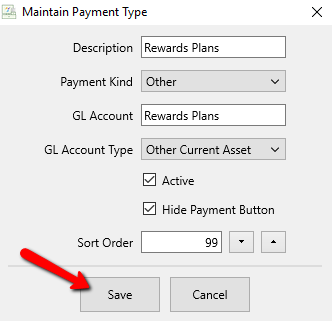
For Instruction on how to set up Payment Types see Set Up Payment Types. - Membership Discount : Allows a customer who has gained a certain X amount of points or more to always get a discount.


Example: For every dollar spent a customer gets a point. After 5000 points, customer will always get 10% off on their purchases.
Note: This is not intended to be used in conjunction with Point Redemption.
Once you have all your parameters filled out, select the Save button at the bottom.
You should see your Rewards Plan in the list.

Next Article In Section
Click the following link to move to the next article in this section:
Resale Rewards Setup