Table of Contents
View Transaction History
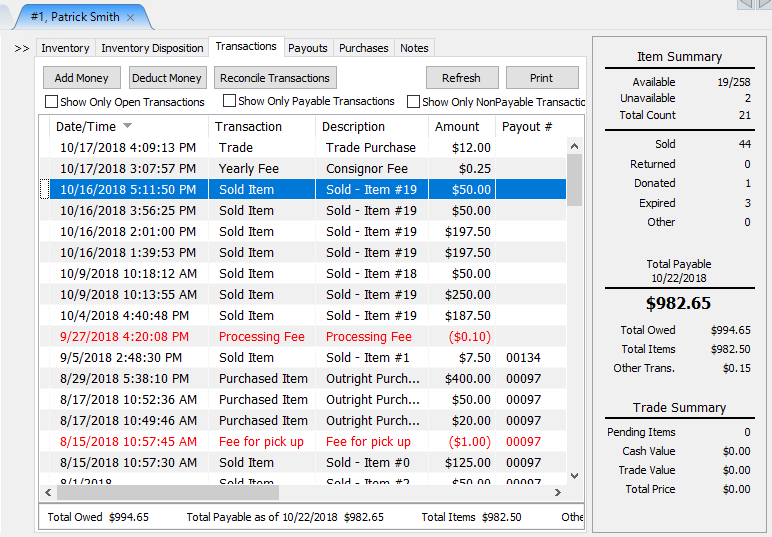
All transactions, including item sales and returns, deductions such as check fees, credits, etc. are recorded in each accounts’ Transaction History.
Note: There is a Refresh button near the top of the screen. It is sometimes necessary to select Refresh to update the Transaction History window to show recent Transactions.
At the bottom of the Transactions window note the following information provided.
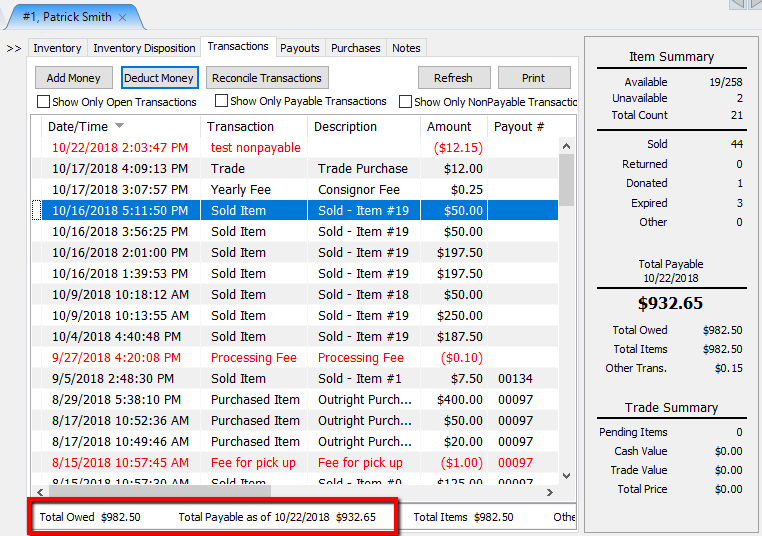
- Total Owed : Shows the gross amount payable to the Account Holder. This includes non-payable credit along with payable funds
- Total Payable as of {date} : Shows the net amount due the Account Holder after deductions, credits and any Pay Delays are taken into account. Funds that are available to be payable by cash or check.
- Total items : The value of all items sold in the account.
- Other transactions : Other credits or deductions done through add money and/or deduct money, Listing Fees, Item Deductions, Check Fees…Etc.
Please see Determine Amount Payable to an Account Holder for more information.
To View Transaction History For An Account
- Select the Transactions tab.
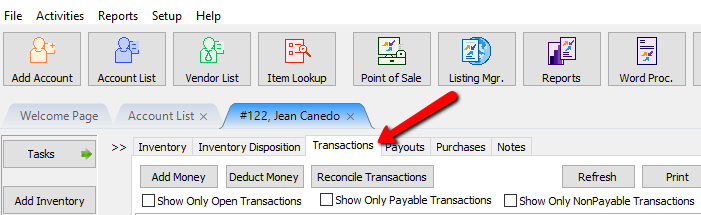
- The Transaction History for the account will display
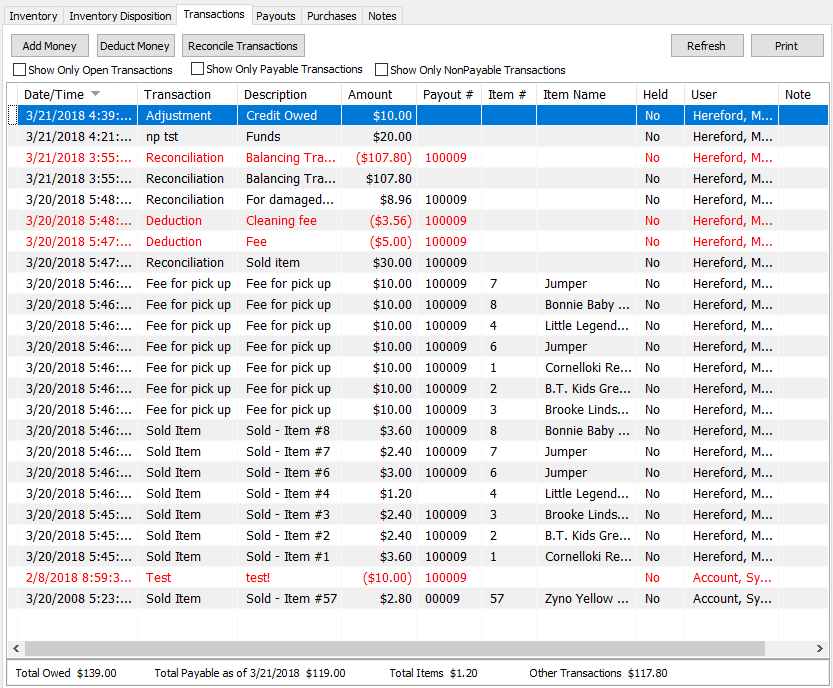


Transaction History Fields
- Date/Time : Date and time of transaction.
- Transaction : Type of transaction (Sold, Return, Credit on Account, etc.).
- Description : Transaction description.
Note: Whenever an item is returned, an asterisk will appear in front of the Description. If an item is returned multiple times, the number of asterisks will correspond to the number of times the item was returned.For example, if an item is returned twice, then two asterisks will appear at the beginning of the Description.
- Amount : Transaction amount. Note that all information in negative transactions is displayed in red.
- Payout # : The payout number to which the transaction was applied.
- Item # : When the Transaction is related to a specific item, the item’s number is listed in this field.
- Item name : Name of the Item
- Held : Items may be placed On Hold to prevent them from being included in the next payout to the consignor. As long as an item is On Hold the consignor will not be paid for the item. The word Yes will appear in this field when an item is on hold.
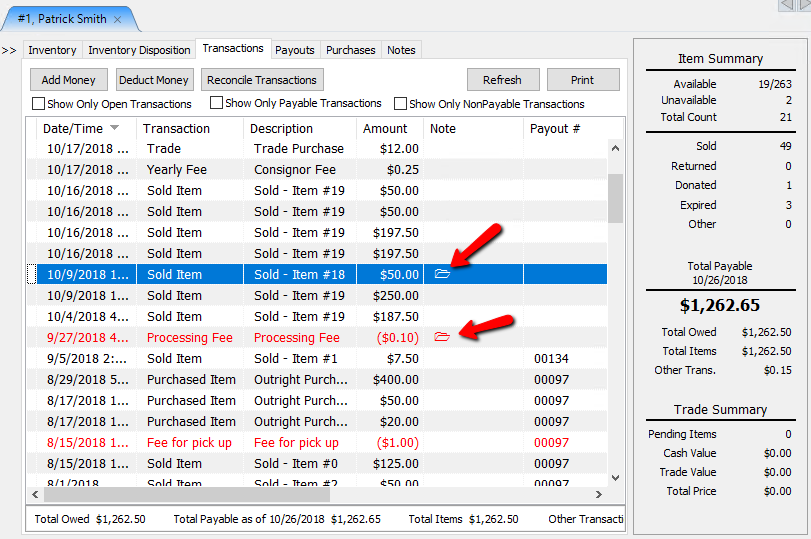
- Note : When a Transaction has a Note, a folder symbol will appear in this field. See below for more information
- Total Owed : Shows the gross amount payable to the Account Holder.
- Total Payable as of (date) : Shows the net amount due the Account Holder after deductions, credits, and any Pay Delays are taken into account.
Adding a Note to Transactions
- In Liberty, search for the account that has a transaction that needs to be held.
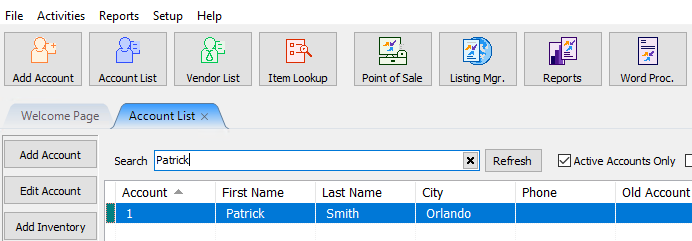
Double click on the desired account to open its details.
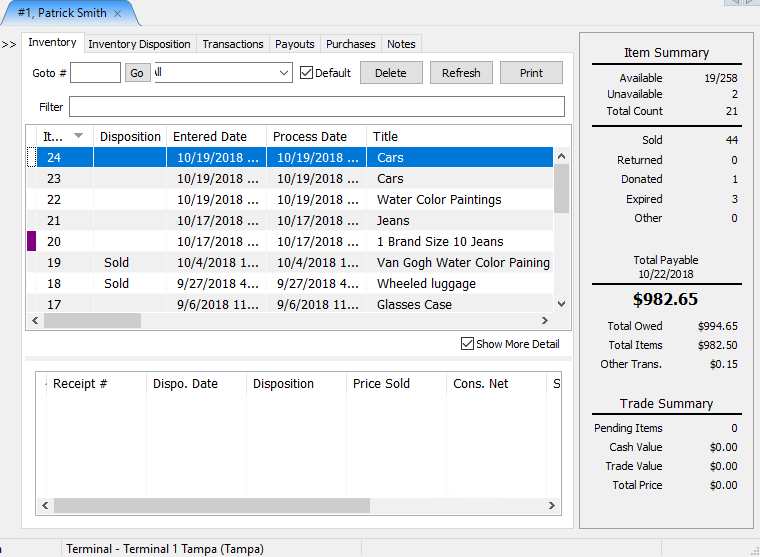
- At the top of the account, select the Transactions tab.
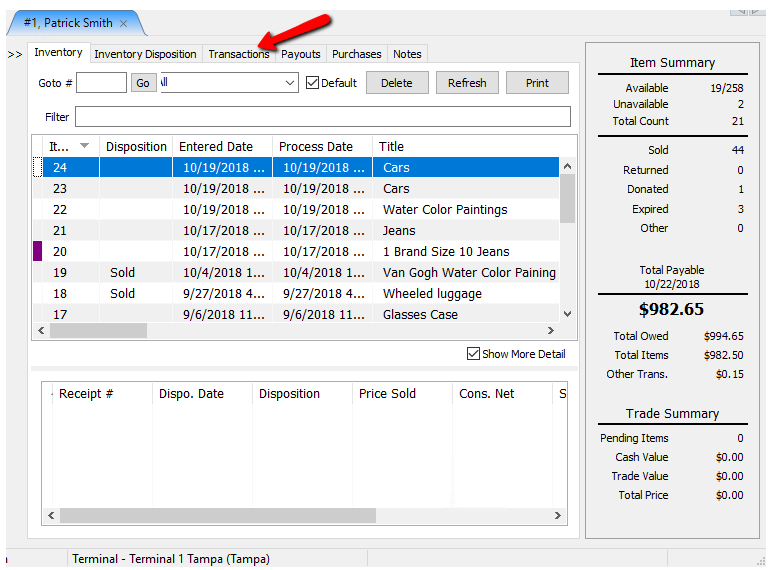
The details of the Transactions tab will open.
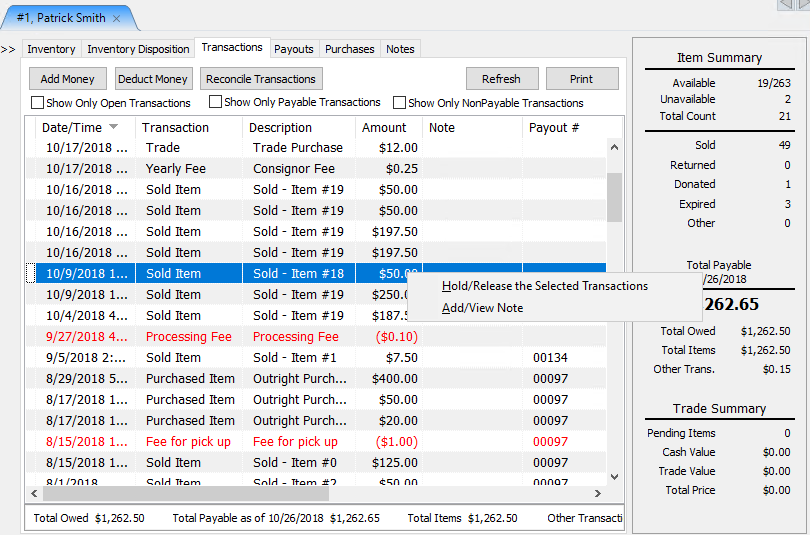
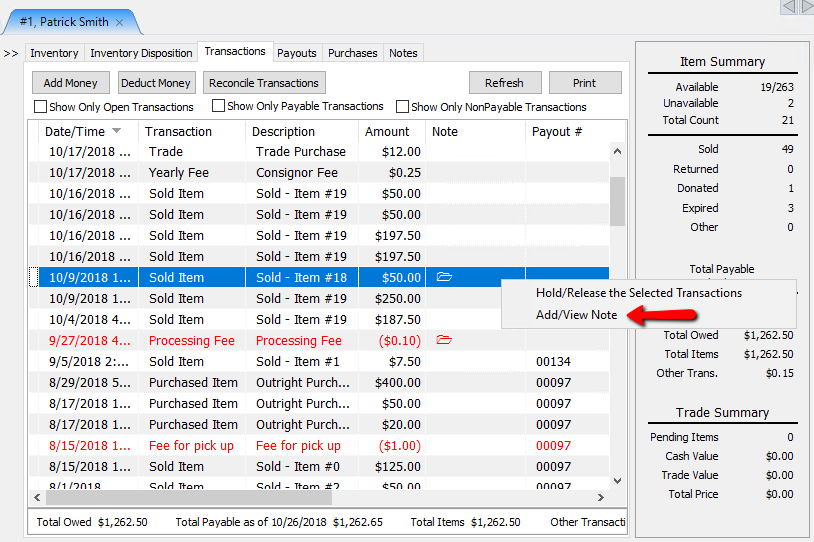
- In the Transaction History, right-click on the transaction you want to add a note to and select Add/View Note.
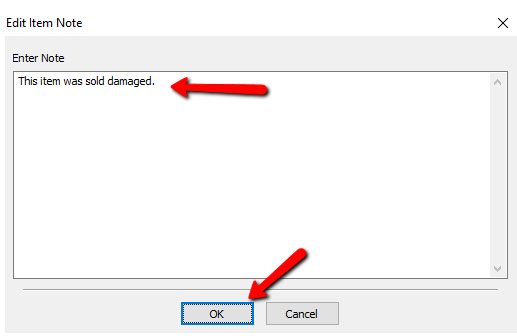
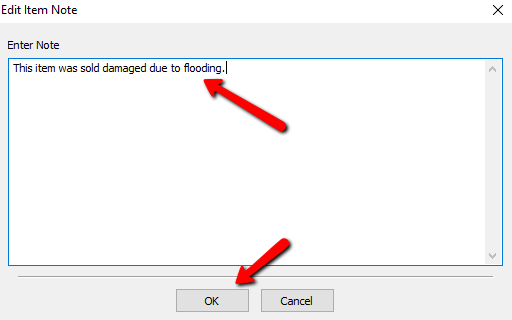
The Edit Item Note dialog box will open.
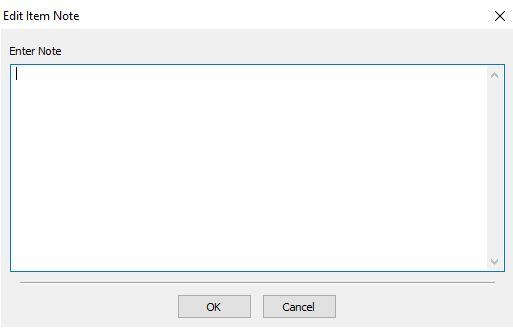
- Enter the information for the note and select the OK button when done.
You will see an Envelope Icon under the Note Column indicating there is a note associated with this transaction.


To View a Note Associated with a Transaction
- In Liberty, search for the account that has a transaction that needs to be held.
Double click on the desired account to open its details.
- At the top of the account, select the Transactions tab.
The details of the Transactions tab will open.
- In the Transaction History, right-click on the transaction you want to add a note to and select Add/View Note.
The Edit Item Note dialog box will open.
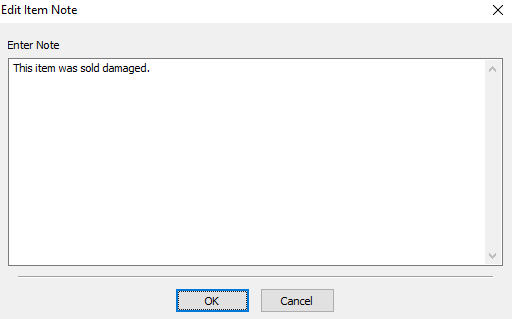
- Make any necessary changes and select the OK button at the bottom.


How To Hold Transactions
Holding a transaction makes that transaction unpayable. This may be done when there is a discrepancy in an item that was sold, or money is owed to the store.
- In Liberty, search for the account that has a transaction that needs to be held.
Double click on the desired account to open its details.
- At the top of the account, select the Transactions tab.
The details of the Transactions tab will open.
- In the Transaction History, right-click on the transaction you want to hold and select Hold/Release The Selected Transactions.
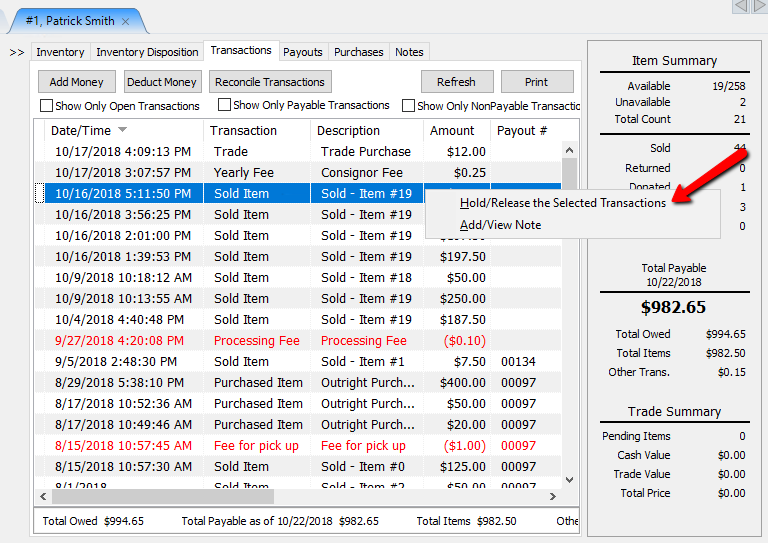
Note: The amount of the available payable store credit went down by the amount of the held transaction however the amount owed is still the same because it is still money owed to the consignor and it is just being held for now


How To release Transactions
Holding a transaction makes that transaction unpayable. This may be done when there is a discrepancy in an item that was sold, or money is owed to the store.
- In Liberty, search for the account that has a transaction that needs to be held.
Double click on the desired account to open its details.
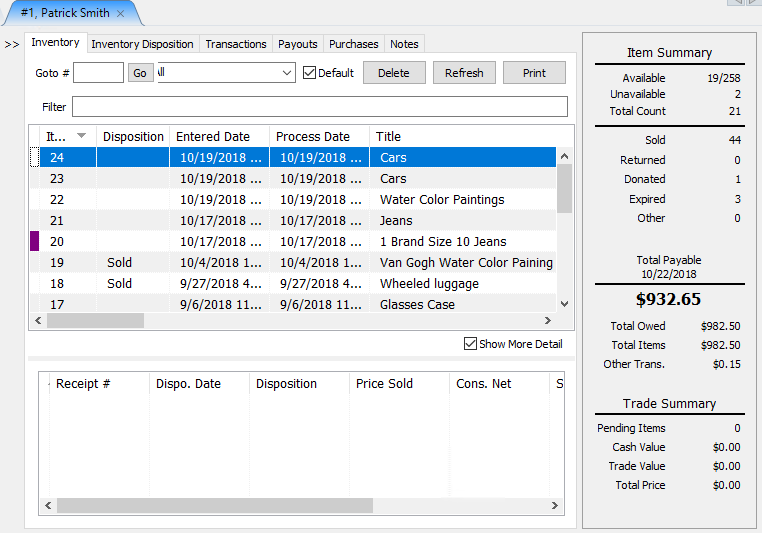
- At the top of the account, select the Transactions tab.
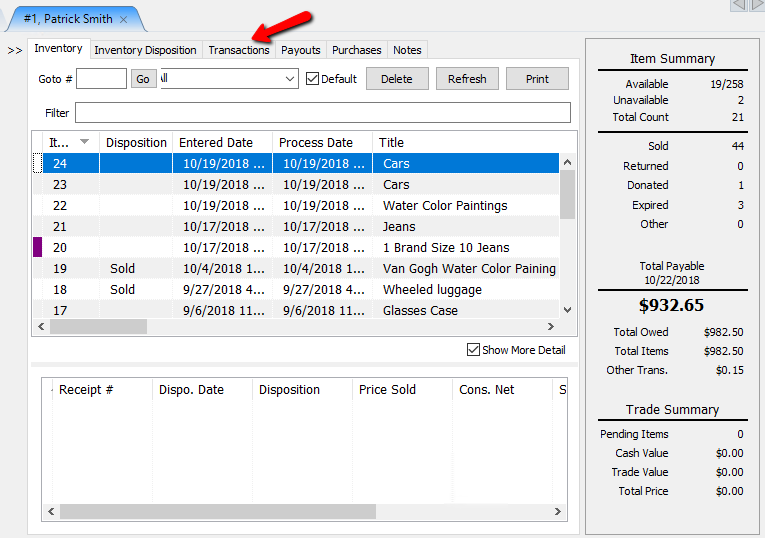
The details of the Transactions tab will open.
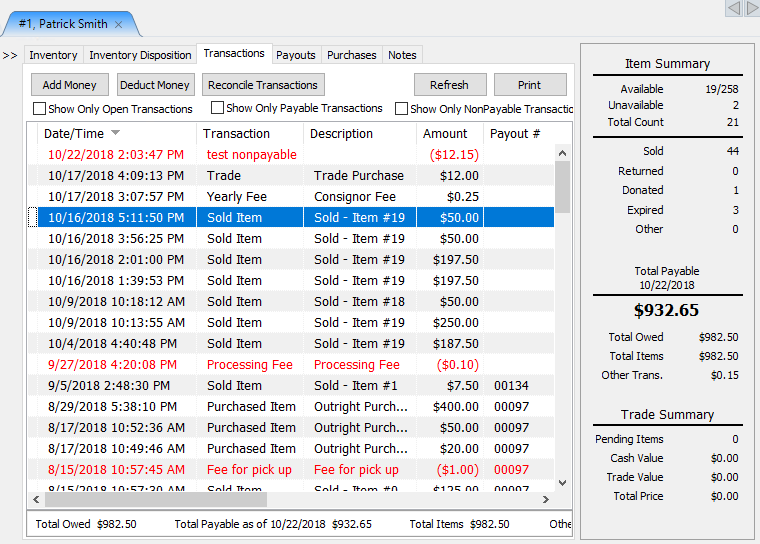
- In the Transaction History, right-click on the transaction you want to hold and select Hold/Release The Selected Transactions.
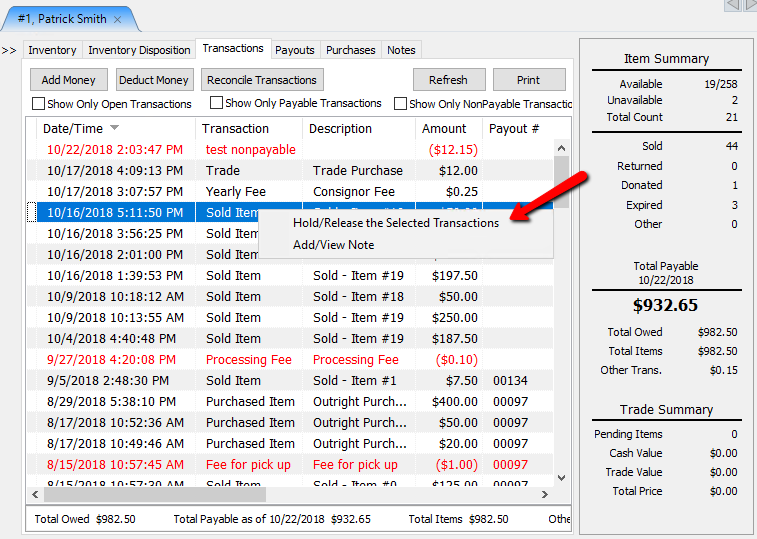


Note: The amount of the available payable store credit went up by the amount of the held transaction however the amount owed is still the same because it is still money owed to the consignor even when it is on hold.

You can also view or print the transactions for an account using various reports.
Color Coding
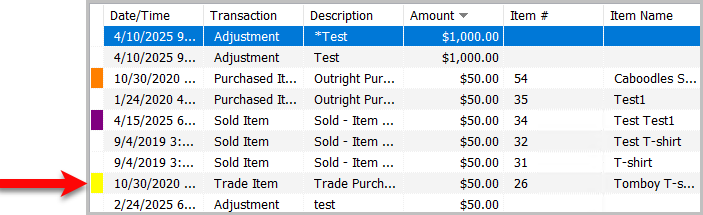
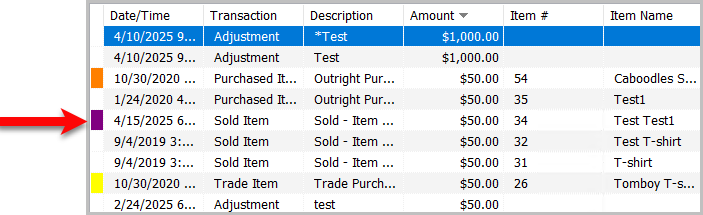
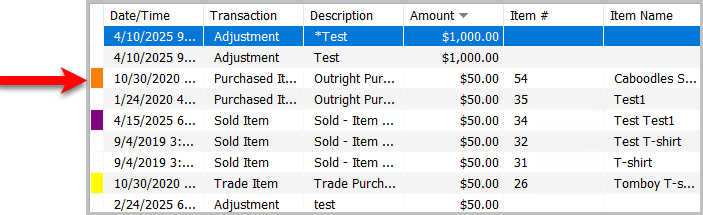
Some transactions in the Transaction Tab will have color codes at the beginning of them. Here is a list of Color Codes you may see.
- White : This is a payable item.
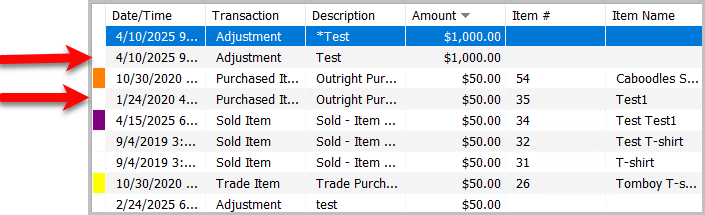
- Yellow : This is a Non-Payable transaction.
- Purple : Represents a Pay Delay.
- Orange : These are held transactions.


Note: To choose more than one transaction, to put several items on hold or to add the same note to each item, press the Ctrl button down on the keyboard and use the mouse to click each item you want to choose. Right-click then choose Hold/Release Selected Transactions or Add/View Note.
Note: You can reorder and change the size of the fields listed in the Transaction History window. To change the field order, click and drag the field labels (the header at the top of each column) to the left and right. To change the size of a field, hold the mouse directly over the vertical line separating each field label. The mouse pointer will change to two vertical lines. Click and drag the field to resize it. Note that the changes you make here are Sticky - the software remembers what you did so you don’t have to redo this process.
Next Article In Section
Click the following link to move to the next article in this section:
Credit/Debit a Client Account
Related Topics
View Transaction History Printing Transaction History View Payout History Determine Amount Payable to an Account Holder Assessing Fees to Accounts and Items Change Payment Account for Multiple Accounts How to setup check fees How To Set A Check Address Offset Clear Checks Combine/Reconcile open Transactions Credit/Debit a Client Account