Table of Contents
Setting Up The Liberty Email Manager
- Open the Liberty REACT Inventory Module.
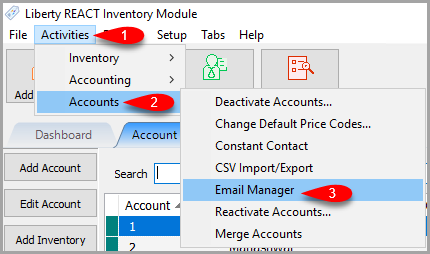
- Click on Activities > Accounts > Email Manager
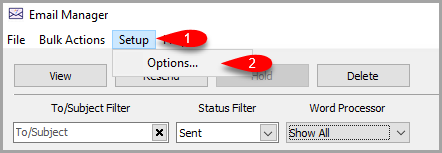
- There are additional settings you set for the Liberty Email Manager
- You can access these settings by clicking on Setup and then Options.
- You will then be prompted to sign in.


By default, you will need an administrator account in order to access these settings.

Basic Menu

- Make sure you are in the Basic menu option.
- In the SMTP Server field, enter the full-qualified name of your SMTP server (e.g. smtp.resaleword.com) or its IP Address. For assistance with this field, contact your Internet Service Provider or network administrator.
- In the Port field specify the port number through which Liberty will send emails to the SMTP Server.
- Use SSL should usually be enabled unless otherwise specified by your email provider.
- Check the My Server Requires me to Login checkbox if SMTP server requires using username and password. If it does:
- Enter the user name used to login to your SMTP server in the User Name field.
- Enter the password in the Password field.
- The Test button is used to make sure that your settings are accepted by your SMTP email provider.
- In the Reply to Address enter the email address you want replies sent to.
- Typing another email address in the BCC All Emails To field will Blind Carbon Copy that email address a copy of every email sent.
- When done select OK.
Reminder: For information about the SMTP server settings (including port, username and password), contact your ISP or network administrator: do not contact Resaleworld for this information (we do not have it).
Advanced Menu

- Make sure you are on the Advanced menu
- Max Emails Per 24 Hours: This indicates how many emails can be sent out within a 24 hour period. Email providers may have a limit on how many emails you can send out per day.
- Max Emails per Hours: This indicates how many emails can be sent out within an hour period. Email providers may have a limit on how many emails you can send out per hour.
- Limit Applies to Word Processor Letters only: This option specifies whether you want the above limits to only apply to Word Processor Emails or not.
- Days To Keep Sent Emails: This specifies how many days sent emails will be kept to be viewed or interacted with by the Liberty Email Manager.
- Days To Keep Unsent Emails: This specifies how many days unsent emails will be kept to be viewed or interacted with by the Liberty Email Manager.
- Emails Per Connection: This specifies how many emails can be sent out per authenticated connection. Some email providers have a limit on how many emails you can send out per connection, this is set to 10 by default.
- Click the OK button when finished.
Next Article In Section
Click the following link to move to the next article in this section:
Liberty Email Manager Controls
Related Topics
Setting Up The Liberty Email Manager Liberty Email Manager Overview Opening The Liberty Email Manager Liberty Email Manager Controls Accessing Liberty Help From Anywhere In Liberty Add Notes to an Account Add Multiple Addresses and Phone numbers Apply Group Deductions Bulk Change Default Price Code Using the Client Import and Export Utility