Table of Contents
How To Refund An Order Specific To The Listing Manager
This article covers how to refund a manual order in Liberty Listing Manager
For Shopify users, the best way to handle refunding an order would be to refund it on Shopify as this will refresh orders. Please visit the following article if you are trying to Refund and order that is on Shopify: Refunding An Order Through Shopify
If you are just trying to refund a manual order, please follow the steps listed below:
- Click on the Listing Manager icon to open Listing Manager

- Click the Orders tab
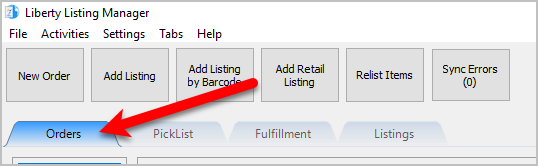
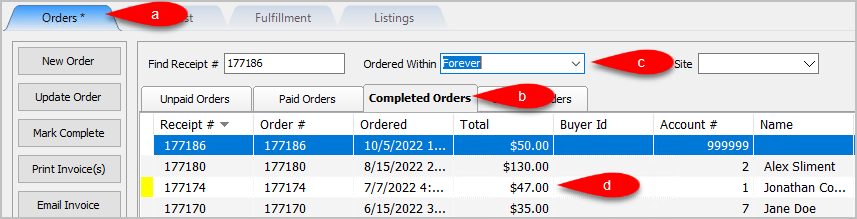
- Find the Order you want to refund
- Ensure you are in the Orders tab
- Click the Completed Orders tab
- Set the Ordered Within drop-down the proper time span
- Find your order and double-click it
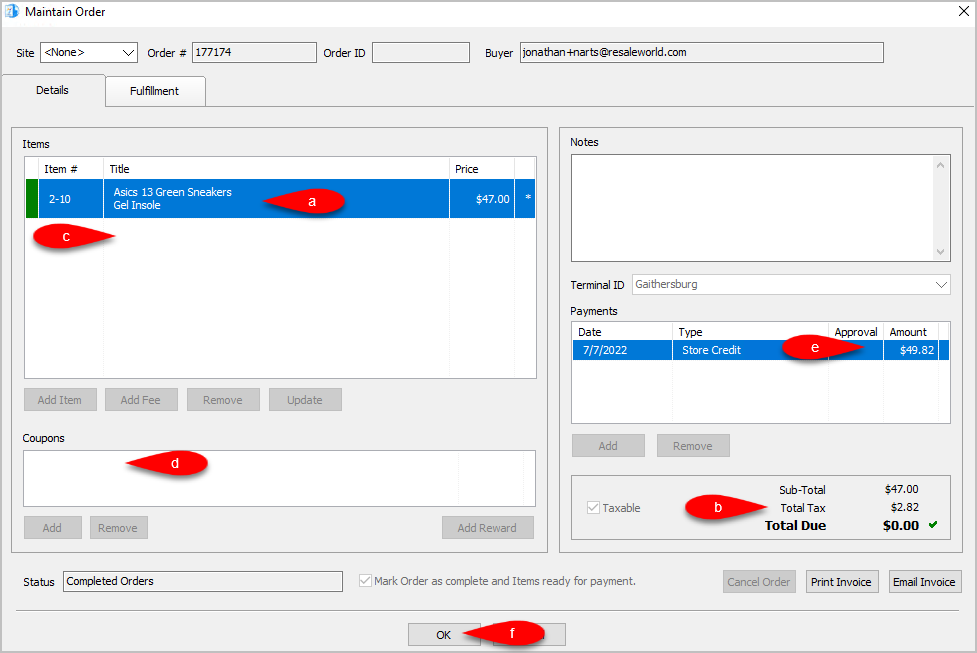
- Look at the following details of the order:
- Make note of the item(s) in the order and the price.
- Make note if the item was taxed.
- Make note of any other charges such as Delivery.
- Make note of any Coupons.
- Make note of all the Payments taken and the Total Payment Amount.
- Click the OK button.
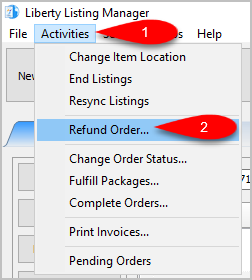
- Click the Activities menu, then Refund Order…
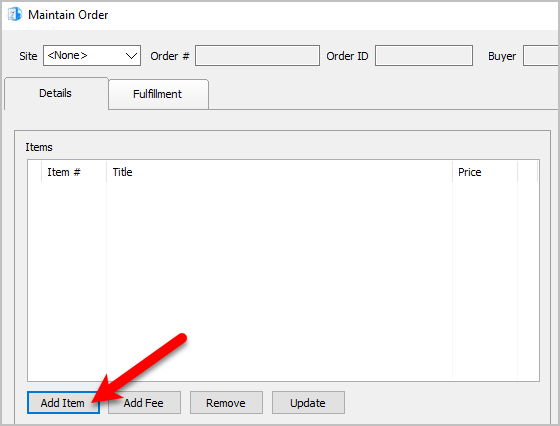
- Click the Add Item button
Note: You will also need to re-add any other fees and or coupons that were part of the original sale.
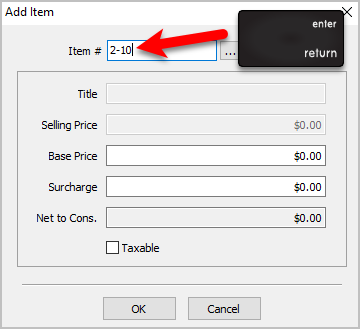
- Type in the Account-Item # in the Item# field.
Then press the Enter or Tab button on your keyboard.
Then press the OK button.
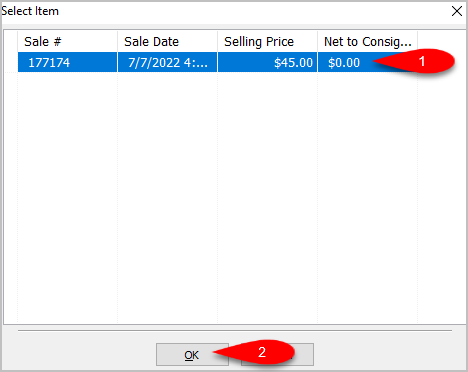
- Select the item you want to refund from the Select Item window.
Then click the OK button.
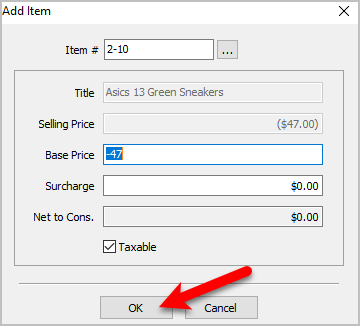
- Ensure the price is consistent with the original order or update it.
Check the taxable check box, if the item was taxed in the order.
Then click the OK button
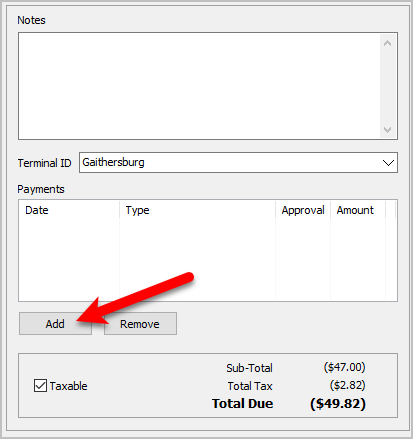
- In the Payments section, click the Add button.
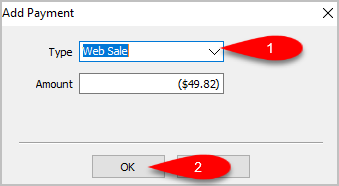
- Select Web Sale from the drop down menu in the Type field on the Add payment window.
Click the OK button.
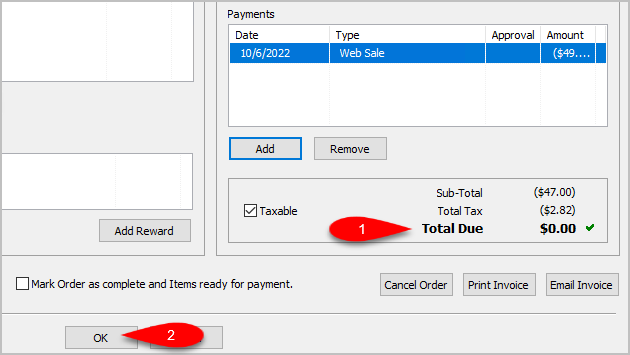
- Please ensure the Total due = $0.00 and there is a green check mark next to it.
Click the OK button.
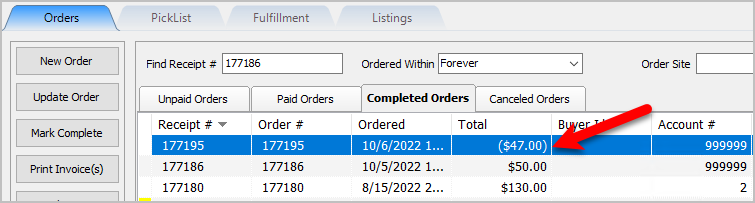
- You will notice the refunded order in the Completed Orders tab


14.
Next Article In Section
Click the following link to move to the next article in this section:
How To Cancel An Order In Listing Manager
Related Topics
How To Refund An Order Specific To The Listing Manager Maintaining An Order Overview View Pending Orders Adding An Item To An Order Adding A Fee To An Order Removing An Item Or Fee From An Order Adding A Coupon To An Order Removing A Coupon From An Order Adding A Payment To An Order Removing A Payment From An Order