Table of Contents
2nd Level Category To Shopify Collection Creation
Here is the video that covers this content:
Liberty Level 2 Category to Collection Method
There are many ways for you to specify how you want Liberty items to flow into specific collections in Shopify.
This is the recommended collection method for controlling how to organize items on Shopify if you are just starting out.
Shopify Collection: A collection basically a container that holds specific types of items. These collections can then be set to grab items that are specifically associated with them.
The main recommendation is to have the Level 2 Section category in Liberty be set to go up as a collection. This allows for very easy automation and is the quickest way to get a Shopify site off the ground. The caveat is that whatever the second level category structure is in Liberty, this will be what controls what the collections are on Shopify.
Level 2 Categories will only be pushed up as collections if they have inventory associated with them going up to Shopify. There currently isn’t a way to push up all collections in one shot without having inventory that is associated with them going up.
Note: It is recommended that the Category Level 2 Sections be unique in Liberty REACT if this method is chosen. Shopify cannot differentiate between Pants/Shorts under Woman’s Apparel and Pants/Shorts under Men’s apparel. Shopify does not care about the category structure in Liberty in relation to higher or lower tiered categories. In the above example, it would be best to rename each Pants/Shorts level 2 category so that they are unique. For instance, Men’s Pants/Shorts and Women’s Pants/Shorts.
Setting Up Shopify Options To Allow Automatic Creation of Shopify Collections
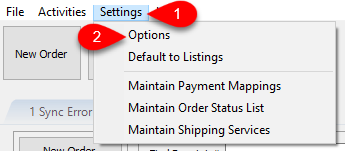
- To enable the recommended Liberty Category Level 2 to Collection method, you must open Listing Manager and go to Settings > Options.
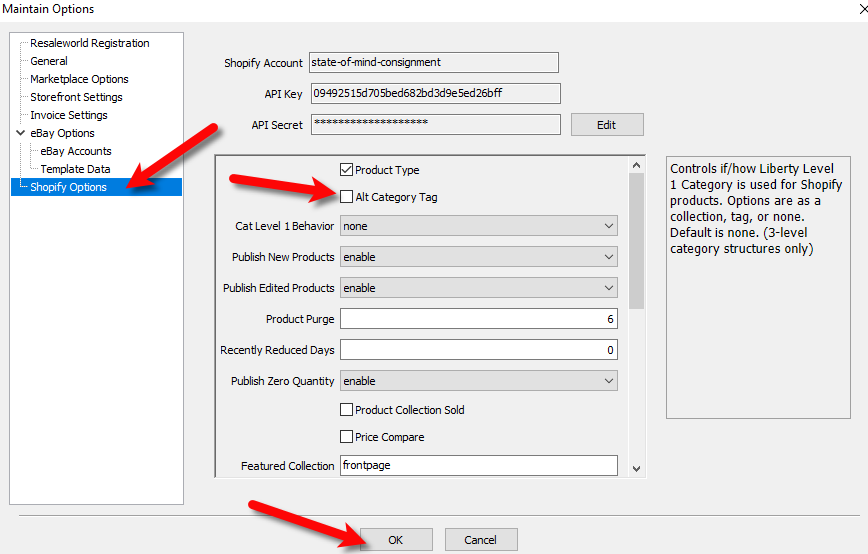
- Next click on the Shopify Options area to the left. Then, make sure that the Alternate Category Tag box is unchecked. This will allow the second level category to go up as a collection. Also as a side note, make sure that Product Type is checkmarked.
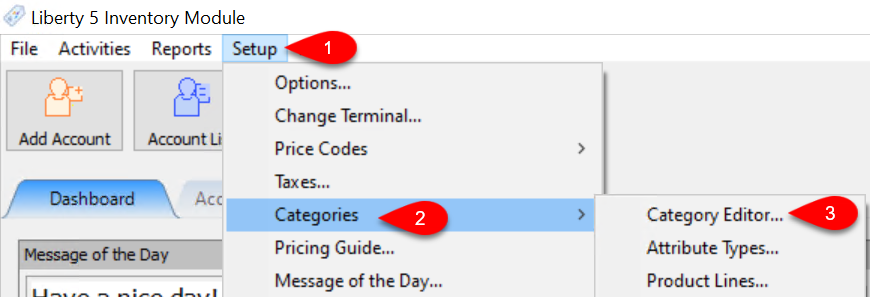
- In the inventory module, go to Setup > Categories > Category Editor.
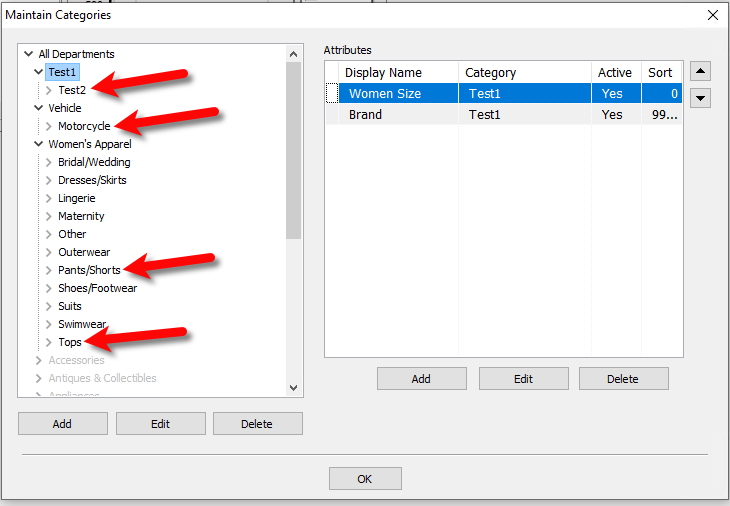
- In this example 3 level category structure, note the arrows that are pointing to specific Level 2 Section Category entries.
Test 2, Motorcycle, Pants/Shorts and Tops.
When you list items that are contained within these categories, the categories are created as Collections on Shopify.
- After you are done creating item listings on shopify, go to https:%%//%%myshopifystore.myshopify.com/admin on your computer and then log in.

- On the shopify admin page under Products > Collections, you will see the collections that are created when inventory from a second level category is listed on shopify.


In the below example, note that Tops, Test 2, Pants/Shorts and Motorcycle were created as collections on shopify.
This means that any items that are under these level 2 categories will automatically flow into their corresponding collections. Liberty will not create duplicate collections but will instead continue to place the product listings in their appropriate collection.

Setting Up Navigation On Shopify To Point To Created Collections
You are responsible for setting up the navigation to point to the appropriate collections. You can visit the following article for more information directly from Shopify on this process: https://help.shopify.com/en/manual/sell-online/online-store/menus-and-links
This will need to be done before you can start selling any items. This is because without navigation links pointing to collections, your customers will not be able to see your product listings very easily:
Alternatively, you can contact the Shopify Gurus to get help doing this.
The following information can help you get started with creating your navigation so that collections can be linked to your main menu.
Note: This is something that a Resaleworld Support Technician cannot fully walk you through as this is a design choice. You can build out your navigation menu to say whatever you would like.
- Go to https:%%//%%myshopifystore.myshopify.com/admin on your computer and then log in.
Example: https://State-of-mind-consignment.myshopify.com/admin

- In the menu to the left, click on Online Store then Navigation.
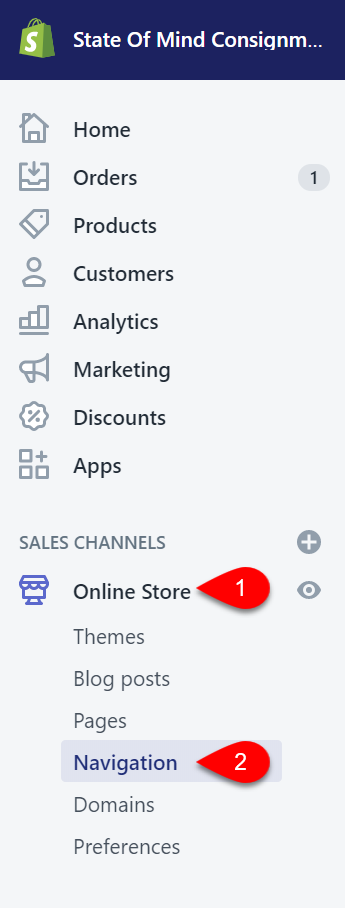
- Click on the Main menu option.
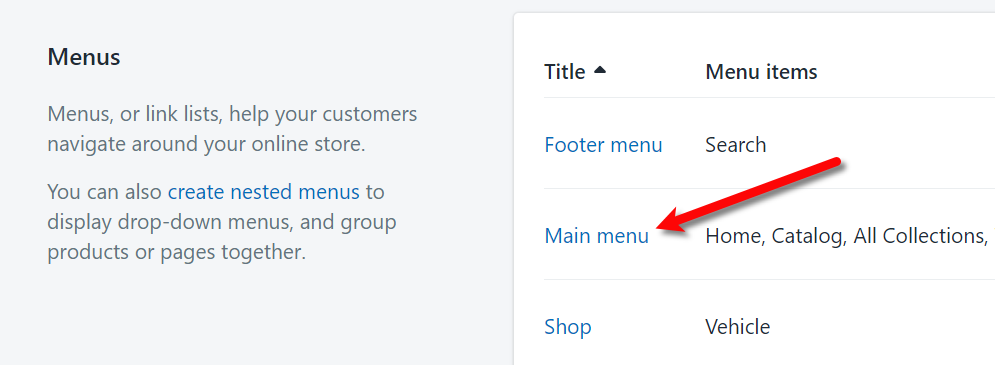
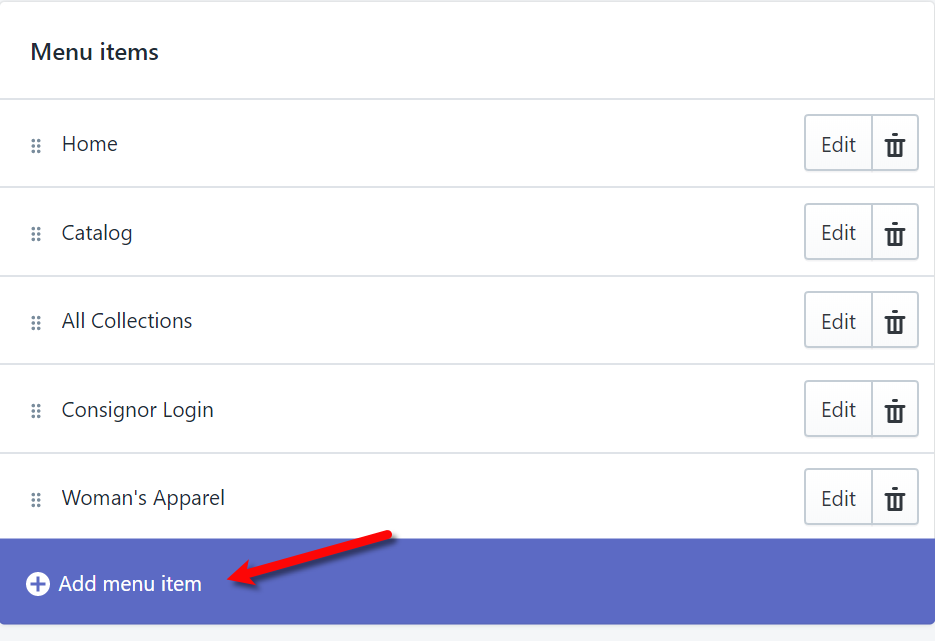
- Click the Add menu item link at the bottom of the list of menus.
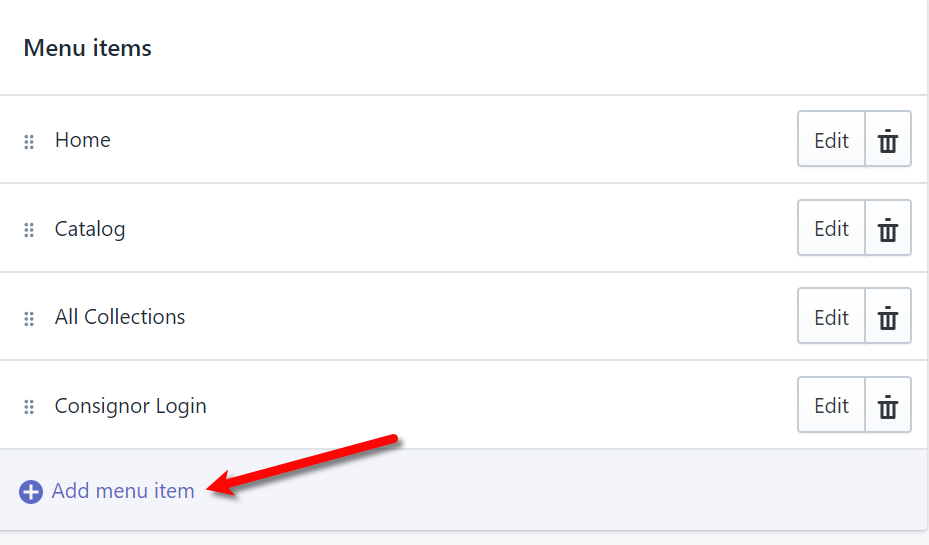
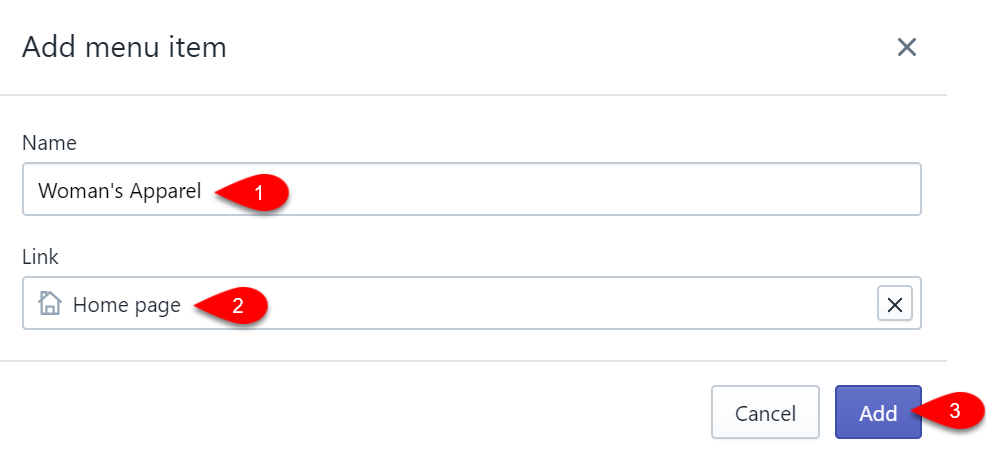
- Next, we can create a Level 1 menu drop-down. If you have a 2 level or a 3 level category structure in Liberty, you can type the Name to match your level 1 department category. For this example, we used Woman’s Apparel.
For the Link, it is possible to push your level 1 category structure as a collection as well. This setting can be setup under Settings > Options > Shopify Options within the Listing Manager. For the below example, I just had the header going to the home page since I do not have a level 1 category of Woman’s Apparel being created as a collection on shopify.
Finally, click the Add button.
Note: You do not have to create dropdown menus if you do not want to. This example is showing how to create them just in case. It is possible to create a single link on your main menu that jumps straight to your individual collections. If you have a lot of collections, the bar may be too crowded for this method.
- Next, we create a 2nd level menu item. In this example, we will use the Tops collection pushed up from Liberty when a listing under that category was created.
Click the Add menu item link again.
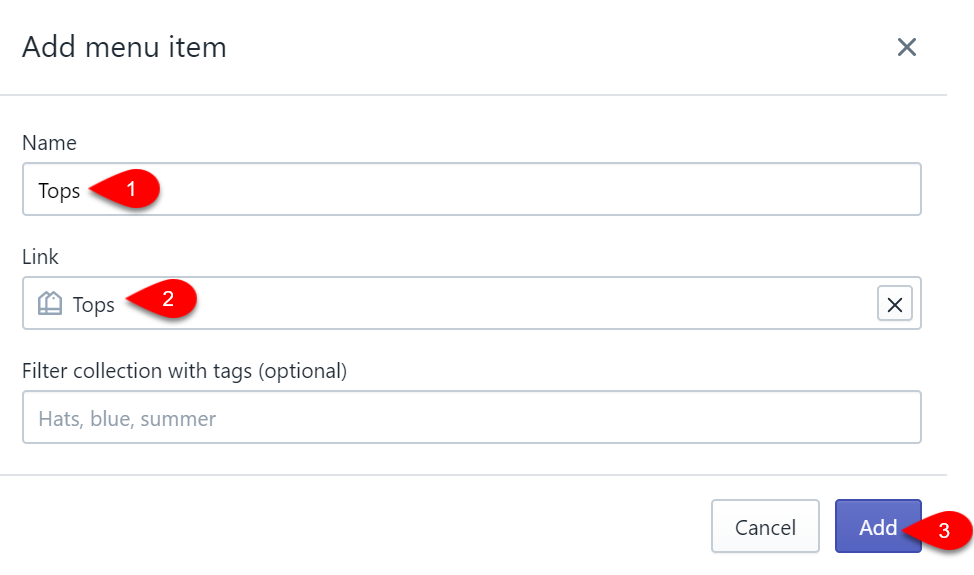
- For the Name, you can type whatever you wish the navigation title to be set as.
In this example, we are naming the menu entry the same as the collection; Tops.
For the Link, you need to click on the appropriate Collection you wish the customer to be brought to, when they click on the drop-down menu option. In this example, we are using the Tops collection.
Click the Add button.
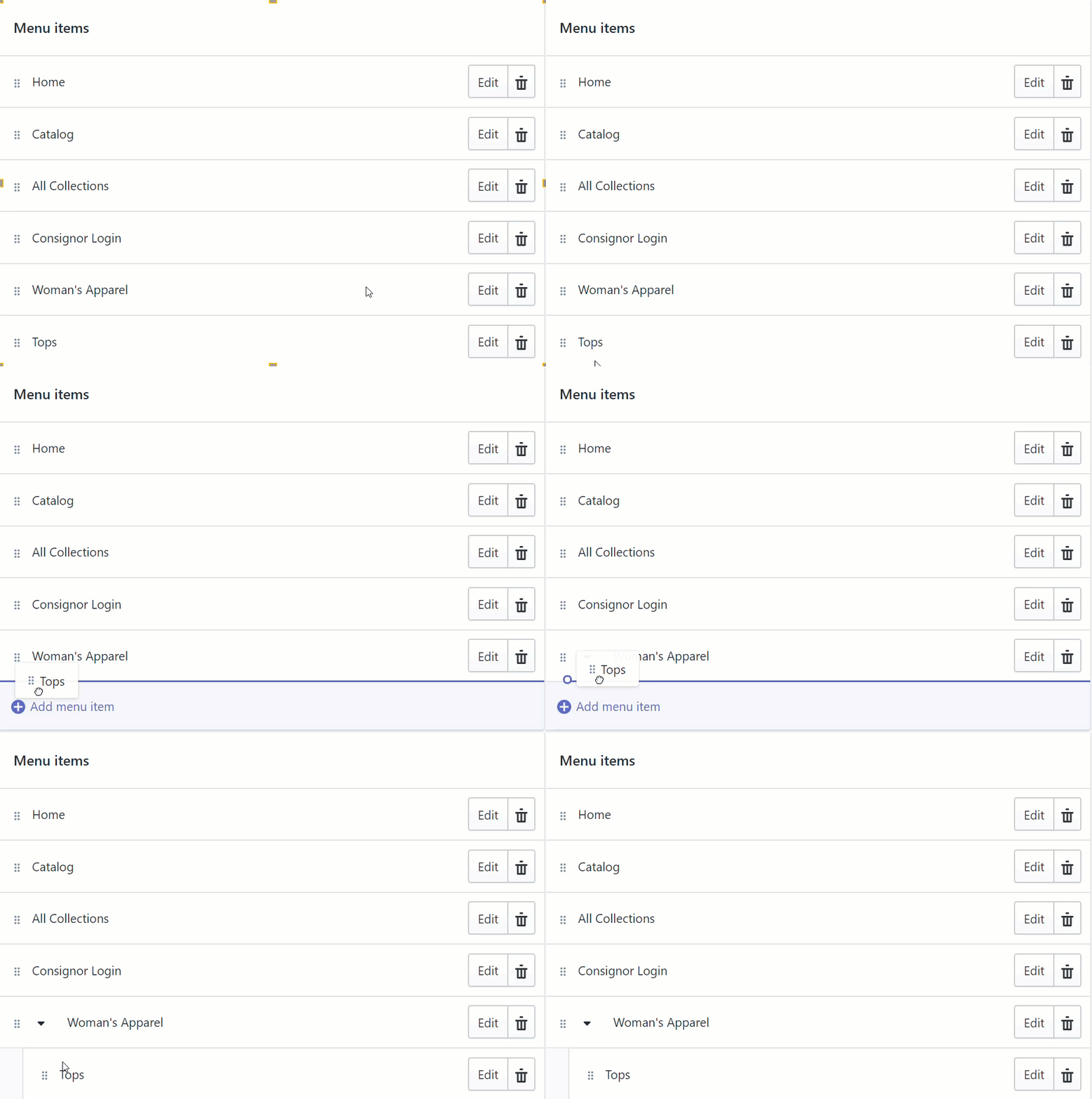
- We next need to move the Tops menu option underneath the Woman’s Apparel menu option. This is how we tell Shopify that we want to create a drop-down menu.
You do this by simply dragging the appropriate menu underneath another menu until you see a drop-down arrow.
Once you let go of the mouse button, the menu will now be underneath the menu you wanted.
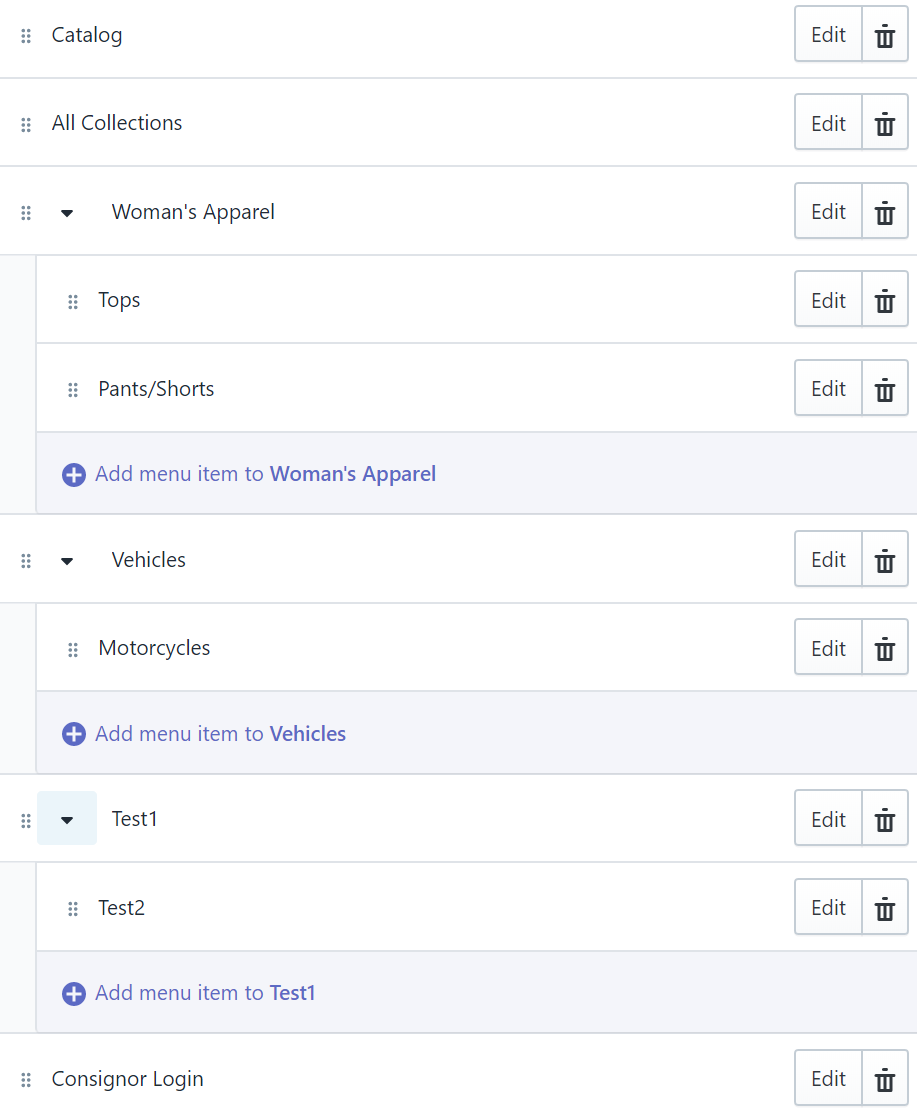
In the example below, Tops is now a child menu of Woman’s Apparel.
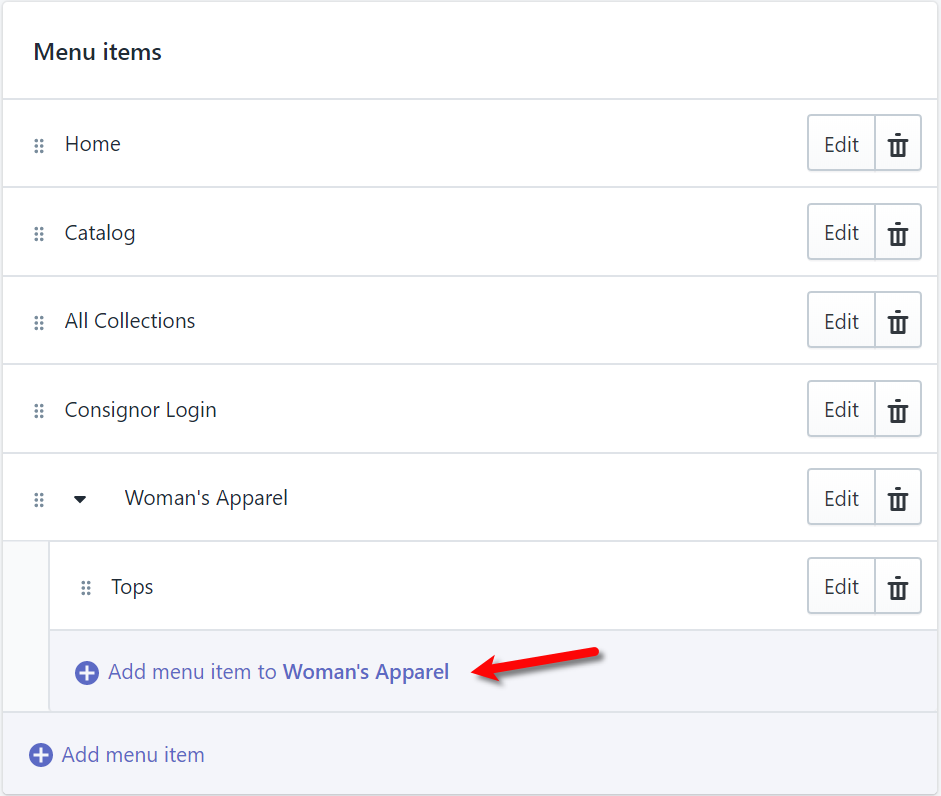
- Now that a child menu has been created, you will now see that it is very easy to add another child menu if you would like. This child menu would be associated with another collection that falls under Woman’s Apparel like Pants/Shorts.
- You must now continue until you have created the rest of your menu options. You can then drag and drop them in the order you want them to appear on your Shopify Page.
Here is an example of the 2nd level categories/collections pulled from Liberty in the prior section.
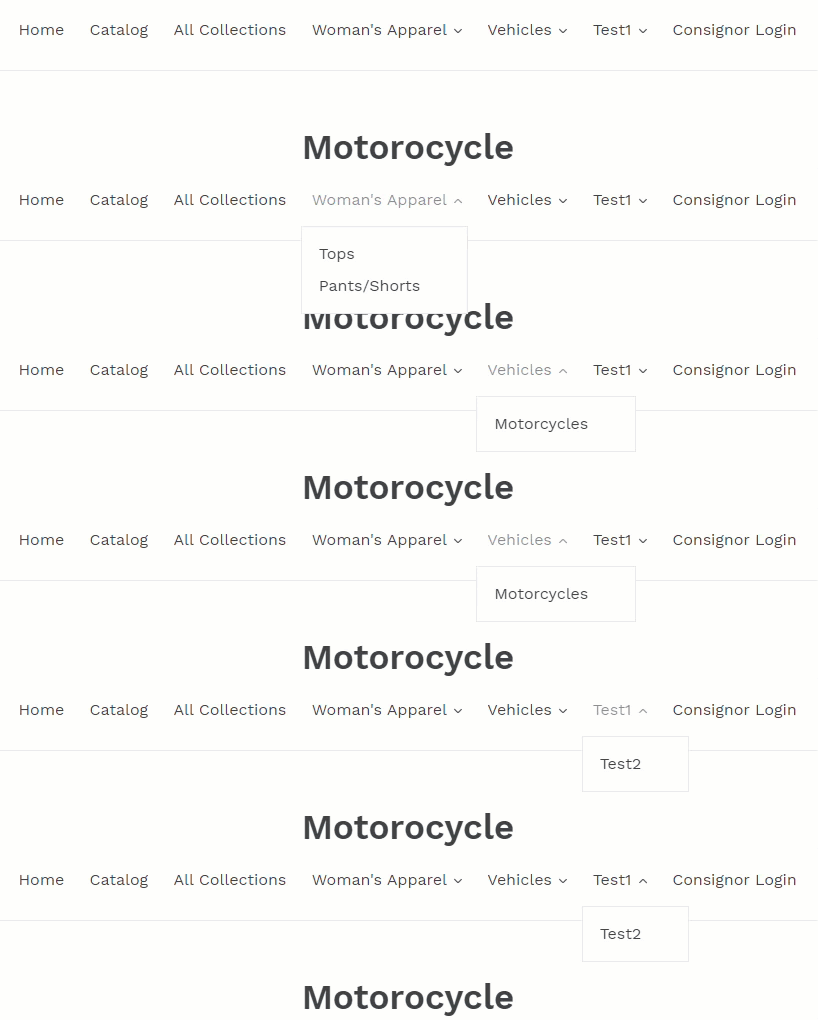
- Here is an example of what the above menu structure looks like to help you visualize the end product.


Next Article In Section
Click the following link to move to the next article in this section:
Automatic Collections and Shopify Tags Advanced Method
Related Topics
2nd Level Category To Shopify Collection Creation Creating a ShopRW / Shopify Listing Overview Adding ShopRW / Shopify Package Information Adding A Web Description Editing A Web Description in HTML Definitions of Web Description Processor Buttons Previewing a ShopRW / Shopify Web Description Adding Images to Web Listings Deleting Images From A Web Listing Setting a ShopRW / Shopify Item to Ready To List Saving a ShopRW / Shopify Listing