Table of Contents
Printing An Invoice From The Fulfillment Tab To Be Included In A Package
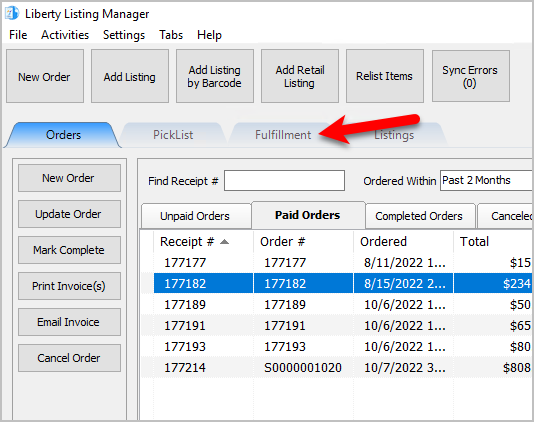
- Open the Liberty REACT Listing Manager and click on the Fulfillment tab.
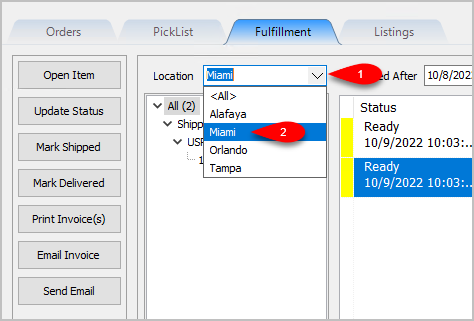
- Click on the Location drop-down to select which location you would like to work with.
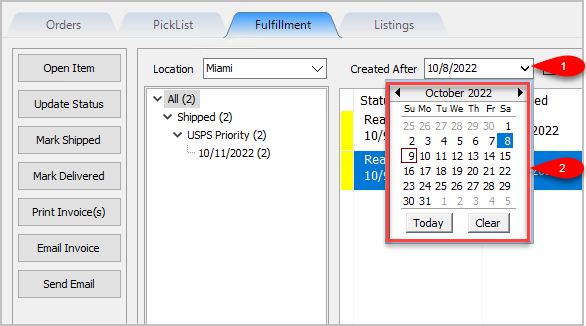
Note: It is not recommended that you select the <All> option if you have multiple store locations. - Click on the Filter Date checkbox if you want to see orders within a specific time period. For the Created After date drop-down, select the after date you would like to view items entered for
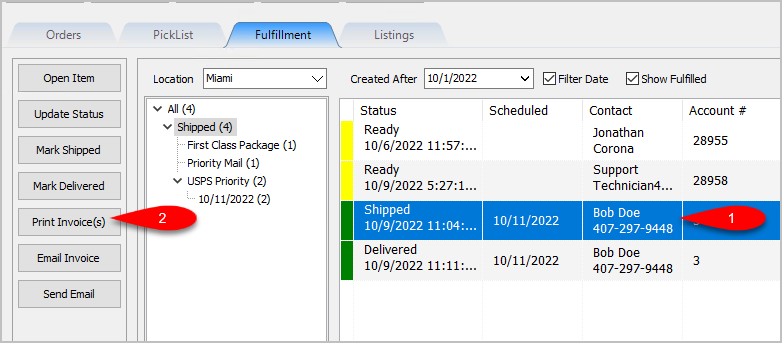
- Click on an item within the Grid-View and then click Print Invoice(s)
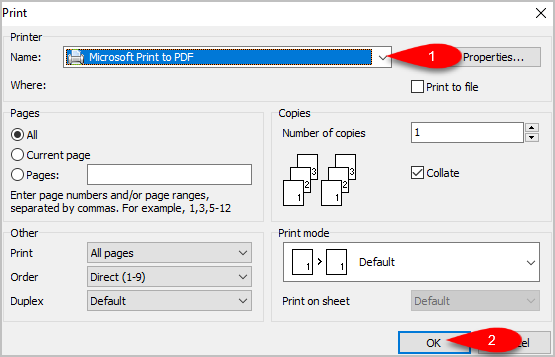
- If you need to change the default printer windows is set to print to, drop down the Printer Selector and select your printer. Click the OK button.
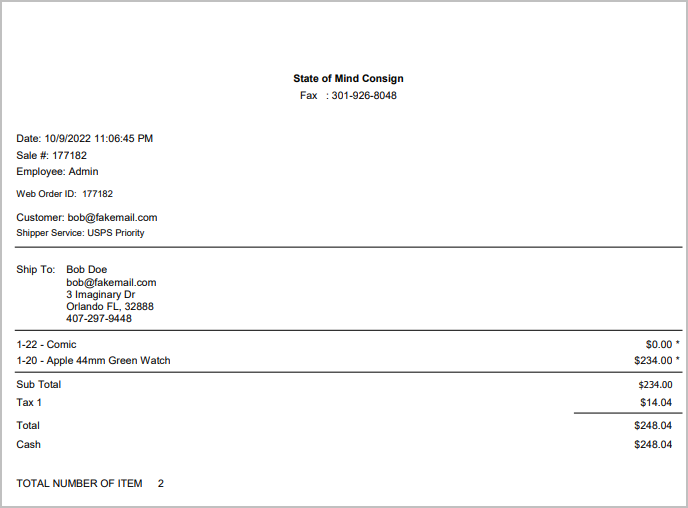
- Here is a sample of what the Invoice will look like:


Next Article In Section
Click the following link to move to the next article in this section:
Emailing An Invoice From The Fulfillment Tab
Related Topics
Printing An Invoice From The Fulfillment Tab To Be Included In A Package Fulfillment Tab Overview Getting to the Fulfillment Tab and Controls Changing Fulfillment Status Detail From The Fulfillment Tab Quickly Mark A Ready To Ship Order As Shipped From The Fulfillment Tab Quickly Mark A Ready To Deliver Order as Delivered From The Fulfillment Tab Emailing An Invoice From The Fulfillment Tab Sending A Custom Email To The Customer That Placed An Order Adding An eBay Description Adding Images To An eBay Listing Definitions of Ebay Description Processor Buttons