Table of Contents
Emailing An Invoice From The Fulfillment Tab
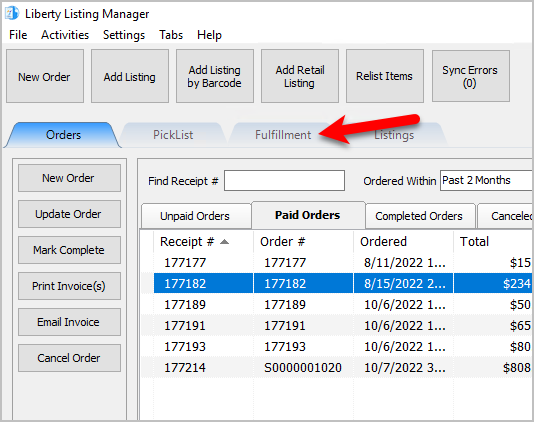
- Open the Liberty REACT Listing Manager and click on the Fulfillment tab.
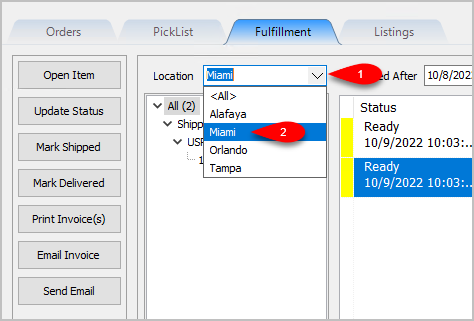
- Click on the Location drop-down to select which location you would like to work with.
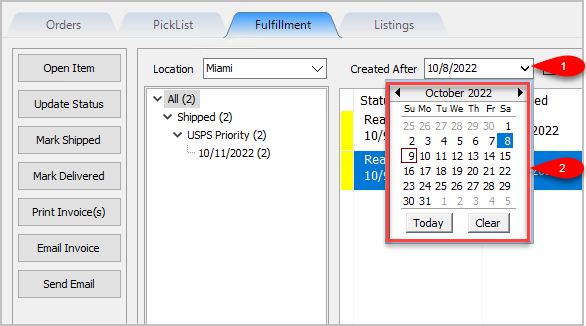
Note: It is not recommended that you select the <All> option if you have multiple store locations. - Click on the Filter Date checkbox if you want to see orders within a specific time period. For the Created After date drop-down, select the after date you would like to view items entered for
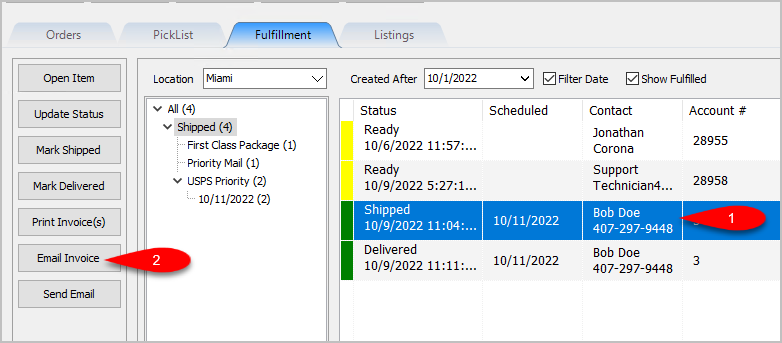
- Click on an item within the Grid-View and then click Email Invoice.
- You can change the Sent To email address, the Subject and the Message fields. Click the OK button when you are done.


An email will be sent to the customer with the Invoice attached in PDF form.

Next Article In Section
Click the following link to move to the next article in this section:
Sending A Custom Email To The Customer That Placed An Order
Related Topics
Emailing An Invoice From The Fulfillment Tab Fulfillment Tab Overview Getting to the Fulfillment Tab and Controls Changing Fulfillment Status Detail From The Fulfillment Tab Quickly Mark A Ready To Ship Order As Shipped From The Fulfillment Tab Quickly Mark A Ready To Deliver Order as Delivered From The Fulfillment Tab Printing An Invoice From The Fulfillment Tab To Be Included In A Package Sending A Custom Email To The Customer That Placed An Order Adding An eBay Description Adding Images To An eBay Listing Definitions of Ebay Description Processor Buttons