Table of Contents
eBay Specific Info. Listing Fields
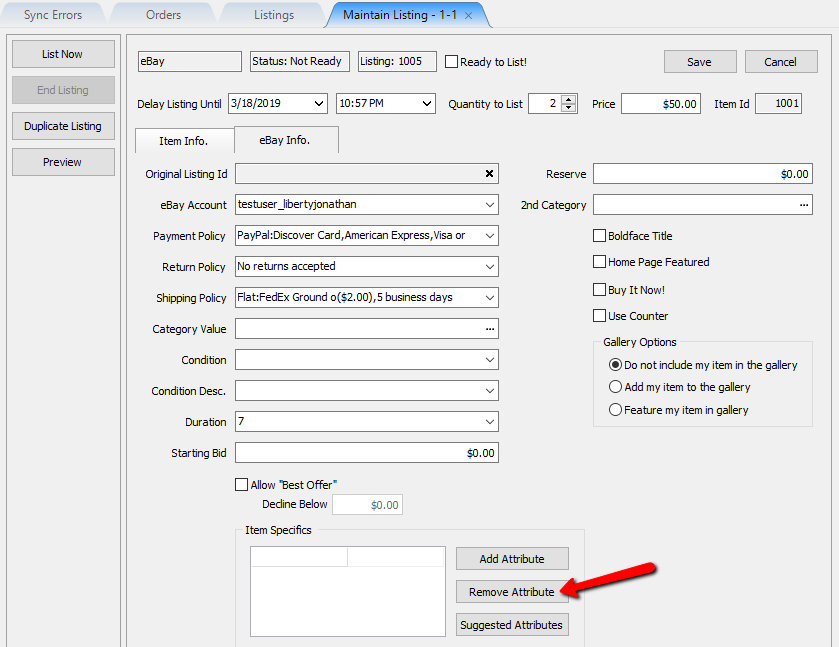
The following details what is on the EBay Info. tab of an EBay listing.

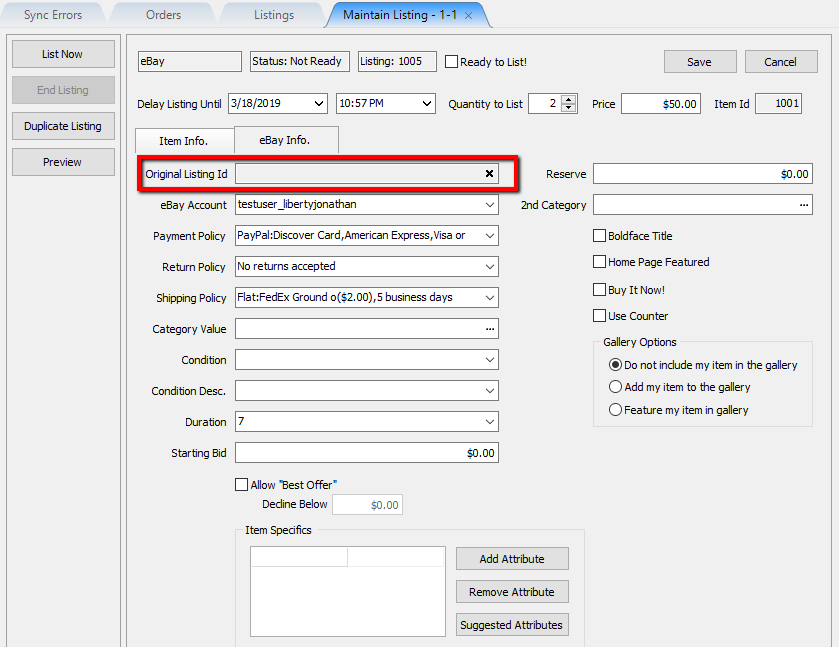
- Original Listing Id: Maintains the original listing id, if this item was ever re-listed.
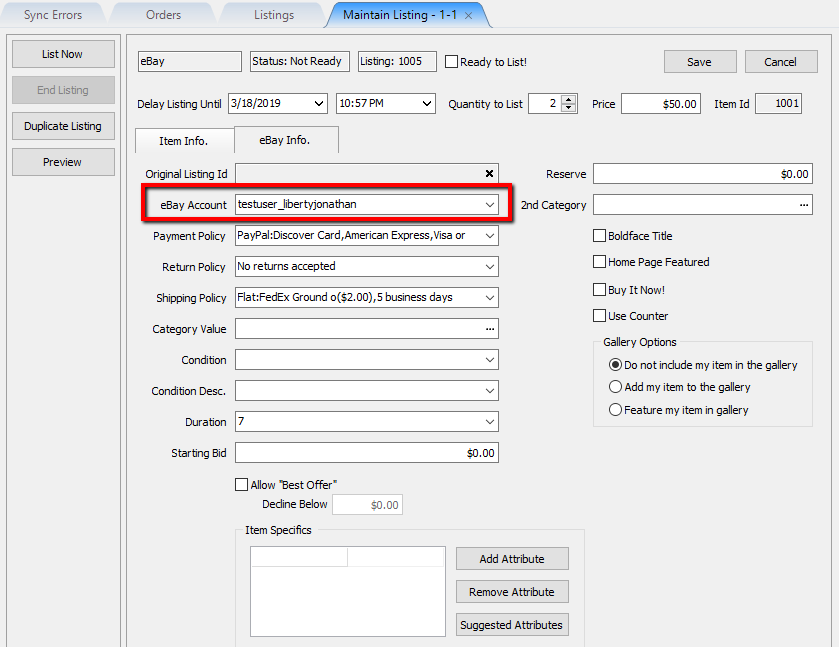
- eBay Account: Allows you to select which eBay auction user account you wish to use for listing this item.
- Payment Policy: Shows what payment options are available for this eBay listing. The default policy will be used based on what you have set on eBay.
Note: These payment policies are pulled directly from what is set on your eBay account from within eBay business polices. You will need to opt-in on eBay in order to access this.


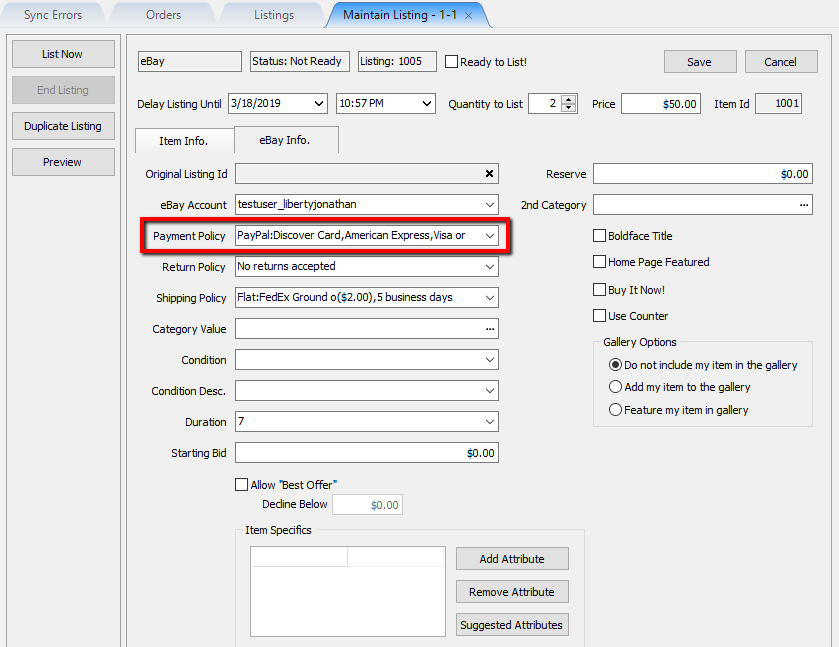
Example:


- Return Policy: Shows what Return Policy will be used with the current eBay listing. The default one will be used based on what you have set-up on eBay.
Note: The Return Policies are pulled directly from what is set on your eBay account from within eBay business polices. You will need to opt-in on eBay in order to access this.
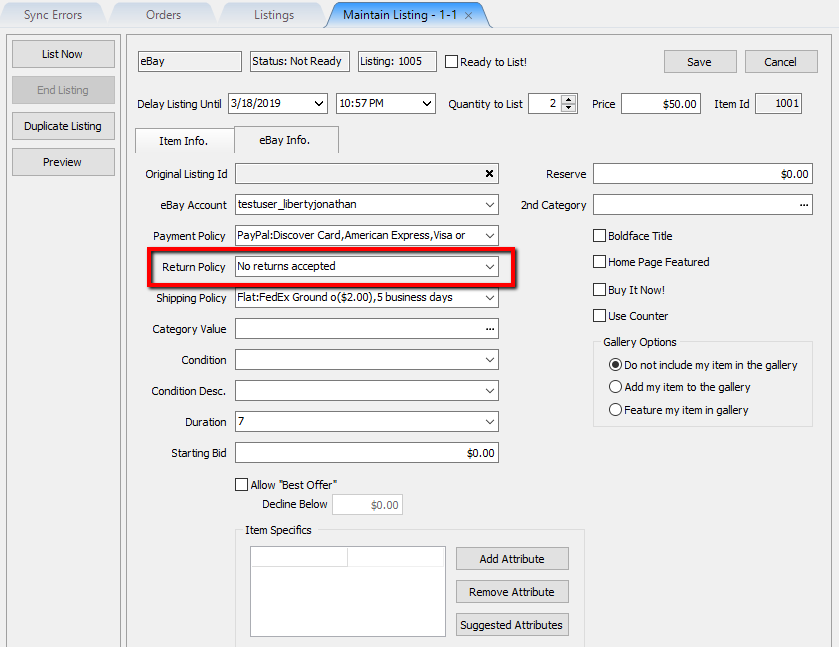
Example:


- Shipping Policy: Shows what shipping options will be used with the current eBay listing. The default one will be used based on what you have set-up on eBay.
Note: The Shipping Policies are pulled directly from what is set on your eBay account from within eBay business polices. You will need to opt-in on eBay in order to access this.
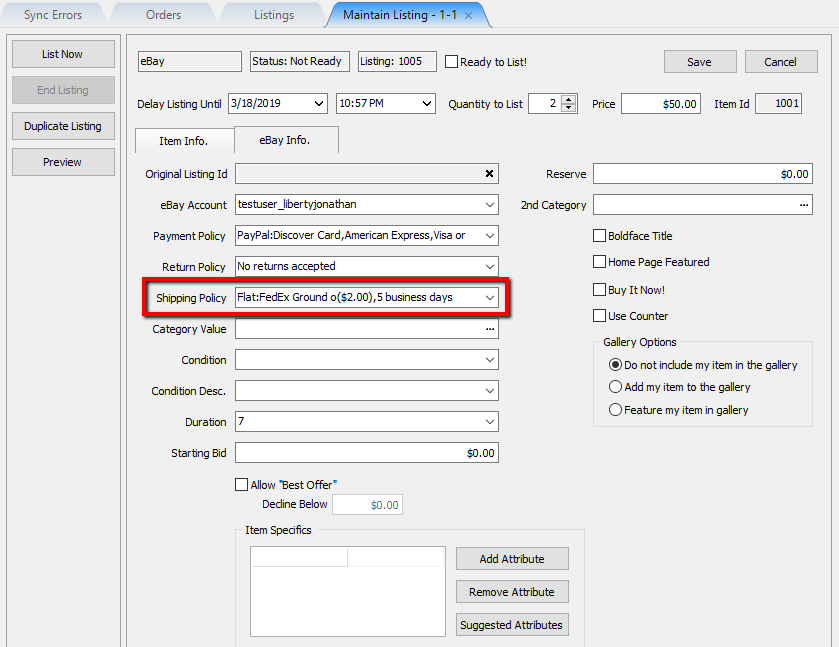
Example:


- Category Value: Allows you to select what eBay category the item belongs to. This is completely separate from the standard category selected in Liberty and is required in order for the item to be listed on eBay.
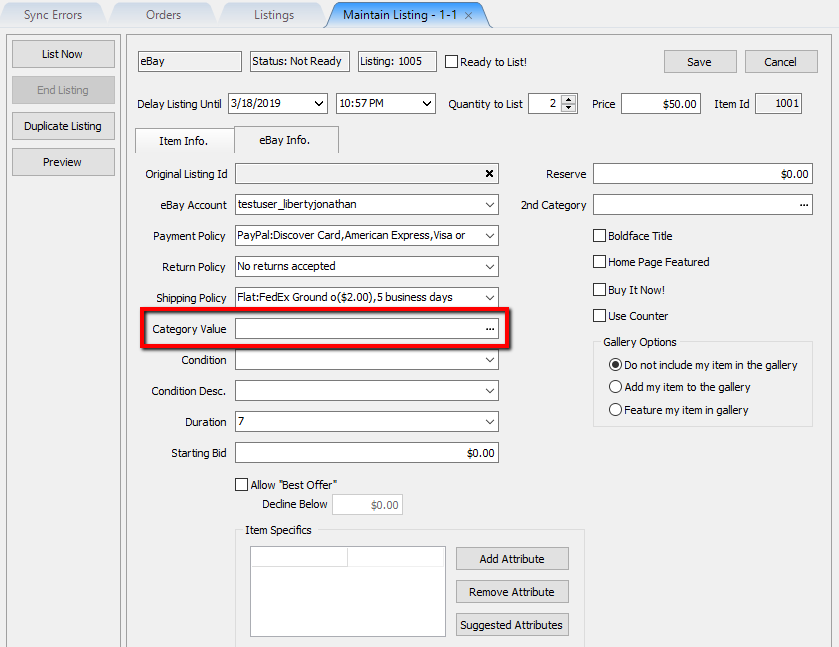

You must first click the Browse button in order to select the category.

Then, go through the category selector until you reach the final category selection and click the OK button.
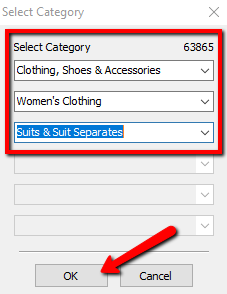
Note: When you select your eBay categories for the first time, the association with the Liberty category will be saved. You will not have to re-select the eBay category again when adding another item of the same Liberty category.


Example:

- Condition: Identifies what condition the item is and may be required in order to list the item on eBay.
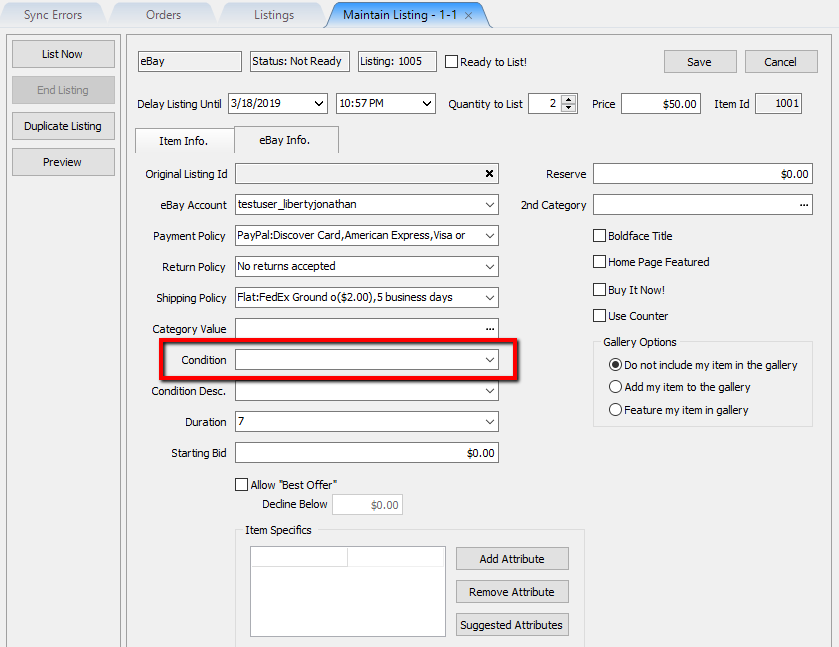
Example:
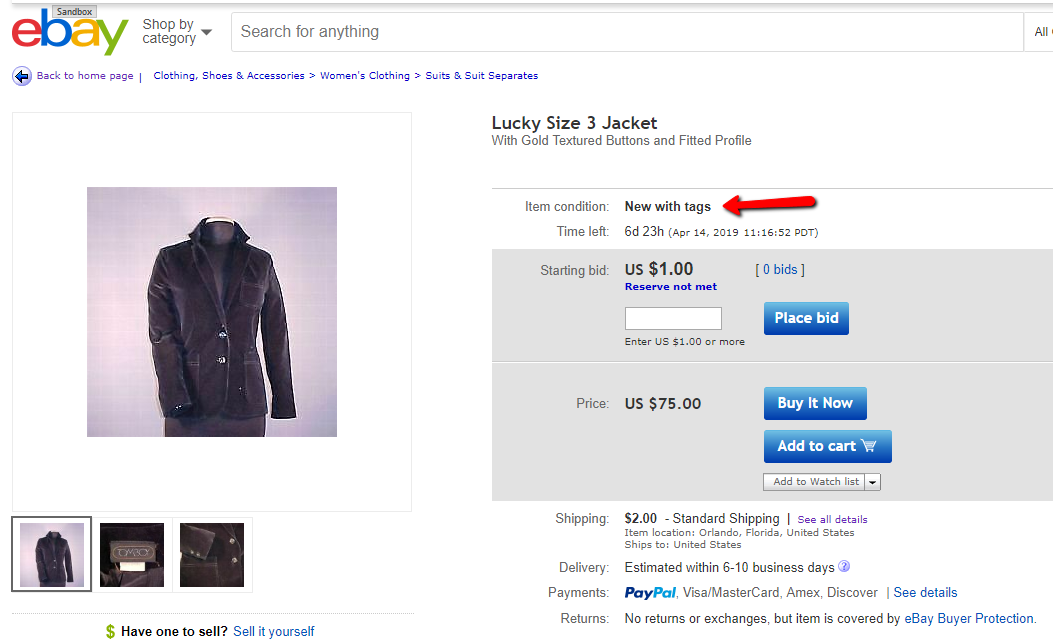
- Condition Desc: More descriptive on the condition of the item, from Excellent to Poor.
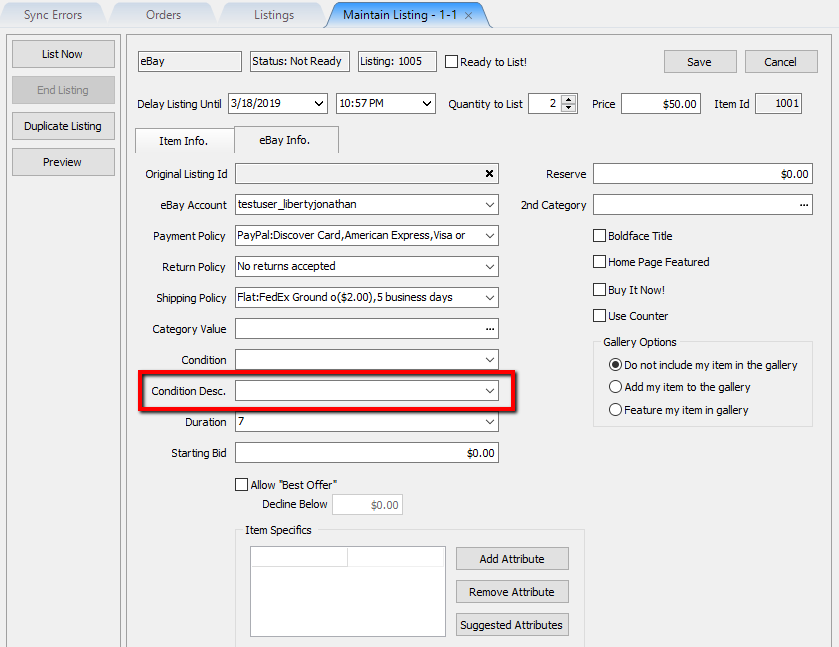
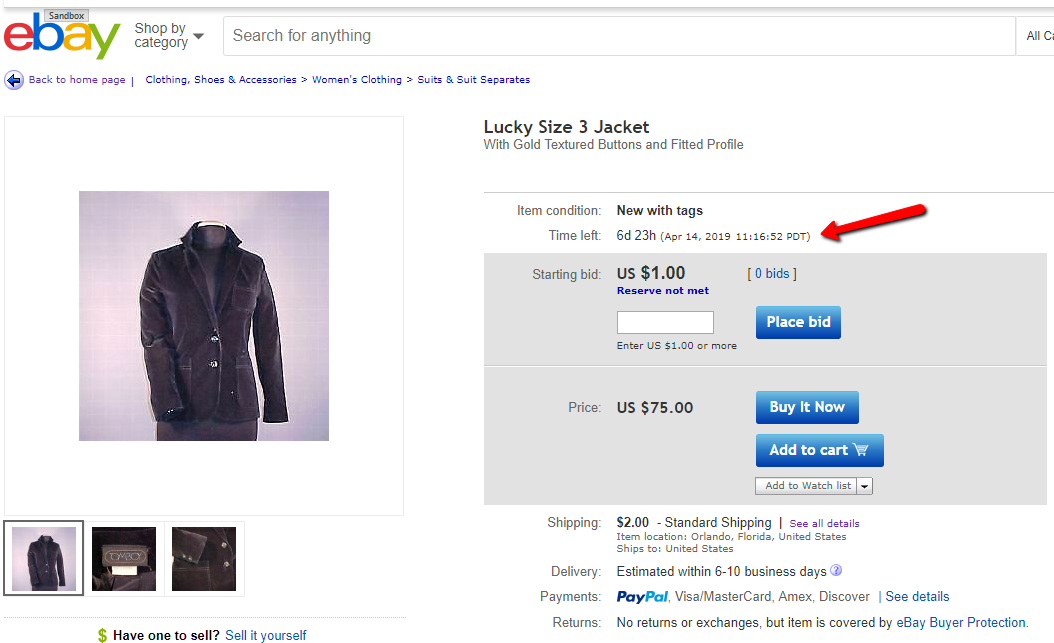
- Duration: The number of days the item will remain listed on eBay.
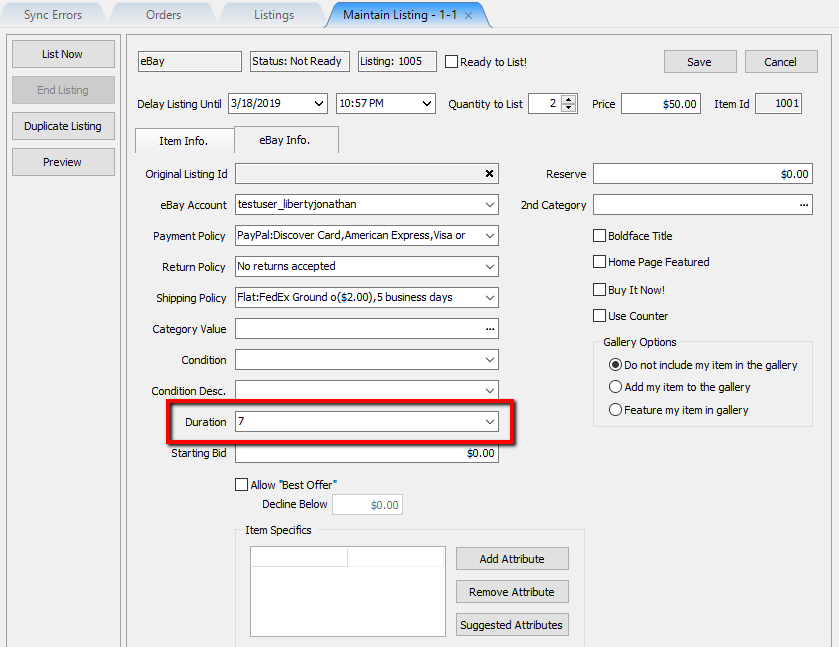
Example:
- Starting Bid: The starting bid price of the eBay listing. This is used if the eBay listing is an auction.
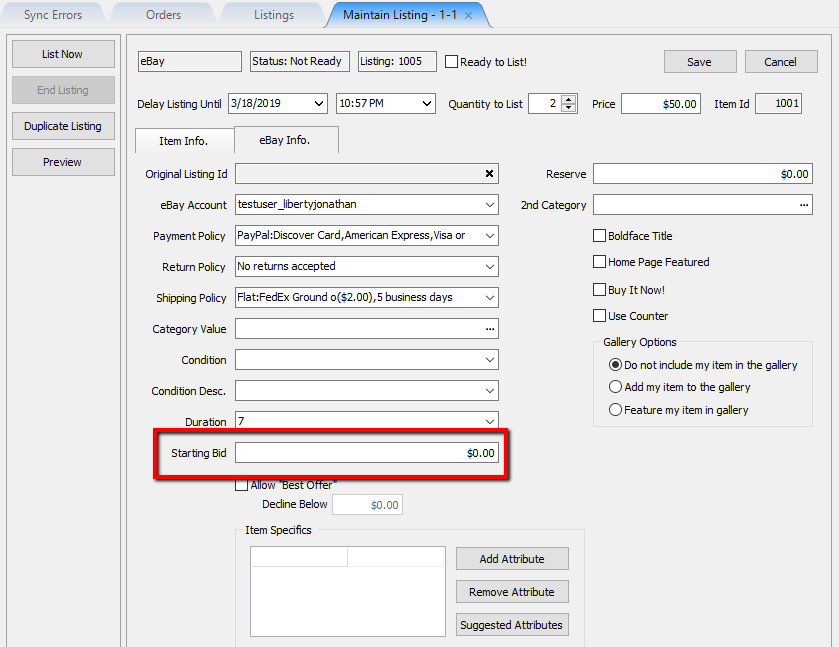
Example:
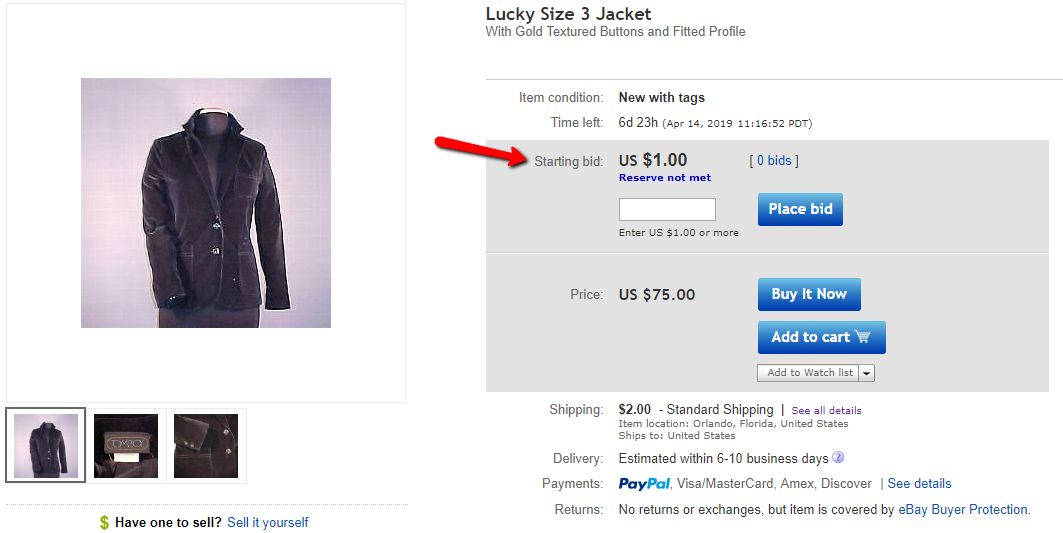
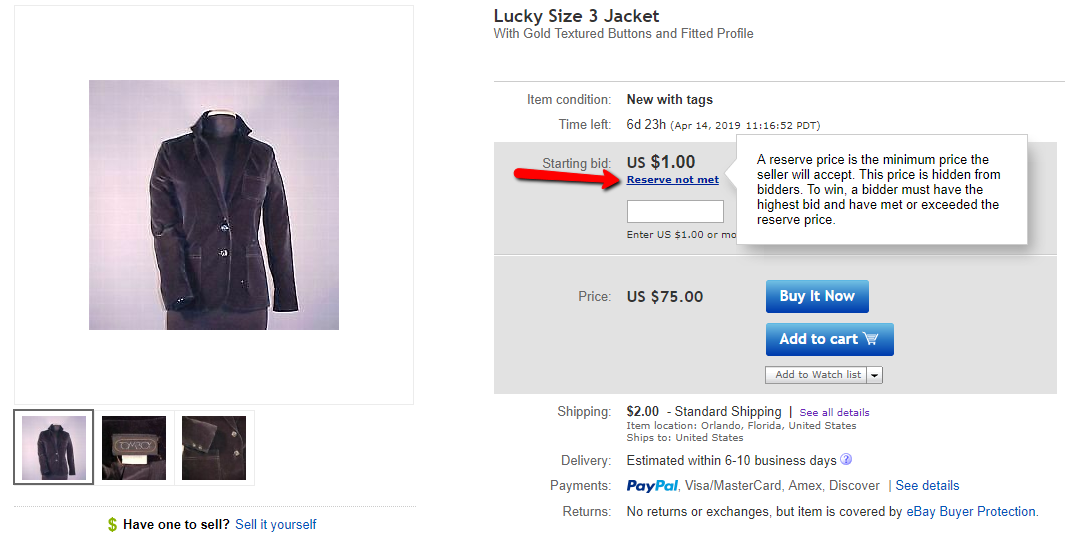
- Reserve: The minimum bid price the eBay auction must reach before the item can be sold. Used to prevent the item from selling at auction with a less than desirable price.
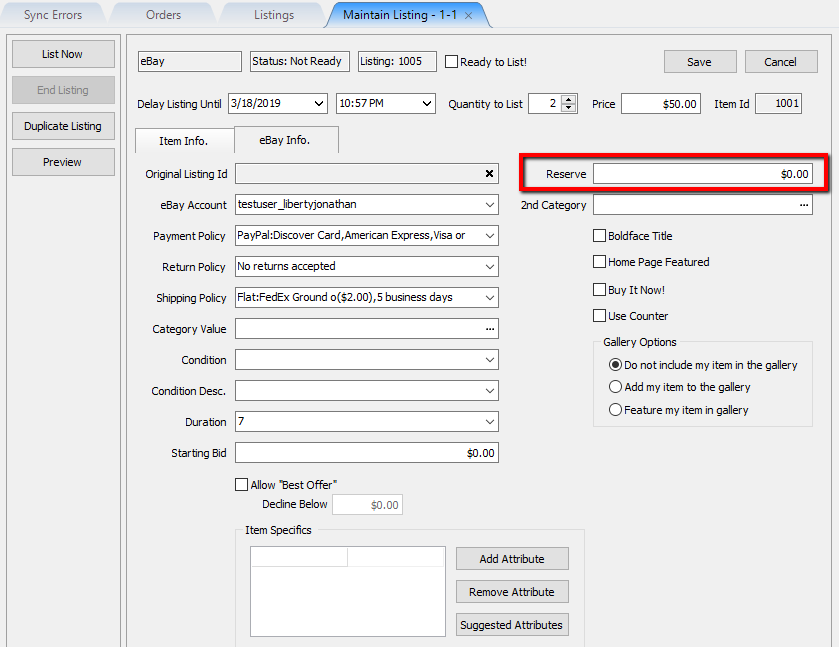
Example:
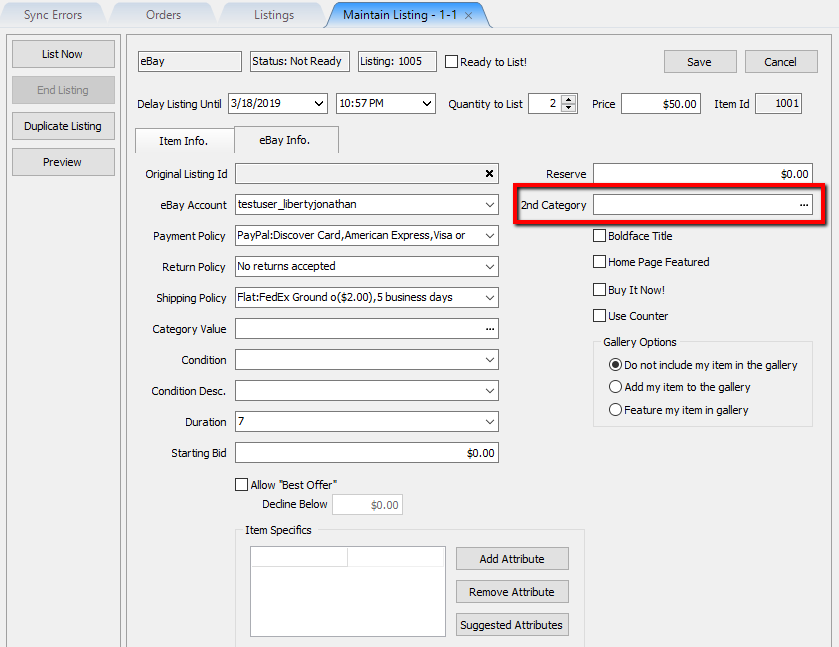
- 2nd Category: Allows you to list the item with a second category, in the event that the item belongs to two different categories.
- Bold Face Title: Allows the item to appear in eBay search results with a bold title. This will incur an eBay fee if used as it is meant to bring attention to the item.
- Home Page Featured: Allows the item to be featured on a customer’s eBay home page. This will incur an eBay fee if used as it is meant to bring attention to the item.
- Buy It Now!: Allows the item to be listed as Buy It Now. The item can still be listed as an auction, but as soon as the first bid is entered, the buy it now option will disappear.
Note: Standard eBay auctions are not supported on shopify and will not appear in shopify. If the item is set to buy it now and is also being listed on ShopRW or Shopify, it can be purchased from either platform.


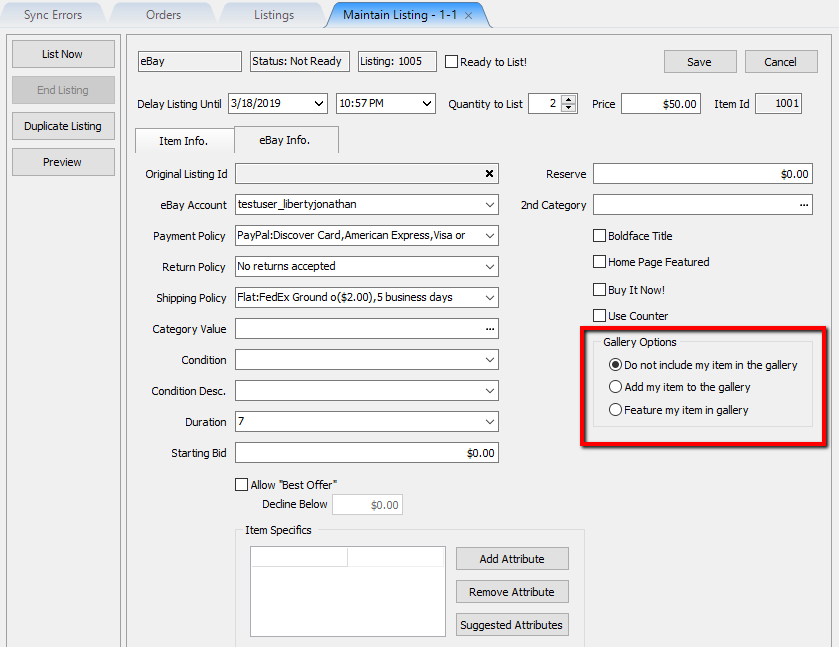
- Gallery Options: These options are meant to make your items stand out. This will incur an eBay fee if used as it is meant to bring attention to the item unless Do not include my item in the gallery is selected.
- Allow “Best Offer”: Allows a customer to make a dollar value offer on a buy it now eBay listing.
- Decline Below: Allows you to specify a dollar value on best offers you want eBay to automatically decline.
Note: You must sign into your eBay account in order to review and accept submitted best offer entries.


- Suggested Attributes: Allows you to see a list of recommended eBay item specific attributes. eBay requires certain item specific attributes to be filled out before the item can be listed.
Note: A listing may receive an error syncing if a required eBay item specific attribute is missing.
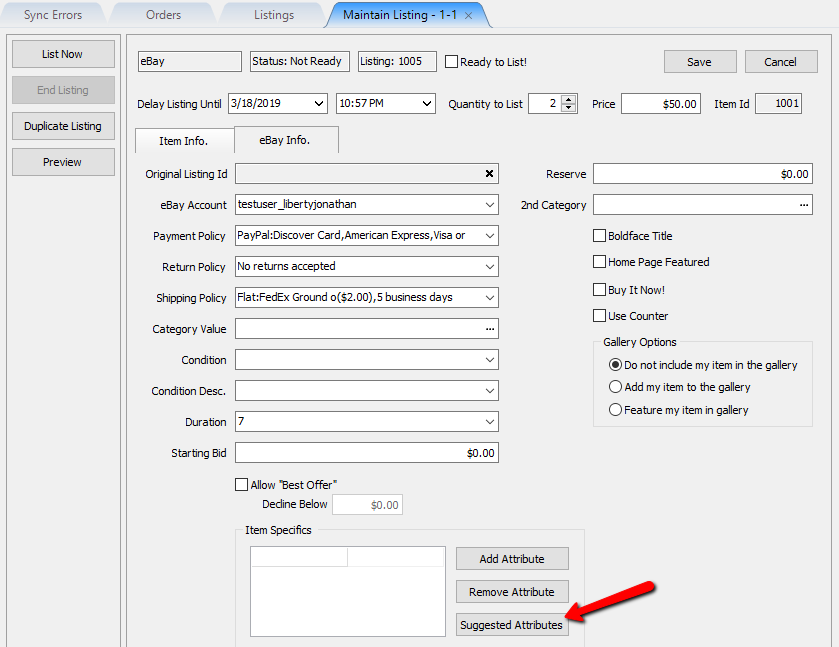
Once the Suggested Attributes button is clicked, you can then either use the dropdown to select values for the item specific attribute entries or you can type them in.


- Add Attribute: If you do not see your item specific attribute in the list after clicking Suggested Attributes, you may add it using the Add Attribute button.
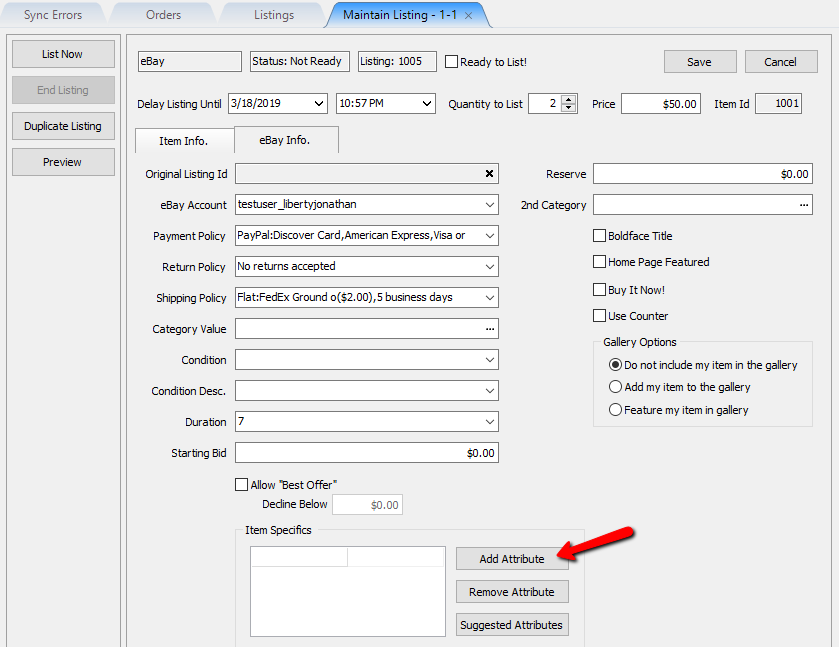

Type in the name of your new Item Specific Attribute and then click the OK button.

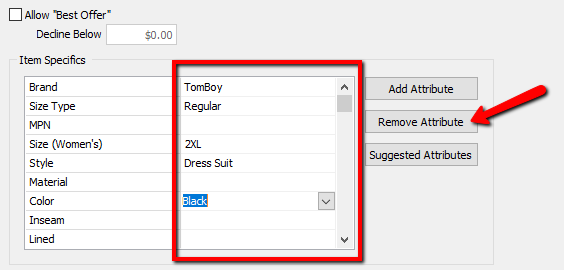
- Remove Attribute: This is used if you want to remove an item specific attribute from the list.
Click into the right field of the item specific attribute you wish to remove and then click the Remove Attribute button.


As of 6.1c, When you open an eBay listing in Liberty, the details like brand, size, color, etc. (called Item Specifics) are now loaded faster. Instead of asking eBay for that info every time, Liberty saves (or “caches”) the correct details ahead of time for each category. So now, it just pulls from that saved info, which makes things quicker and easier for you.
Next Article In Section
Click the following link to move to the next article in this section:
Adding eBay Package Information
Related Topics
eBay Specific Info. Listing Fields Setting Up Liberty Listing Manager To List Your First Ebay Item How To List An Item On eBay Using The Listing Manager Creating an eBay Listing Overview Adding eBay Package Information Adding An eBay Description Definitions of Ebay Description Processor Buttons Editing An eBay Description in HTML Previewing An eBay Web Description Adding Images To An eBay Listing Deleting Images From An eBay Listing