Table of Contents
Creating a Device Key for your iDevice
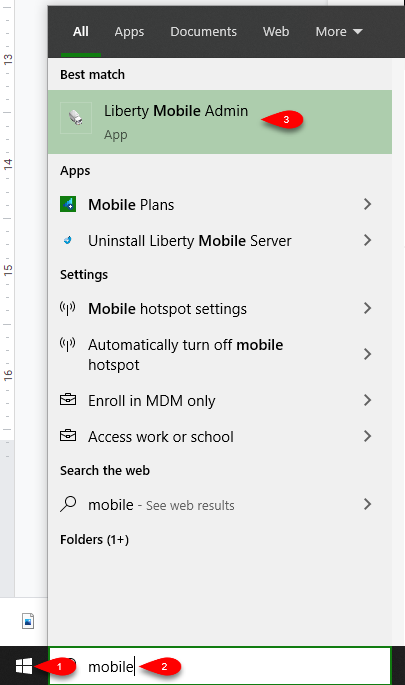
- On your Server computer, click the Start Menu and then type Mobile.
Then click the Liberty Mobile Admin app.
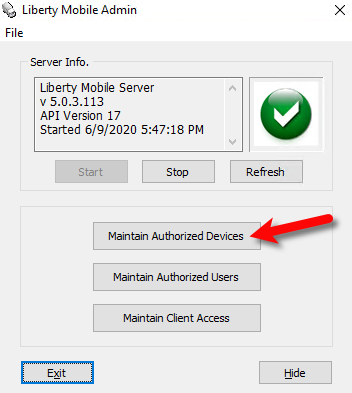
- Click on Maintain Authorized Devices.
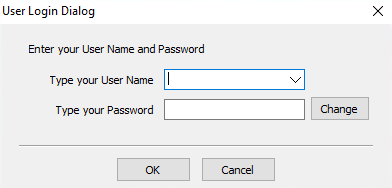
- Sign in with an admin account. Non-administrators do not have the ability to access this area.
- Click on Add Device.
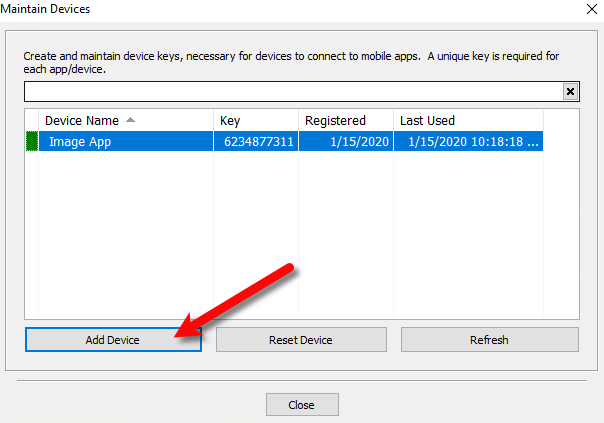
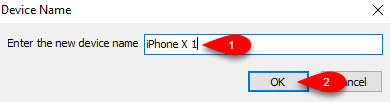
- Enter what you would like to name the device.
Examples include owner of the device’s name and the model.
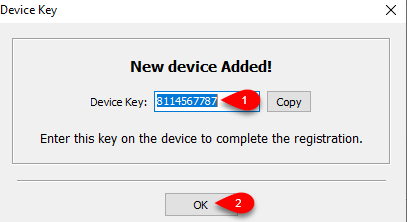
- Make a note of the device key as you will have to enter it into the iDevice’s key field, then click the OK button.


Next Article In Section
Click the following link to move to the next article in this section:
Getting the IP Address Of Your Server
Related Topics
Creating a Device Key for your iDevice Liberty Item Entry Application Setup Overview Downloading the Liberty Item Entry Application From The Apple App Store Getting the IP Address Of Your Server Connecting The Item Entry App To Your Server Computer Reading The Sales Data Setting Up The Liberty Sales App How To Install and Use The Item Entry Lite App In Demo Mode Setting Up The Liberty Item Entry Lite App Adding Items To Shopify Through The Item Entry App How To Send Existing Items To Shopify Through The Liberty Item Entry App