Table of Contents
Connecting The Item Entry App To Your Server Computer
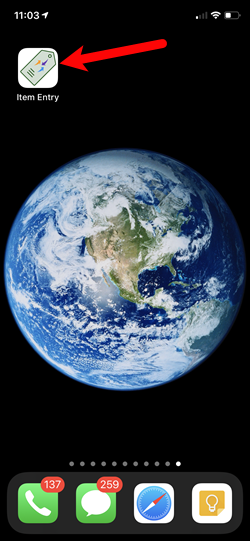
- Now, back on your iDevice, search for the Item Entry app icon and tap on it.
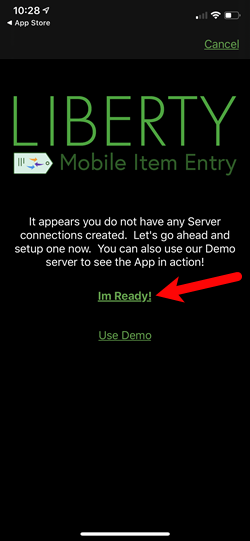
- Tap the Im Ready! option.
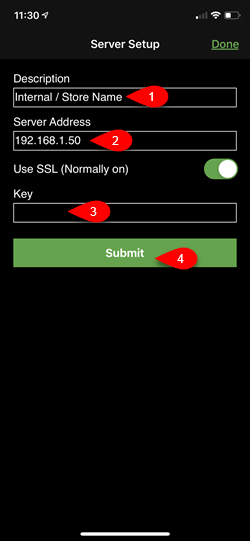
- You will now need to fill in the following fields:
- Description:
Internal means that this connection is for use only inside of the store. - Server Address:
Your Server’s IP address retrieved from a prior step. - Key:
The device key you created from the Liberty Mobile Admin app.
Note: It is normal to not be able to see exactly what you are typing except for the last character in the Key field. This is a secure field. - Tap the Submit button.
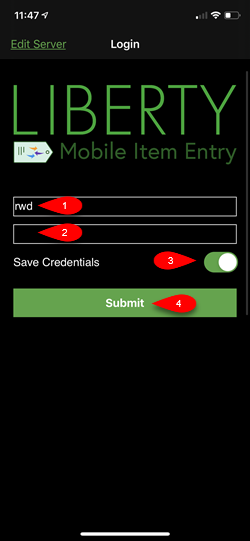
- Type in the username and password you use to sign in to Liberty, then tap Save Credentials and tap the Submit button.
Note: It is normal to not be able to see exactly what you are typing into the password field.
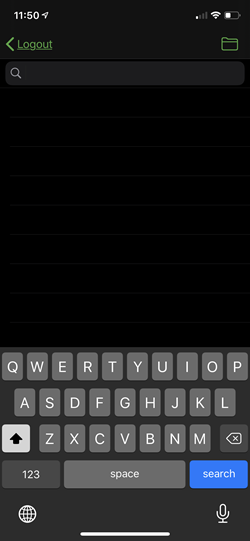
- If you see the Search screen then you have correctly set-up your Liberty Item Entry app with your Server.


Next Section Navigation Link
Click the following link to see a list of articles for the next section:
Liberty Item Entry App and Shopify
Related Topics
Connecting The Item Entry App To Your Server Computer Liberty Item Entry Application Setup Overview Downloading the Liberty Item Entry Application From The Apple App Store Creating a Device Key for your iDevice Getting the IP Address Of Your Server Reading The Sales Data Setting Up The Liberty Sales App How To Install and Use The Item Entry Lite App In Demo Mode Setting Up The Liberty Item Entry Lite App Adding Items To Shopify Through The Item Entry App How To Send Existing Items To Shopify Through The Liberty Item Entry App