Table of Contents
Setting Up The Liberty Item Entry Lite App
The Liberty Item Entry App Lite allows consignors to enter inventory drop-offs directly to their account from their own iPhone or iPad.
Requirements for Setting Up the Item Entry App Lite
The Liberty Item Entry App Lite requires your store to have a few things in place before it can be set-up for and utilized by your consignors (not applicable for Liberty Cloud).
- Static IP Address : The first requirement is that you must have a Static IP Address setup with your ISP (Internet Service Provider) for your store’s connection. Usually there is a small monthly fee that they charge for this, but this will allow the app to be able to communicate with Liberty from outside the store.
- Port Forwards : The second requirement is that you will need port forwards put in place on your store’s router to allow the app to reach your server computer from outside the store as well. The specific ports to be forwarded are 8080 and 8081, and these need to be forwarded to your server computer.
If you need assistance with port forwarding for the Item Entry App Lite, reach out to your local IT service or contact Resaleworld Support at 800-785-4800.
Getting the IP Address Of Your Server
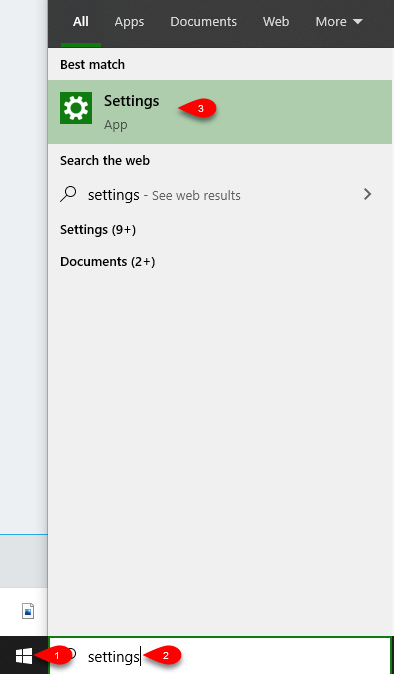
- Click the Start menu on the server computer and then type Settings, then click the Settings app.
- Click the Network & Internet settings applet.

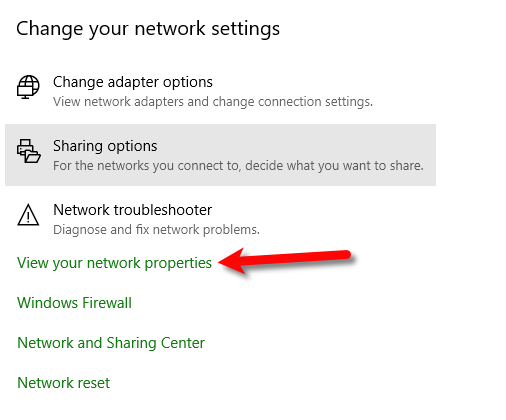
- Click on View your network properties.
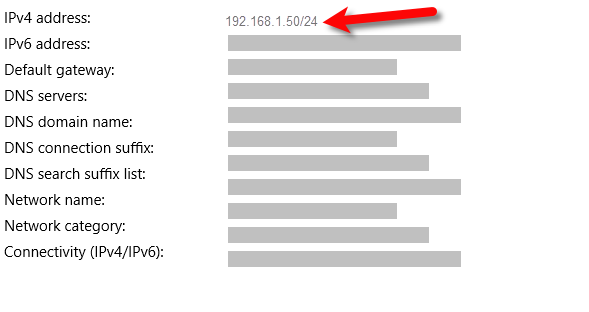
- Note your server’s IP Address.


Creating Access Information for the Consignor’s Account
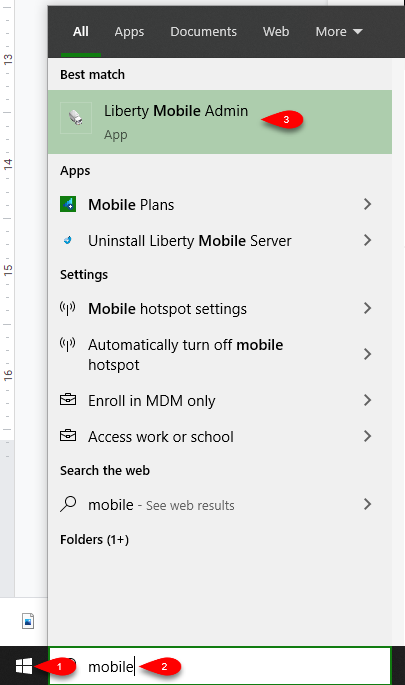
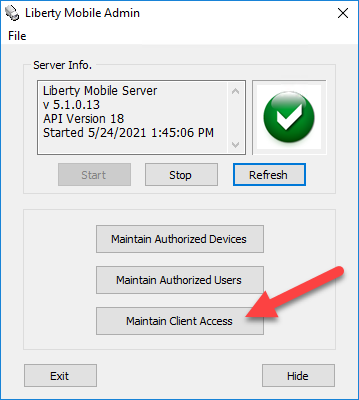
- On your Server computer, click the Start Menu and then type Mobile Admin.
Then click the Liberty Mobile Admin app.
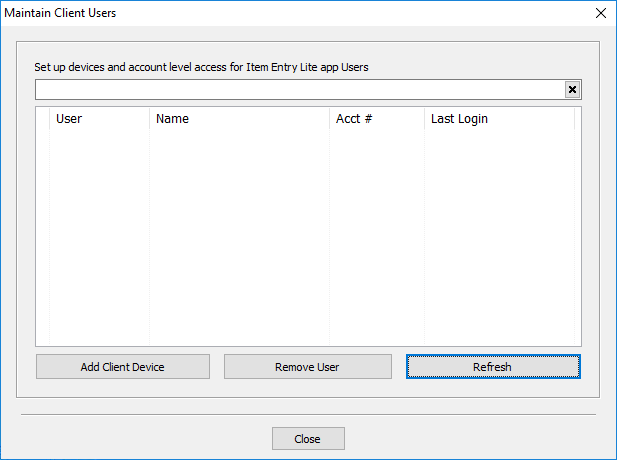
- Click on Maintain Client Access.
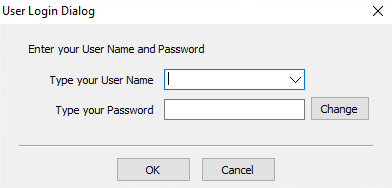
- Sign in with an admin account. Non-administrators do not have the ability to access this area.
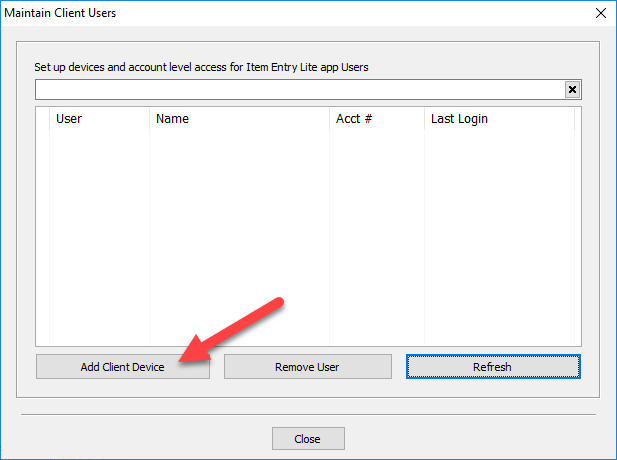
- Click on Add Client Device.
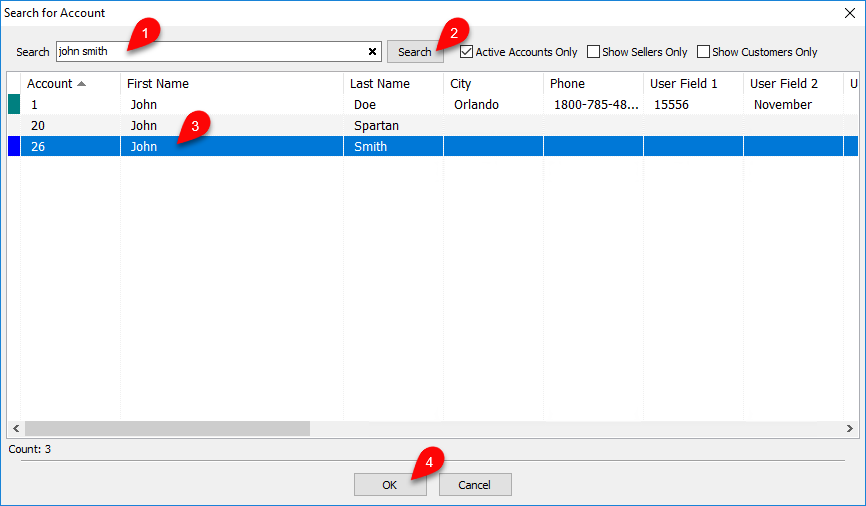
- The Search for Account dialog will then appear. In the search box, enter any of the consignor’s account information then click Search. This will populate the list below with any matches.
From there, select the desired account you wish to allow access to their account through the app, then click OK.
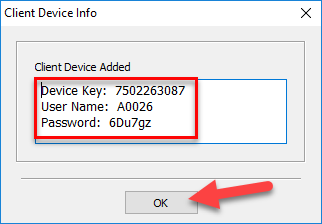
- This will bring up the Client Device Info dialog. Here will be displayed the consignor’s Device Key, User Name, and Password. The Consignor will need these for the next section to setup their app to connect to your server.


Reset the Consignor’s Item Entry App Password
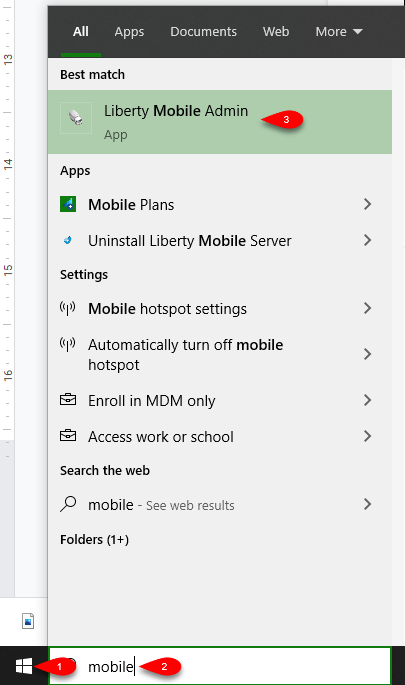
- On your Server computer, click the Start Menu and then type Mobile Admin.
Then click the Liberty Mobile Admin app.
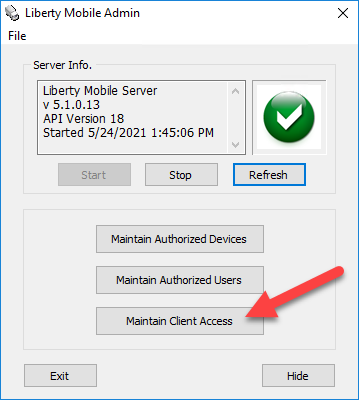
- Click on Maintain Client Access.
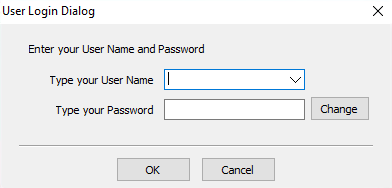
- Sign in with an admin account. Non-administrators do not have the ability to access this area.
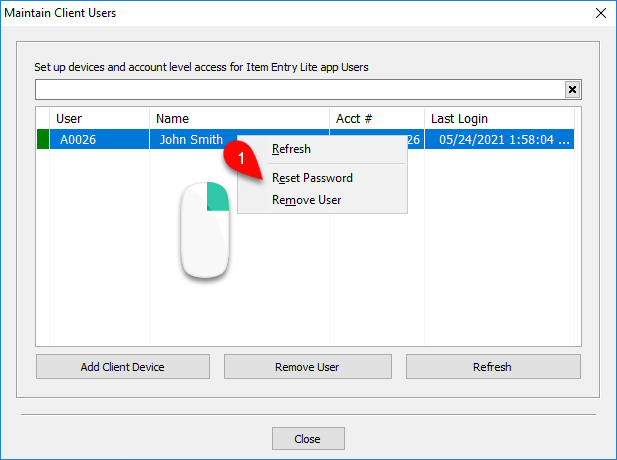
- Then in the Maintain Client Users window, right click the desired account, the click Reset Password.
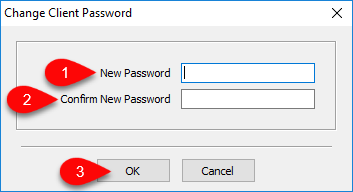
- Then in the next dialog, enter and confirm the new password, then click OK.
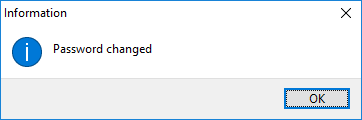
- Lastly, click OK.


Remove Consignor Access to the Item Entry App Lite
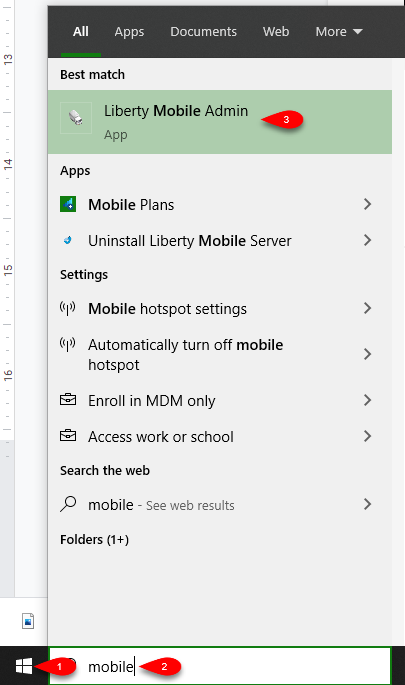
- On your Server computer, click the Start Menu and then type Mobile Admin.
Then click the Liberty Mobile Admin app.
- Click on Maintain Client Access.
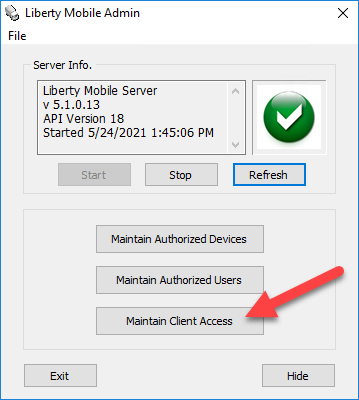
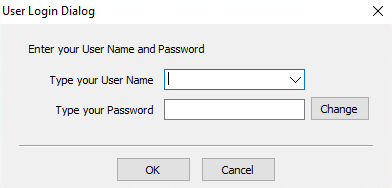
- Sign in with an admin account. Non-administrators do not have the ability to access this area.
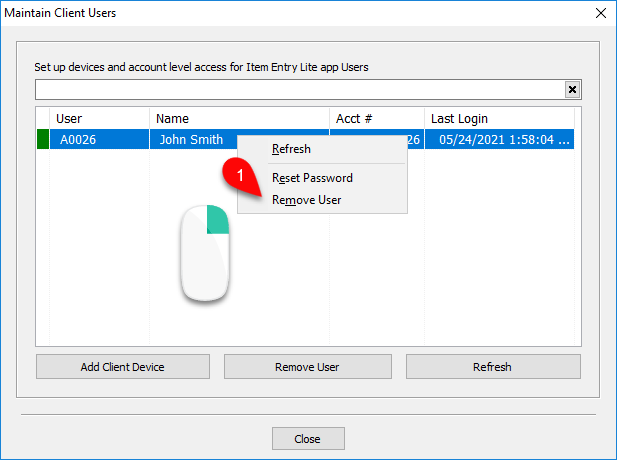
- Then in the Maintain Client Users window, right click the desired account, the click Remove User.
- Then a confirmation dialog will appear. To remove the user, click Yes.
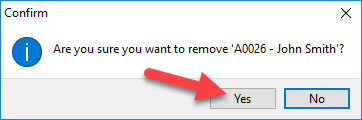
- The user will now be removed from the Maintain Client Access list and no longer able to add items to their account through the Item Entry App Lite.


Connecting The Item Entry App To Your Server Computer
- Have the customer tap the I’m Ready! button.
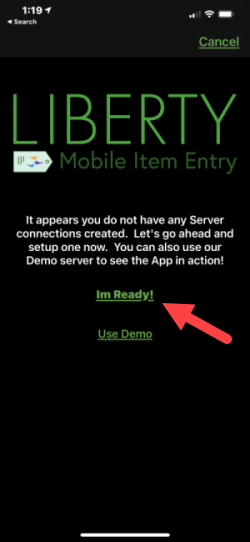
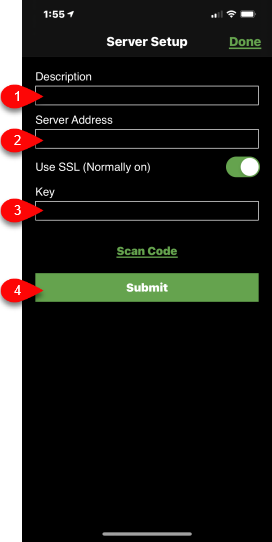
- The customer will now need to fill in the following fields, based on the information was generated in the previous steps:
- Description : The name of your store.
- Server Address : Your Server’s IP address retrieved from a prior step.
- Key : The device key you created from the Liberty Mobile Admin app.
Note: It is normal to not be able to see exactly what you are typing except for the last character in the Key field. This is a secure field. - Tap the Submit button.
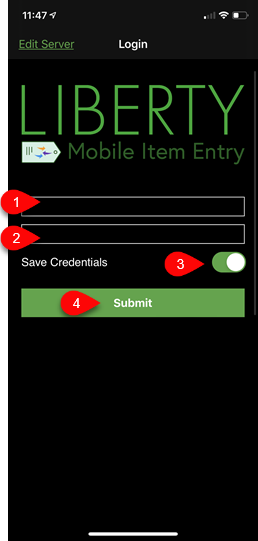
- Type in the username and password you generated in a previous step in the Mobile Admin, then tap Save Credentials and tap the Submit button.
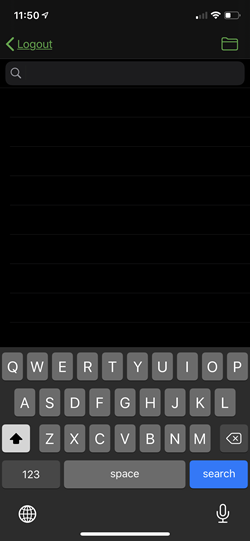
- If you see the Search screen then you have correctly set-up your Liberty Item Entry Lite app with your Server.


Next Article In Section
Click the following link to move to the next article in this section:
How To Install and Use The Item Entry Lite App In Demo Mode
Related Topics
Setting Up The Liberty Item Entry Lite App How To Install and Use The Item Entry Lite App In Demo Mode Reading The Sales Data Setting Up The Liberty Sales App Downloading the Liberty Item Entry Application From The Apple App Store Connecting The Item Entry App To Your Server Computer Creating a Device Key for your iDevice Getting the IP Address Of Your Server Liberty Item Entry Application Setup Overview Adding Items To Shopify Through The Item Entry App How To Send Existing Items To Shopify Through The Liberty Item Entry App