Table of Contents
How to Discontinue Retail Items
Discontinuing an item will cause the item to no longer show in the Inventory List.
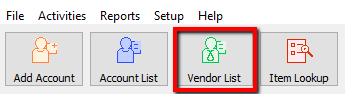
- Lookup the Retail Account you wish to add inventory to. Click the Vendor List button at the top of Liberty.
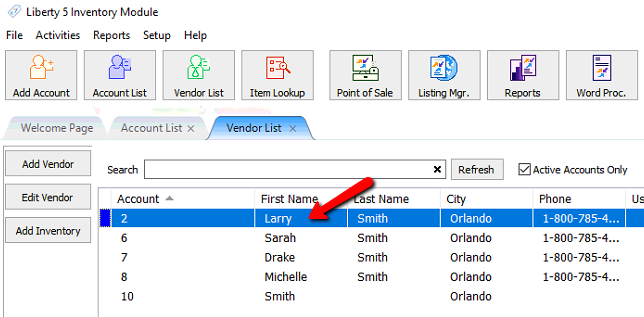
- The Vendor List tab will show. Type the account information in the search field. Double click the account you want to open.
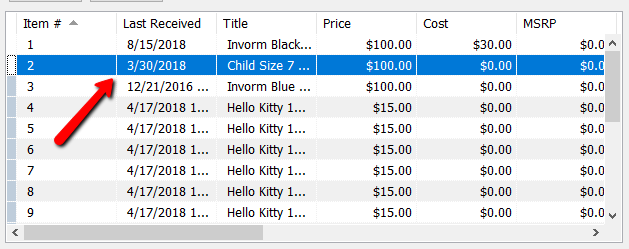
- Once the account is open, find and double click the item you want to edit.
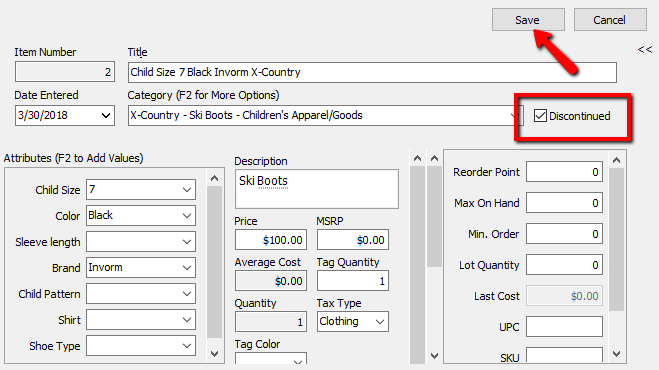
- Check off the Discontinue check box and press the Save button.
- You will not see the item in the Item List.
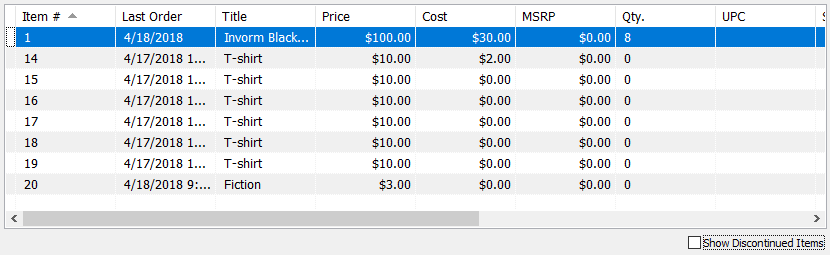
- To see the Discontinued Items, check of the Show Discontinued Items checkbox.

- Once checked, you should see the Discontinued Items marked with a Gray Color Indicator.



Next Section Navigation Link
Click the following link to see a list of articles for the next section:
Trade Items
Related Topics
How to Discontinue Retail Items Item Entry Windows - Overview Edit Retail Items Receive Retail Inventory How To Add Retail Variants How To Use Find Variant To Add Retail Variant Items Creating a Shopify / ShopRW Listing With One Variant Type Creating a Shopify / ShopRW Listing With Two Variant Types Add Retail Items to Inventory Copy Retail Items Delete Retail Items