Table of Contents
Adjusting Pricing Based On Market Values
As time goes by, the value of items increases due to the economy. The pricing guide has a tool that will allow you to increase the pricing across the board for a specific category based on a percentage.
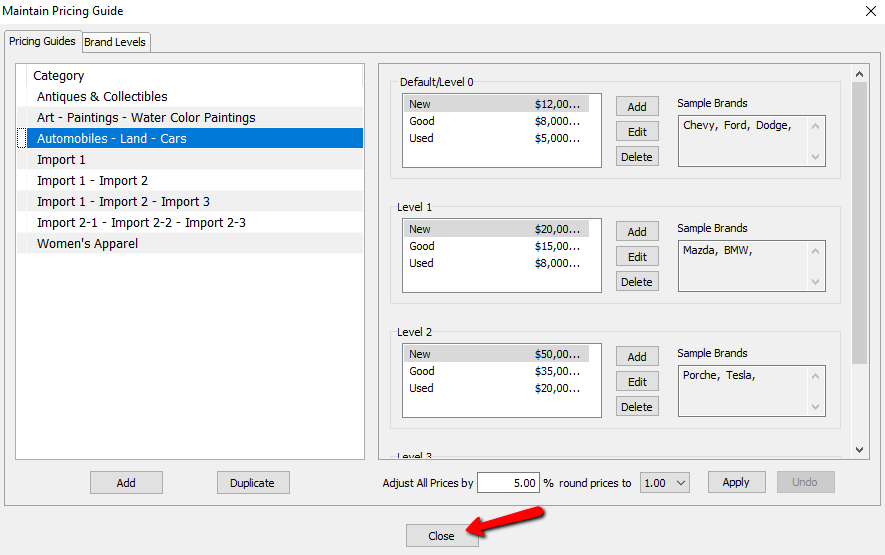
- In Liberty, select Setup > Pricing Guide.
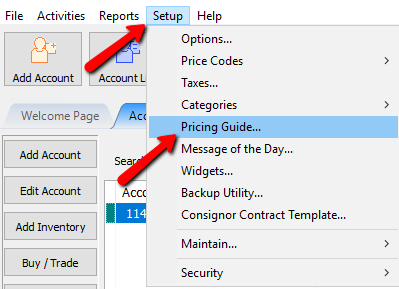
The Pricing Guide will open.
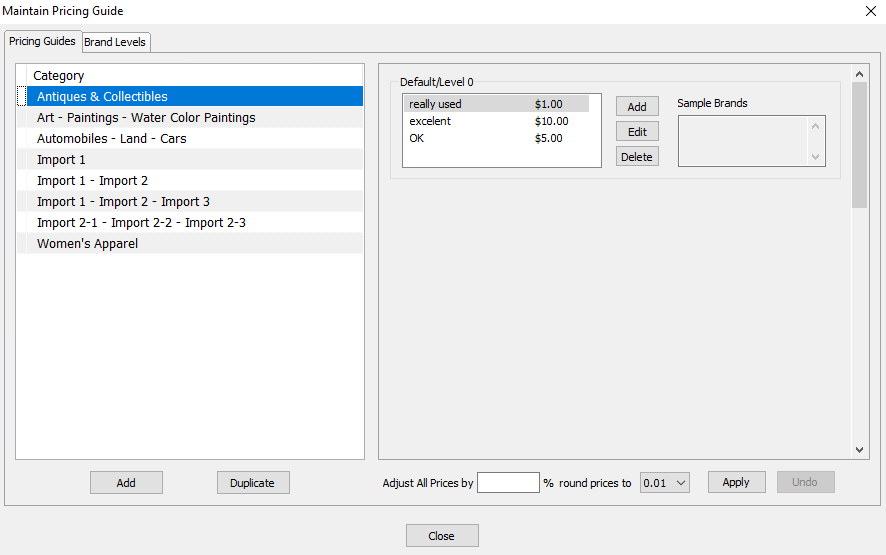
- Select the Category you need to make a price adjustment to.
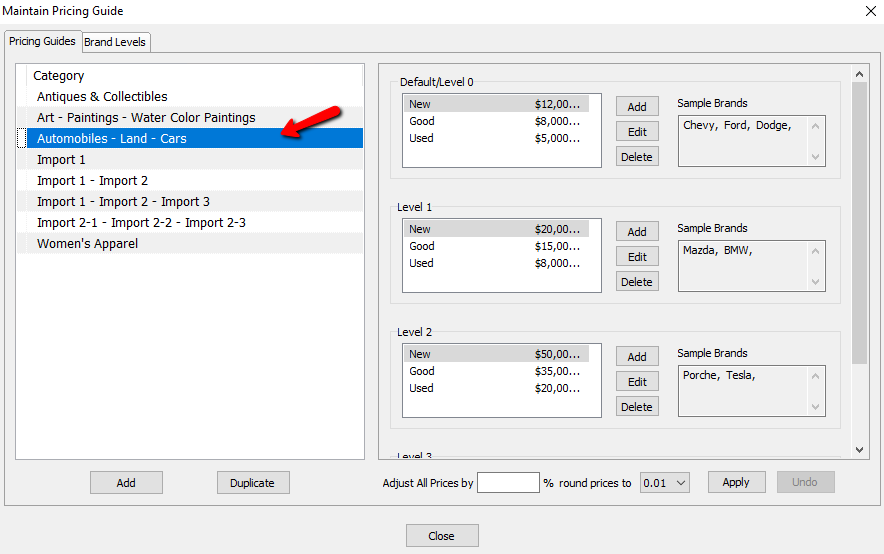
- In the Adjust All Prices By field, add the percentage you wish to increase your prices by.
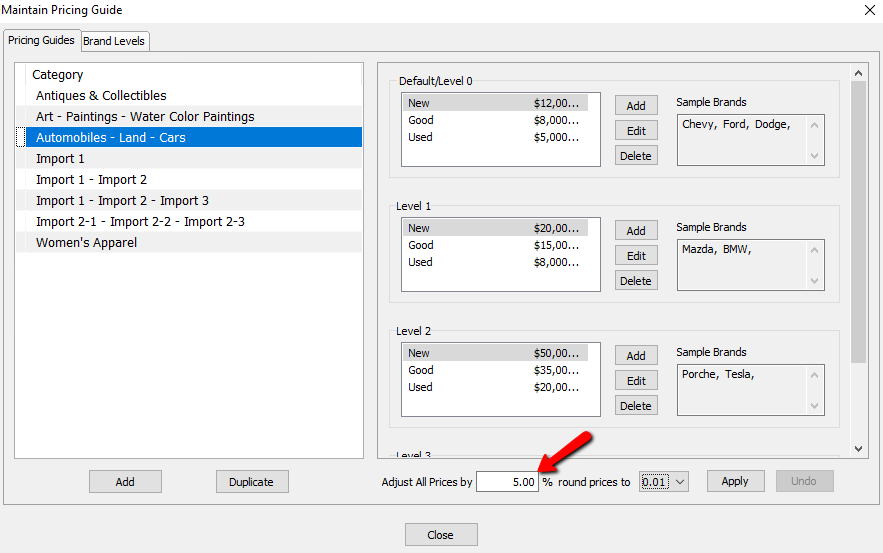
- Set how prices will adjust based on rounding in the Round Prices To field.
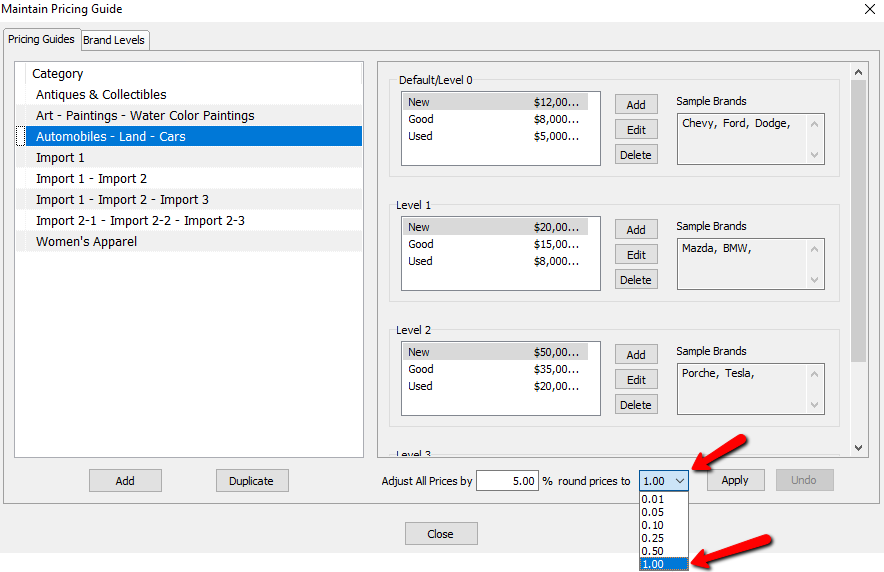
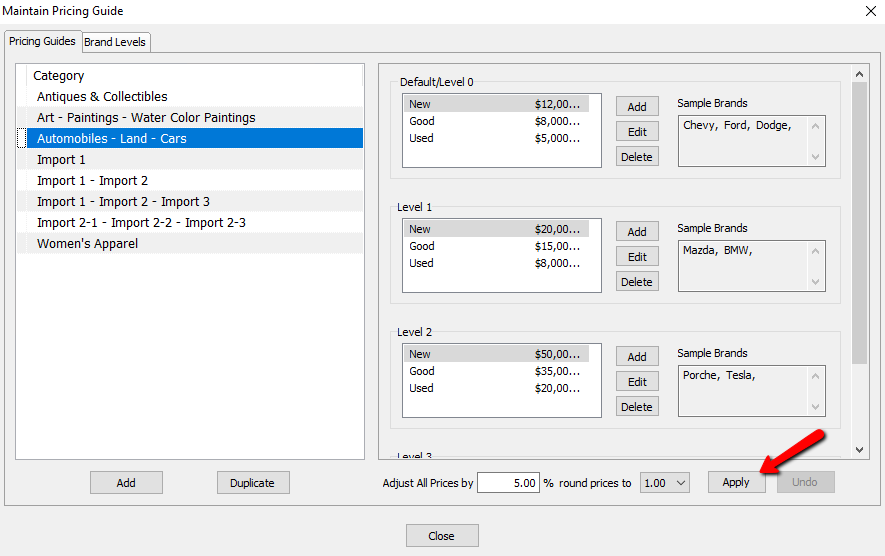
- Select the Apply button to apply the price changes throughout this selected category.
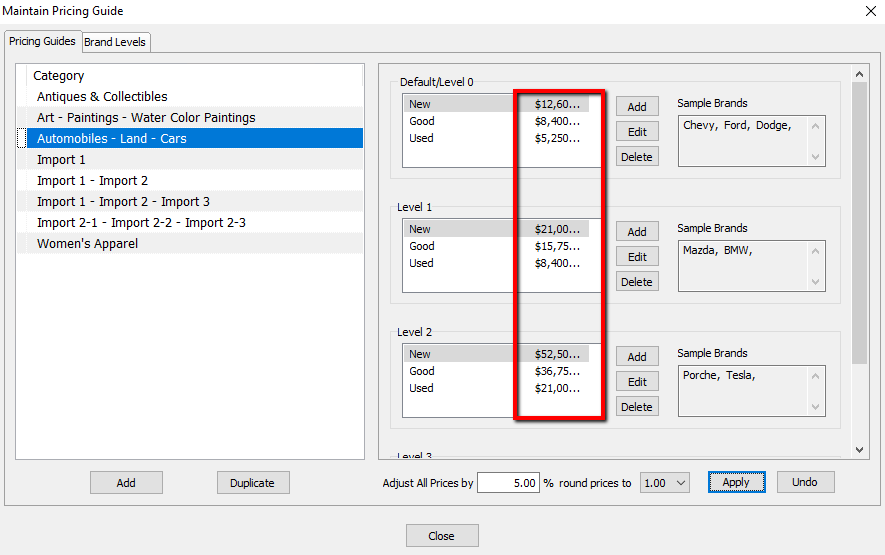
You will notice the prices change throughout this category.
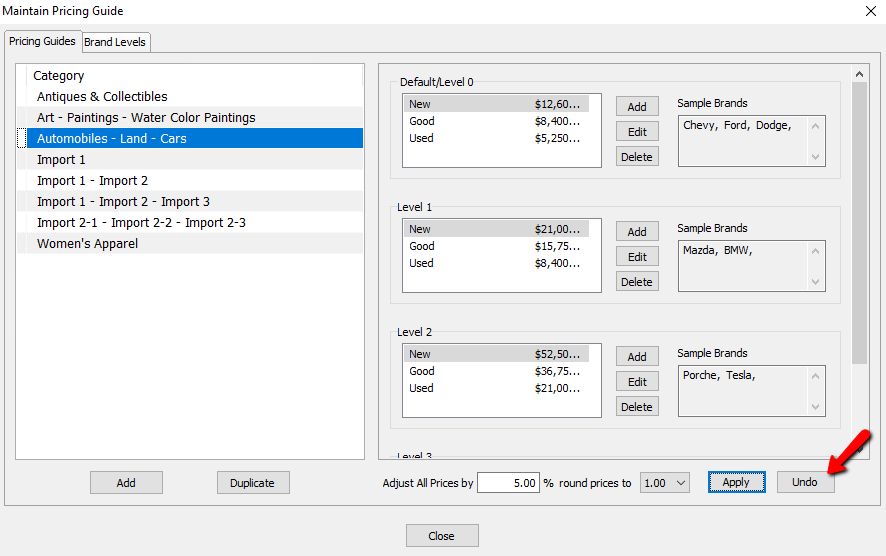
If you think you made a mistake, select the Undo button and revert back to the original prices.
- Select the Close button when done.


Next Section Navigation Link
Click the following link to see a list of articles for the next section:
Videos
Related Topics
Adjusting Pricing Based On Market Values Pricing Guide Overview Setting Up Product Brands For Use With The Pricing Guide Setting Up Categories In The Pricing Guide Setting Up Brands In The Pricing Guide Assigning Sub Levels To Your Brand Levels Using The Pricing Guide While Entering Inventory Using the Wishlist Wishlist Cross-Reference report Looking for Wishlist Matches While Adding Items Wishlist Overview