Table of Contents
Using The Pricing Guide While Entering Inventory
- Enter the item into inventory as normal. For more information on adding inventory to an account, see Add A Consigned Item.
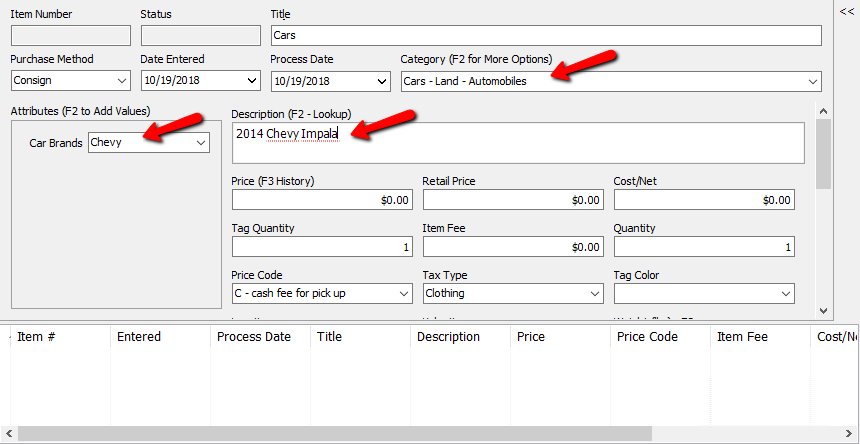
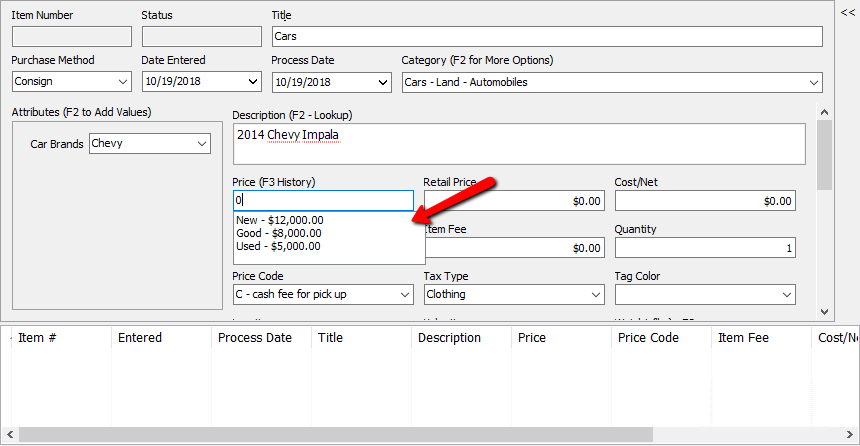
When you place the cursor in the Price field, the suggested pricing from the Pricing Guide will pop up.
- Click on the price you want to use to apply it to the new item.
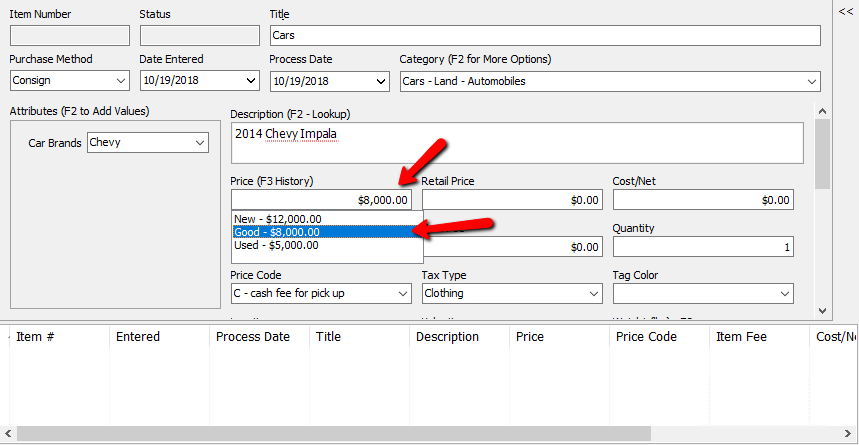
- Save the item when done.


Next Article In Section
Click the following link to move to the next article in this section:
Adjusting Pricing Based On Market Values
Related Topics
Using The Pricing Guide While Entering Inventory Pricing Guide Overview Setting Up Product Brands For Use With The Pricing Guide Setting Up Categories In The Pricing Guide Setting Up Brands In The Pricing Guide Assigning Sub Levels To Your Brand Levels Adjusting Pricing Based On Market Values Add a Consigned Item Using the Wishlist Wishlist Cross-Reference report Looking for Wishlist Matches While Adding Items