Table of Contents
Setting Up Categories In The Pricing Guide
- In Liberty, select Setup > Pricing Guide.
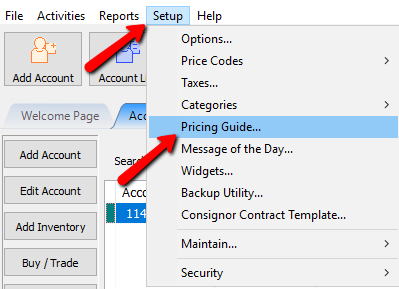
The Pricing Guide will open.
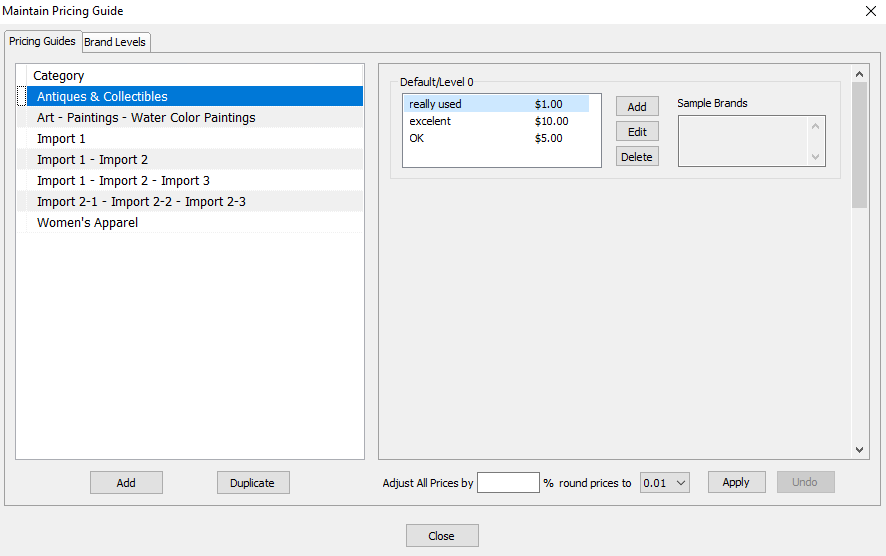
- Select the Add button to add your category. If your category is already listed, then skip to Setting Up Brands In The Pricing Guide below .
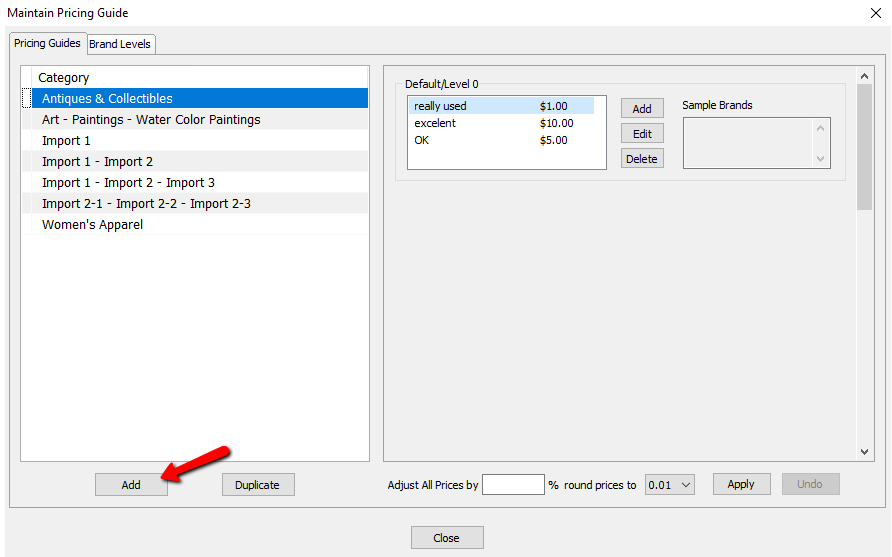
The Select Category dialogue box will open.
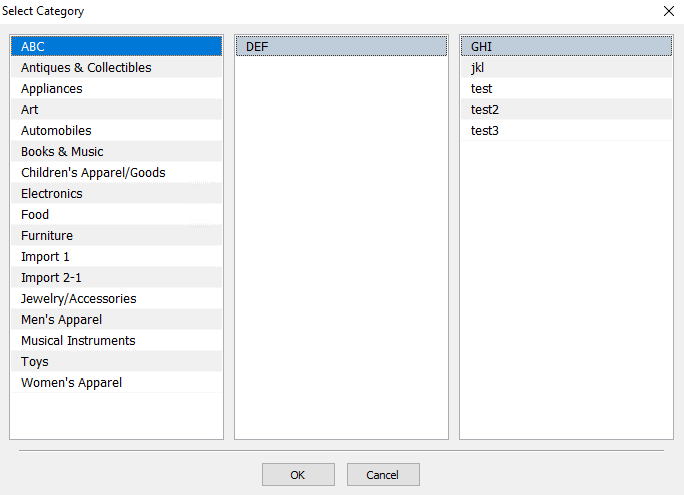
- Select the category you want to use, and then select the OK button when done.
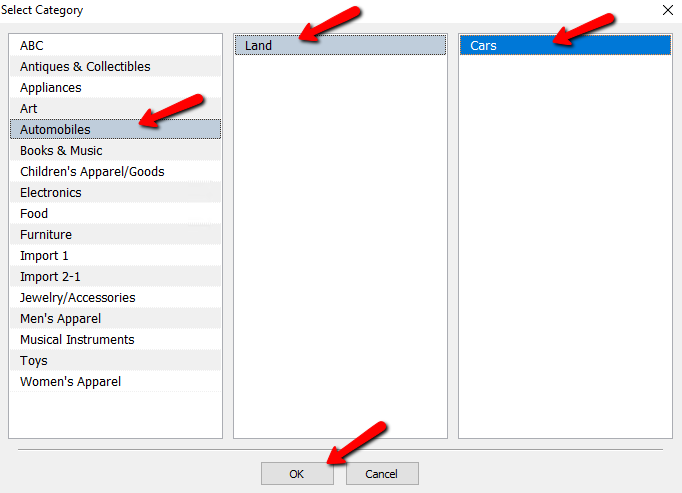


Your selected category should be added to the Pricing Guide.

Next Article In Section
Click the following link to move to the next article in this section:
Setting Up Brands In The Pricing Guide
Related Topics
Setting Up Categories In The Pricing Guide Pricing Guide Overview Setting Up Product Brands For Use With The Pricing Guide Setting Up Brands In The Pricing Guide Assigning Sub Levels To Your Brand Levels Using The Pricing Guide While Entering Inventory Adjusting Pricing Based On Market Values Using the Wishlist Wishlist Cross-Reference report Looking for Wishlist Matches While Adding Items Wishlist Overview