Table of Contents
Setting Up Brands In The Pricing Guide
By default, there is one level of Brand. By default all values of your brands are set to level 0. In your head, or on paper, you will want to figure out if certain brands should be separated from others. For example, you might not want to use the same pricing structure on GUCCI purses versus purses from Wal-Mart.
- In the Maintain Pricing Guide dialogue box, select the Brand Levels tab.
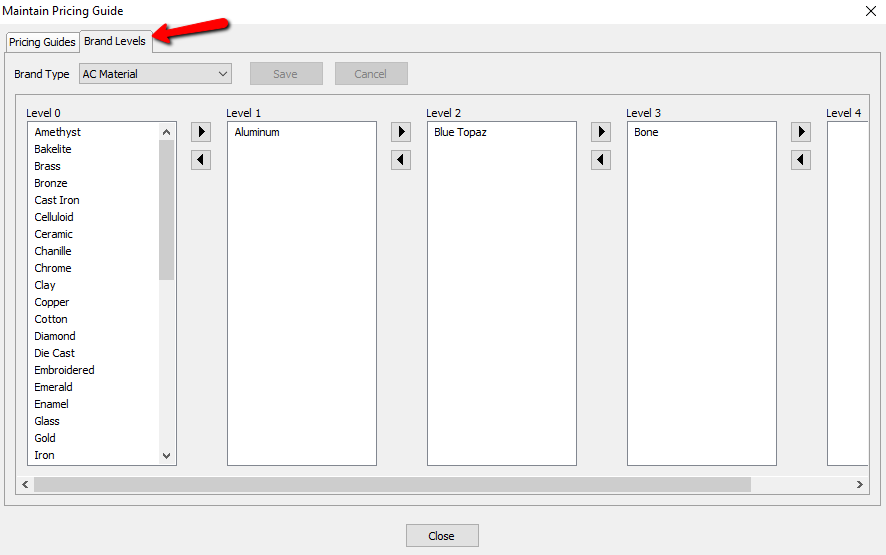
- Select the drop down for Brand Type and select the brand type you want to configure.
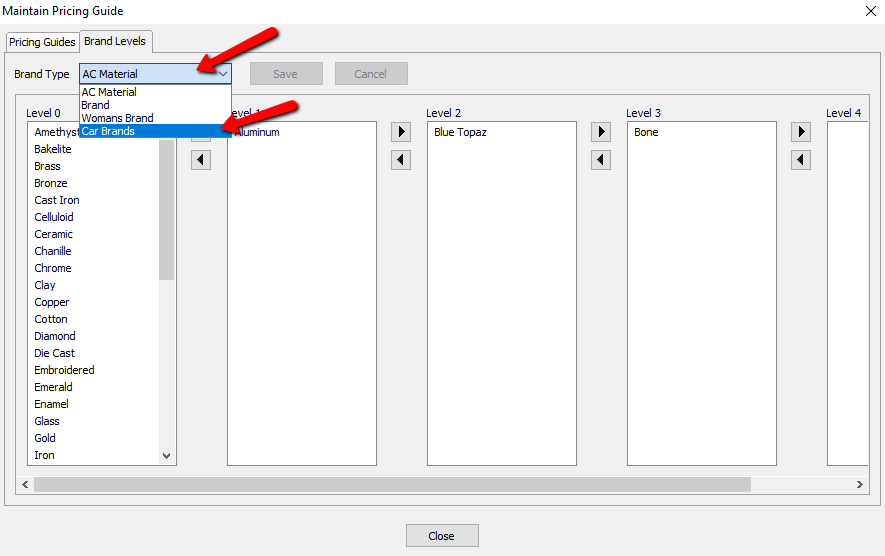
The Brand Levels will be displayed for this Brand Type.
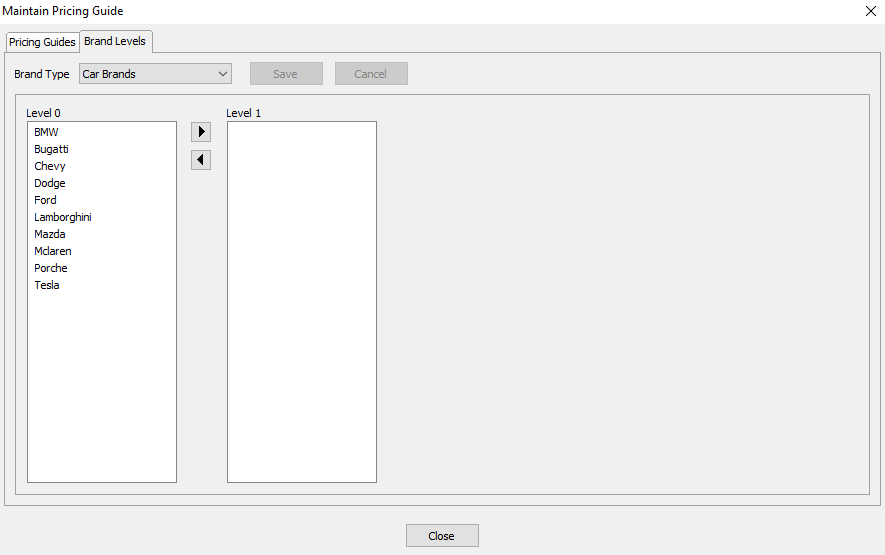
By default all the brand values are under level 0.
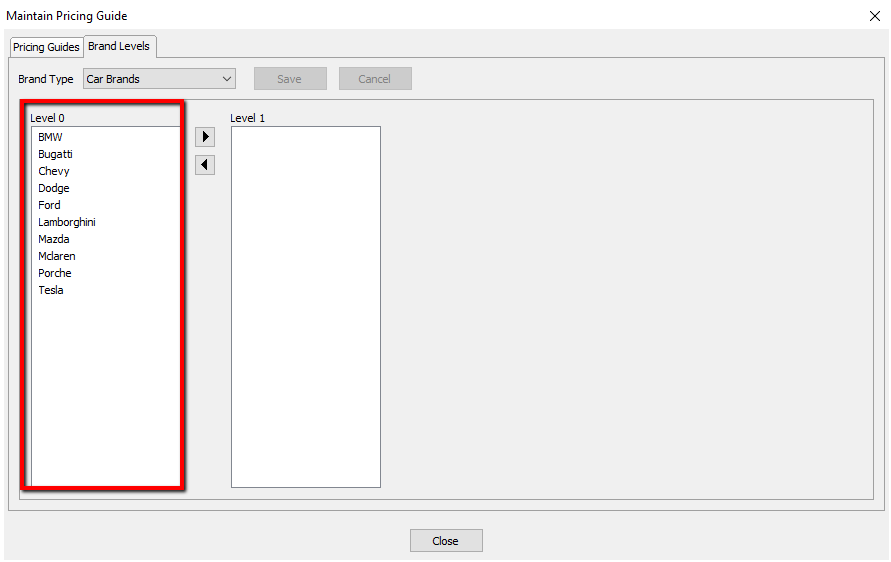
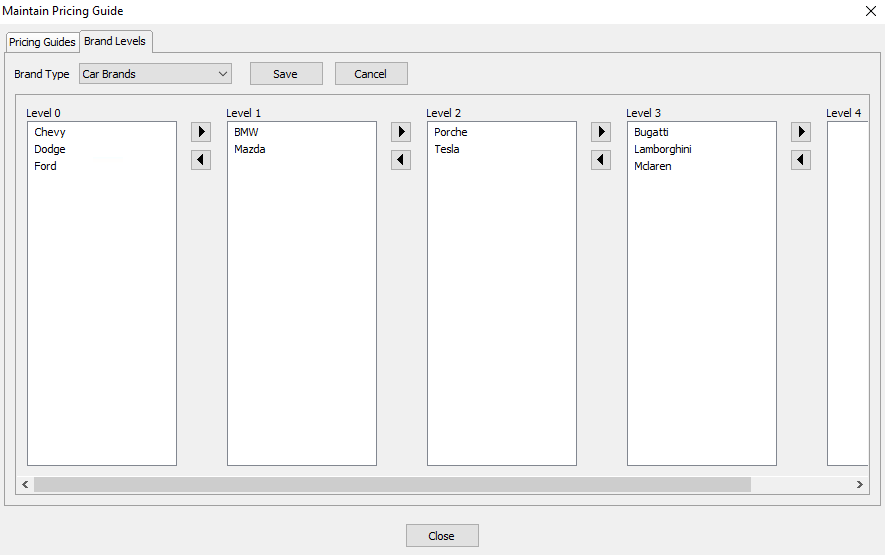
For purposes of this guide we will use level 0 as the low end brands. We will move medium and higher end brands into their own levels. - There are two ways to move a Brand Value:
- Select the Brand Value you want to move, and press the left or right arrows to move it.
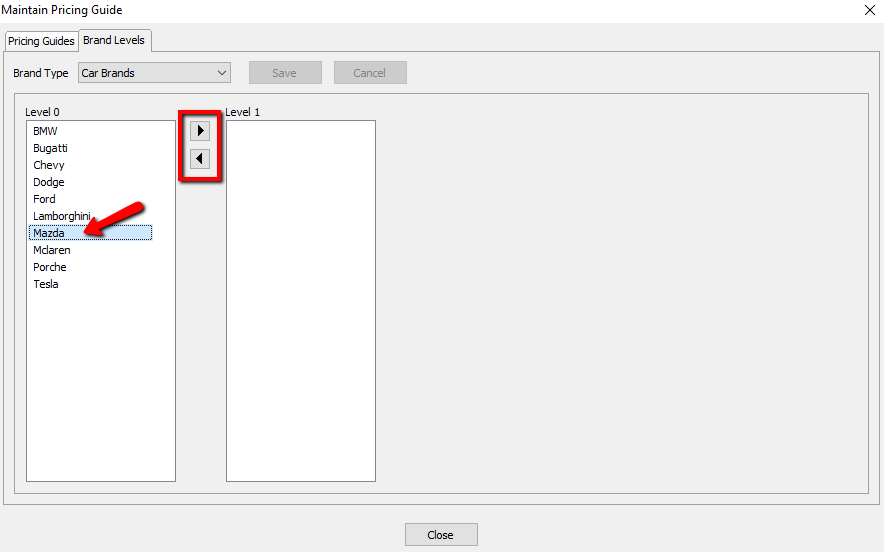
- Click on the Brand Value you want to move, and drag it to the level you want to move it to.
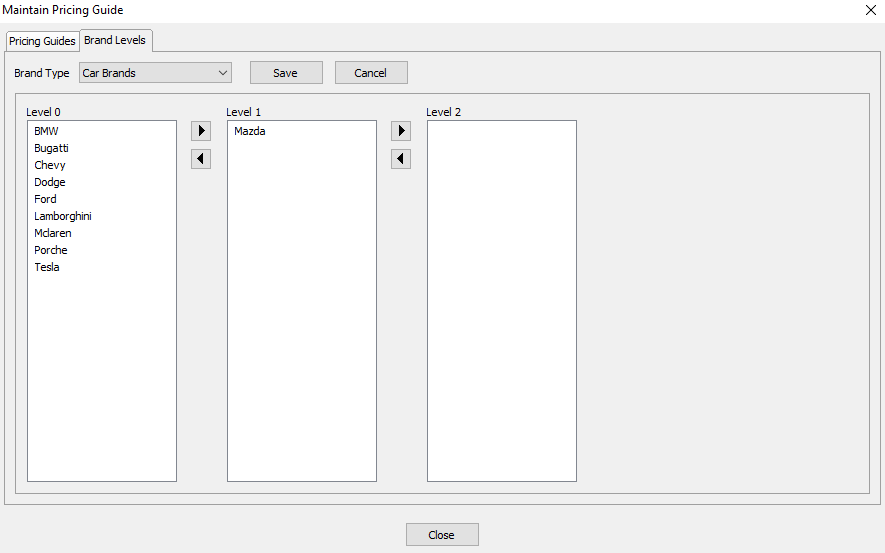
Note: When you move a Brand Value to a new level, then following levels will display for use. If you are not going to use the following level, no need to worry about it or use it.
Continue moving your Brand Values until you have them sorted.
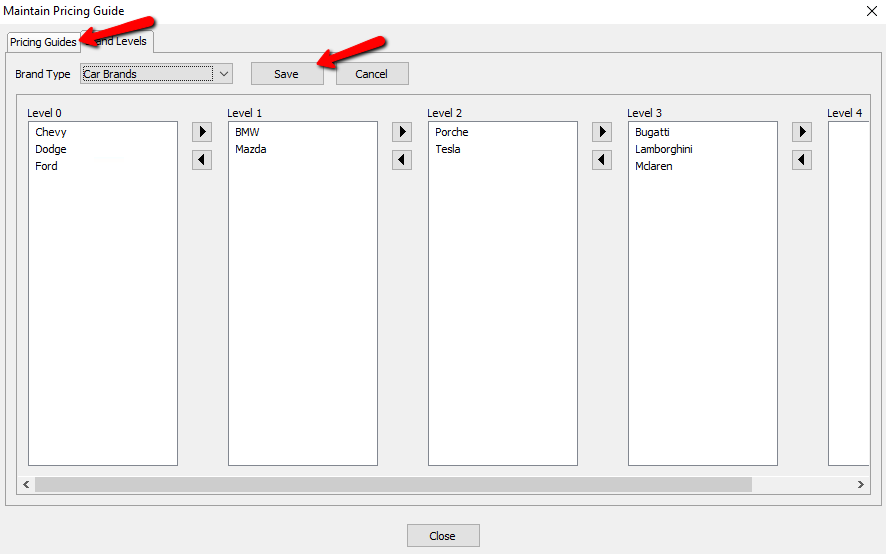
- Select the Save button when done sorting all the Brand Values, then go back to the Pricing Guides tab.


Next Article In Section
Click the following link to move to the next article in this section:
Assigning Sub Levels To Your Brand Levels
Related Topics
Setting Up Brands In The Pricing Guide Pricing Guide Overview Setting Up Product Brands For Use With The Pricing Guide Setting Up Categories In The Pricing Guide Assigning Sub Levels To Your Brand Levels Using The Pricing Guide While Entering Inventory Adjusting Pricing Based On Market Values Using the Wishlist Wishlist Cross-Reference report Looking for Wishlist Matches While Adding Items Wishlist Overview