Table of Contents
Edit One of a Kind Items
To Edit and Item
- In Liberty Inventory, lookup the account.
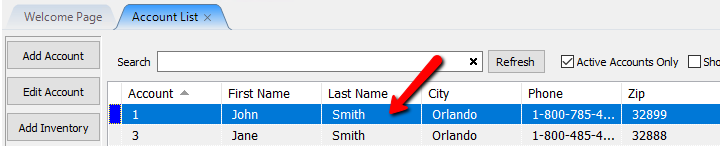
- Double-click on the client's account that has the item that needs to be changed.
- Click on the Inventory Tab.
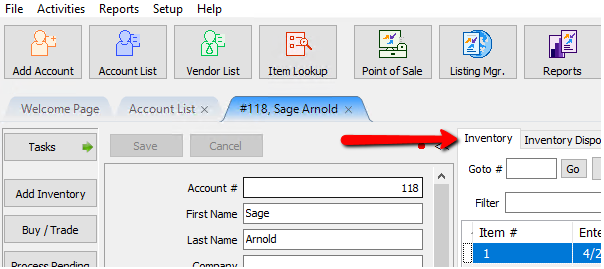
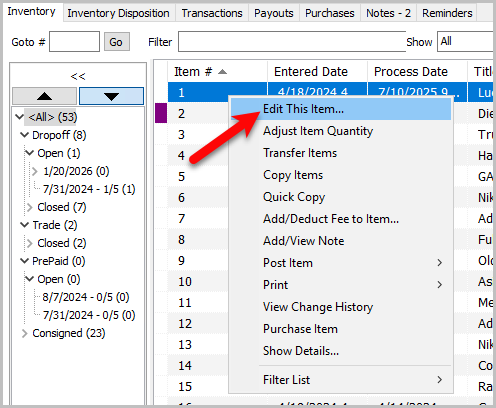
- There are 2 different ways to start the editing process.
- Double-click the item to be changed.
- Right-click on the item and select Edit This Item… from the menu.
- Make the necessary changes.
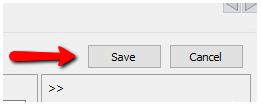
- Select the Save button in the upper right corner when finished.
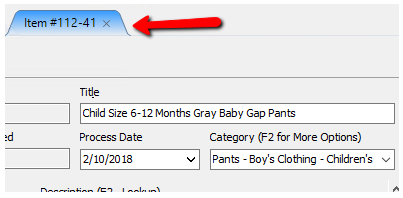
- Click the X in the item entry tab at the top to exit the items details.


Next Article In Section
Click the following link to move to the next article in this section:
Copy One of a Kind Items