Table of Contents
Filtering inventory dropoff
There are many ways to filter Inventory Dropoffs., sorting by status, creation date, location and the filter textbox.
If you are just getting started with Inventory Dropoffs, click Inventory Dropoffs Overview.
How To Navigate To Consignment Inventory Dropoffs
Go to File > Inventory Drop-Off.


Sorting By Status
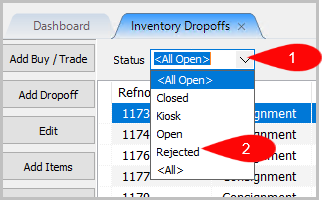
- You can click the drop down menu to select what status you would like to sort by.
We are going to click on Rejected as an example.
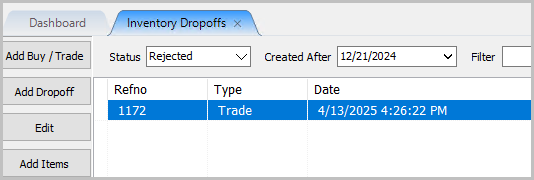
- You can see that the filtered list went down to one because there is only one
dropoff with a Rejected status.
Status Types- <All Open> : This status shows all open dropoffs.
- Closed : Shows all closed dropoffs.
- Kiosk : Shows all dropoffs done on the Kiosk application or that was set to Kiosk manually.
- Open : Shows only open dropoffs.
- Rejected : This shows any rejected buy/trades.
- <All> : This shows all dropoffs in any status type.
Sorting By Date
When you Sort By Date it will filter based on all dropoffs Created After the specified
date.
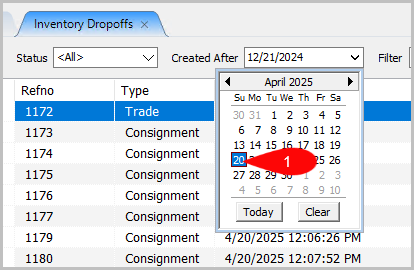
For this example, we are trying to find what was created on or after April 20th, 2025.
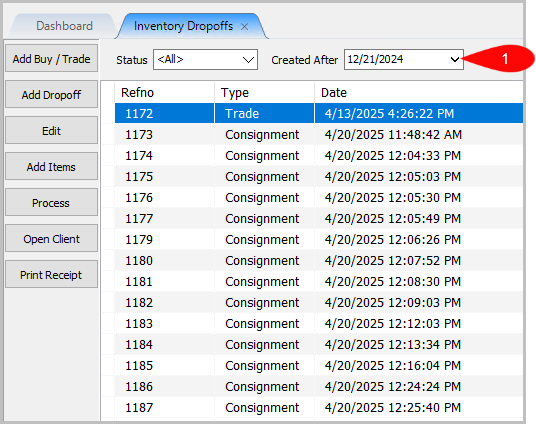
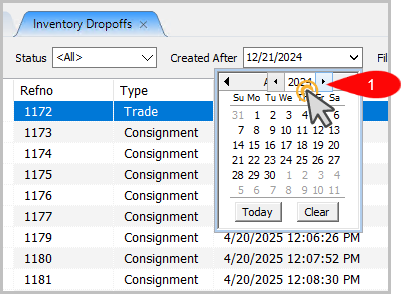
- To sort the list by date, click on the dropdown menu next to Created After.
- Click on the Month to select from a list of every month of the year.
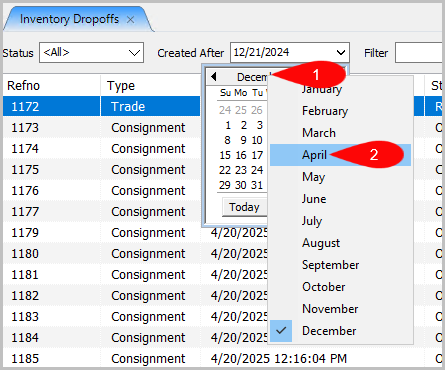
- The year is on 2024 so we need to Left Click on 2024, to get the arrows to pop
up to navigate between Years.
- Now click on the Day. In this case it’s the 20th.
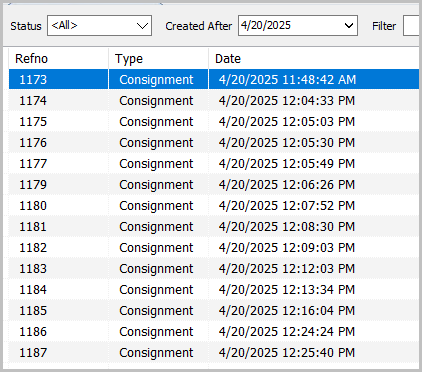
- Now you can see the trade that was done on 4/13/2025 is now not on the list
anymore and the Created After date is now 4/20/2025.


Sorting With The Location Dropdown
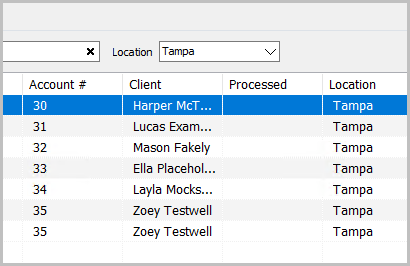
- Click the dropdown next to Location. Select the location you want to filter by.
In this example it is Tampa.
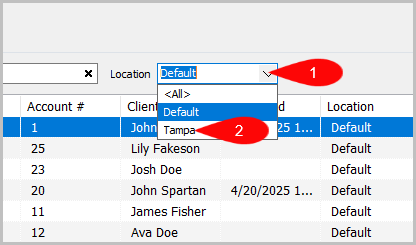
- You will now see dropoffs in this location only and notice how Location changed
to Tampa.
Note: Not sure how to set up more locations? Check this article out: Setting Up Locations


Sorting With The Filter Textbox
The Filter Textbox can be used to filter most columns. Below is a description of each
column along with if there are any limitations searching with the Filter Textbox.

- Reference Number (Refno) : Increments by 1 and can be used to search/filter.
- Type : There are two types, Trade and Consignment. This can be searched.
- Date : You can search by Date, however, it will also pull up the Processed or Last Update column if it’s under the same date.
- Status : You can search by Status as well or use the Status Dropdown to filter.
- Client (Name) : You can search by first and last name or full name.
- Processed (Date) : You can search by Processed however, it will also pull up the Date or Last Update column if it’s under the same date.
- Location : You can search by Location in the Filter textbox but you can also use Location Dropdown to the right of Filter.
- Created By : You can sort by the user that created the drop off.
- Last Update : You can search by Last Update, however, it will also pull up the Processed or Date column if it’s under the same date.
- # Rec’d : This represents how much inventory was received and is searchable.
- # Added : This represents how much inventory was added, and is searchable.
Note :You can put anything that will help identify this dropoff and is searchable.
Next Article In Section
Click the following link to move to the next article in this section:
Dropoff List View
Related Topics
Filtering inventory dropoff Adding A Consignment Drop-Off Adding Items To A Consignment Drop-Off Dropoff List View Editing A Consignment Drop-Off Consignment Inventory Dropoffs Overview Printing A Drop-Off Receipt Processing a Consignment Drop-Off Using the Wishlist Wishlist Cross-Reference report Looking for Wishlist Matches While Adding Items