Table of Contents
Change Item Location For Inventory Module
Change Item Location In Inventory Module
This function allows you to easily change the location of your client inventory.
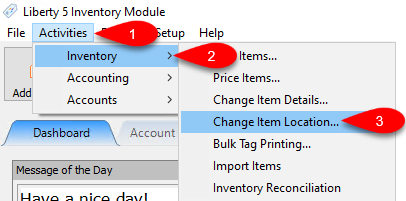
- Open the Inventory Module and click on Activities > Inventory, then click on Change Item Location
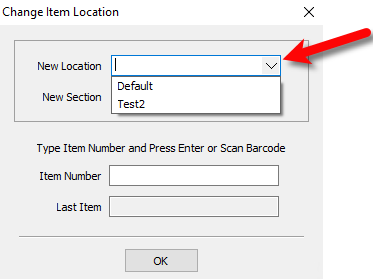
- Select the Location you want the item to now reflect.
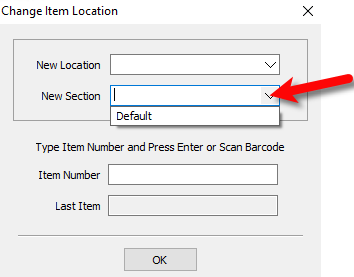
- Select the Section you want the item to now reflect. This can be blank.
- Scan in your Barcode. If you cannot scan the barcode, you can type the Account - Item Number and press the Enter key.
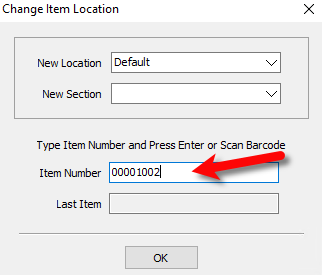
- The Last Item Field will reflect the last item you changed the location or section on.


You can then repeat the above steps if you have more than one item or simply click the OK button when you are finished.

Next Article In Section
Click the following link to move to the next article in this section:
Item Change History