Table of Contents
How To Restore From Backup
Warning! You should be thoroughly familiar with the procedures and ramifications of restoring files. Improper use of any restore routine can lead to disaster. If you are unsure about how to safely restore files, contact Resaleworld Technical Support for assistance.
Note: You MUST be logged out of Liberty, the Point of Sale, and Reports Module on all stations, before performing the Restore, otherwise the process will fail.
To Restore Files From Backup
There are multiple ways to start the restoration process.
Through The Backup Utility
- In Liberty click on Setup > Backup Utility.
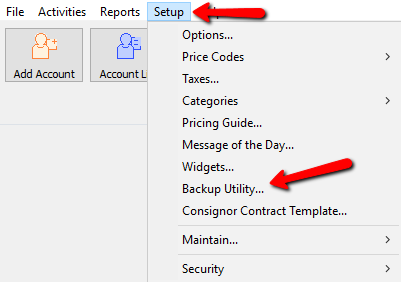
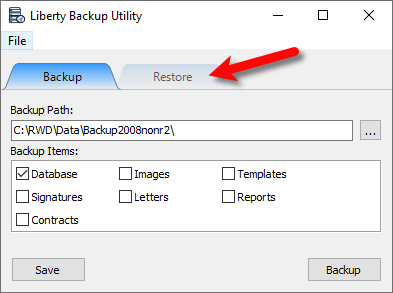
- Once the Restore Utility is open, be sure to Close Liberty.

- Click on Restore at the top.
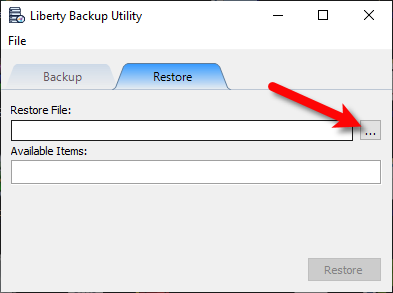
- Click on the Browse button.
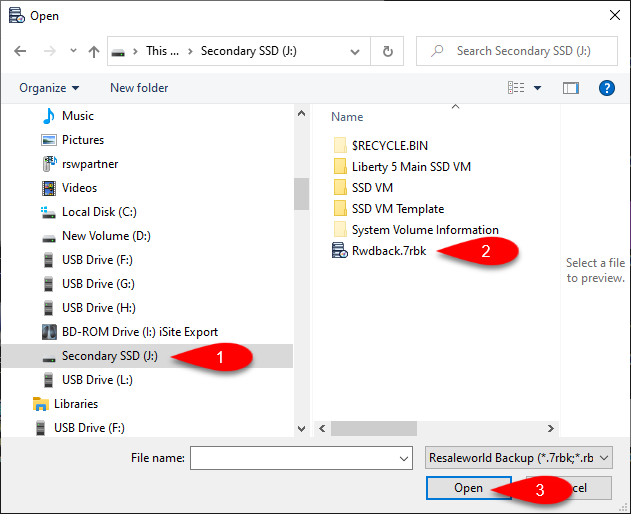
- Navigate to the Backup, select it and then click Open.
The Backup will usually be located on a Flash Drive or External Hard Drive connected to your computer.
Note: Resaleworld does not recommend that you backup to your local computer. This is because over time, something may happen to your PCs and your backups may not be recoverable.
- What you checkmark will determine what is Restored.
You can look at the Option descriptions for more information on what each option is actually restoring.
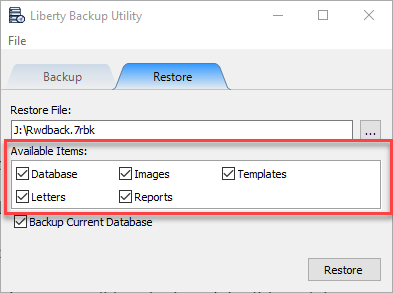
- .bak of your .mdf and .ldf database files
- Images that you attach to items for item recognition or web services
- Ebay templates and ReCommerce/Shopify item default template.
- Receipt signatures captures by Liberty through integrated credit card and topaz devices
- Letters written in the word processor
- Favorited reports and reports security settings
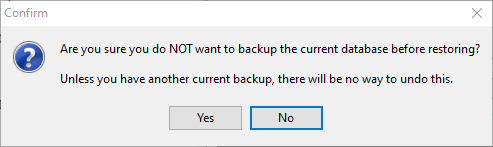
- Checkmark or uncheck whether you want to backup the current database.
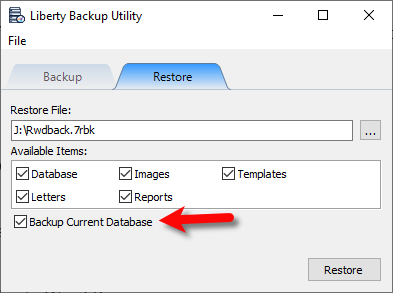
Note: Resaleworld recommends leaving this option checkmarked to limit the possibility of not being able to restore your original database after an accidental restoration.
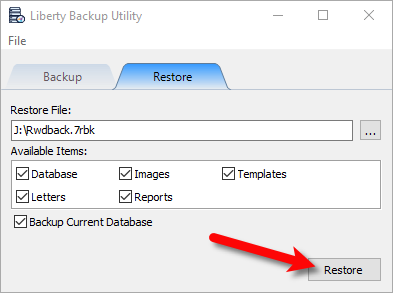
- Click the Restore button.


Through the Restore Database Utility In Your Windows Start Menu
- From your desktop, click the Start Menu, then scroll down until you see the Liberty REACT shortcut folder and click it.
Then click the Restore Database shortcut.
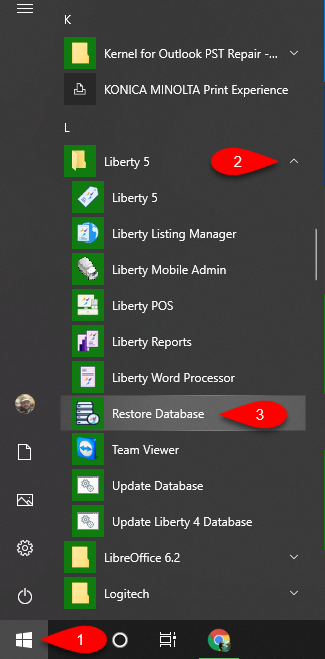
Note: The last step may vary depending on the version of Windows you have installed on your PC. - Once the Restore Utility is open, be sure to Close Liberty if it is open.

- Click on Restore at the top.
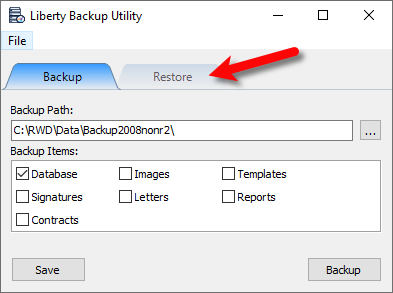
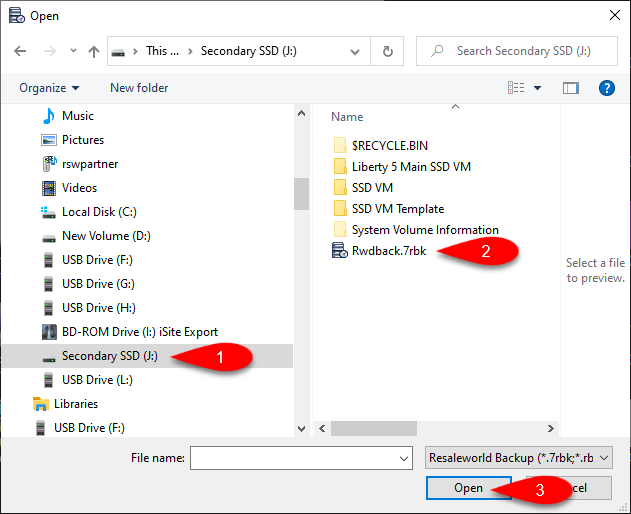
- Navigate to the Backup, select it and then click Open.
The Backup will usually be located on a Flash Drive or External Hard Drive connected to your computer.
Note: Resaleworld does not recommend that you backup to your local computer. This is because over time, something may happen to your PCs and your backups may not be recoverable.
- What you checkmark will determine what is Restored.
You can look at the Option descriptions for more information on what each option is actually restoring.
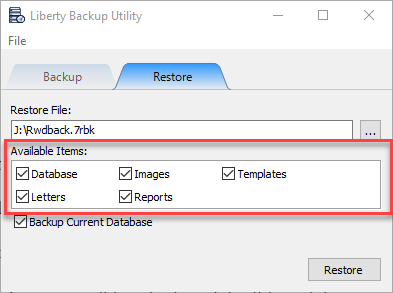
- .bak of your .mdf and .ldf database files
- Images that you attach to items for item recognition or web services
- Ebay templates and ReCommerce/Shopify item default template.
- Receipt signatures captures by Liberty through integrated credit card and topaz devices
- Letters written in the word processor
- Favorited reports and reports security settings
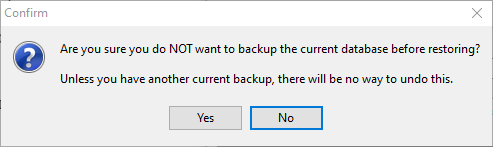
- Checkmark or uncheck whether you want to backup the current database.
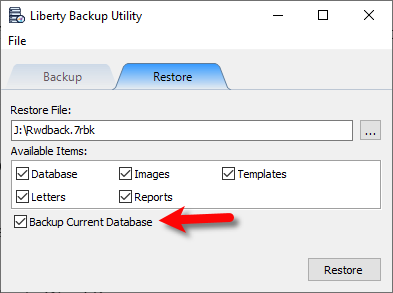
Note: Resaleworld recommends leaving this option checkmarked to limit the possibility of not being able to restore your original database after an accidental restoration.
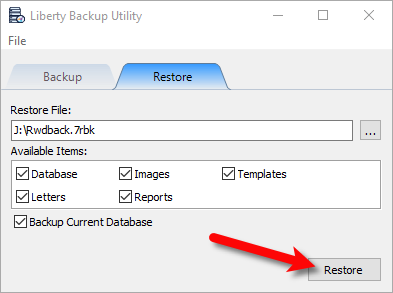
- Click the Restore button.


From The Backed Up File
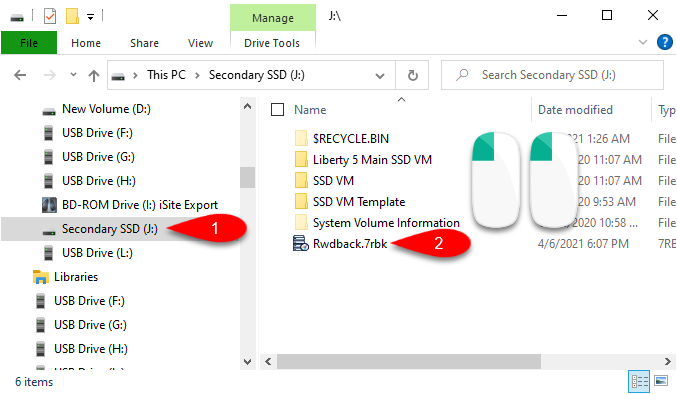
- Navigate to the Backed Up file. Double-click the file to start the Restoration Utility.
- What you checkmark will determine what is Restored.
You can look at the Option descriptions for more information on what each option is actually restoring.
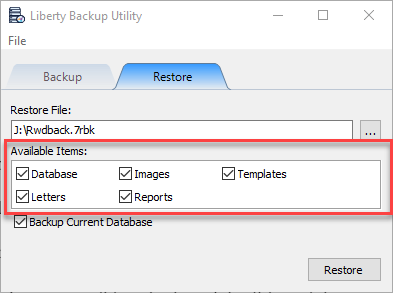
- .bak of your .mdf and .ldf database files
- Images that you attach to items for item recognition or web services
- Ebay templates and ReCommerce/Shopify item default template.
- Receipt signatures captures by Liberty through integrated credit card and topaz devices
- Letters written in the word processor
- Favorited reports and reports security settings
- Checkmark or uncheck whether you want to backup the current database.
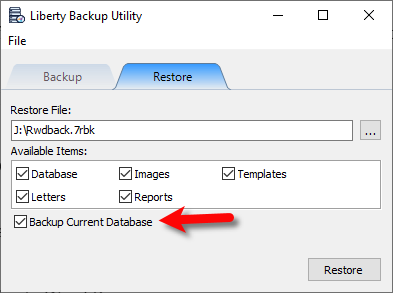
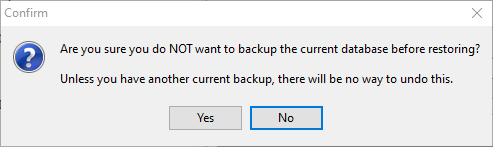
Note: Resaleworld recommends leaving this option checkmarked to limit the possibility of not being able to restore your original database after an accidental restoration.
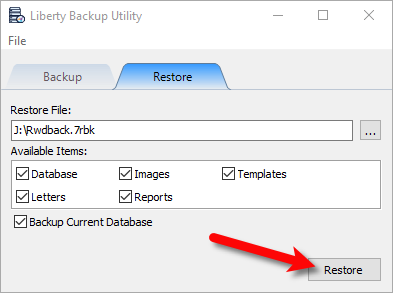
- Click the Restore button.


Next Article In Section
Click the following link to move to the next article in this section:
Using Third Party Backup Software
Related Topics
How To Restore From Backup Important Backup information - Please Read What Is Backing Up? Automatic Backups How to do a Liberty Backup Using Third Party Backup Software What Causes the Need to Backup Live Chat Support Managed Antivirus and Anti-Malware Online Backup to an Off-Site Storage Location What is Extended Support?