Table of Contents
DokuWiki Formatting Validation Test
This page is a live validation article to verify list continuity, nested list behavior, alert color blocks, code blocks, and image spacing.
Numbered List Continuity
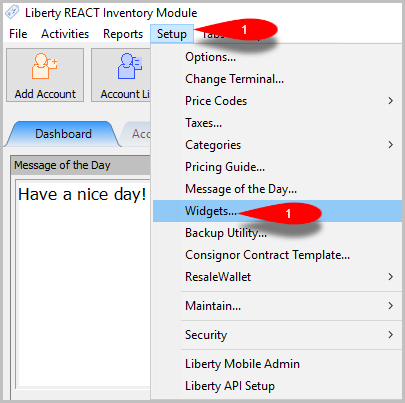
- Click Setup > Widgets.
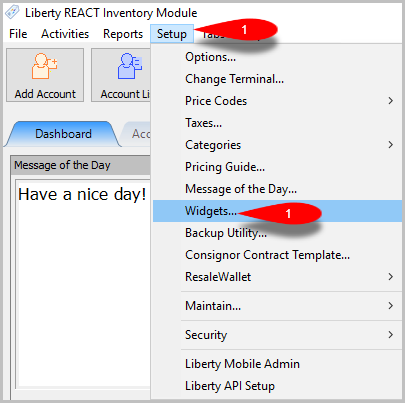
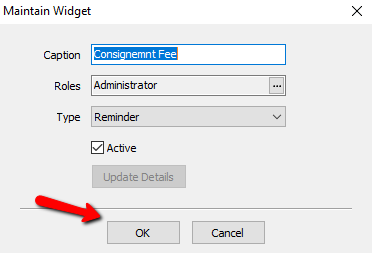
The Maintain Widgets dialog should open.
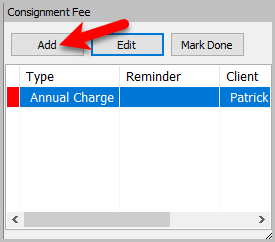
Note: This sentence is intentionally on the same step to validate continuation behavior. - Click Add to create a new widget.
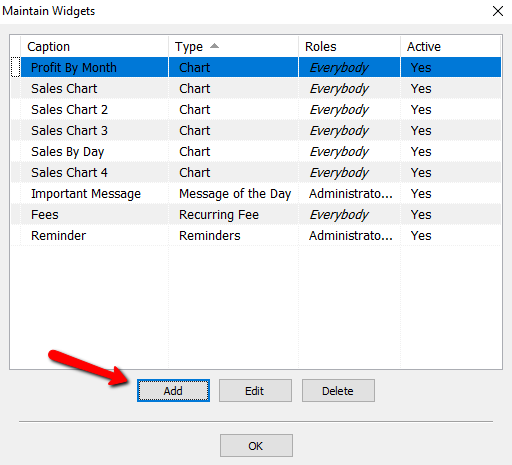
- Confirm the Widget Type field is visible.
- Confirm the Caption field is editable.
- Info: Nested bullet callout text should render as an info block only for this bullet segment.
- Enter a caption and choose options as needed.
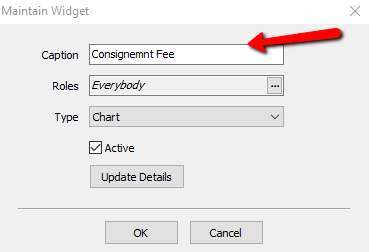
- Click OK to save.


Bulleted List With Inline Images
- Open the report options panel.
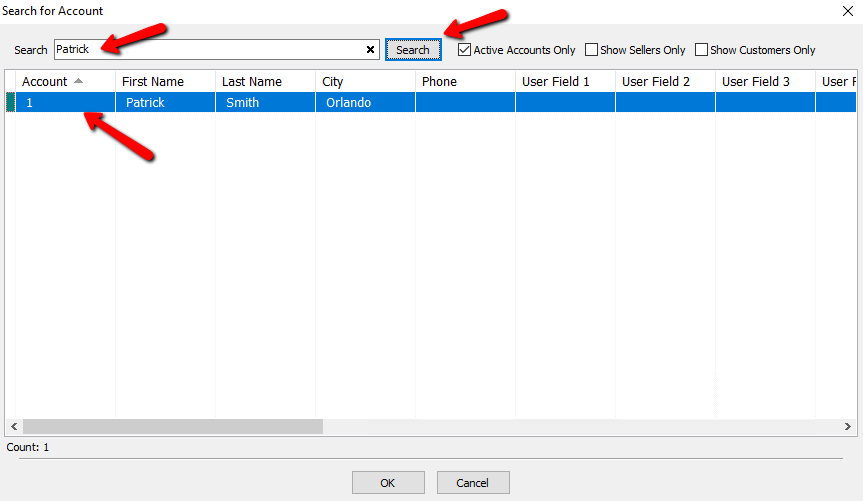
- Select the criteria you want to include.
- Warning: If filters are too broad, the result set may be very large.
- Tip: Start with one account or one date range first.
- Generate the report preview.


Standalone Alert Blocks
Note: This is a standalone note block test.
Warning This is a standalone warning block test using the word Warning without a colon.
Info: This is a standalone info block test.
Tip: This is a standalone tip block test.
Alert Blocks Inside Numbered Steps
- Open Point of Sale.
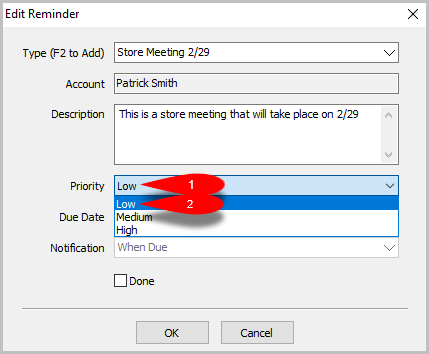
Note: This note should highlight only this note segment, not the entire step. - Open account search.
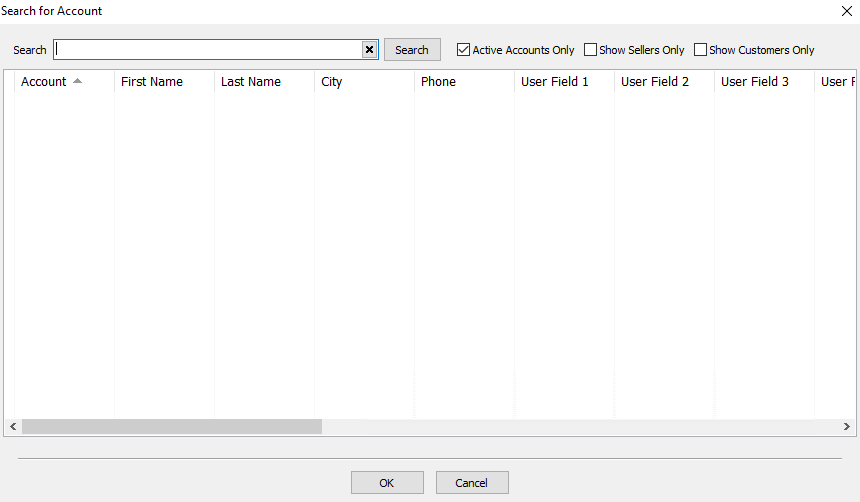
Warning: Verify customer identity before proceeding. - Choose the matching account.
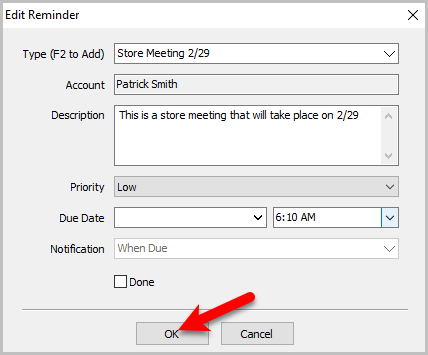
Info: Matching by phone number is usually faster. - Confirm and continue.
Tip: Use short internal notes for faster checkout.


Code Block Examples With Images
  - Example numbered step with same-line image
  - Step text. \\ {{namespace:image.png|image.png}}

  * Example bulleted list
    - Nested detail item

===== Related Topics =====
[[welcome|Welcome]]
[[setup:checklists|Setup Checklists]]

Note: Standalone note sample
Warning Standalone warning sample
Info: Standalone info sample
Tip: Standalone tip sample

Spacing Validation Around Standalone Text
Select the customer who is making the purchase.
- Select the Customer button.
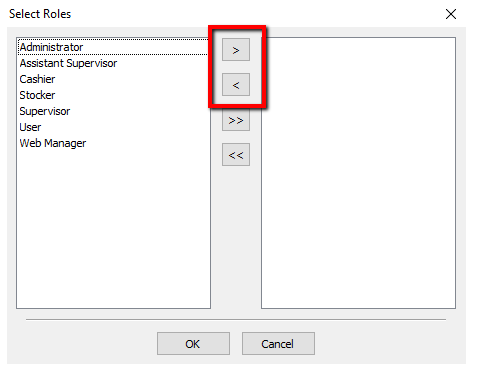
- Select the customer from the list, then click OK.