Table of Contents
Reactivating an Account
- Navigate to the Account List.
- If Active Accounts Only is checked off, you will need to uncheck it.

Inactive accounts will have a Gray Indicator next to them.
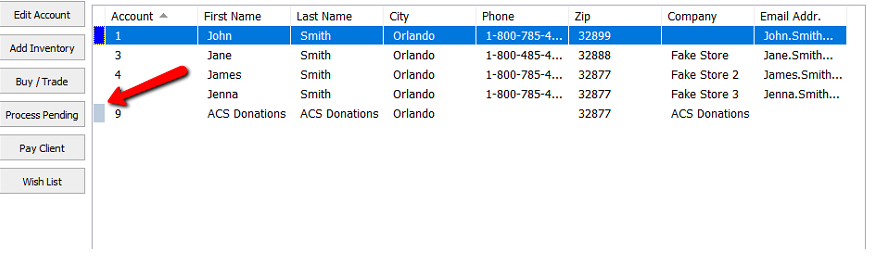
- Double click on the account to go into it.
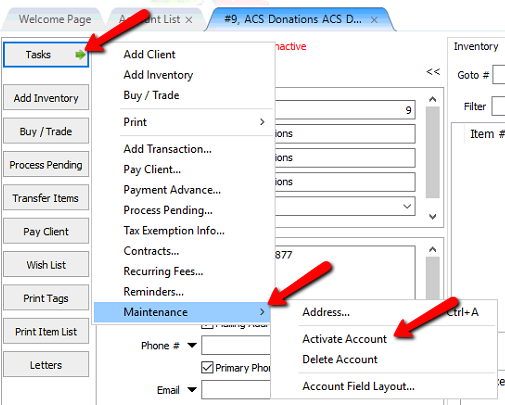
- Select Task > Maintenance > Activate Account.
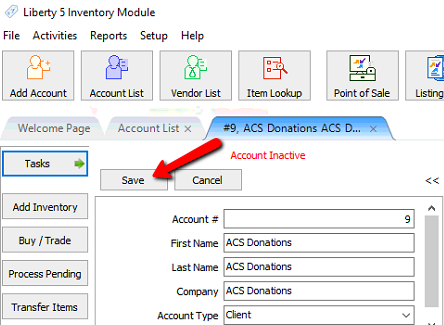
- Click the Save button to save the account as deactivated.
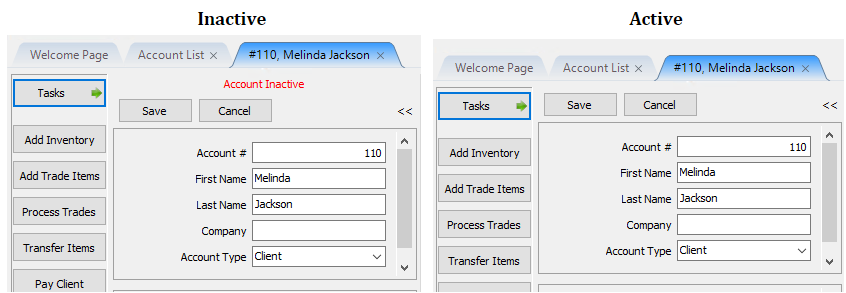
- The Inactive Account indicator will disappear.


Next Article In Section
Click the following link to move to the next article in this section:
Reactivating Accounts In Bulk
Related Topics
Reactivating an Account Deactivating an Account Look Up An Account Add Notes to an Account Add Multiple Addresses and Phone numbers Apply Group Deductions Bulk Change Default Price Code Using the Client Import and Export Utility Creating New and Maintaining Existing Accounts Customize the Account Detail Window Delete a Client's Data From Consignor Login