Table of Contents
Customize the Account Detail Window
You can move, rename, reposition and hide account information fields that appear in the Account Details section. This allows account information to show in the manner most convenient to the way you do business.
How To Customize The Account Detail Window
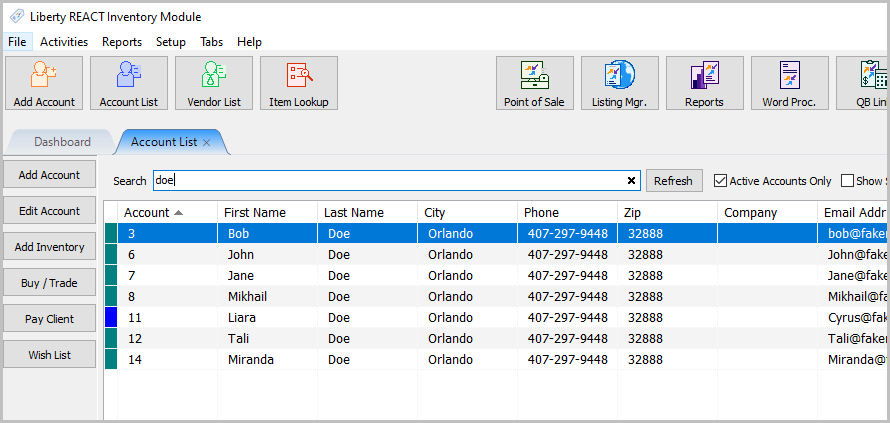
- In Liberty Inventory open an account.
- Starting from the Address field and below, you can right click anywhere on the layout or outside the fields and a menu option called Edit Layout should appear.
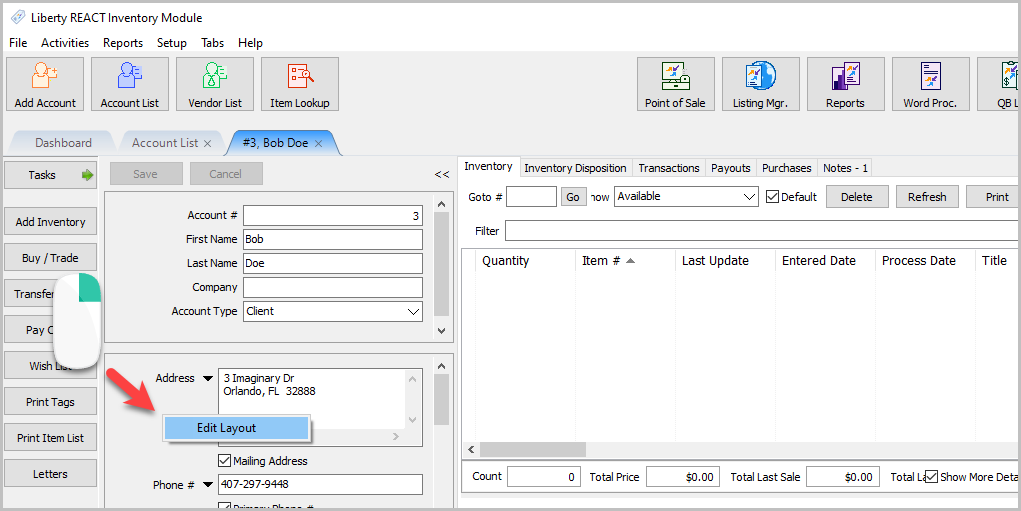
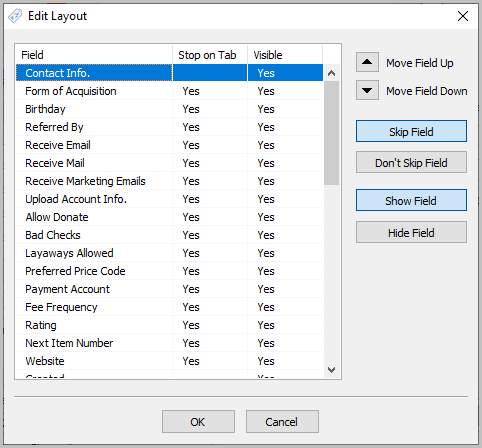
- Click on Edit Layout and the Edit Layout dialog will display.
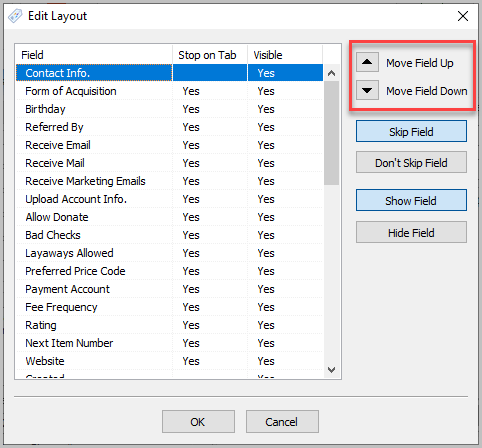
- To Reorder Fields, just click on the Move Field Up and Move Field Down button.
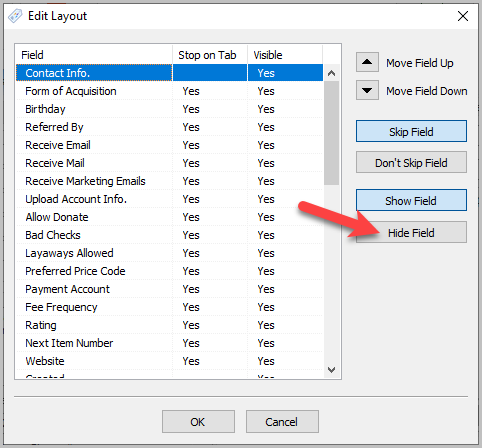
- To hide a field, click on the field name and then select Hide Field.
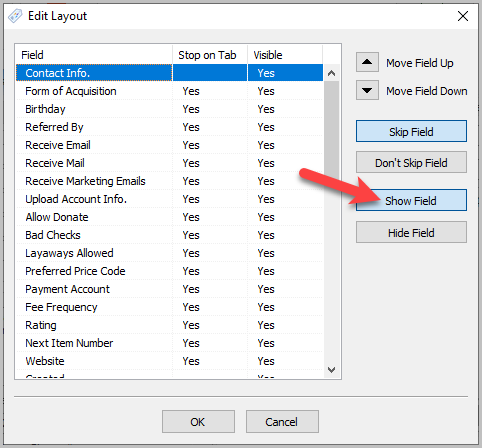
- To show a field again, click on the field name and then select Show Field.
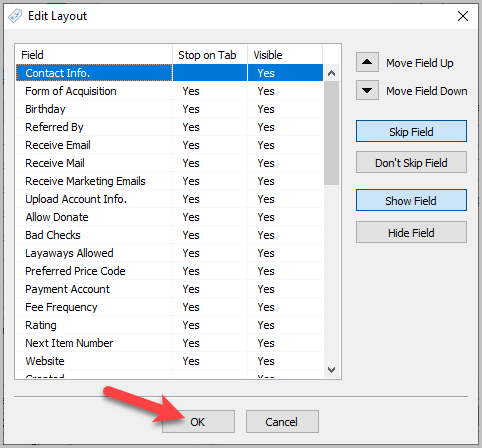
- When finished click on the OK button.


Next Article In Section
Click the following link to move to the next article in this section:
Look Up An Account
Related Topics
Customize the Account Detail Window Item Entry Field Preferences Add Notes to an Account Add Multiple Addresses and Phone numbers Apply Group Deductions Bulk Change Default Price Code Using the Client Import and Export Utility Creating New and Maintaining Existing Accounts Deactivating an Account Delete a Client's Data From Consignor Login Edit Account Information