Table of Contents
Bulk Change Default Price Code
Warning ! Make a backup of Liberty before doing this process so if mistakes are made, you can quickly restore the system to the state it was before doing this process.
You can change the Default Price Code settings for Accounts in bulk if needed. This enables quick edit of this setting without having to go into each account one at a time.
- From within Liberty go to Activities > Accounts > Change Default Price Code.
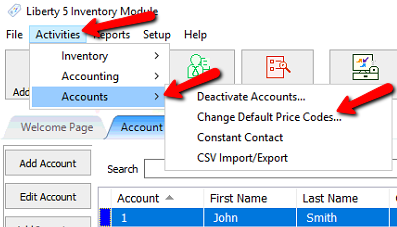
The Change Default Price Code dialog will appear.
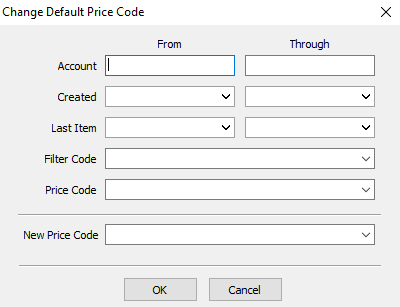
- Account : Enter the Account Number in the From and Through field. This will select all the accounts within that range.
Note: If One Account is desired in Step 1 above, enter the same account number in both the From and Through fields. - Created : Enter the Created Date in the From and Through field. This will select all the accounts within that range.
- Last Item : Enter the Last Entered Date in the From and Through field. This will select all the accounts that have had the last item entered within that range.
- Filter Code : This will select all the accounts associated with that Filter Code.
- Price Code : This will select all the accounts with that Price Code.
Note: This selection is required. You will not be able to continue without selecting the price code you are changing from. - New Price Code : This is the new price code all the accounts will be switched to based on the criteria you selected above.
- Press the OK button when done.
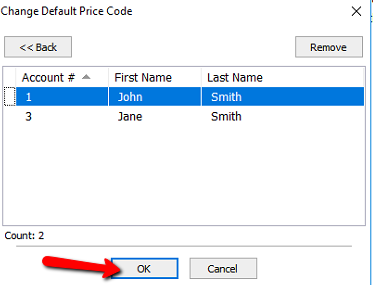
A Confirmation box will open. You can remove accounts from the list by pressing the Remove button.

- Press the OK button when done confirming the list.


Next Article In Section
Click the following link to move to the next article in this section:
Apply Group Deductions
Related Topics
Bulk Change Default Price Code Add Notes to an Account Add Multiple Addresses and Phone numbers Apply Group Deductions Using the Client Import and Export Utility Creating New and Maintaining Existing Accounts Customize the Account Detail Window Deactivating an Account Delete a Client's Data From Consignor Login Edit Account Information Editing Reminders on an Account