Table of Contents
Add Multiple Addresses and Phone numbers
Working With Multiple Addresses
Liberty allows you to store multiple postal addresses, email addresses and phone numbers for each account. Following is a description of each of these procedures.
How To Manage Multiple Addresses
Note: When there are multiple addresses, one must be the Primary address. The Primary Address is the address that will be printed on payouts (checks), mailing labels and in reports that contain an address (such as the Account List Report). When the Primary address is displayed, an asterisk will appear next to the Address label.

- Lookup the client by going to Account List and select the account which you wish to make changes to.

- Immediately to the left of the Address field, there is a button that contains a downward pointing triangle.
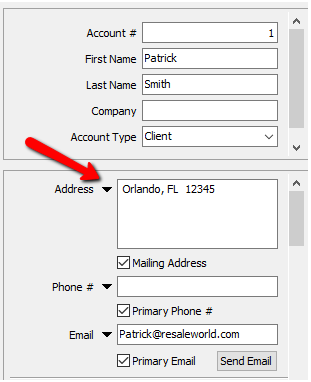
- Click on this button, and you will see a few options: Add, Edit, Delete.
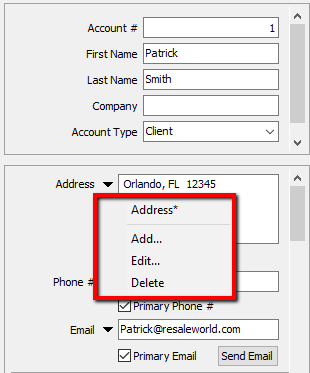
- To Add an Address:
- Select Add from the menu.
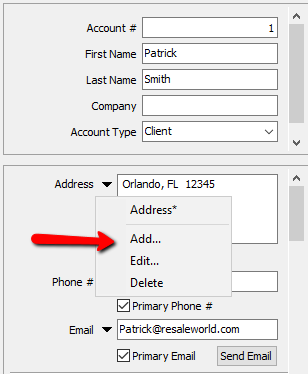
The Edit Address dialog will display.
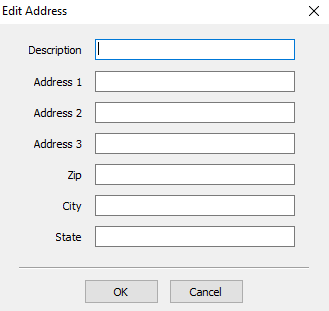
- Provide a Description for the new address.
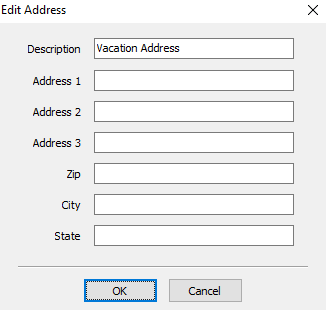
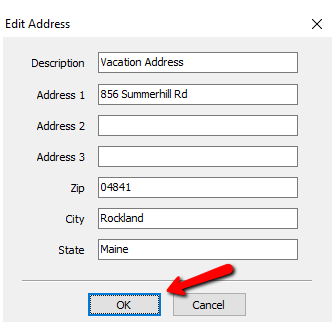
- Fill in the rest of the information then select the OK button.
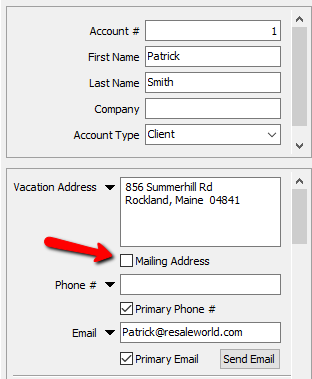
- Check the Mailing Address check box if appropriate.
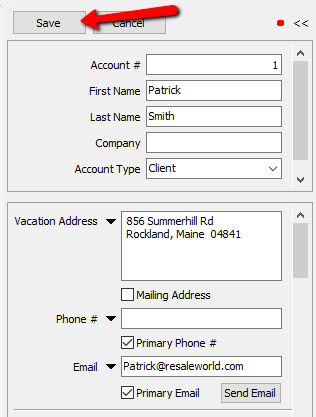
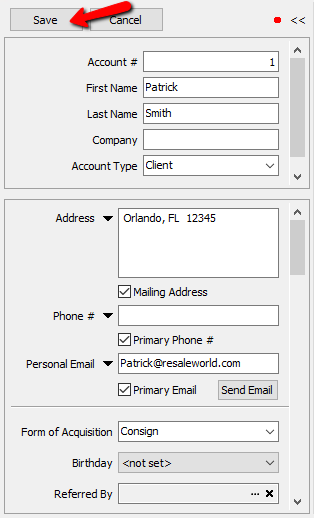
- Click the Save button located above the Account Number.
- To Change an Address:
- Select Edit from the menu. The Edit Address dialog will display.
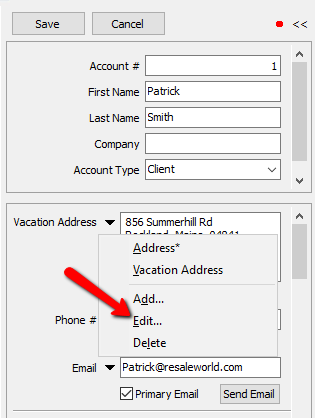
- Make the necessary changes. Select the OK button when done.
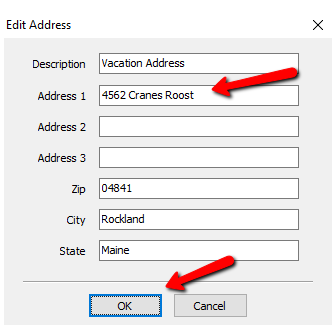
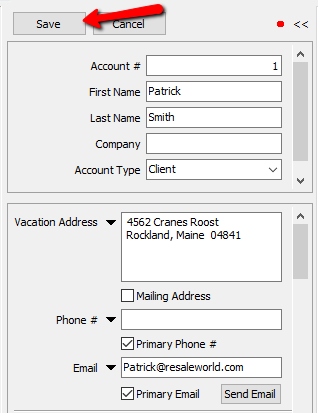
- Click the Save button located above the Account Number.
- To Delete an Address:
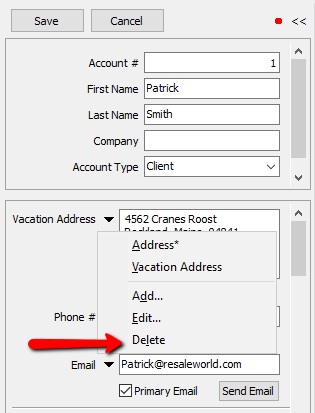
- First select the Address to be deleted once you press the triangle to the left of the Address Field.
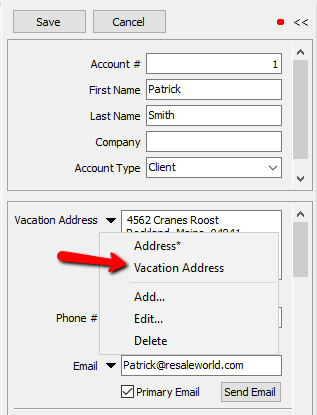
- Select the drop down menu again and choose Delete.
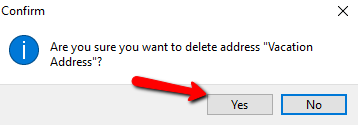
- A confirmation box will open. Select the Yes button.
How To Manage Multiple Phone Numbers
Note: When there are multiple phone numbers, a Primary phone number is required. The Primary phone number is what will appear in the Lookup screen when the account is being looked up. The Primary phone number will also be the number printed in reports that contain a phone number (such as the Account LIst report). When the Primary phone number is displayed, an asterisk will appear next to the phone label.
- Lookup the client by going to Account List and select the account which you wish to make changes to.

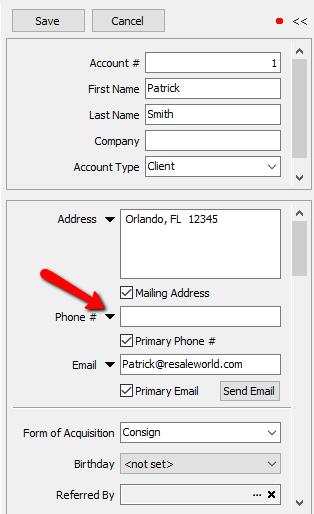
- Immediately to the left of the Phone field, there is a button that contains a downward pointing triangle.
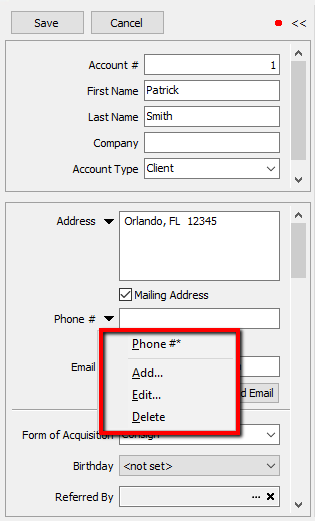
- Click on this button, and you will see a few options: Add, Edit, Delete
- To Add a Phone Number:
- Select Add from the menu.
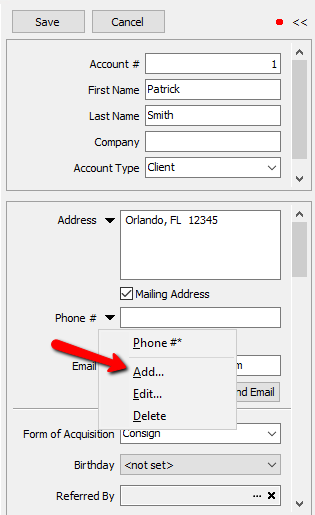
The Edit Phone Number dialog will display.
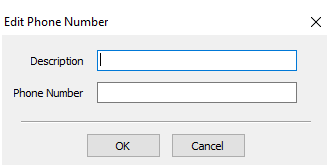
Provide a Description for the new Phone Number.
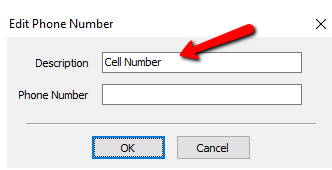
- Fill in the optional phone number and select the OK button when done.
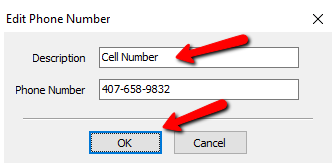
- Check the Primary Phone # check box if appropriate.
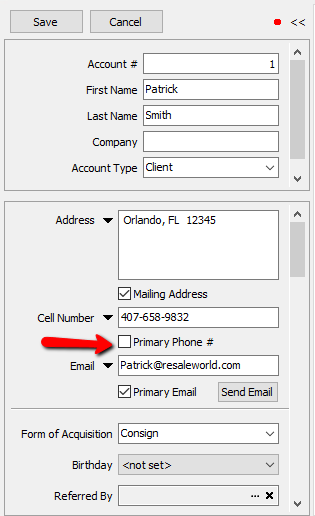
- Click the Save button located above the Account Number.
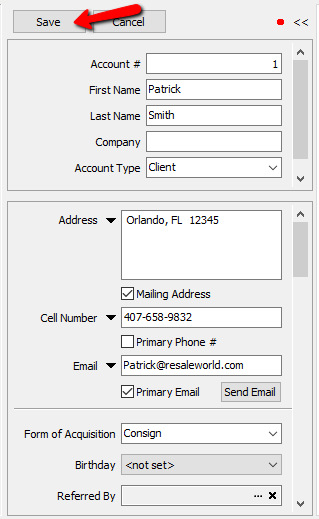
- To Change a Phone Number:
- Select Edit from the menu. The Edit Phone Number dialog will display.
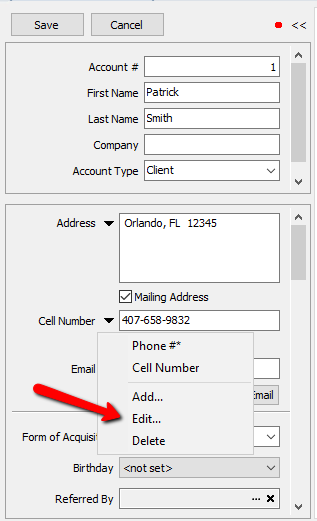
- Make the necessary changes. Select the OK button when done.
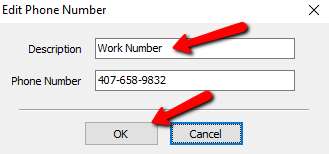
- Click the Save button located above the Account Number.
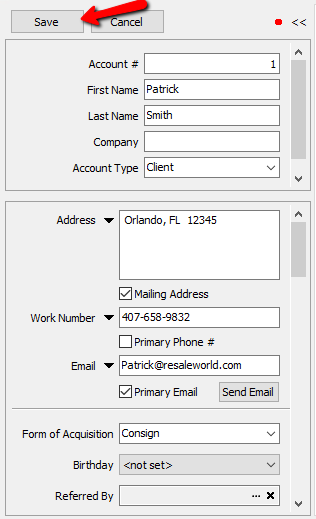
- To Delete a Phone Number:
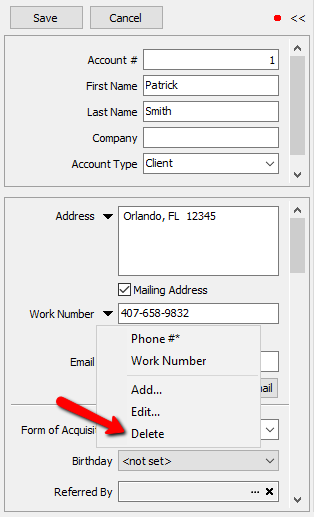
- First select the Phone Number to be deleted once you press the triangle to the left of the Phone Number Field.
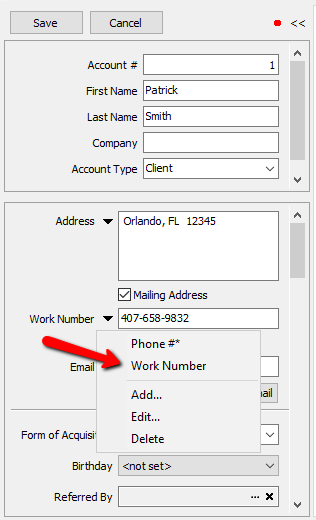
- Select the drop down menu again and choose Delete.
How To Manage Multiple Email Addresses
Note: When there are multiple email addresses, one must be the Primary email address. The Primary email address is the address that will be used when email reports are run (including the Closed Auctions, Open Auctions, Open Orders, Payout Detail, and Transaction History emails). When the Primary email address is displayed, an asterisk will appear next to the Email Label.
- Lookup the client by going to Account List and select the account which you wish to make changes to.

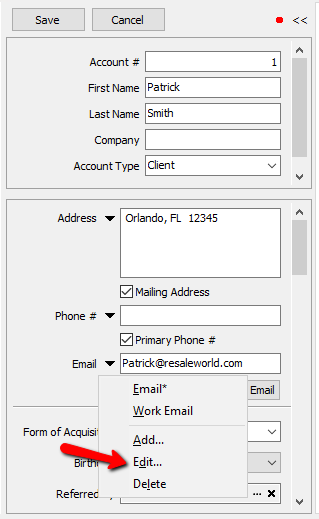
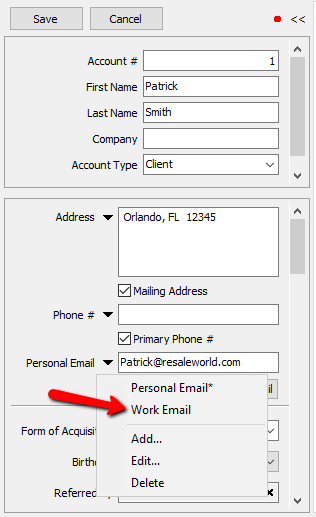
- Immediately to the left of the Email field, there is a button that contains a downward pointing triangle.
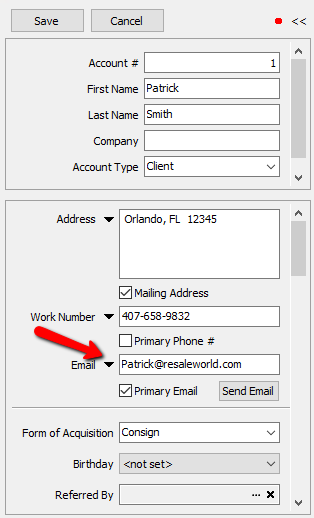
- Click on this button, and you will see a few options: Add, Edit, Delete.

- To Add an Email Address:
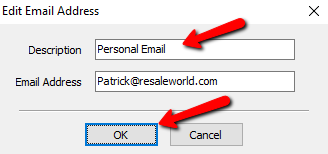
- Select Add from the menu. The Edit Email Address dialog will display.
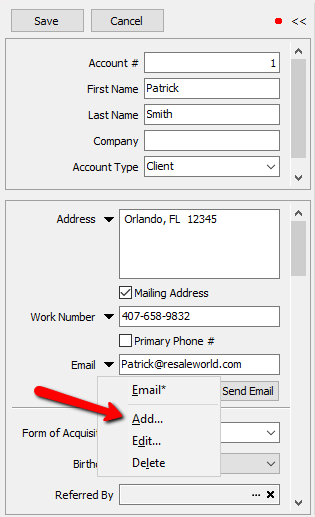
The Edit Email Address dialog will display.
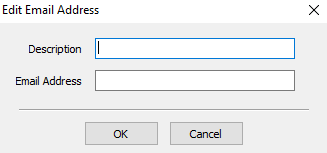
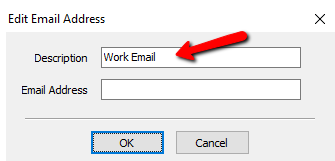
- Provide a Description for the new Email Address.
- Fill in the alternate email address and select the OK button.
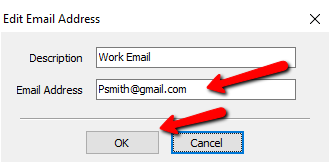
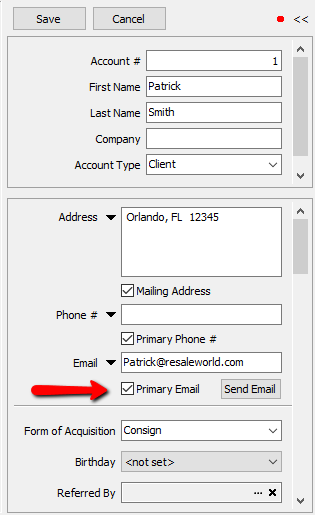
- Check the Primary Email check box if appropriate.
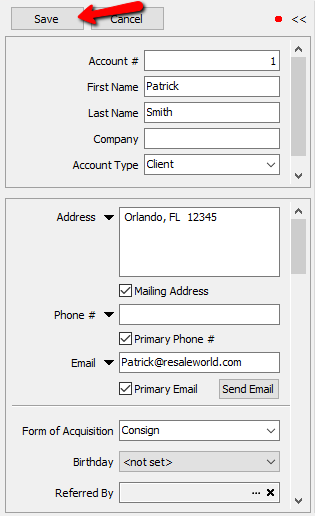
- Click the Save button located above the Account Number.
- To Change an Email Address:
- Select Edit from the menu. The Edit Email Address dialog will display.
- Make the necessary changes and select the OK button.
- Click the Save button located above the Account #.
- To Delete an Email Address:
- First select the Email Address to be deleted once you press the triangle to the left of the Email Address Field.
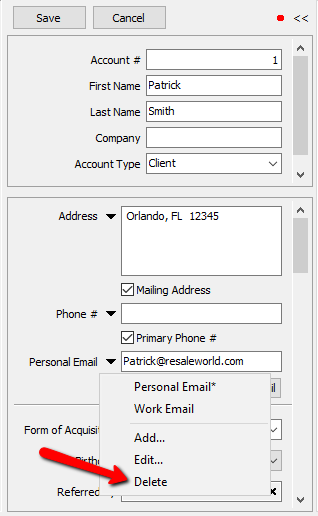
- Select Delete from the Menu so that address selected is deleted.


Next Article In Section
Click the following link to move to the next article in this section:
Tax Exempt Accounts
Related Topics
Add Multiple Addresses and Phone numbers Add an Account Edit Account Information Add Notes to an Account Apply Group Deductions Bulk Change Default Price Code Using the Client Import and Export Utility Creating New and Maintaining Existing Accounts Customize the Account Detail Window Deactivating an Account Delete a Client's Data From Consignor Login