Table of Contents
Setup Item Descriptions
Use this procedure to set up item descriptions that your stores uses often. Setting up descriptions speeds up item entry in two areas of Liberty:
- Entering inventory in the Item Entry windows in Liberty Inventory.
- The Quick Item Entry process when adding items from Liberty Point of Sale.
How Access Item Descriptions from Inventory Module
- From within an account, Start the Add Item Process. For more information see Adding Consigned Items for consignment, or Add Retail Items to Inventory for Retail Items .
- From the Item Entry Screen, place your cursor in the Description Field and press the F2 button.
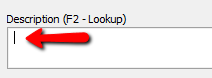

How to Access Item Descriptions From The Point Of Sale
- From the Point Of Sale, Click the Add Item button and then select the Account where the item will be added to.
For more information, See Quick Item Entry in PoS.
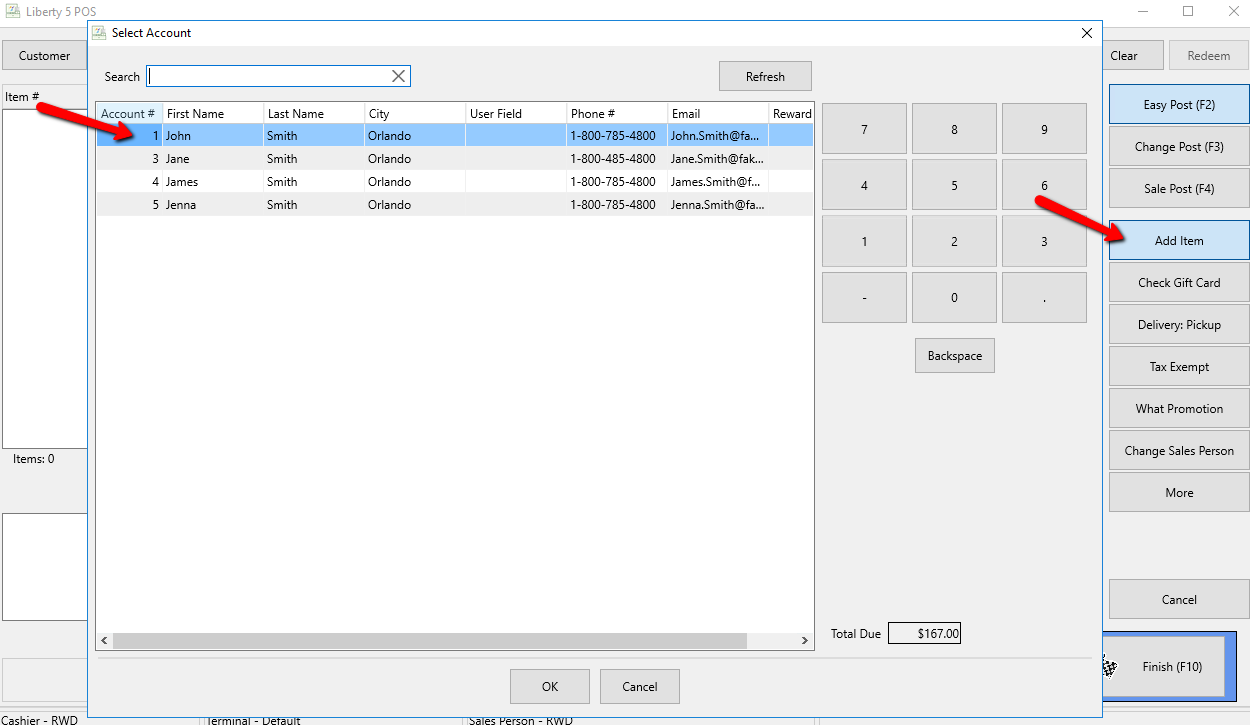
- The Add Item dialog appears.
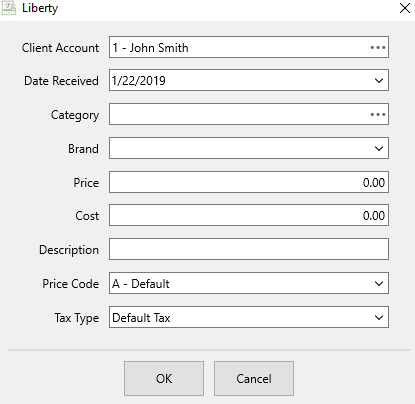
- After entering information to all fields, place the cursor in the Description field.
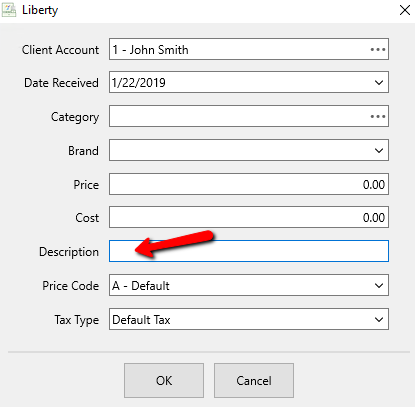
- Press the F2 key.


Setting Up Item Descriptions
- The Description Lookup dialog box will open.
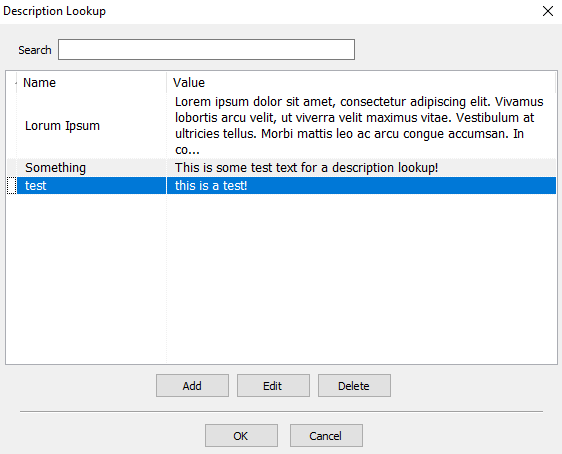
Use the Search Field to find an already created Description to apply it to an item.
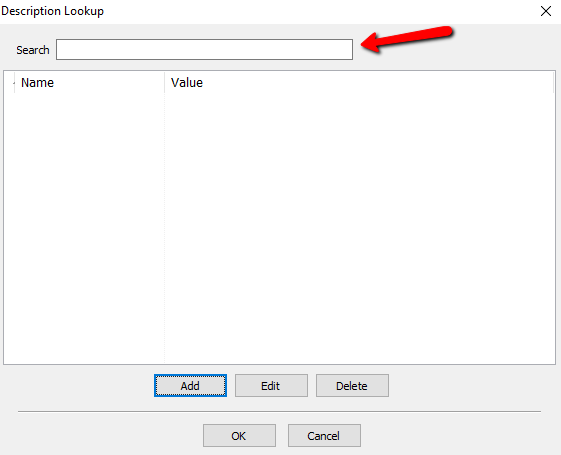
- Select the Add button or Edit button to open the details of a Description. Select the Delete button to delete a Description.
The details of the Description will open up.
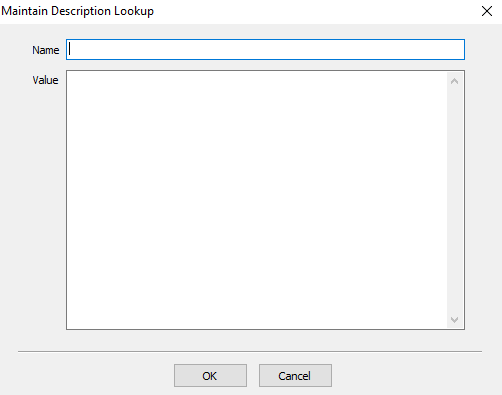
- Name : Enter the name of the Description to make it easy to find.
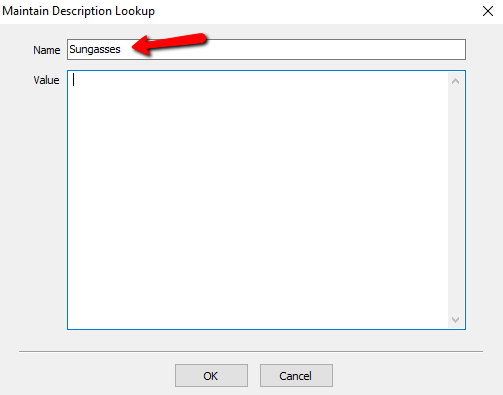
- Value : Enter in the Description in this field.
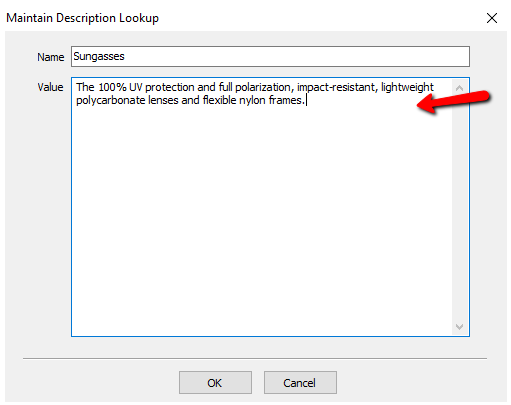
- Select the OK button when done.
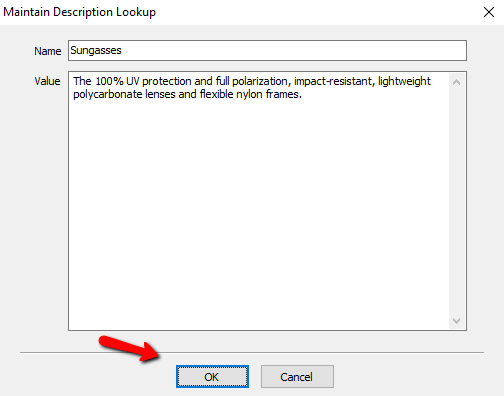


You will see your new Item Description in the List. Press the OK button when done.

Next Article In Section
Click the following link to move to the next article in this section:
Add a Logo to Your Receipt
Related Topics
Setup Item Descriptions Quick Item Entry in POS Add a Logo to Your Receipt Setting up email settings in Liberty Setting Up A Default Weight For New Items Within A Category Define Custom Field Names Define Filter Codes Setup Fee Frequencies Setting Up Account Field Layout Setting Up Expire Groups Setting Up Group Deductions