Table of Contents
Sell An Item With Additional Quantity
Adding Extra Quantity During Sale
If a sale includes multiple copies of the same item, you can use a special function in the POS to add additional quantity rather than rescanning the item multiple times.
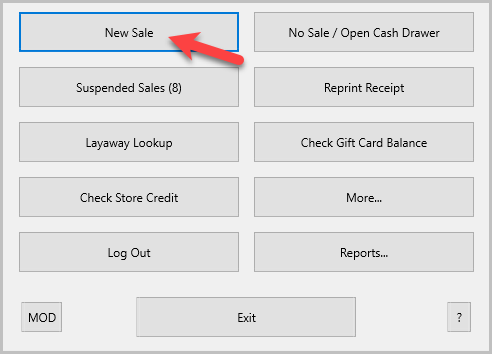
- Click on the New Sale button.
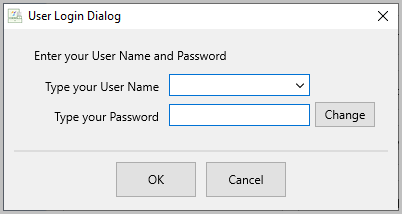
Login if prompted.
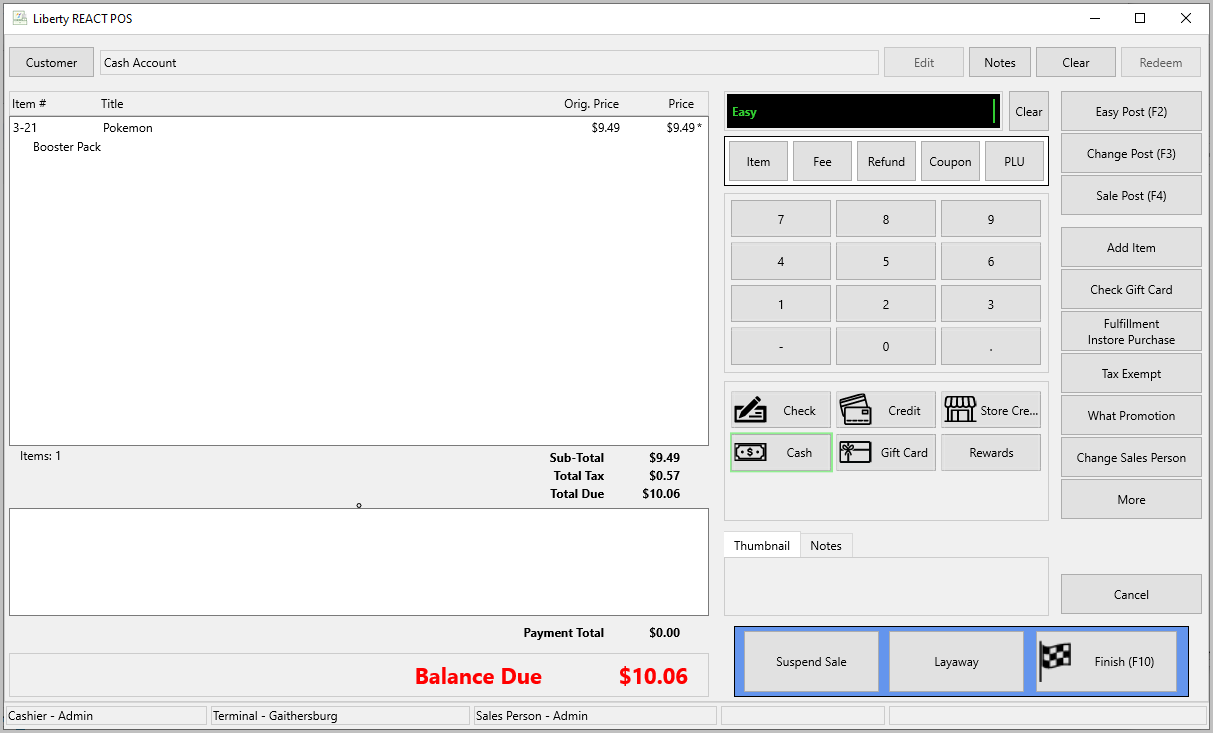
- Ring up the first item in the POS.
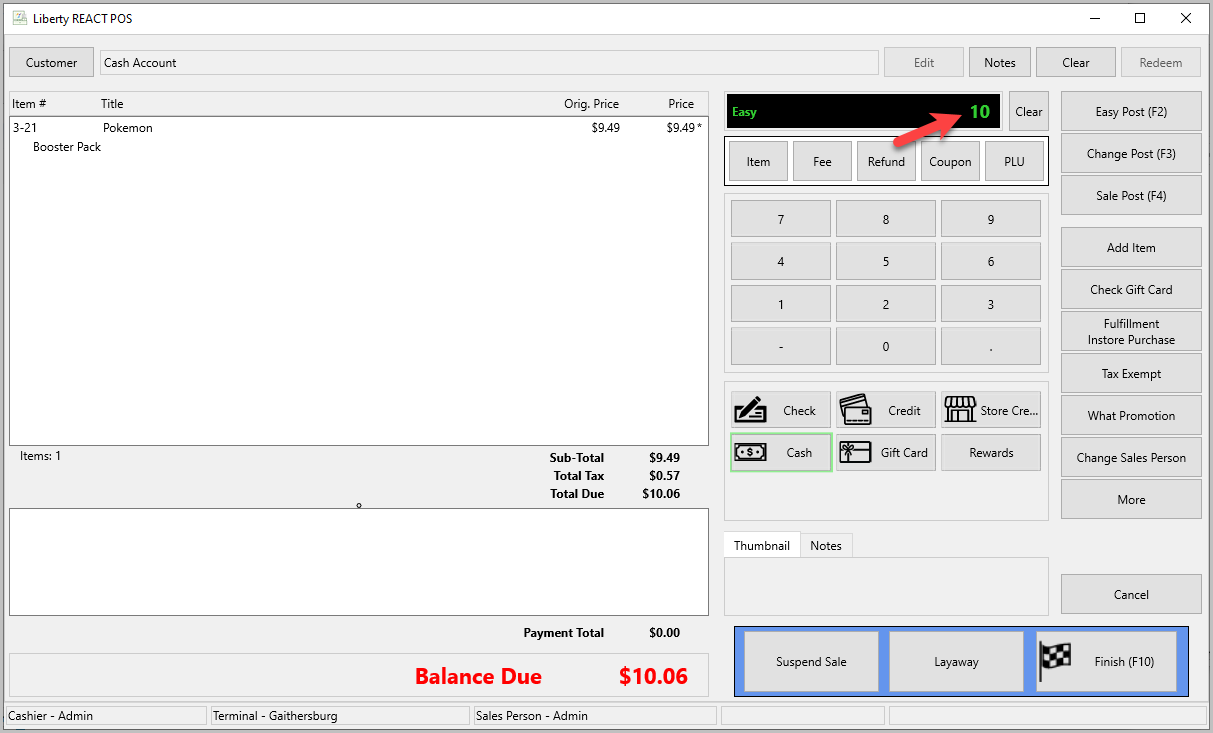
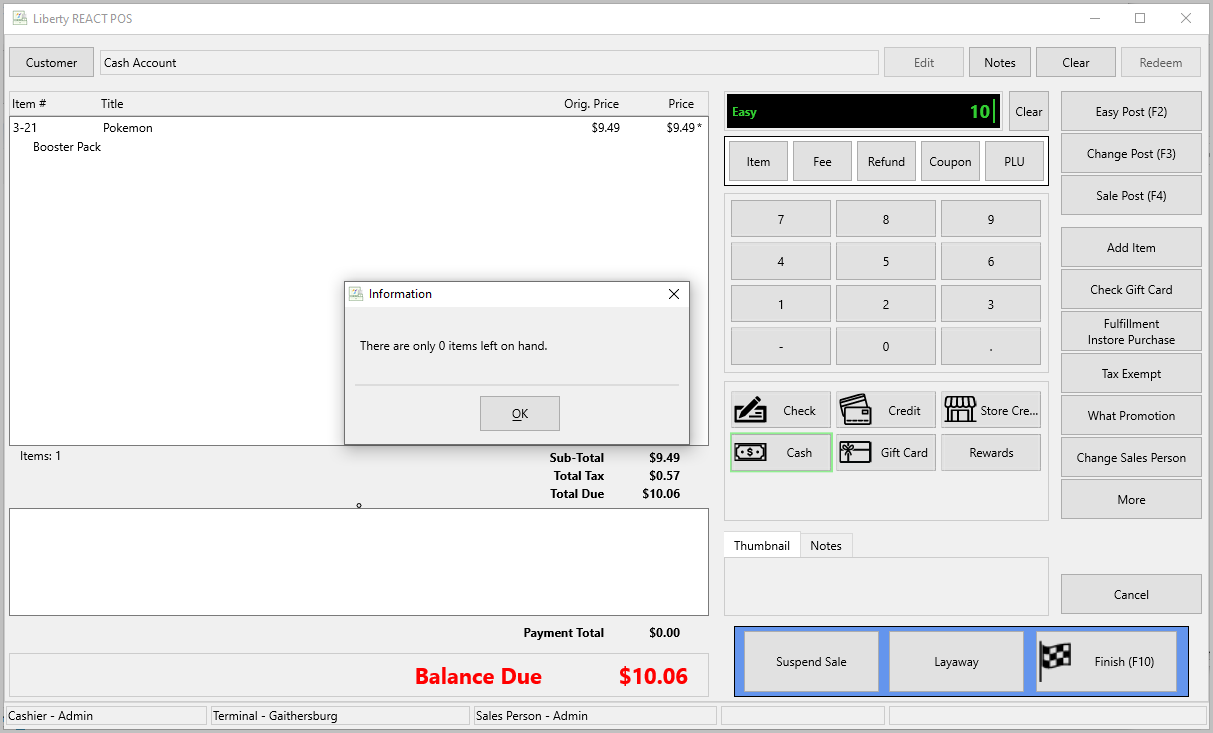
- Type the additional quantity to add in the item field. For example, if they have 11 copies of the item, type in the number 10.
Note: If there is a lower quantity of items in Liberty than you are trying to ring up, a warning will popup.
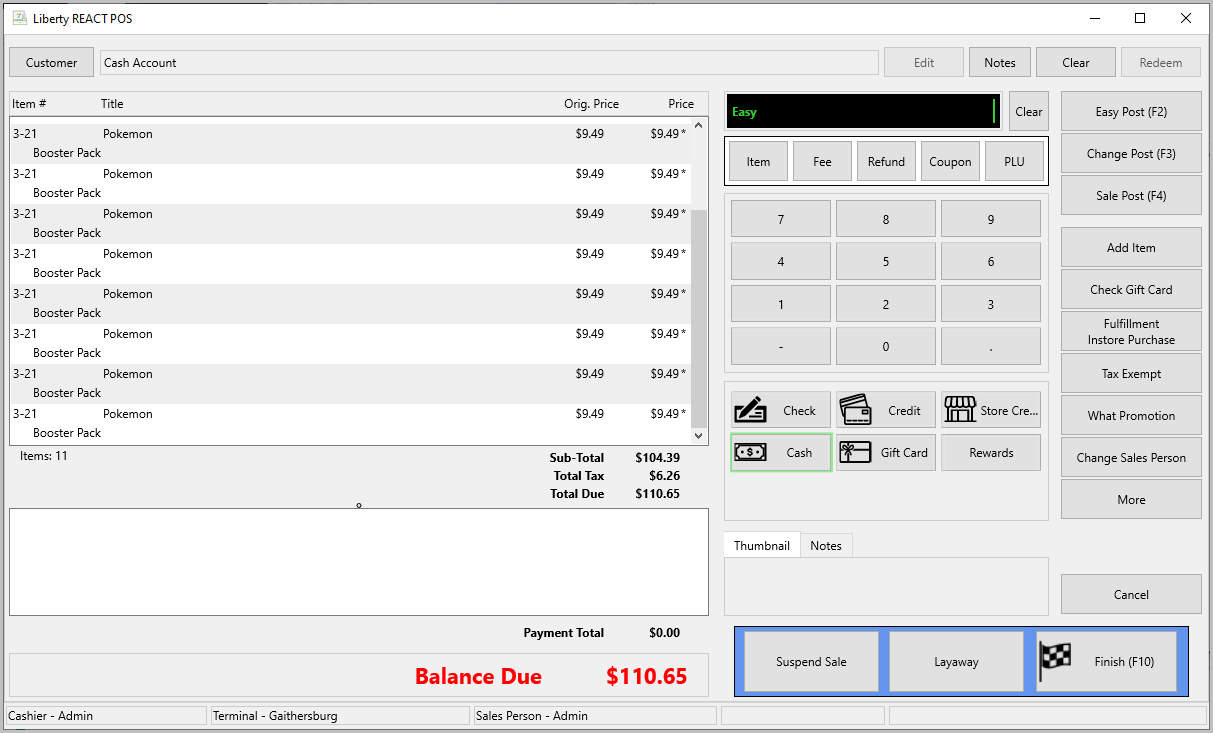
- The extra quantity will automatically fill into the sale screen. Now you can ring in additional items or just complete the sale.


Sell an Item For a Regular Price
Next Section Navigation Link
Click the following link to see a list of articles for the next section:
Accepting Payments
Related Topics
Sell An Item With Additional Quantity Changing the Selling Price of an Item
Changing the Selling Price of an Item Add a Fee to a Sale Post an Entire Sale as Tax Exempt Cash Payment (Penny) Rounding Cash Payment Penny Rounding Payout Refund Sell an Item as Tax Exempt Refunds Remove an Item From a Sale Selecting Promotions