Table of Contents
Creating a Shopify / ShopRW Listing With Two Variant Types
Retail items with variants pushed up to Shopify or ShopRW allow your customers to choose an item with different attributes.
This help article will show you how to setup a retail item with 2 variant types so a customer could go to either Shopify or ShopRW and view a retail listing with a dropdown for Color and Size.
- This will require you to have already created a Retail item with variants.
Please view the following articles in another tab if you have not done so already:
Adding Retail Vendor Inventory
Receiving Retail Vendor Inventory
How to Add Retail Variants
Note: Make sure that the Retail Item being added is one that does not have the web item box checked.
Note: It is recommended that you add all variant images to the parent item when you are using two variant types (Color, Size) - Open the Liberty Listing Manager and click the Add Retail Listing button.
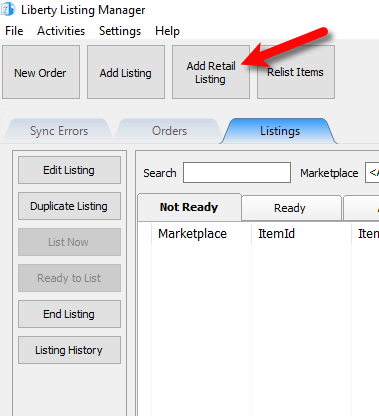
- Retail Items that are to be pushed up to a web platform must Not have the web item checkmark box checked.
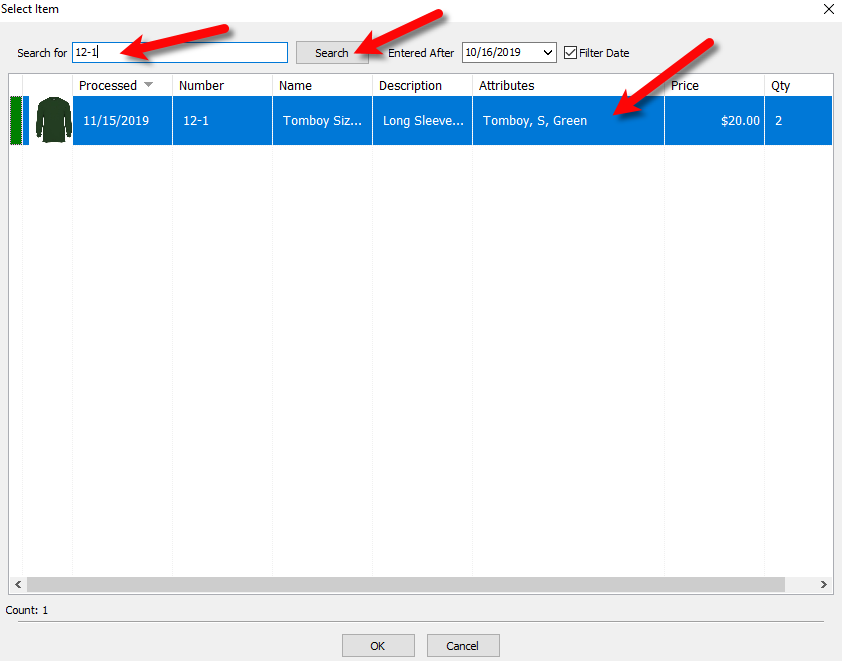
This means you have to search for the parent item that contains all the images for all of the variants. You can do this by typing the account-item number, scanning the barcode for the item or searching for an attribute or part of the description of the item.
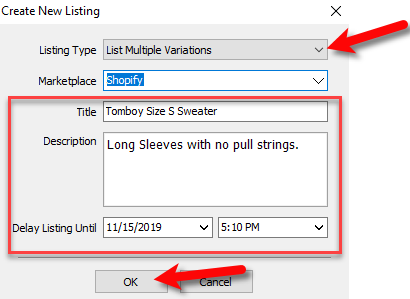
- For Listing Type you want to select List Multiple Variations.
Select your Marketplace and then you can leave the rest of the fields as they are or edit them.
When you are finished, click the OK button.
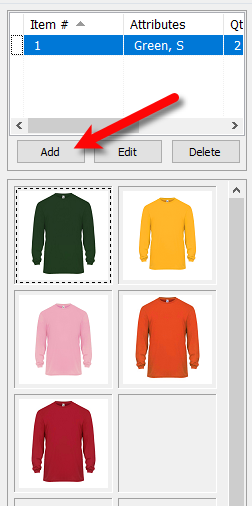
- Now we must add the variations you wish to make a part of the Retail Listing.
Click the Add button at the top right corner.
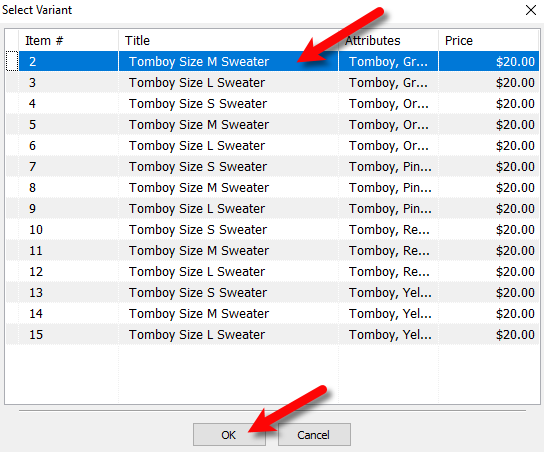
- Click on the variant item you wish to add and then click the OK button.
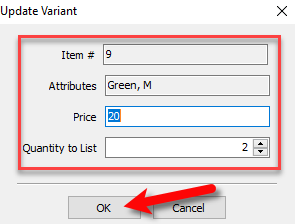
- Fill out what you would like the variant to be priced at. By default, the original price on the variant is used.
You can also enter the quantity of the variant that is to be listed.
When finished, click the OK button.
- Repeat steps Five through Seven until you have added all the variants you would like to use to the retail listing.
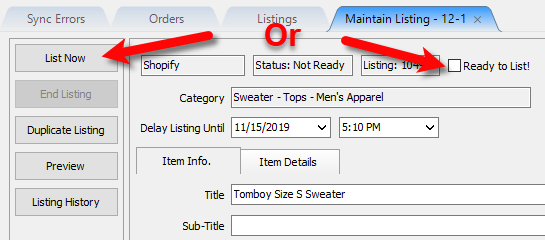
- You may either click List Now, to list the item immediately or you can check the box next to Ready to List!, to have the item list to your selected marketplace automatically within 5 minutes.
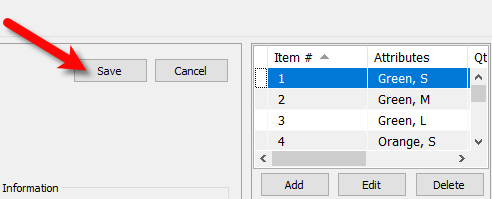
- Click the Save button.
- Once the item is listed online, you will see a dropdown for Color and Size from which the customer can select what variation of the item they would like to purchase. They can then click the Add To Cart button.


Note:All images are available for the customer to click on and look at.

Next Section Navigation Link
Click the following link to see a list of articles for the next section:
Shopify Collections
Related Topics
Creating a Shopify / ShopRW Listing With Two Variant Types Item Entry Windows - Overview Add Retail Items to Inventory Edit Retail Items Receive Retail Inventory How To Add Retail Variants How To Use Find Variant To Add Retail Variant Items Creating a Shopify / ShopRW Listing With One Variant Type Adding An eBay Description